
Note: This guide assumes you're familiar with data tags and have already reviewed the tags on your source files and instruction blocks. If you haven't done that yet, start with How to Update Data Tags.
Select source files directly on an instruction block
By default, Weave pulls in source files based on the data tags on your instruction blocks. If you want to specify exactly which files a section uses, regardless of tags, you can select them directly on the block.
1. Open the template and click into an instruction block
From your dossier, open the section's template via the three-dot menu. In the template editor, click into the blue AI instruction block for the section you want to update.
2. Switch to direct source file selection
Inside the instruction block, click Source files. A file picker will open showing your available source files. Select the specific files you want this section to use, then click Save.
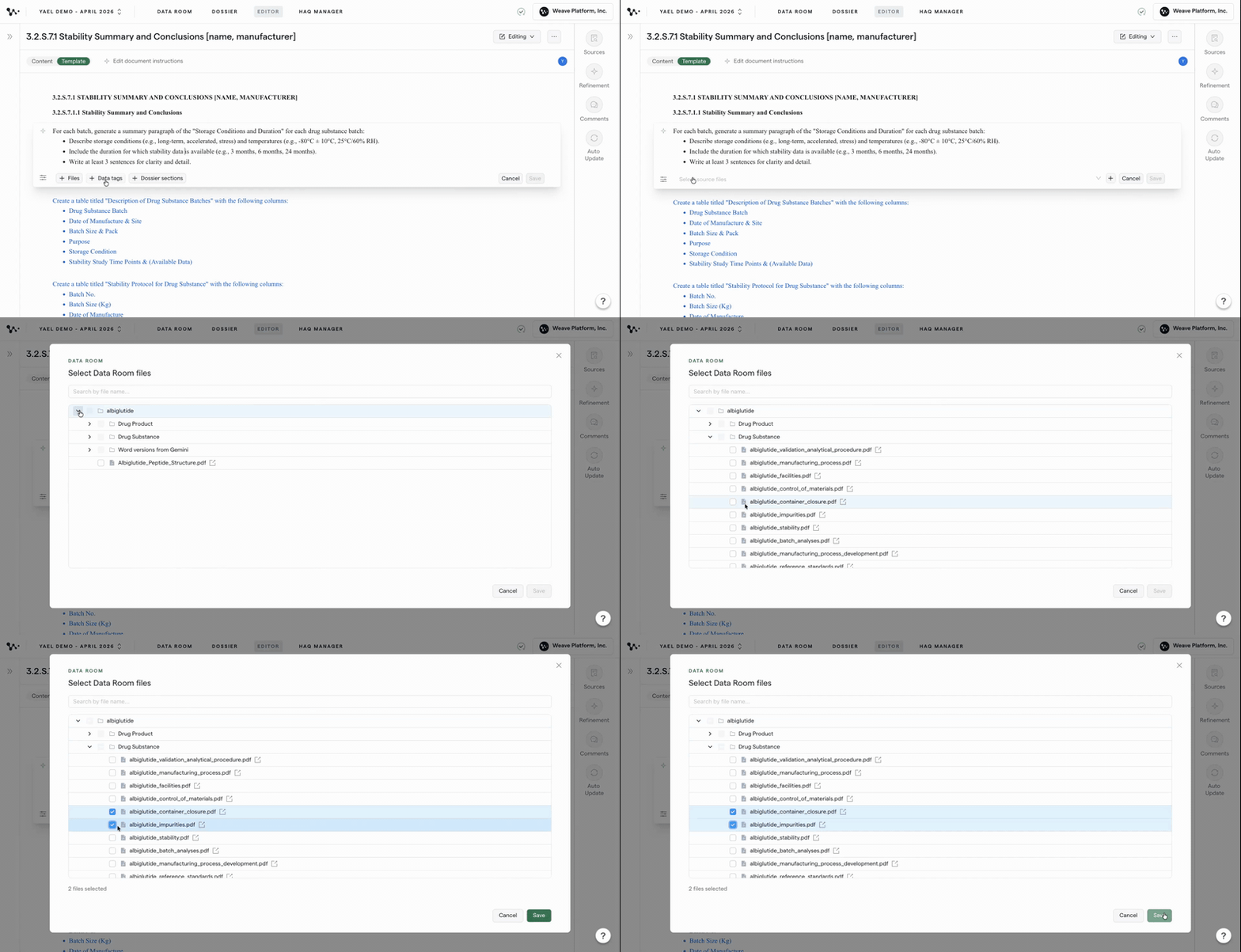
Tip: Use direct file selection when you want to lock a specific file to a section, for example, when a file's tags are too broad and you don't want it pulled into other sections automatically.
Once your files are set, you're ready to generate. The next section covers how to adjust source files after you've already generated content.
Adjust source files during Refinement
After generating a section, you can use the Refinement panel to add or remove source files for a targeted regeneration, without touching the template.
3. Generate content and open the Refinement panel
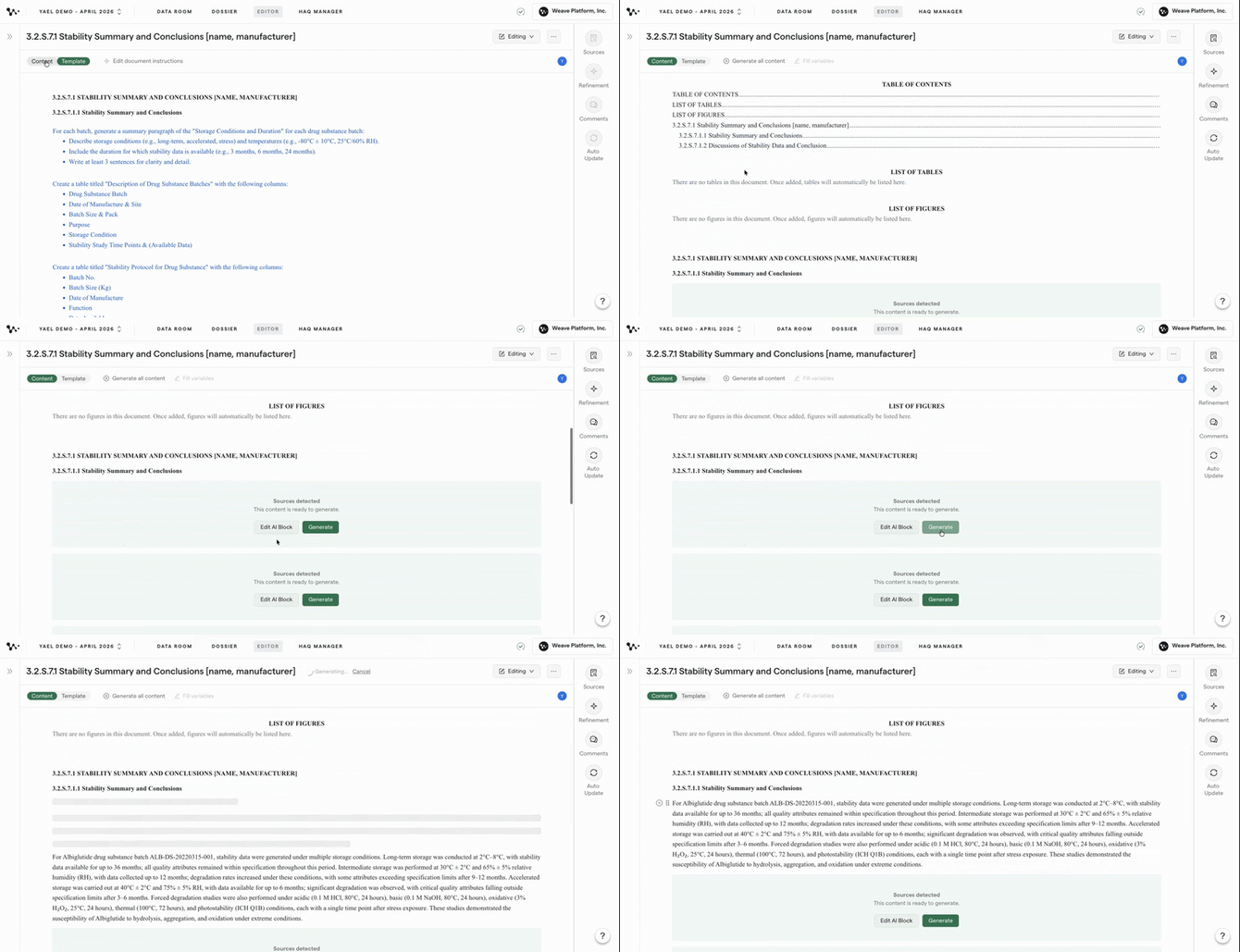
Click Generate on the instruction block to produce a first draft. Once the content appears, click Refinement to open the refinement panel, then select the block you want to modify.
4. Click Inputs to view and adjust source files
At the top of the refinement panel, click Inputs. You'll see the source files that were used to generate this block. From here you can add additional files or remove ones you don't want included, then click Refine to regenerate using the updated file set.
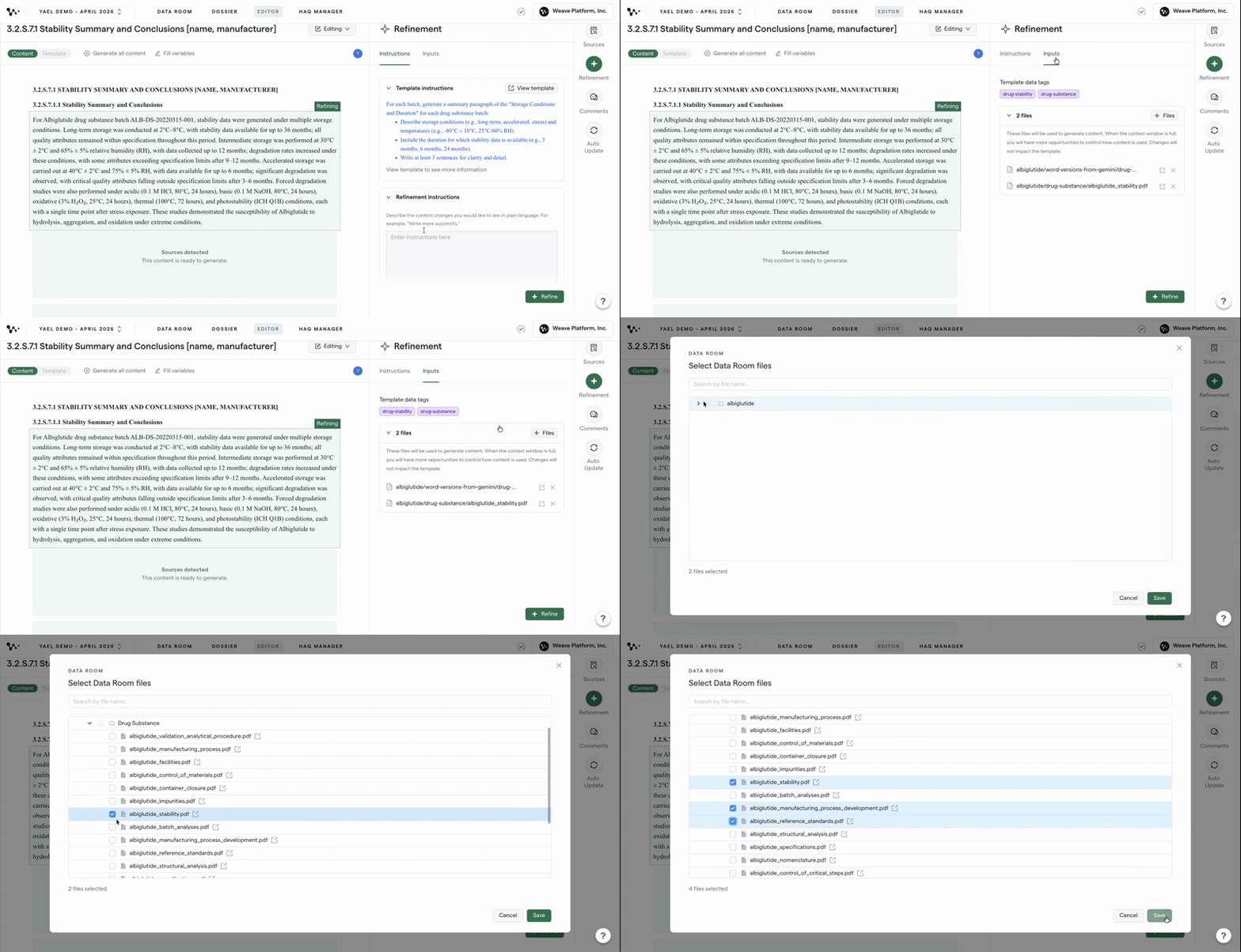
Note: Changes made in Refinement Inputs apply to that regeneration only. They don't update the data tags or saved source files on the instruction block itself.
FAQ
Q: What's the difference between selecting source files directly and using data tags?
A: Data tags work automatically — Weave pulls in any file that matches the tags on your instruction block. Direct file selection lets you choose exactly which files are used for a specific section, regardless of their tags.
Q: If I select source files directly, do the data tags still apply?
A: When you select source files directly on an instruction block, Weave uses those files for that block. Data tags on the block can still be present but the direct selection takes precedence for that section.
Q: Can I add a source file in Refinement that isn't tagged for this section?
A: Yes. The Inputs tab in Refinement lets you add any file from your Data Room — even if it doesn't carry the tags associated with that instruction block. This is useful when you want to pull in a file for a one-off regeneration without permanently changing the template.
Q: Will source files I add in Refinement be saved for future generations?
A: No. Refinement Inputs affect only that regeneration. To make a change permanent, update the source files or data tags directly on the instruction block in the template.
Quick Reference: Controlling Source Files
In the template:
- Open the section's template via the three-dot menu
- Click into the blue AI instruction block
- Click Source files, select the files you want, and click Save
During Refinement:
4. Click Generate to produce a first draft
5. Open the Refinement panel and select the block
6. Click Inputs to view source files in use
7. Add or remove files, then click Refine to regenerate