
Note: This guide assumes you have already uploaded source files to the Data Room and have an existing dossier with a template. If you haven't set those up yet, start there first.
Update data tags in the Data Room
When you upload a source file, Weave automatically assigns data tags to it based on the content of the files. As the subject matter expert, you should review those tags and add any your team needs — this is what controls which files flow into which sections during content generation.
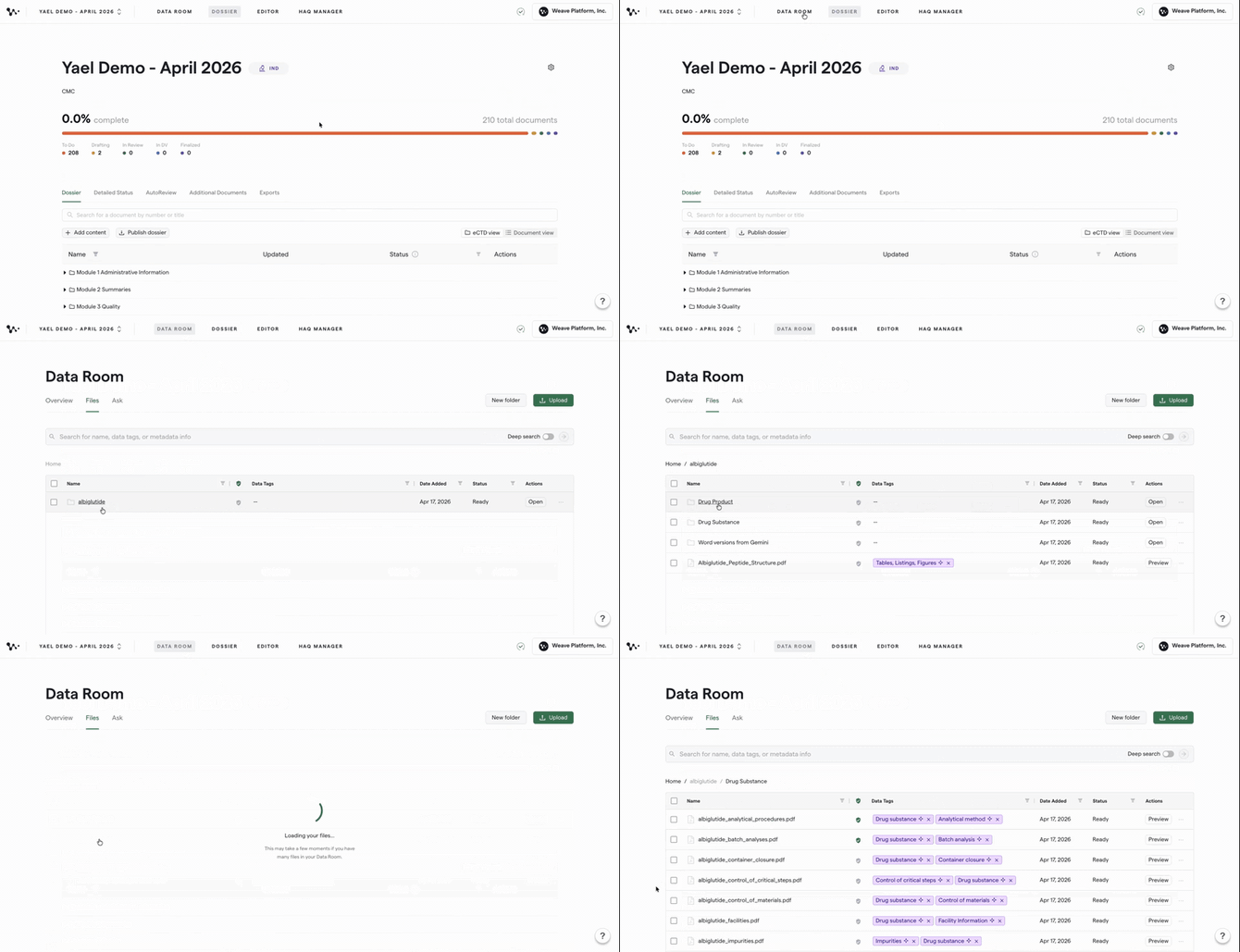
1. Navigate to your source files in the Data Room
From your dossier home page, go to the Data Room and click into the relevant folder to find your source files.
2. Review the AI-assigned data tags
Each source file shows its current data tags. Purple tags were assigned by Weave's AI. White tags were added manually by a person. Review the tags and confirm they accurately reflect what the file covers.
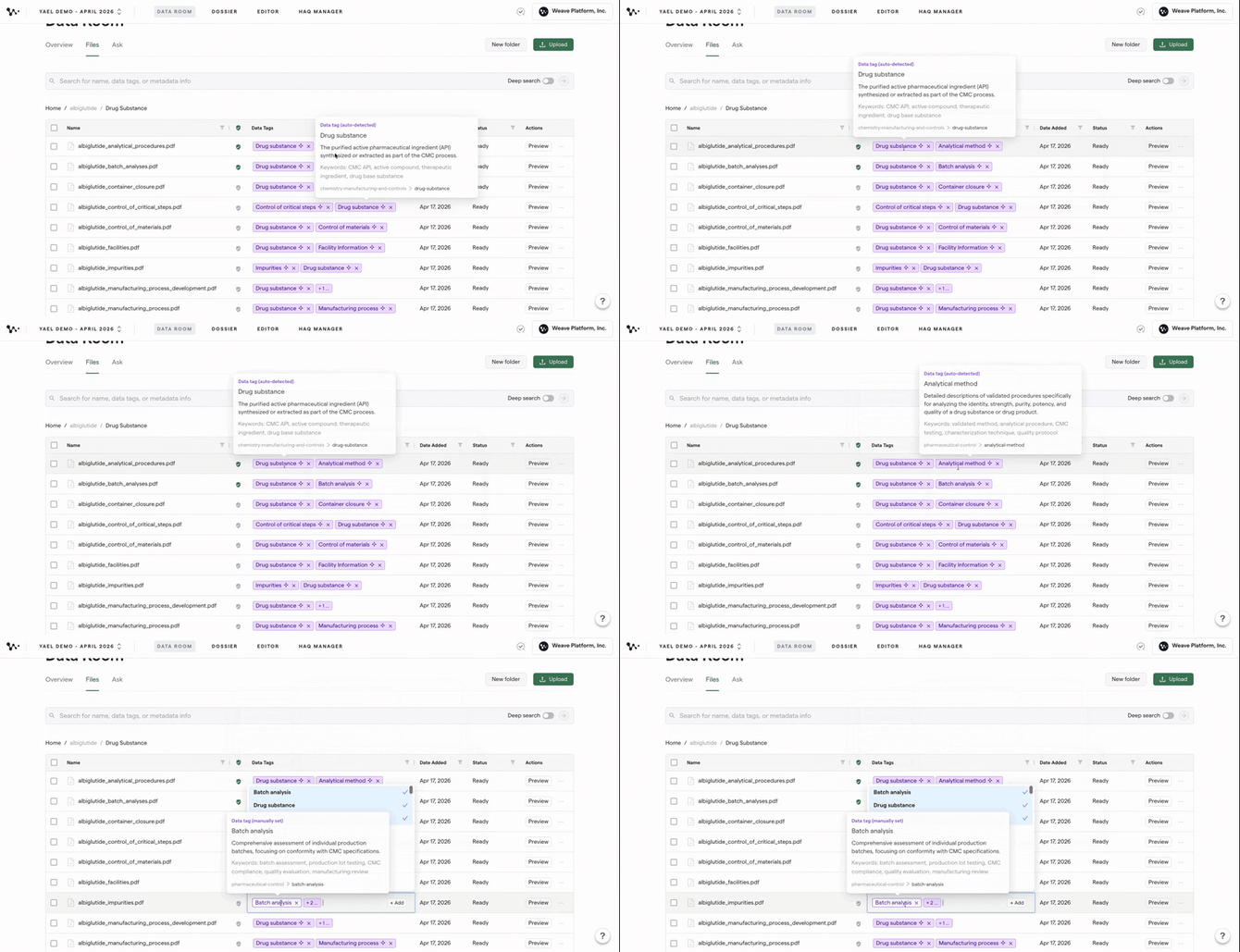
Tip: If a source file is missing a tag, Weave won't pull it into sections that need it. Review every file carefully before generating content.
3. Add a data tag to a source file
Click directly into the data tag field on the source file and type the tag you want to add. Once added, the new tag will appear in white.
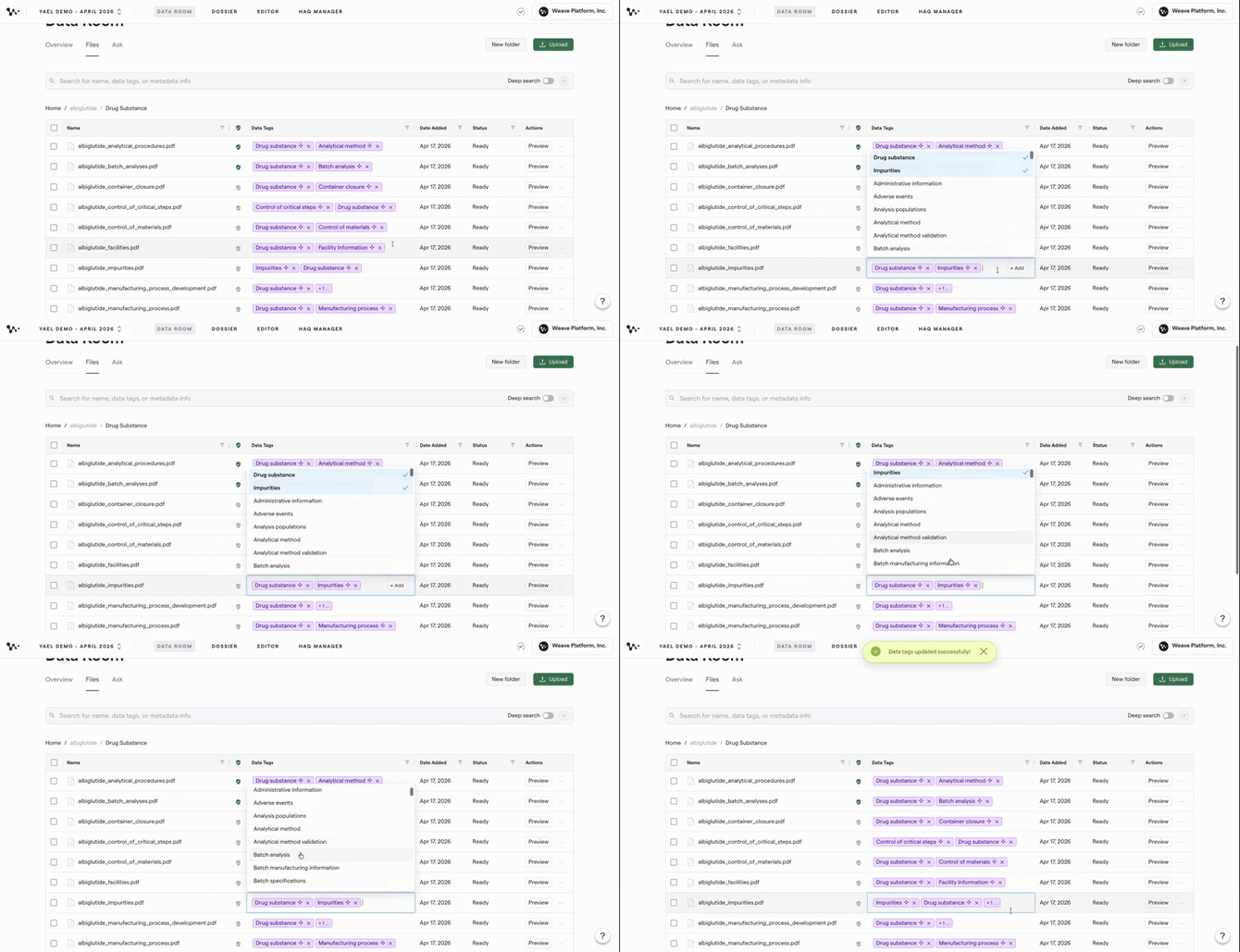
Note: You can add as many tags as a file needs. Each tag makes that file eligible to appear in additional sections that carry the matching tag.
Once your source file tags are up to date, you're ready to review the data tags inside your template.
Update data tags in the template editor
The blue AI instruction blocks inside your template also carry data tags. These tell Weave which source files to draw from when generating content for each section. You can review and adjust them at any time.
4. Open the template for a section
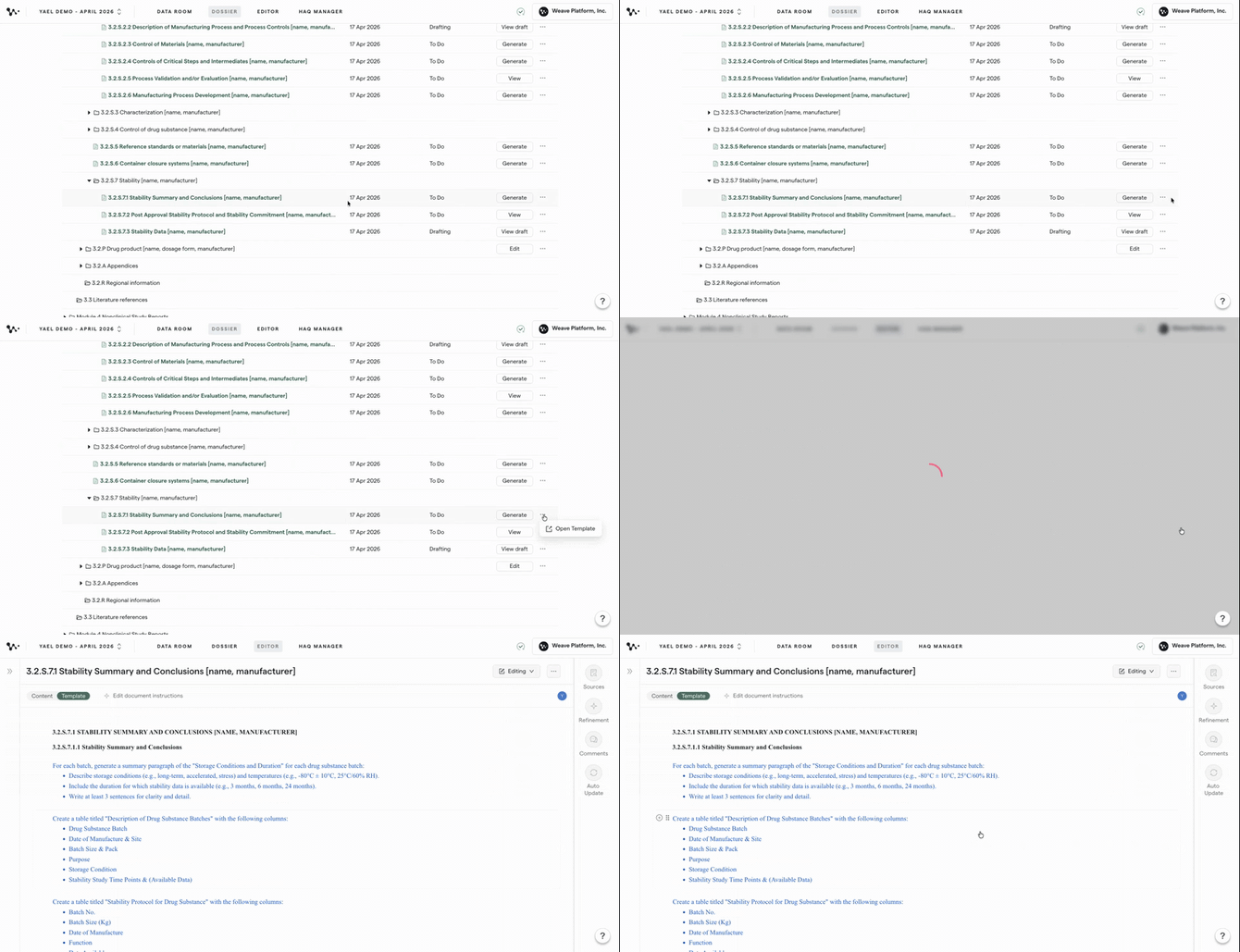
From your dossier, click the three-dot menu on the section you want to edit and open the template. You'll be taken into the template editor.
5. View the data tags on an AI instruction block
In the template editor, click into one of the blue AI instruction blocks. The data tags associated with that block will appear.
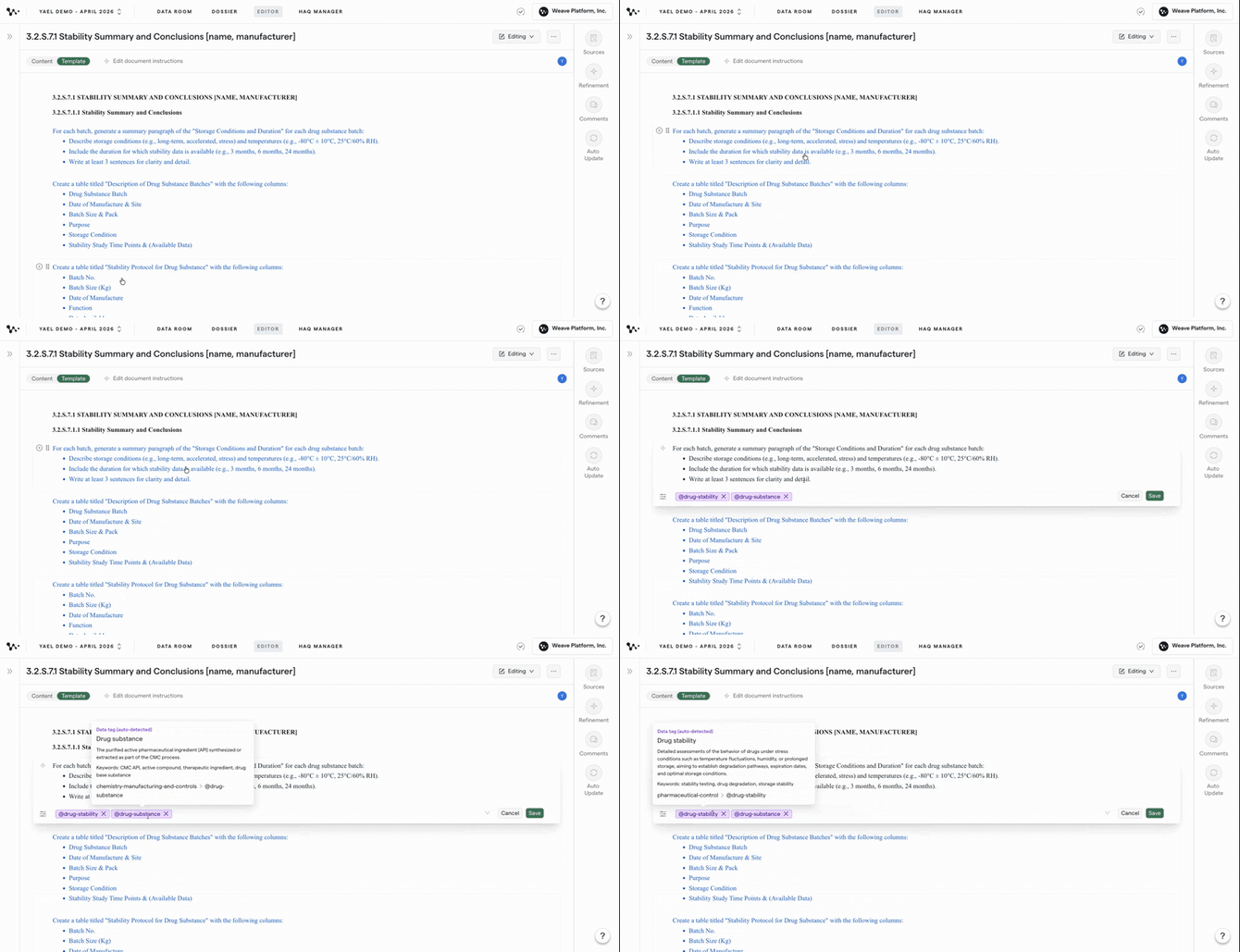
Note: If an instruction block has multiple data tags, they work as an AND condition — a source file must have all of the listed tags to be pulled into that section. Keep this in mind when adding or removing tags. A source file can also have more than the required data tags, but must at least have the data tags for a given prompt block in order to be pulled in as a source for generation.
6. Remove or add data tags on an instruction block
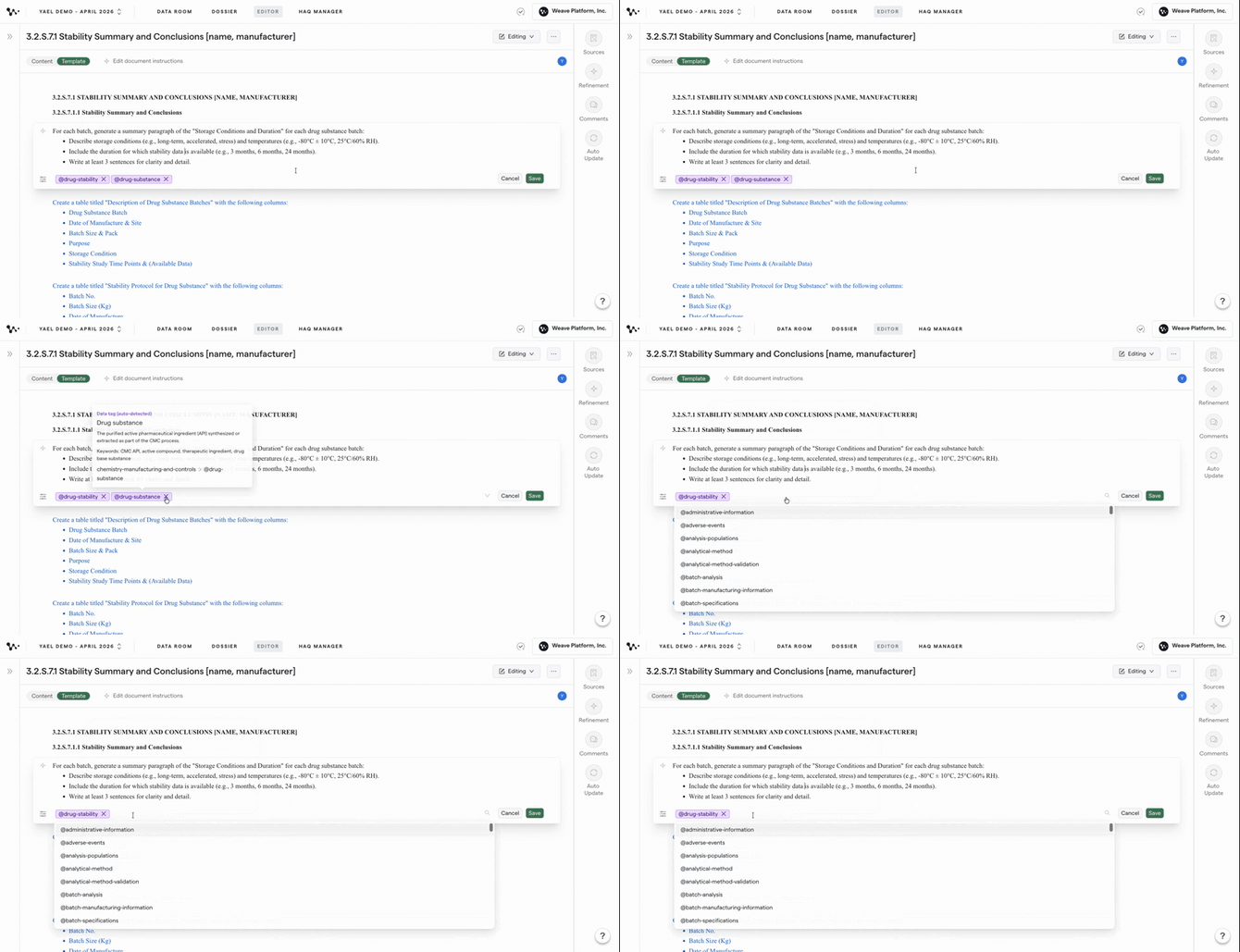
Click the X next to a tag to remove it. To add a tag, click into the tag field and type the tag name.
FAQ
Q: What's the difference between a purple tag and a white tag?
A: Purple tags were assigned by Weave's AI when the file was uploaded. White tags were added manually. Both work the same way — the color just tells you where the tag came from.
Q: Do I need to update data tags every time I upload a new file?
A: Not necessarily, but it's good practice to review the AI-assigned tags on every upload. If a relevant tag is missing, Weave won't include that file in sections that need it.
Q: What happens if an instruction block has two data tags?
A: A source file must have both tags to be pulled into that section. It's an AND filter, not an OR — the file has to match every tag on the block.
Q: Can I remove a data tag from a source file after it's been added?
A: Yes. Click into the data tag field on the source file and remove the tag the same way you would in the template editor.
Quick Reference: Updating Data Tags
In the Data Room:
- Go to the Data Room and open the relevant folder
- Review data tags on each source file — purple = AI, white = human
- Click into the data tag field and type to add a missing tag
In the template editor:
4. Click the three-dot menu on a dossier section and open the template
5. Click into a blue AI instruction block to view its data tags
6. Click X to remove a tag, or click into the field and type to add one