
Note: The template center is permission-controlled. If you don't see a Templates section on your Weave homepage, your account may not have access during the current phase. Check with your Weave team to confirm your permissions.
Finding the template center
The template center lives on the Weave homepage, separate from your programs. This is where all master templates for your organization are stored and managed.
1. Go to your Weave homepage. You'll see two main sections: Programs (your active documents) and Templates (your master template library).
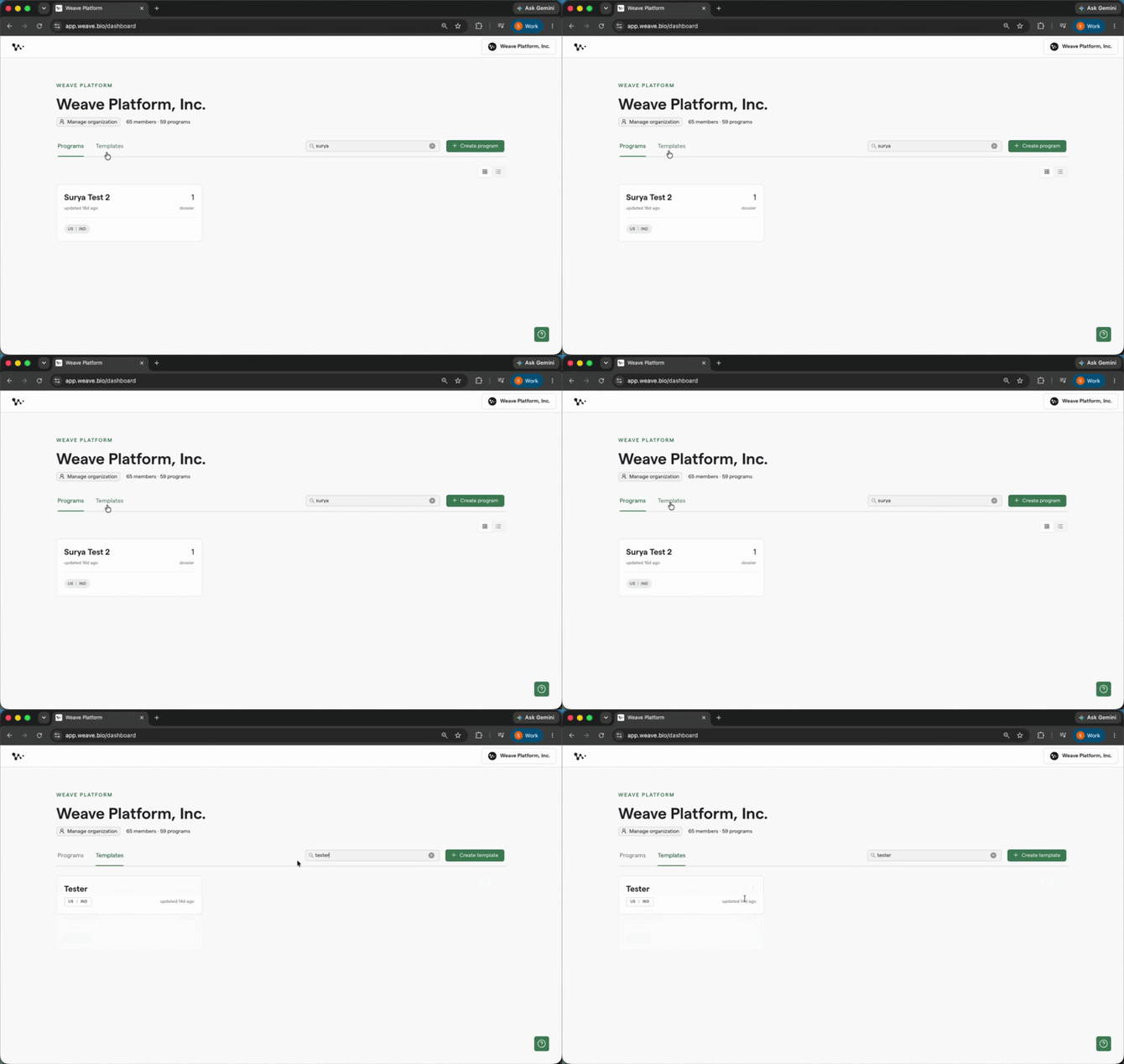
The Templates section on the homepage
2. Click into the Templates section to see all master templates your organization has created.
Templates are listed with their names and any labels you've applied. You can use naming conventions here to communicate lifecycle status at a glance. For example: Protocol v2 In Progress, Protocol v2 Final, Protocol v2 Approved.
Tip: Naming conventions in the template center are your version control. A clear naming system prevents teams from pulling outdated templates into new programs.
(Coming soon) Formal version control and granular access permissions for the template center are on the roadmap. Today, naming conventions and super user governance are the primary tools for managing template lifecycle and access.
Once you're in the template center, you're ready to create or manage templates. The next section walks through creating one from scratch.
Creating a new template
3. Click Create Template in the template center.
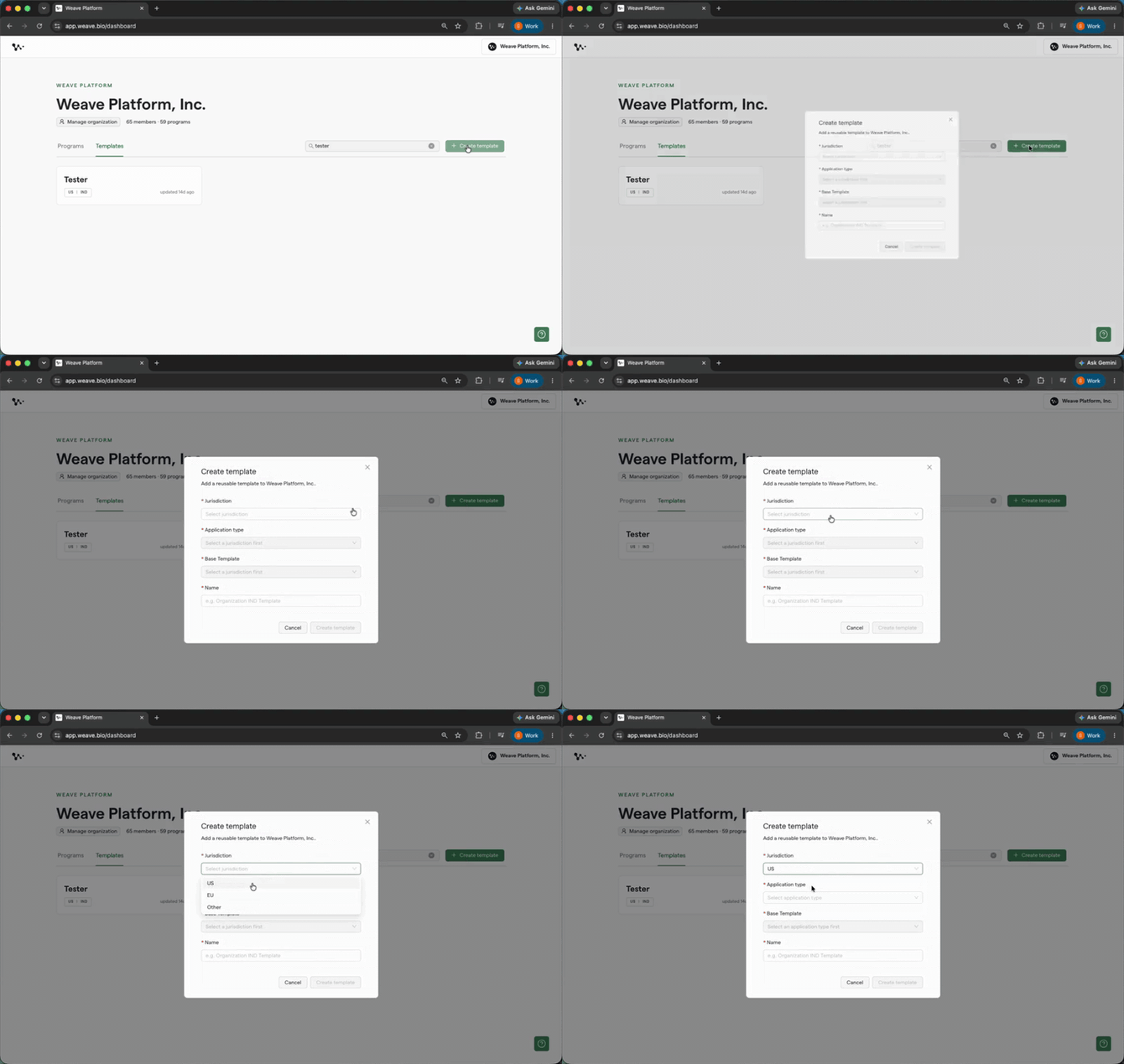
Creating a new template from the template center
Give the template a clear name that reflects its document type and modality. For example: CMC Module 3: Biologic or Clinical Protocol: Phase 1 Interventional. Click Create to open the template editor.
4. Review the template structure in the editor. The editor shows the building blocks that make up every Weave template:
- Headers: document sections, formatted using heading levels
- Blue AI instruction blocks: the prompts that tell the AI what to generate for each section
- Data tags: the labels that connect each AI block to the right source files in your data room
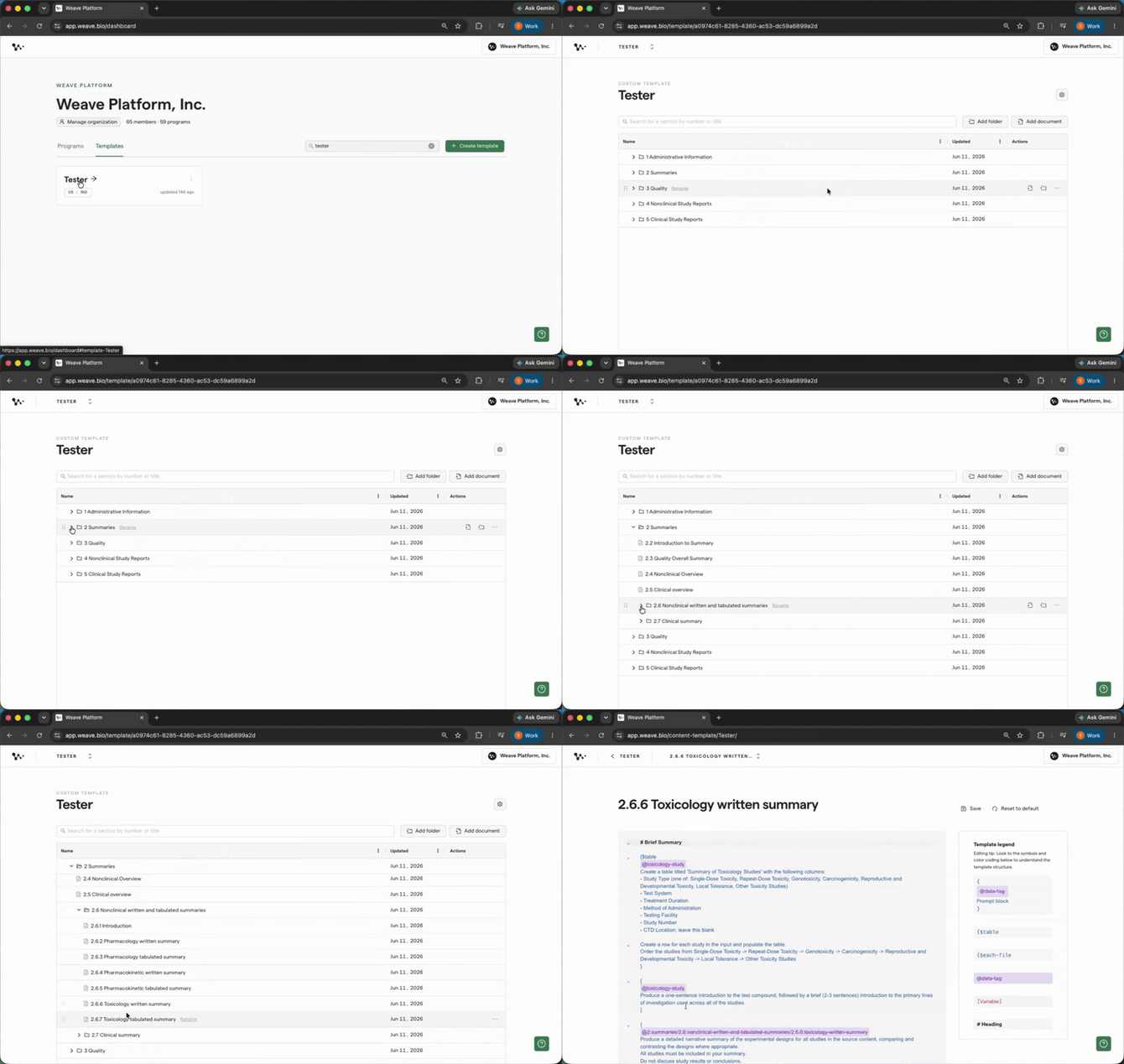
The template editor, where headers, AI blocks, and data tags work together
Tip: You don't need to learn any syntax. The platform handles the formatting automatically. Your job is to write clear, specific instructions inside the blue AI blocks. The template legend (available inside the template center) explains what each structural element means if you need a reference.
5. Edit the AI instruction blocks. Click into any blue block to write or update the plain-language prompt for that section. This is where you tell the AI what to generate, what to include, and how to write it.
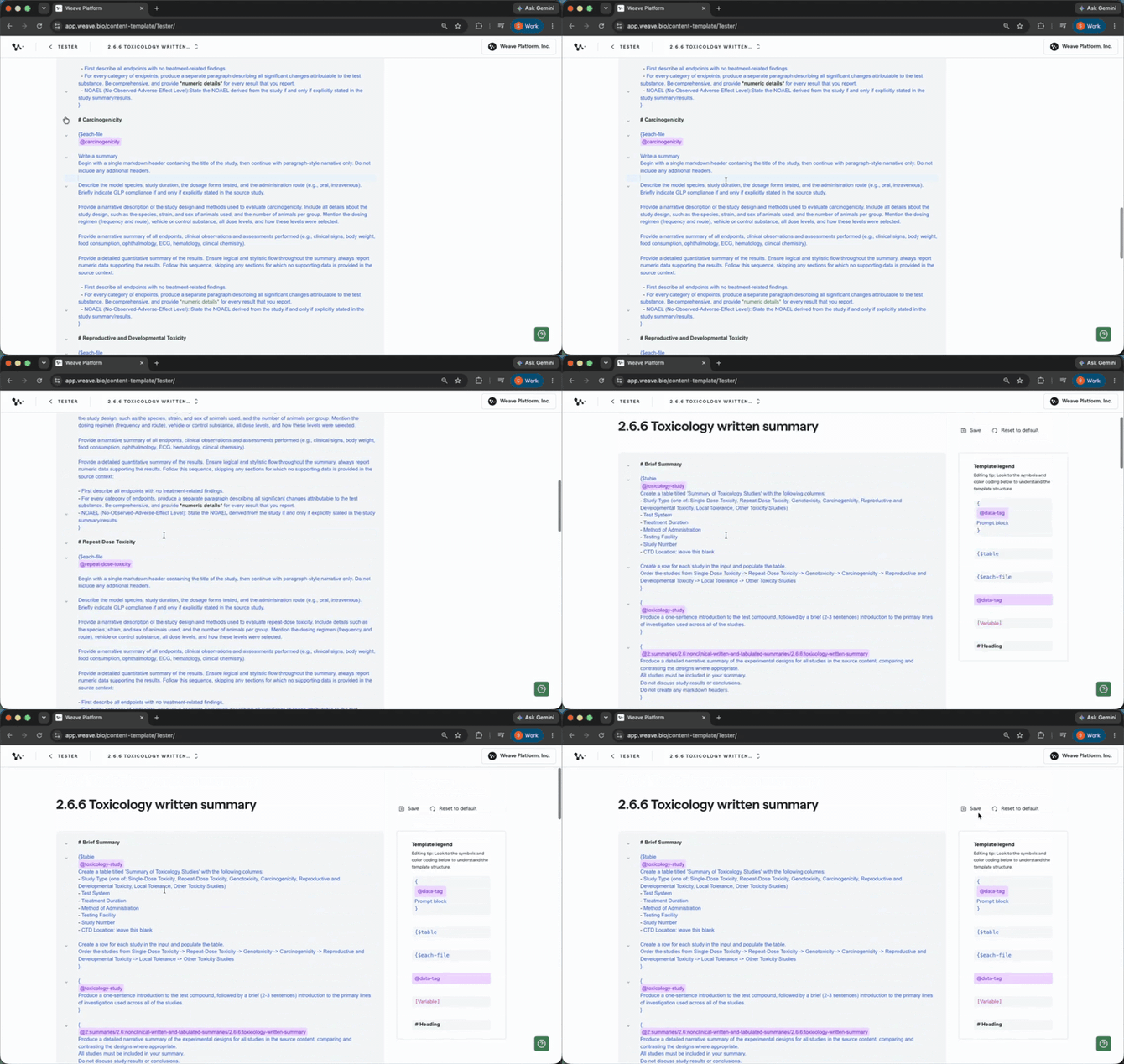
Writing a prompt instruction inside an AI block
To add new sections or blocks, use the plus sign in the editor to insert additional headers or AI text blocks.
Organizing templates by modality
A single document type often needs more than one template. For example, a protocol team might need separate templates for interventional studies, observational studies, and early-phase variants, because the structure and language differ enough that merging them into one template would create confusion for authors.
6. Create one template per variant, using clear names that make it easy to select the right one at program creation.
When you're building programs, you'll choose from a dropdown of all available master templates. The cleaner your naming, the faster authors can find and select the right starting point.
Tip: For document types with minor variations, like a decision tree for two different indications in a protocol, you have two options: (1) build all options into one template with note-to-writer instructions so authors delete what doesn't apply, or (2) create separate modality templates so authors select the right one upfront. Your Weave team can help you decide which approach fits each document type during implementation.
Once your master templates are organized and approved, you're ready to use them in programs. The next section walks through pulling a template into a new program.
Pulling a master template into a program
When you create a new program, you select which master template to pull in. This creates a program-level copy of that template. From this point forward, the master and the program copy are completely separate. Any edits you make inside the program do not affect the master template.
8. Create a new program. On your homepage, click to create a program. Give it a name.
9. Select the master template from the dropdown. You'll see all available master templates listed. Choose the one that matches your document type and study phase.
10. Open the template inside your program document. Once your program is created, navigate to a document and click the Template tab in the editor toolbar. This shows you the program-level copy of the template.
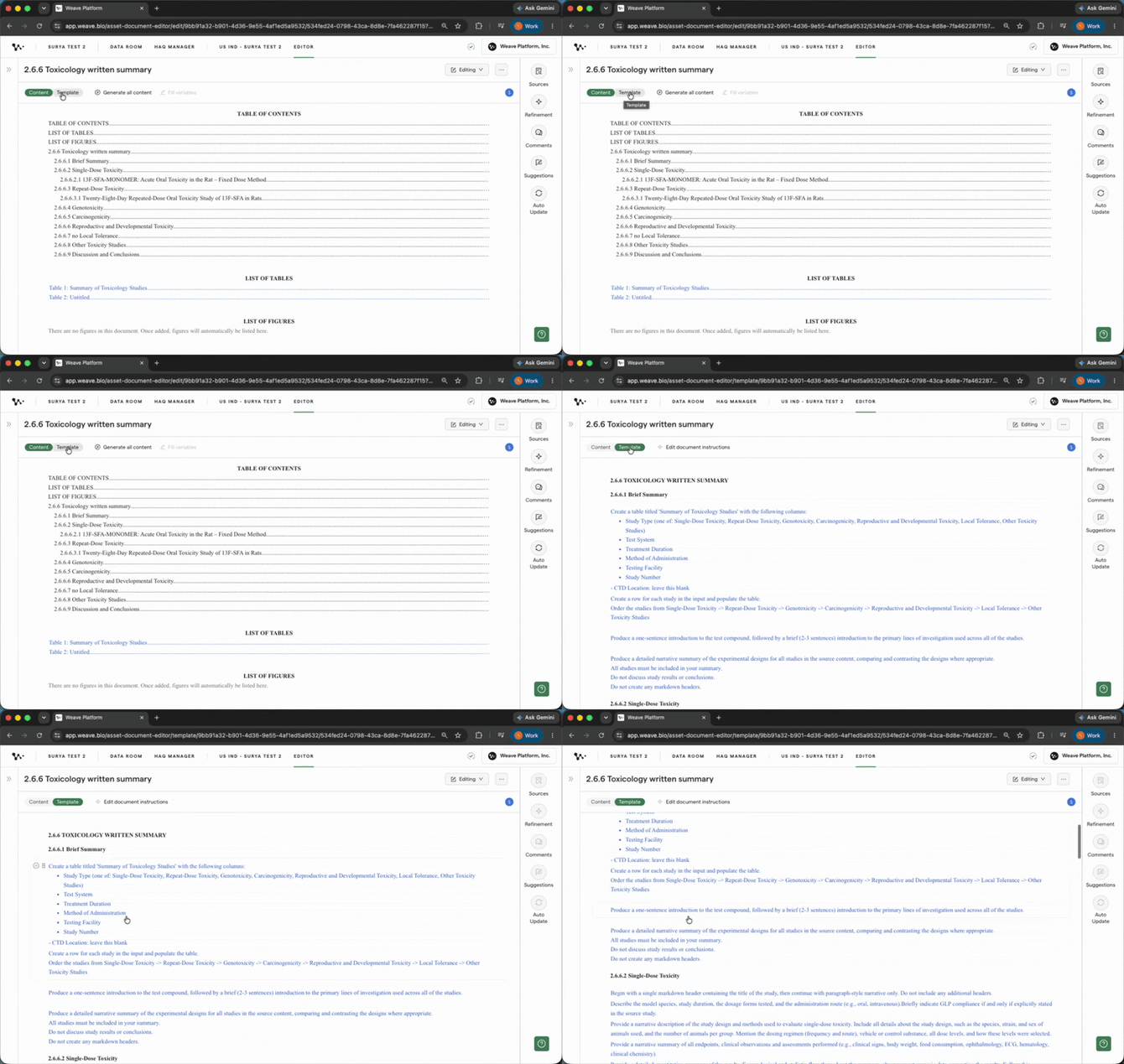
Opening the template view inside a program document
From here you can review the full structure (headers, AI blocks, and data tags) for this specific program. Any changes you make here apply only to this program.
Making program-level changes
Program-level edits are useful when one program's documents need a configuration that differs from the master template. For example, removing sections that aren't relevant to a particular study, or adjusting an AI prompt to reflect program-specific context.
11. Edit the template inside the program. With the template open, click into any AI block to update the prompt, or delete sections that don't apply to this program.
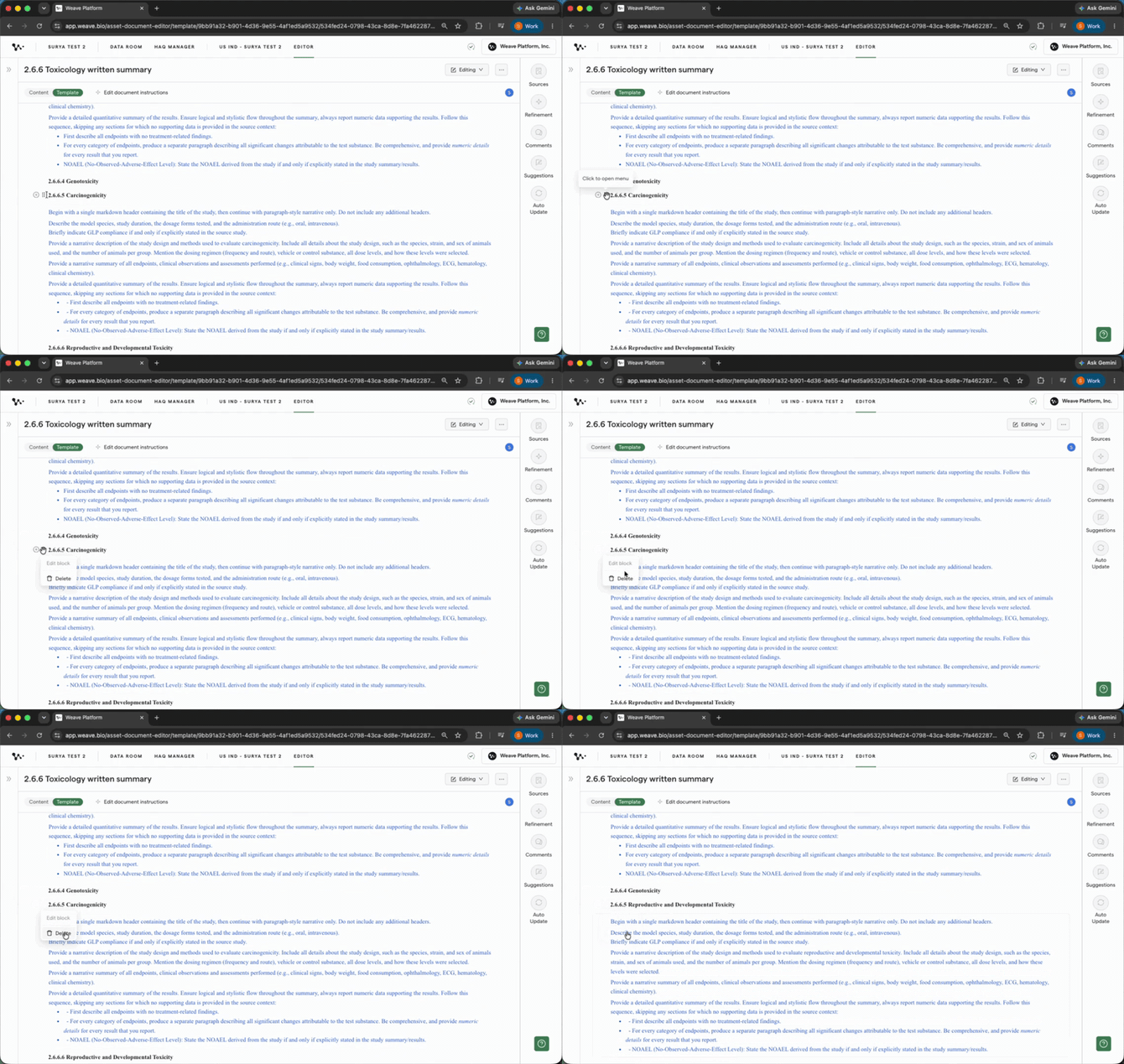
Removing an inapplicable section from the program-level template
Important: These changes apply only to this program's template. The master template in the template center is not affected, and neither are the templates in any of your other programs. Each program is a fully independent environment. Edits never propagate across programs.
If the program-level changes you've made represent best practices worth preserving for future programs, you can export the updated template and share it with your Weave team to incorporate into the master. The next section covers how to do that.
Exporting a template from a program
When a program-level template has been refined and represents a better starting point than the current master, you can export it directly from the document.
12. Open the template inside your program document by clicking the Template tab in the editor toolbar.
13. Click the ... menu at the top right of the editor and select Export template. This generates the underlying template file, which you can share with your Weave team to incorporate into the master template center.
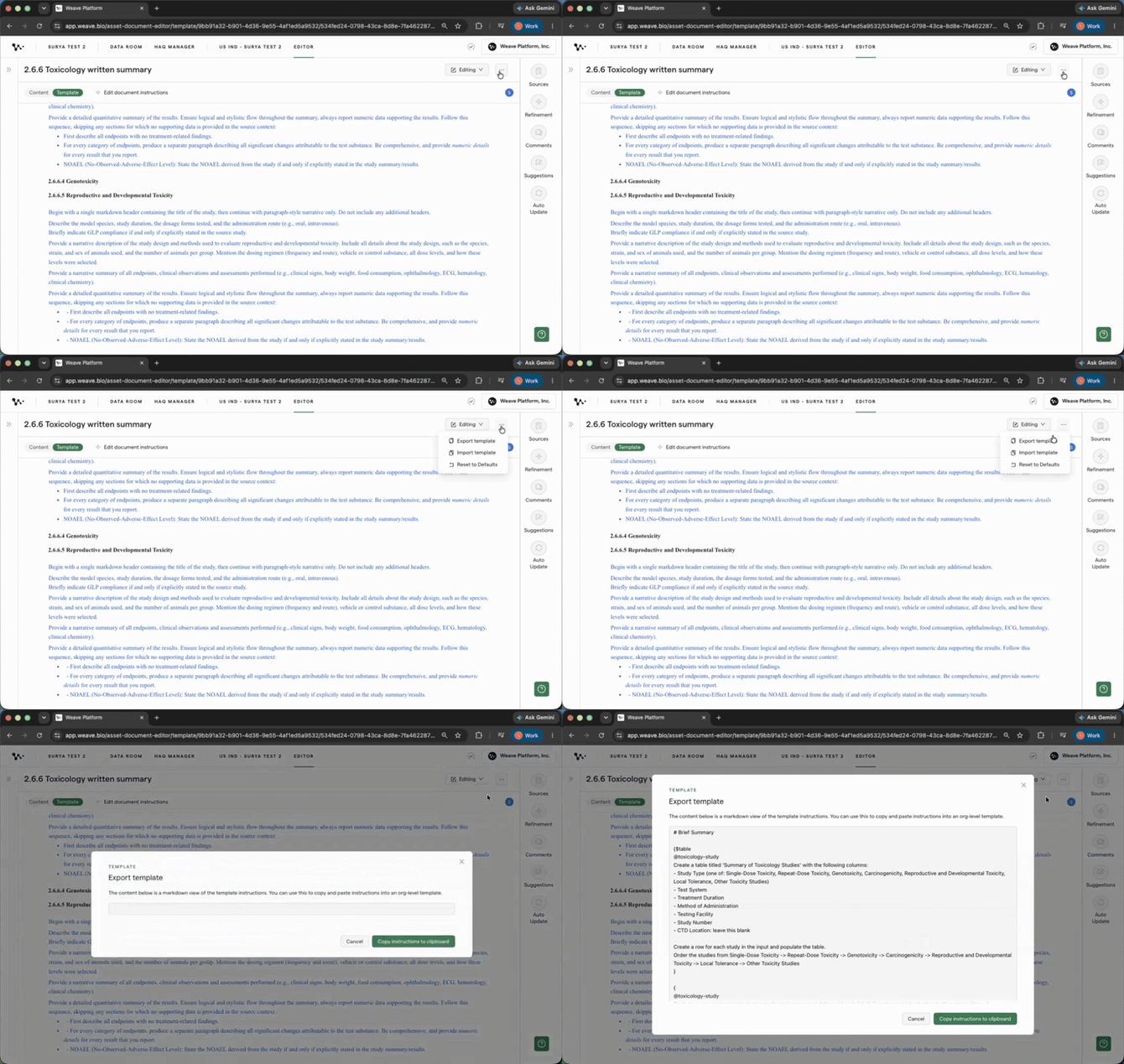
Exporting a template from a program document
Note: Exporting surfaces the underlying template format. You don't need to read or edit the exported file. Just share it with your Weave team and they'll handle incorporating it into the master.
Importing a template into a specific document
By default, all documents in a program share the same master template. But occasionally, one document in a program needs a different structure. For example, a program running mostly clinical documents might have one CMC module that requires a different template.
In that case, you can import a different template into that specific document without affecting the rest of the program.
14. Open the document that needs a different template.
15. Open the template by clicking the Template tab in the editor toolbar.
16. Click the ... menu at the top right of the editor and select Import template to select and load a different master template for this document only.
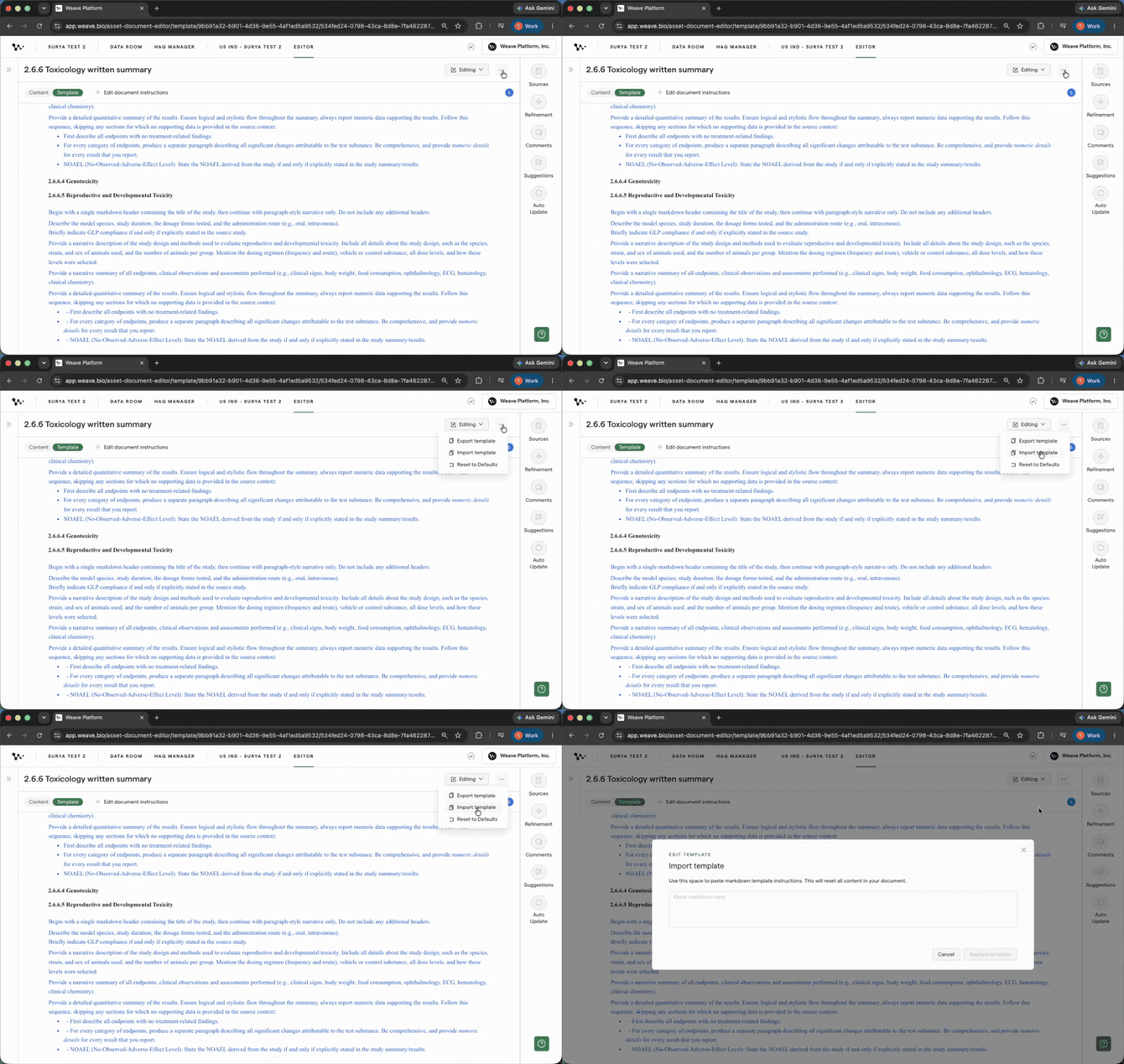
Importing a different template into one document within a program
Tip: Import is useful when a single document type genuinely differs from the rest of a program. Use it sparingly. If you're importing a different template for most documents in a program, it usually means the program was created with the wrong master template and should be recreated.
FAQ
Q: If the master template is updated after I've created a program, will my program be affected?
A: No. Template updates are not retroactive by design. The master template should be fully configured before a program is created. If you need to push an updated template into an existing program, use the three-dot menu on each document, select Import Template, then Replace Template. You'll need to do this document by document within the program.
Q: Should I delete template sections that don't apply to my submission?
A: No. Leave inapplicable sections blank rather than deleting them. Removing sections breaks CTD section numbering, which health authority reviewers expect to be consistent. A blank section is preferable to a missing or renumbered one.
Q: Can I have the AI write a section based on content from another Weave document instead of the data room?
A: Yes. In the template editor, you can change the data tag on any AI block to point to another Weave document within the same program instead of a data room file. This creates upstream/downstream logic. For example, a Module 2 summary section can pull directly from a Module 3 document that's already been drafted in Weave. To direct the AI to a specific section within that document, add the instruction to the plain-language prompt inside the AI block (for example: "Focus specifically on the Conclusions section of this document").
Q: Can I point an AI block to content already written earlier in the same document?
A: Yes. When editing the data tag for an AI block, select Current Document as the source type. The AI will reference content already written earlier in that document. This is useful for conclusion or synthesis sections that should be grounded in what was generated earlier in the same draft.
Q: Do I need to learn the template syntax to build or edit templates?
A: No. The Weave platform manages the underlying formatting automatically. Your focus should be on the plain-language prompt instructions inside each blue AI block. The template legend inside the template center explains the structural elements if you need a reference.
Q: Can I manage page layout formatting, like a custom cover page or per-page headers, at the template level?
A: Heading styles (H1, H2, H3) and language/style formatting are supported and carry through to your Word export. Full page layout customization, including custom cover page design and per-page headers for ICH M11 compliance, is (Coming soon).
Quick Reference: Template management in Weave
- Open the Templates section on the Weave homepage
- Click Create Template, name it clearly (document type + modality + lifecycle stage)
- In the template editor, write plain-language prompts inside each blue AI block
- Duplicate and rename templates as they move through review stages
- When creating a new program, select the appropriate master template from the dropdown
- Open the template inside a program document via the three-dot menu
- Edit the program-level template for program-specific adjustments. The master is not affected
- Export a refined program template via the ellipsis menu to share with your Weave team
- Import a different template into a single document via the three-dot menu when one document needs a different structure