
What Version History tracks
Version History records every change made to an individual section, including:
- Initial content generation
- Each subsequent regeneration
- Accepted Refinement tool changes
- Any manual text edits
The trail is comprehensive and continuous. You don't need to do anything to enable it. Weave tracks changes automatically.
Note: Version History tracks the whole document. Restoring a version rolls the document back to that saved state.
Opening Version History
1. Navigate to the section you want to review
Open the document in the Document Editor and scroll to the section you want to check.
2. Open the Version History panel
Click the three dots (...) in the top-right of the Document Editor (next to Editing) and select Version History.
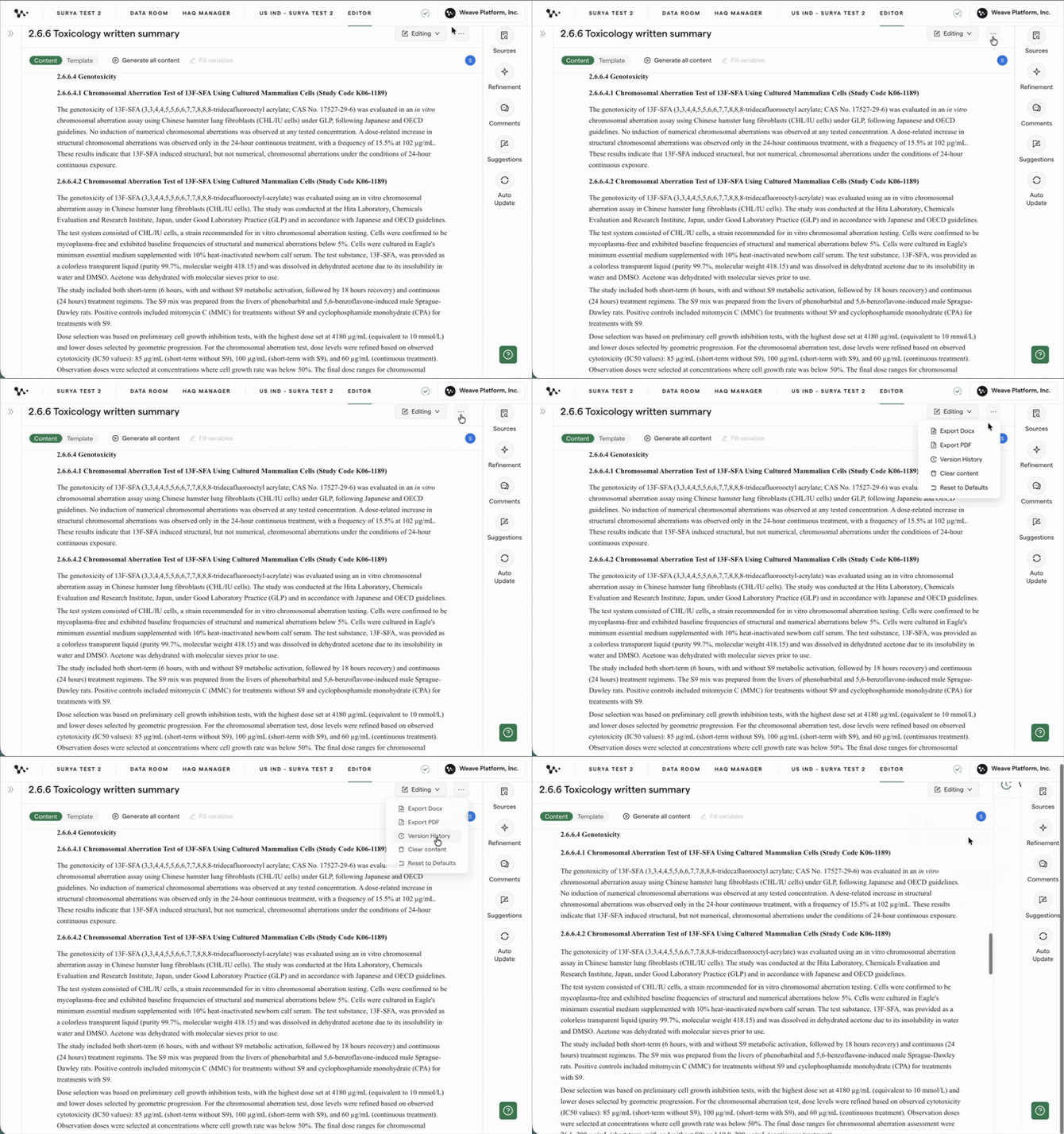
A panel opens on the right showing all prior versions grouped by date, most recent at the top. Expand a date to see each saved version and its timestamp.
Previewing a prior version
Before restoring anything, you can preview a prior version to confirm it's what you want.
Find the version you want to check, click the more options (...) icon on it, and choose Preview. A preview bar appears at the top confirming which version you're viewing, with the option to Restore or Close preview.
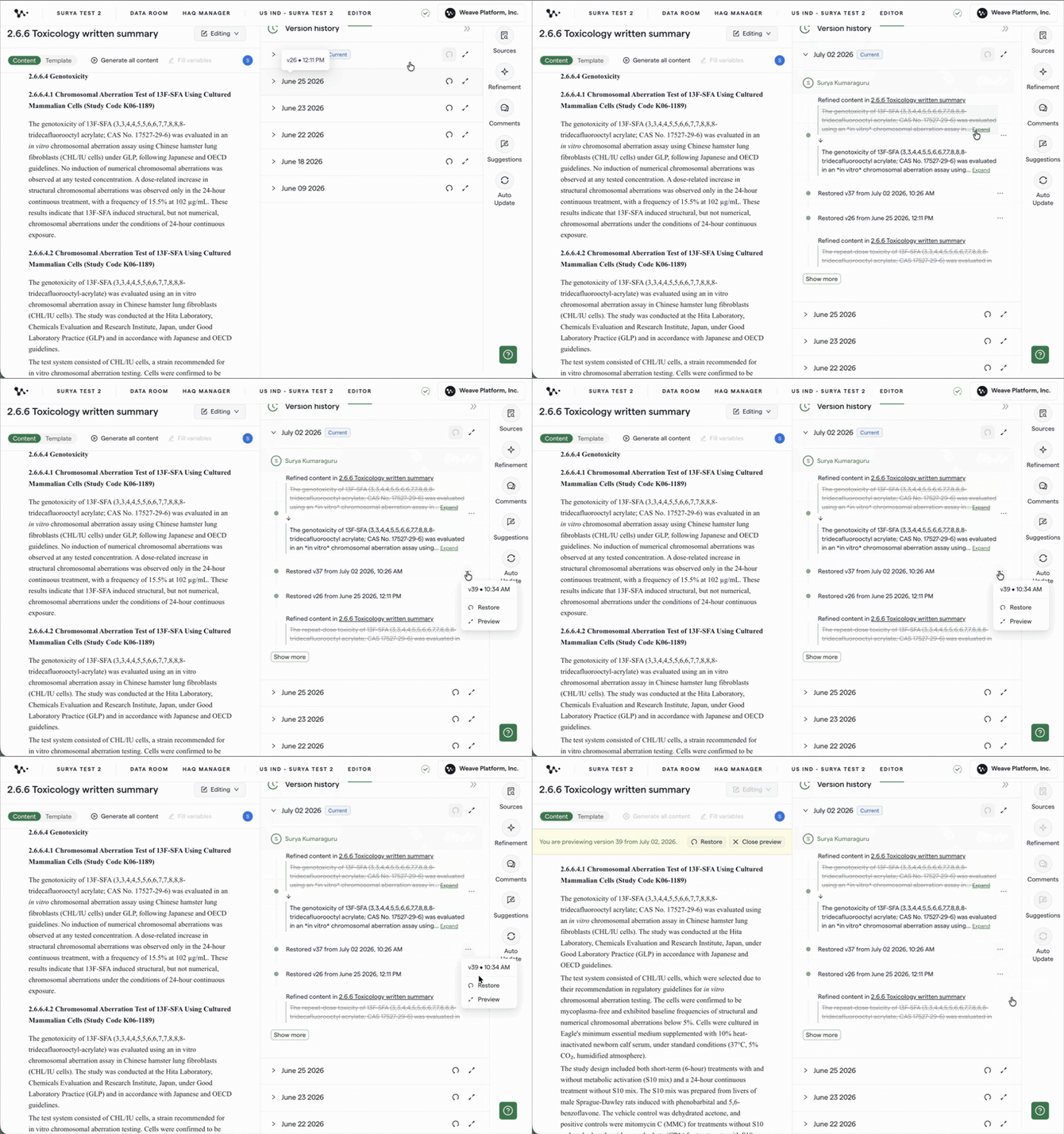
The preview shows exactly what that section looked like at that point in time. You can read the full content without committing to a restore.
Tip: Previewing before restoring is always a good idea, especially if you're looking for a specific passage you remember writing. You can scroll through several versions before deciding which one to restore.
Restoring a prior version
Once you've found the version you want, click Restore. You can do this from the preview bar while previewing, or from the version's more options (...) menu directly.
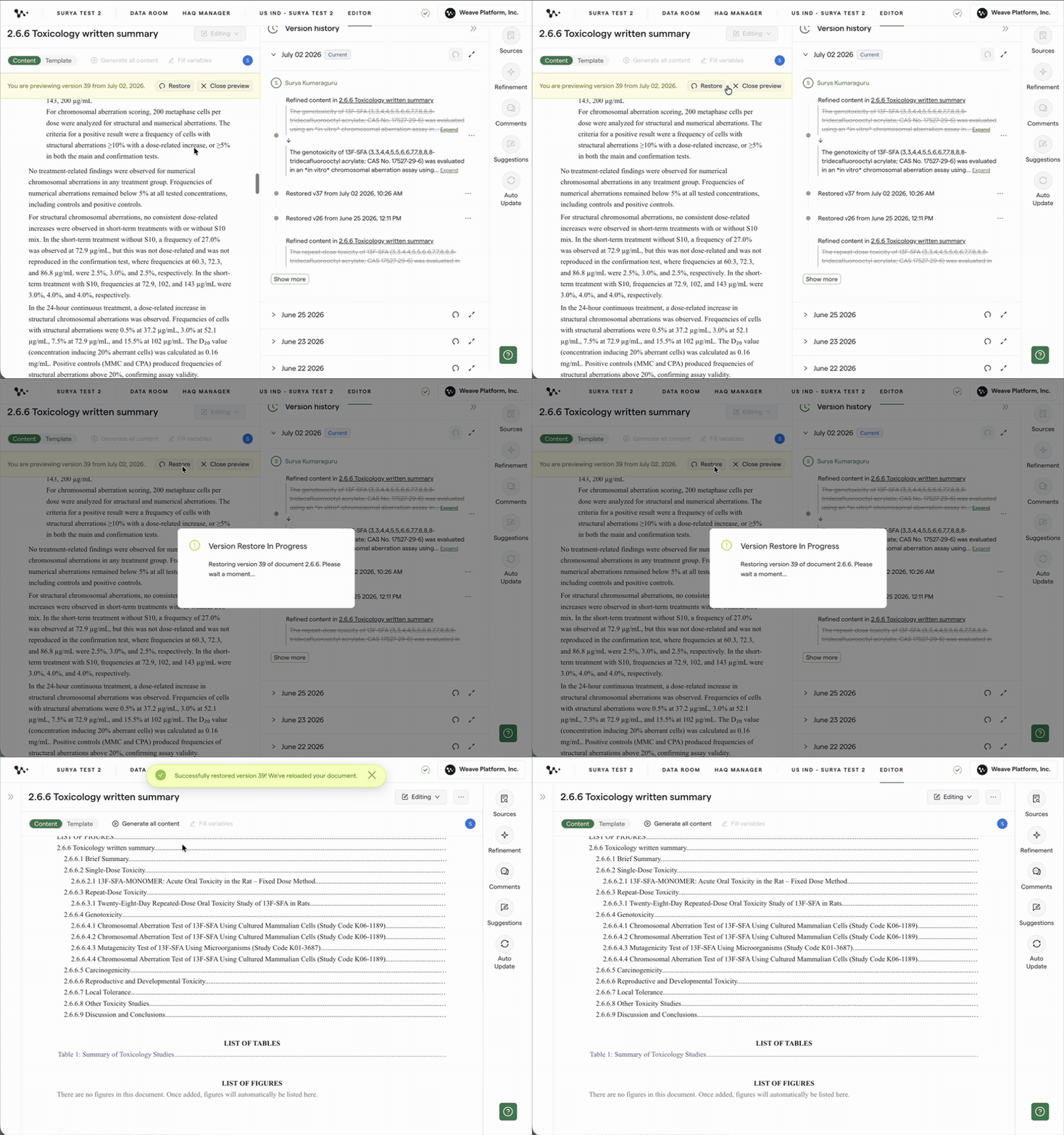
The section immediately rolls back to that state.
Note: Restoring is safe to do. The version you just rolled back from doesn't disappear. It becomes a new entry in the Version History list. So if you restore and then change your mind, you can restore again to get back to where you were.
When to use Version History
After accepting a Refinement you didn't want
The Refinement tool has no undo button. If you accepted a refinement and the result isn't what you wanted, Version History is the way to recover the previous content.
Find the version timestamped just before the refinement was applied and restore it.
After a regeneration that overwrote good content
If you accidentally clicked Generate All Content after already editing sections, Version History lets you recover the content from before the regeneration.
As an audit trail
Quality and compliance reviewers can use Version History to see what changed in a section and when. The timestamps and version sequence make it easy to confirm what edits were made between review cycles.
Reset to Default vs. Version History
These are two different recovery paths and it's worth knowing when to use each.
Reset to Default wipes the entire section back to its original template state, including all subsections. Use this when you want to start completely fresh on a section.
Version History lets you restore any previously saved state, not just the original default. Use this when you want to recover a specific earlier draft rather than erasing all your work.
FAQ
Q: Does Version History track refinement changes?
A: Yes. Every accepted Refinement is a version entry. If you want to undo a Refinement, open Version History for that section and restore the version from before the Refinement was applied.
Q: Can I preview a prior version without restoring it?
A: Yes. Click the more options (...) icon on any version and select Preview. You can read the full content without making any changes to the current state.
Q: Where do I find Version History?
A: Open the three dots (...) menu at the top-right of the Document Editor and select Version History. It covers the whole document.
Q: If I restore an old version, do I lose the version I was on?
A: No. Restoring an older version creates a new entry in the list rather than deleting the current one. Everything is always recoverable.
Q: Does Control-Z (undo) work in Weave?
A: Control-Z works for manual text edits. It does not undo Refinement-generated changes or regenerations. For those, use Version History.
Quick Reference: Version History
- In the Document Editor, click the three dots (...) in the top-right (next to Editing)
- Select Version History
- Click the more options (...) icon on the version you want
- Choose Preview to review the content before restoring
- Click Restore (from the preview bar or the version's menu) to roll back to that version
- The restored-from version remains in the history list. Nothing is lost.