
Note: Similar Questions only searches within your organization and the current program. Questions from the same information request file you're working in are excluded.
Finding the Similar Questions panel
Open any question in HAQ Manager. The Similar Questions panel appears automatically on the right side of the screen. Weave searches your organization's question history and returns up to 20 matches, ranked by relevance.
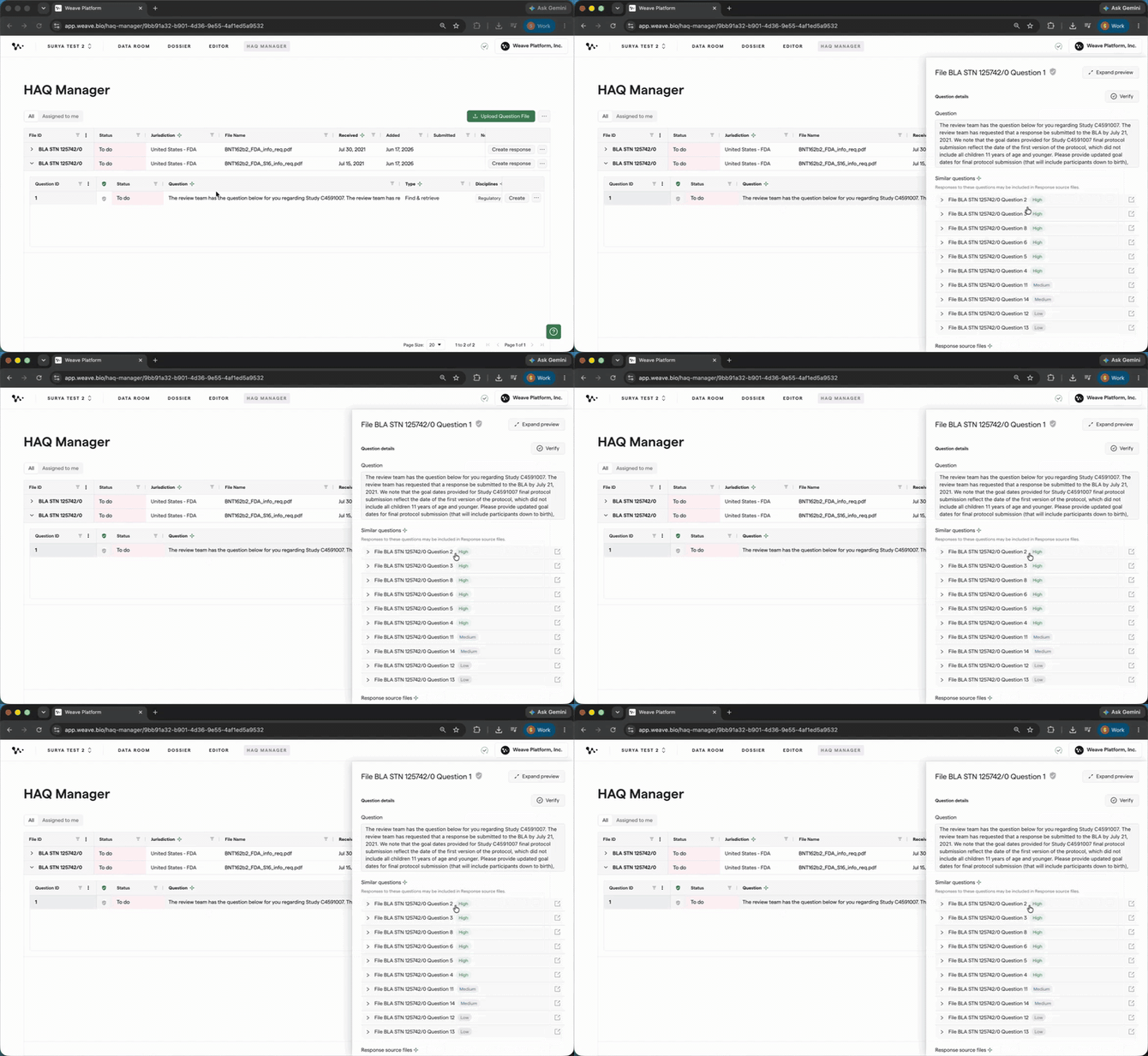
The Similar Questions panel loads when you open a question
Reading relevance tiers
Each similar question is labeled HIGH, MEDIUM, or LOW. Weave produces this rating by combining two text signals: character-level similarity (how much of the raw wording the two questions share) and shared key terms (a full-text match on the important words in each question). The more wording and key terms two questions share, the higher the tier.
| Tier | What it means |
|---|---|
| HIGH | Strong character-level similarity and many shared key terms |
| MEDIUM | Moderate character-level similarity and some shared key terms |
| LOW | Limited character-level similarity and few shared key terms |
Results are sorted from highest to lowest relevance. Review HIGH-tier matches first.
Tip: The panel refreshes every time you open it. If you've refined your question text, reopen the panel to get updated matches.
Note: Matching is based only on the question text. Question type, discipline, jurisdiction, and other metadata do not affect the rating.
Viewing a past question and its response
You can review each similar question directly in the Similar Questions panel. Scroll within the panel to:
- Read the full question text
- Review the Weave-drafted response
- See the submitted response file, if one has been attached
To see a question on its own, click the open icon (the box-with-arrow icon) next to it to pen it in its expanded preview in a new tab
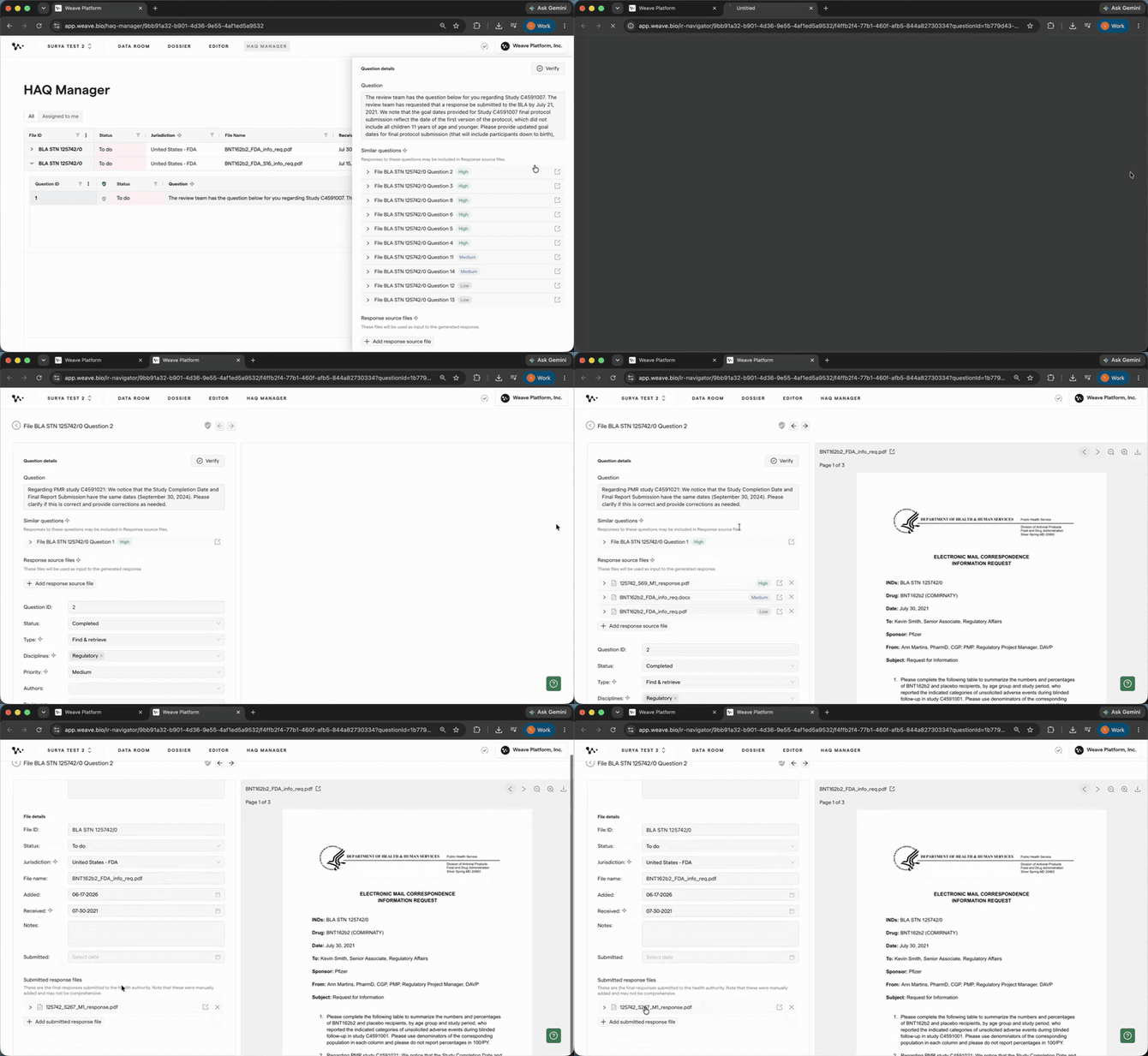
Scroll the panel to review a past question, or open it in its expanded preview
Note: Submitted response files shown here are manually attached and may not be complete. They are a reference tool, not a replacement for the authoritative version in your document management system.
Using a past response for your current question
There is no one-click option to copy a past response into your current question yet. The current way to use prior work is to add the previous response document as a source file.
In your current question, go to Response Source Files and manually add the prior response document from the Data Room. Weave will draw on it when generating your response.
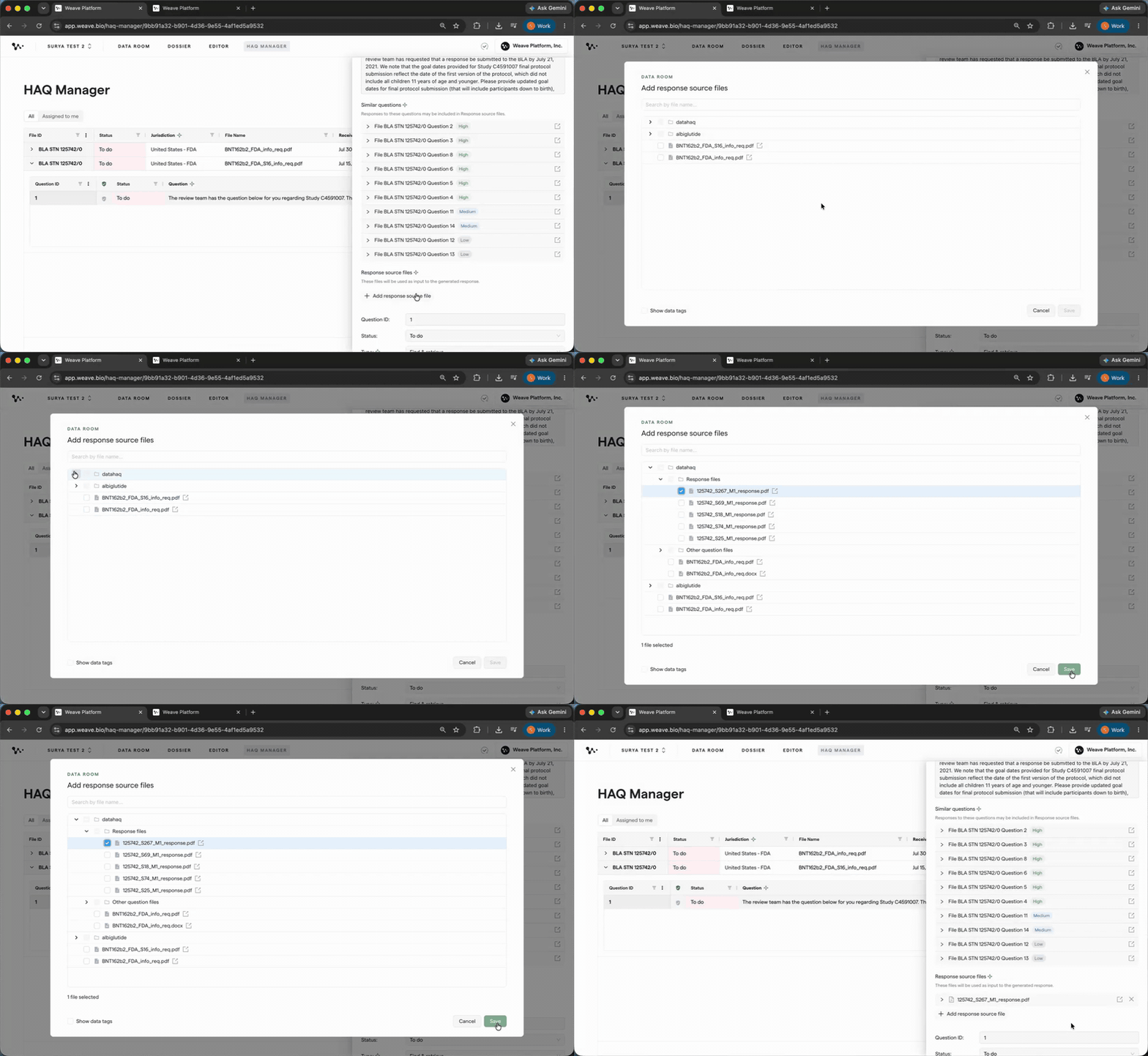
Add the prior response document to your source files to let Weave reference it
Once your source files are set, you're ready to generate your response. See [How to generate and refine a response in HAQ Manager] to continue.
FAQ
Q: Why isn't the Similar Questions panel showing questions I'd expect?
A: The panel matches purely on question text, using a combination of character-level similarity and shared key terms. Question type, discipline, and other metadata do not affect matching. If an expected match isn't appearing, try rephrasing your question so it more closely mirrors the wording of the question you expect to match. If the match still seems missing, report the specific pair to your customer success contact.
Q: Can I search for similar questions across other programs or assets?
A: Not yet. Similar Questions is currently scoped to your organization and the current program. Cross-program search is on the longer-term roadmap.
Q: Are questions from the same information request file included?
A: No. Weave excludes questions from the same IR file you're currently working in.
Quick Reference: Using Similar Questions
- Open a question in HAQ Manager.
- Review the Similar Questions panel on the right.
- Check HIGH-tier matches first.
- Click the open icon to view a past question and its response in a new tab.
- To reuse a past response, add its document to your Response Source Files.
- Generate your response.