Skip to content
English
  • There are no suggestions because the search field is empty.

Response to Question Guide

This guide walks you through authoring a response to a health authority question in the Weave editor — from writing your template instruction through generating a first draft, refining, verifying sources, collaborating with reviewers, and exporting.

Who this is for: Authors, Medical Writers, and SMEs who draft responses to health authority questions.

Note: Two prerequisites must be in place before you can begin authoring. First, the Data Room must be populated — your program's source files need to be uploaded and tagged. [→ See the Data Room Guide]. Second, the question must be set up in HAQ Manager and Create Response must have been clicked by your program manager. [→ See the HAQ Manager Guide]. When both are in place, the question will appear in your authoring queue.


What the authoring workflow is

Before Weave, drafting an Request to Response meant starting with a blank Word document, searching across submission folders for relevant source material, drafting narrative and tables manually, and routing through email for review.

Weave replaces the blank page with an AI-assisted drafting environment. The AI generates a structured first draft from your source files based on instructions you write. You review, refine, and edit that draft to meet regulatory standards.

The first generated draft is a starting point. Expect to refine it — that's the intended workflow, not a workaround. Teams that generate once and accept the output wholesale are not using the platform correctly. Teams that generate, review, refine, and iterate are.


Step 1: Open the question in the editor

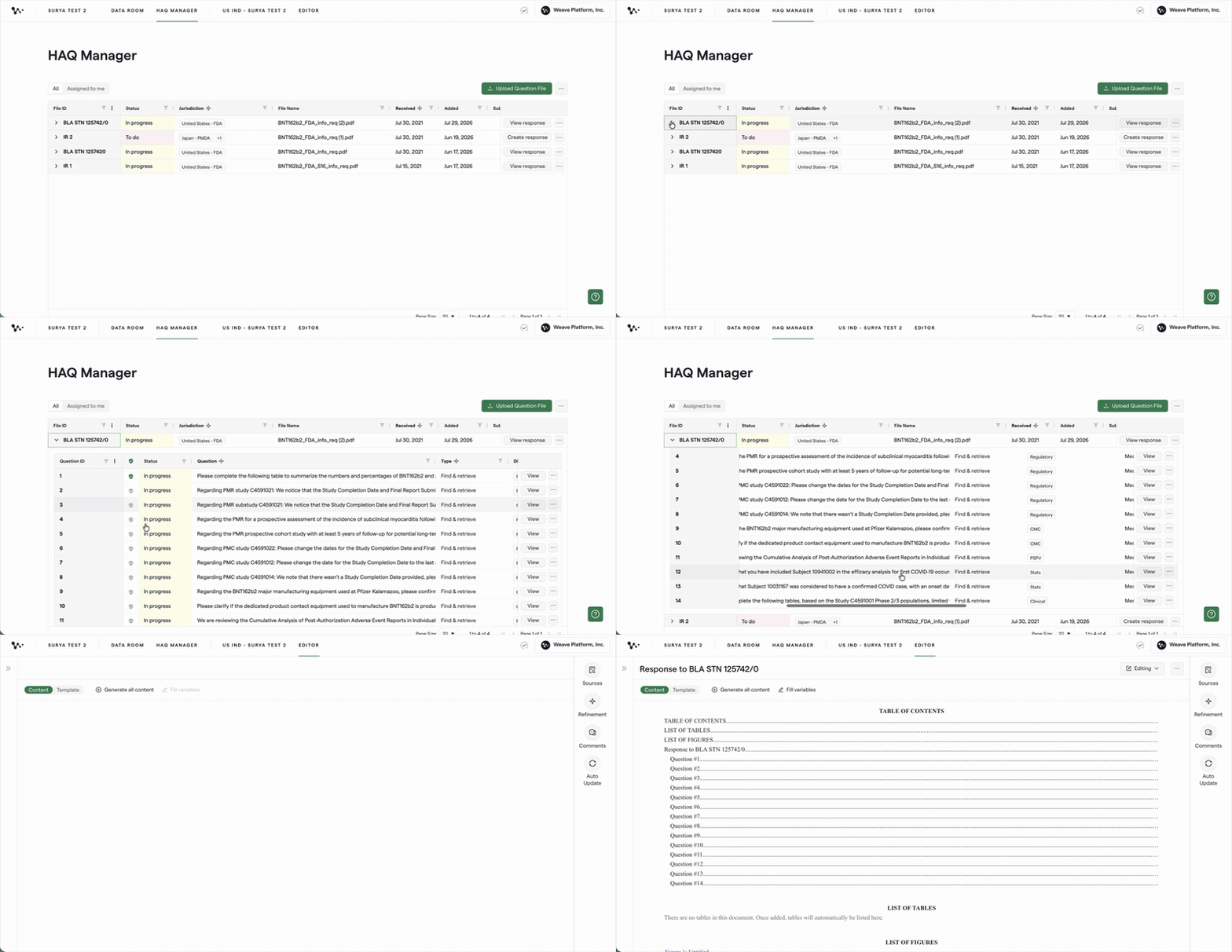
Navigate to the question assigned to you and click Open or View Draft to enter the editor.

01 — Open question in editor

The editor has three views toggled at the top:

  • Content view — the generated response text, editable like a word processor
  • Template view — the AI instructions (prompts) that drive what gets generated
  • Sources view — sentence-level traceability showing which source file and page each piece of generated text came from

You'll move between these views throughout the authoring process.


Step 2: Write your template instruction before generating

This is the highest-leverage step in the entire workflow. The quality of the AI-generated draft depends almost entirely on the quality of the instruction you write. A specific, well-crafted instruction produces a targeted, useful first draft. A vague or default instruction produces generic output.

The default instruction problem

When a question is first set up, the default template instruction is a verbatim copy of the health authority's question. This is not a useful prompt — it tells the AI nothing beyond "answer this question," and the result is a generic, surface-level response that will require near-total rewriting.

Important: Always overwrite the default template instruction before clicking Generate. Don't generate with the default.

What a good instruction contains

1. The format you want

  • Should this be a narrative paragraph, a table, or a combination?
  • If a table: what columns? In what order?
  • If narrative: how long? One paragraph or multiple sections?

Example: "Respond in a table format with columns: Parameter, Specification, Analytical Method, Acceptance Criteria. Follow with a brief narrative summary of no more than two paragraphs."

2. The sources to emphasize

  • Which study reports or documents are most relevant to this question?
  • Is there a specific module section the answer should primarily draw from?

Example: "Focus on the drug substance stability data from the most recent IND amendment. Reference the analytical methods validation report for the method justification."

3. The strategy or key message

  • What is the core argument or conclusion the health authority needs to understand?
  • What prior precedent (if any) should be referenced?
  • What level of detail is appropriate — summary or comprehensive?

Example: "The response should directly address the health authority's concern about container closure integrity. Lead with the conclusion — integrity has been demonstrated — and support with three specific data points from the stability studies. Do not introduce speculative caveats."

4. The tone and regulatory style

  • Should this follow a specific format your organization uses?
  • Are there specific terms, compound names, or abbreviations the response should use consistently?

Tip: Document-level instructions can set program-wide style (e.g., always use the full generic name on first reference, use "drug product" not "DP"). Block-level instructions can override these for specific questions.

Where to write the instruction

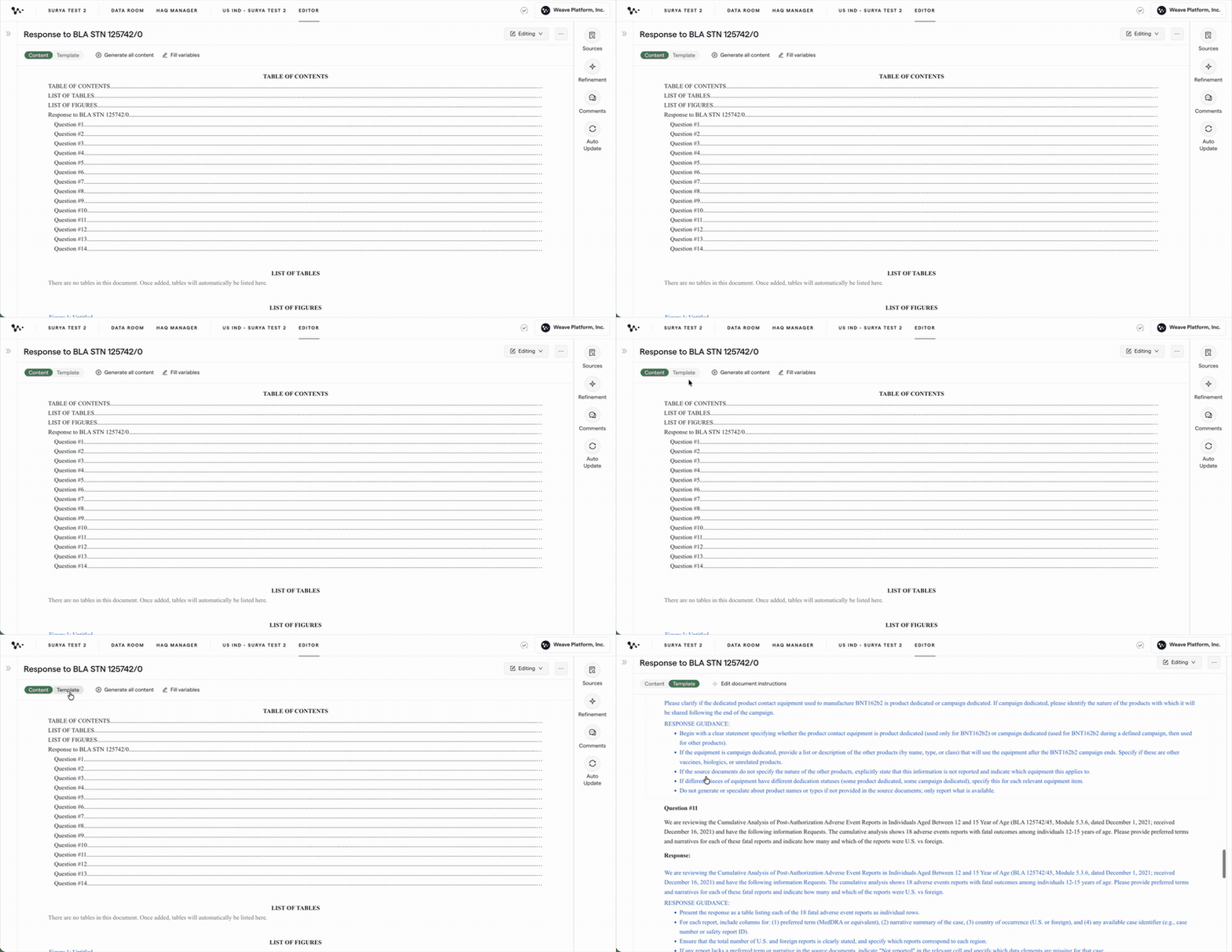
Switch to Template view and click into the prompt block for the section you're generating. The blue text is the prompt — click into it to edit. Write in plain English. You don't need special syntax or formatting; the AI responds to clear, specific natural language.

02 — Write template instruction

Tip: If you're unsure what format or length to use, look at how similar questions were answered in prior IRs. The Similar Questions panel surfaces prior questions and their associated responses to help you calibrate your instruction.

Reusing instructions across programs

Template instructions that work well for a specific question type — CMC specifications tables, stability response format, clinical efficacy narrative structure — can be copied and reused across programs. If your organization has developed strong templates for common question types, maintain a library of these instructions in a shared document and paste them in as your starting point.

Once your instruction is written, you're ready to review source files before generating.


Step 3: Review and adjust source files

Before generating, confirm the source files selected for this question. The source file selector in the editor shows which Data Room files are identified as relevant.

Each file shows:

  • File name and folder path (jurisdiction, submission, module)
  • Relevance indicator: High, Medium, or Low — this is relative to other files returned for this question, not an absolute quality score

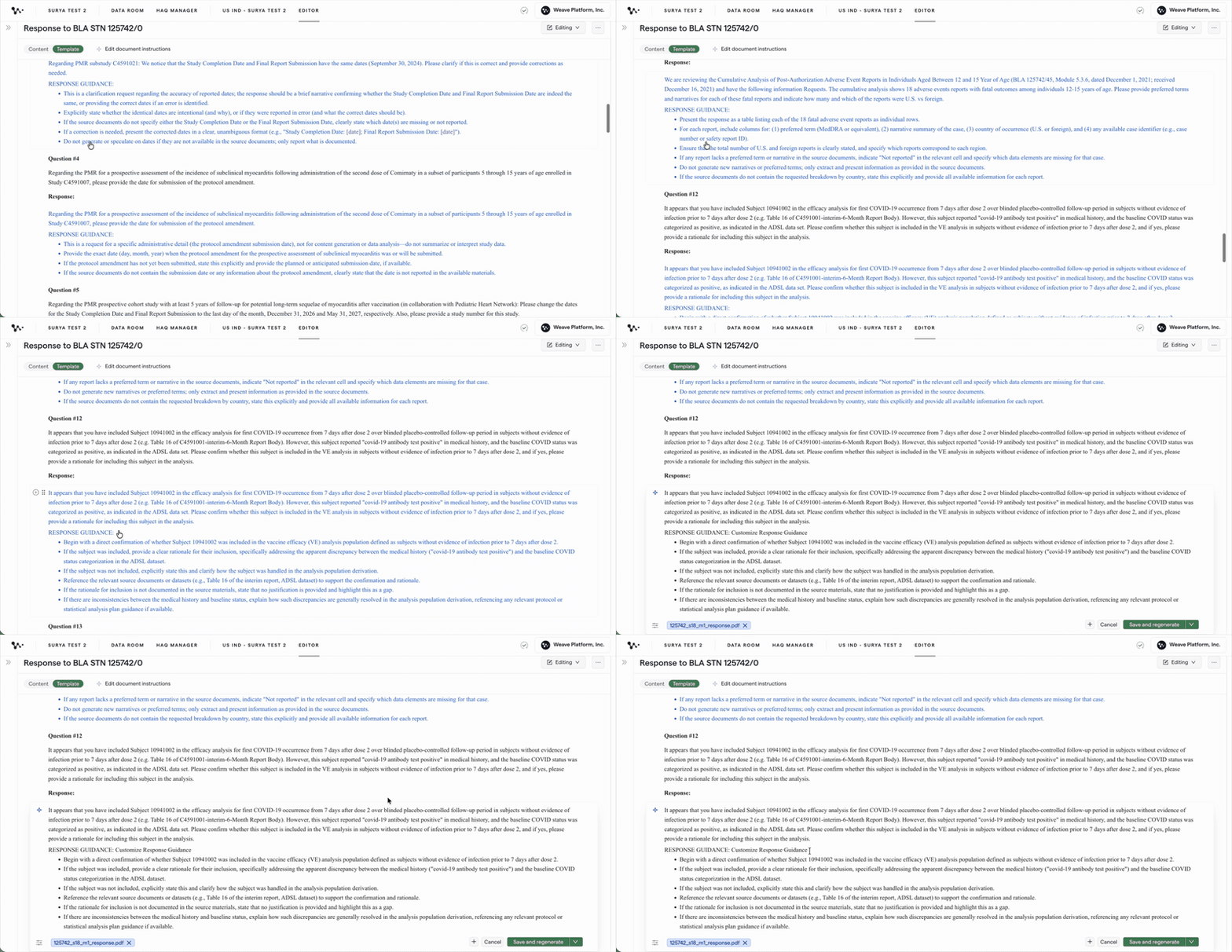
03 — Review source files

If the wrong files are selected:

  • Click the X on a file to remove it
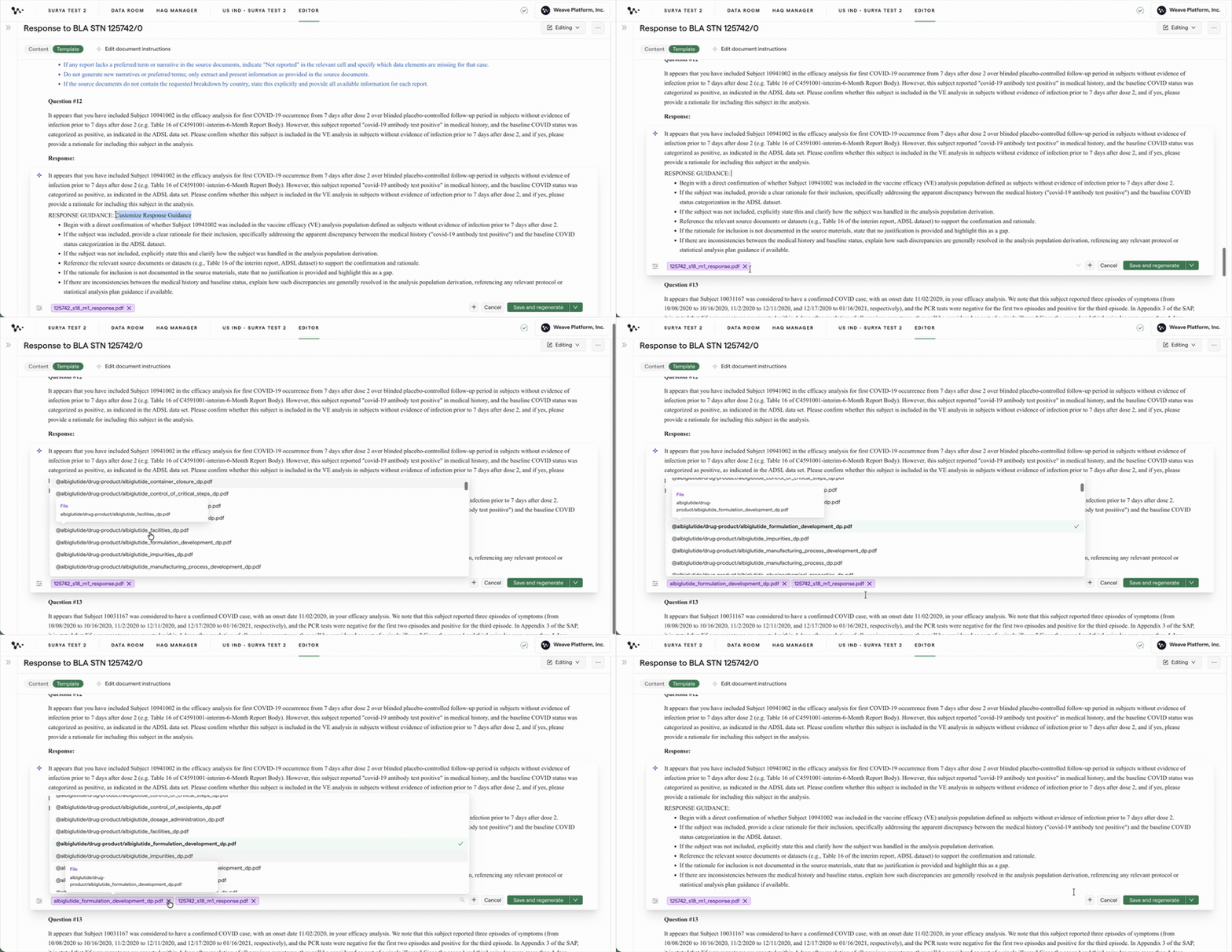
  • Click the search field to add a different file — the search uses keyword matching against file content, not just file names

Tip: Don't dismiss a "Low" file without previewing it. Sometimes the best source for an unusual question is a file that doesn't score highly overall because it's only partially relevant to the general question type.

Important: If two files have the same name, distinguish them by their folder path (jurisdiction/submission/module). The folder path is displayed alongside the file name for exactly this reason.

Changes to the source file selection are saved for this question — they don't affect the template itself.


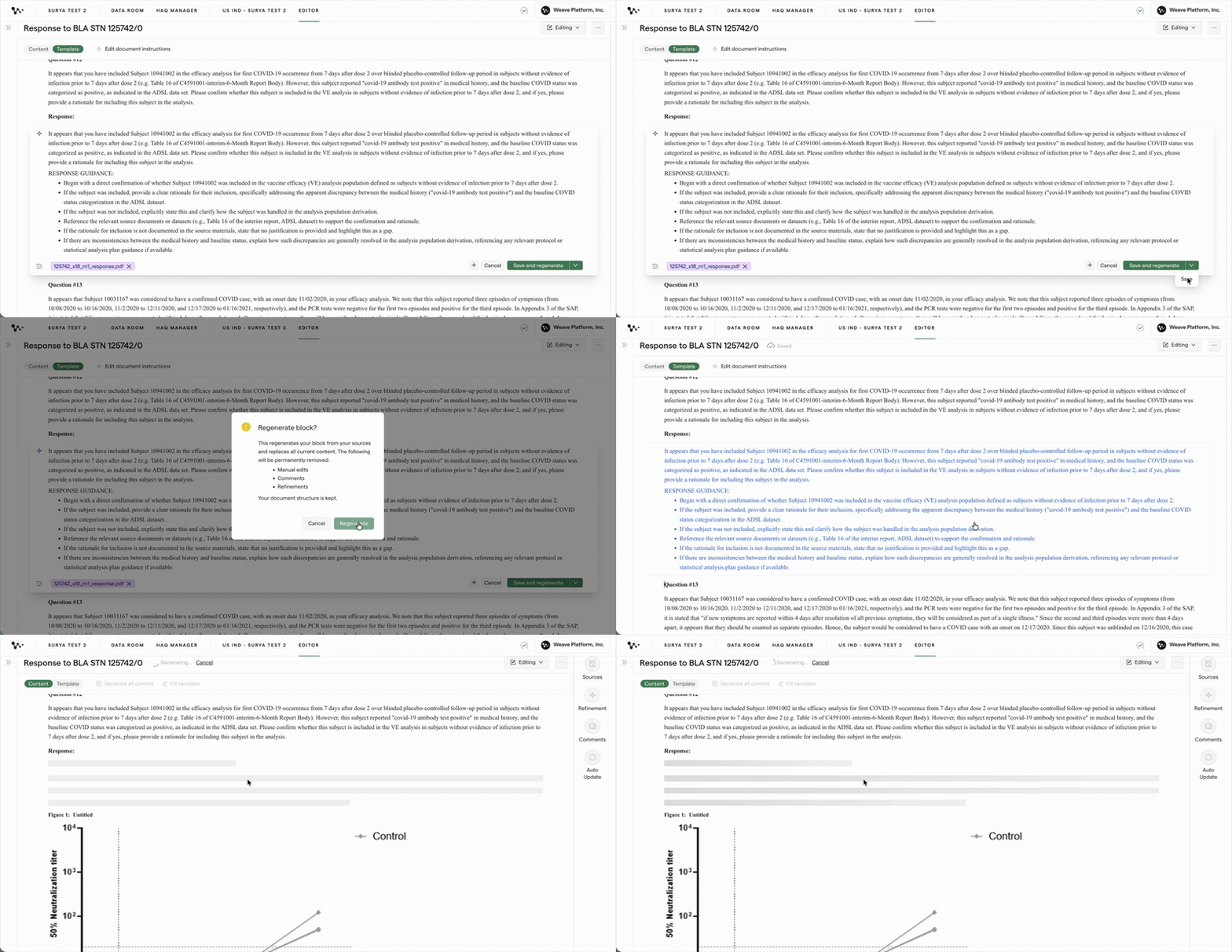
Step 4: Generate the first draft

Once your template instruction is written and source files are confirmed, click Generate for a specific section or Generate All Content for the full document.

04 — Generate first draft

Weave reads your instruction and the selected source files and produces the first draft. Generation typically takes seconds to a minute depending on document size.

What happens automatically: The platform pulls relevant content from the selected source files, structures it according to your format instruction, writes in the style you specified, and attaches source citations to each piece of generated text — visible in Sources view.

Note: If you click Generate All Content and have already edited some sections, those edits will be overwritten. Use Generate All Content at the start of authoring. For re-generating individual sections later, use the per-block Generate button to leave other sections untouched.


Step 5: Review the first draft

Read the generated draft carefully. The AI is accurate but not perfect — it can omit a data point that was in an unusual location in the source file, phrase something ambiguously when the source data was ambiguous, or vary slightly in emphasis across multiple generations of the same section.

Pay particular attention to:

  • Data accuracy: Do numbers, dates, and study identifiers match the source?
  • Completeness: Are all parts of the question addressed?
  • Format compliance: Does the table structure or narrative length match what the health authority typically expects?

Note: Generating the same section multiple times will produce slightly different outputs — the AI is probabilistic. If you're not happy with a generation, regenerate once or twice before concluding the instruction needs to change. If the problem is consistent across two or three generations, the fix is in the template instruction.

Once you've reviewed the draft, refine the sections that need it.


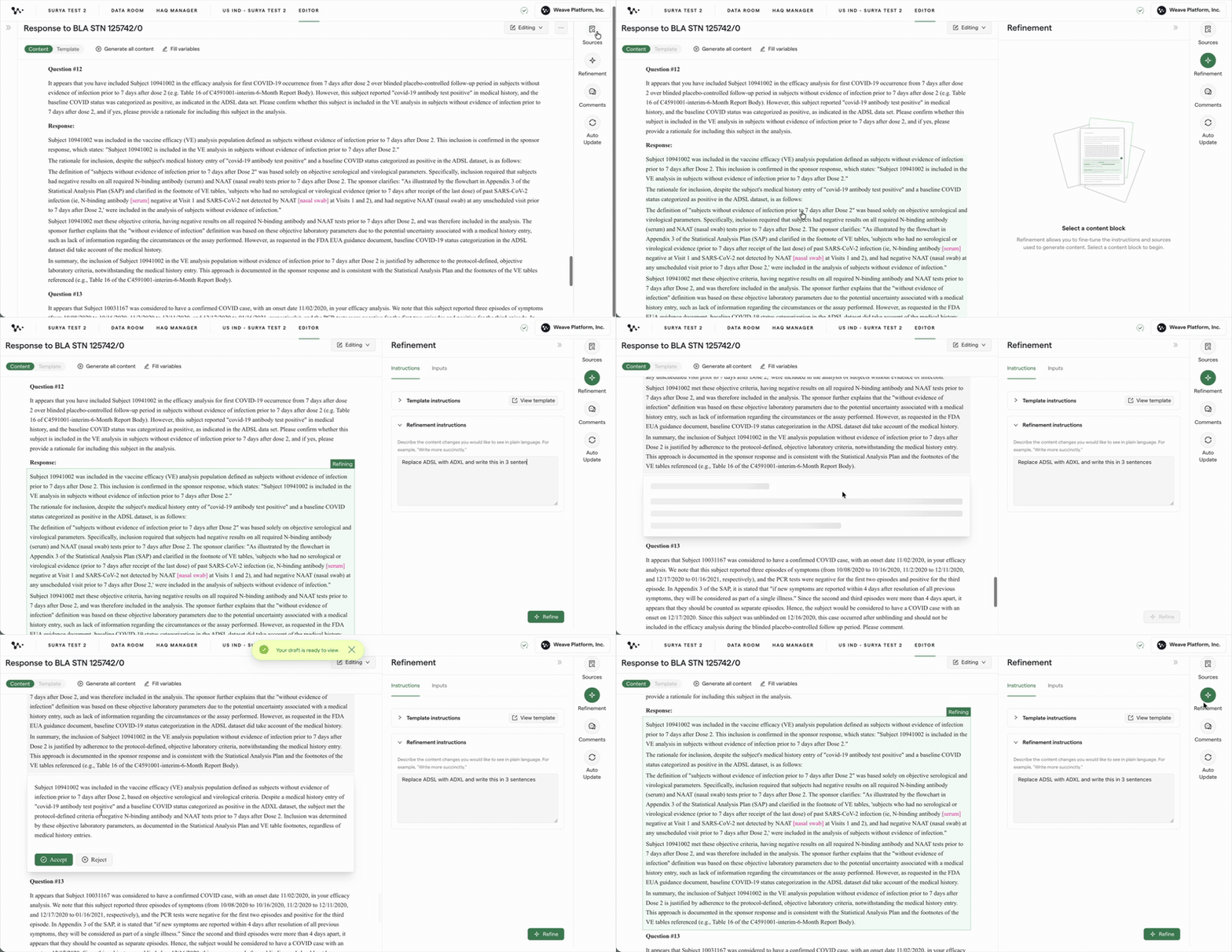
Step 6: Refine the draft

The Refinement panel (lightning bolt icon) lets you make targeted changes to a specific content block without affecting the rest of the document.

  1. Switch to Content view
  2. Hover over the block you want to refine — it highlights in green
  3. Click to select it as a candidate for refinement
  4. The Refinement panel opens on the right
  5. Write a refinement instruction in plain English — e.g., "Rewrite this in three sentences" or "Add a sentence about the stability condition at 40°C/75% RH"
  6. Click Refine
  7. The original text appears in a gray box; the proposed replacement appears below. Accept or Reject.

05 — Refine first draft

Refinement is for targeted, cosmetic changes. For changes that should apply consistently throughout the document — always using a different compound name, always citing a specific module section — update the template instruction and regenerate the relevant section instead.

What persists in the Refinement panel

The panel shows:

  • The template instruction used to generate the current block (read-only, with a link to open the template if you need to edit it)
  • Your previous refinement instructions for this block — these persist across sessions
  • Your source file selections for this block — overrides you make here are saved

You can return the next day and pick up exactly where you left off without re-entering your instructions.

Context window override (power feature)

If you've selected many large source files and they exceed the platform's context window, the Refinement panel will activate a keyword override feature. Enter specific keywords and the system shows you which page ranges in each selected file contain that content. You can then instruct the system to prioritize those specific pages rather than relying on default truncation.

Note: This feature only activates when the context window limit is reached — which happens in approximately 10% of generations. If you're not seeing this prompt, your file selection is within normal limits.


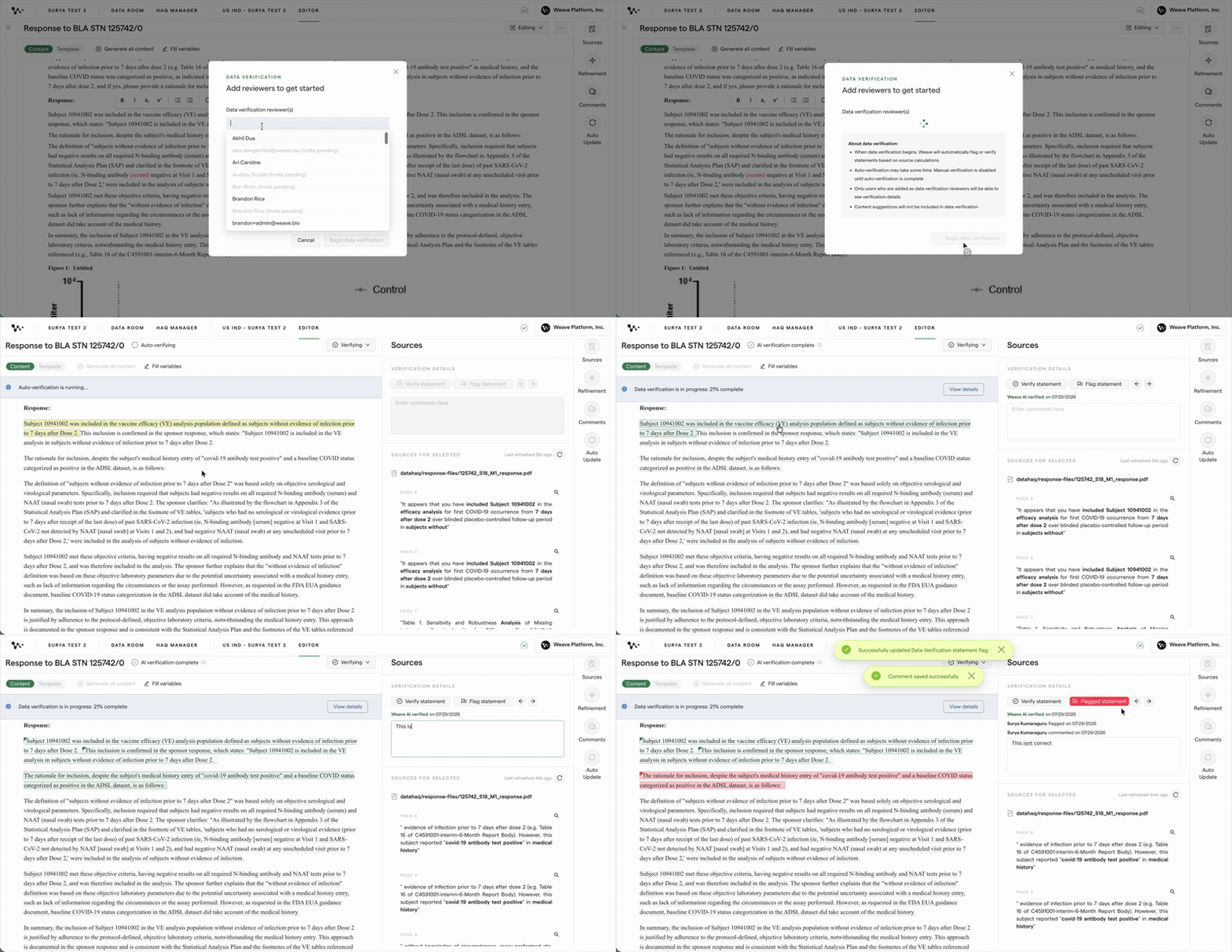
Step 7: Verify sources

Switch to Sources view. Hover over any piece of generated text to see the source file it was pulled from, the page number within that file, and the exact quoted passage from the source.

06 — Verify sources

This lets you verify that every factual claim in the response is traceable to a specific location in your source documents. If a claim can't be traced, or if the source passage doesn't support the claim, correct that section manually or regenerate with a more targeted instruction.

Why this matters: Health authorities expect responses that accurately represent the submitted data. Sources view is your live audit trail — use it throughout drafting, not just as a final QC step.

You can also run Verify mode — an AI-powered QC pass that scans the entire document and flags text where the AI couldn't confidently trace content back to a source, or where potential inconsistencies are detected. Green highlights indicate verified content; red flags indicate areas needing human review.

Note: Verify mode flags conservatively — it's designed to pull humans into the loop for edge cases. A red flag doesn't necessarily mean the content is wrong; it means the AI wants a human to confirm.

Once sources are verified, you're ready to share the draft for review.


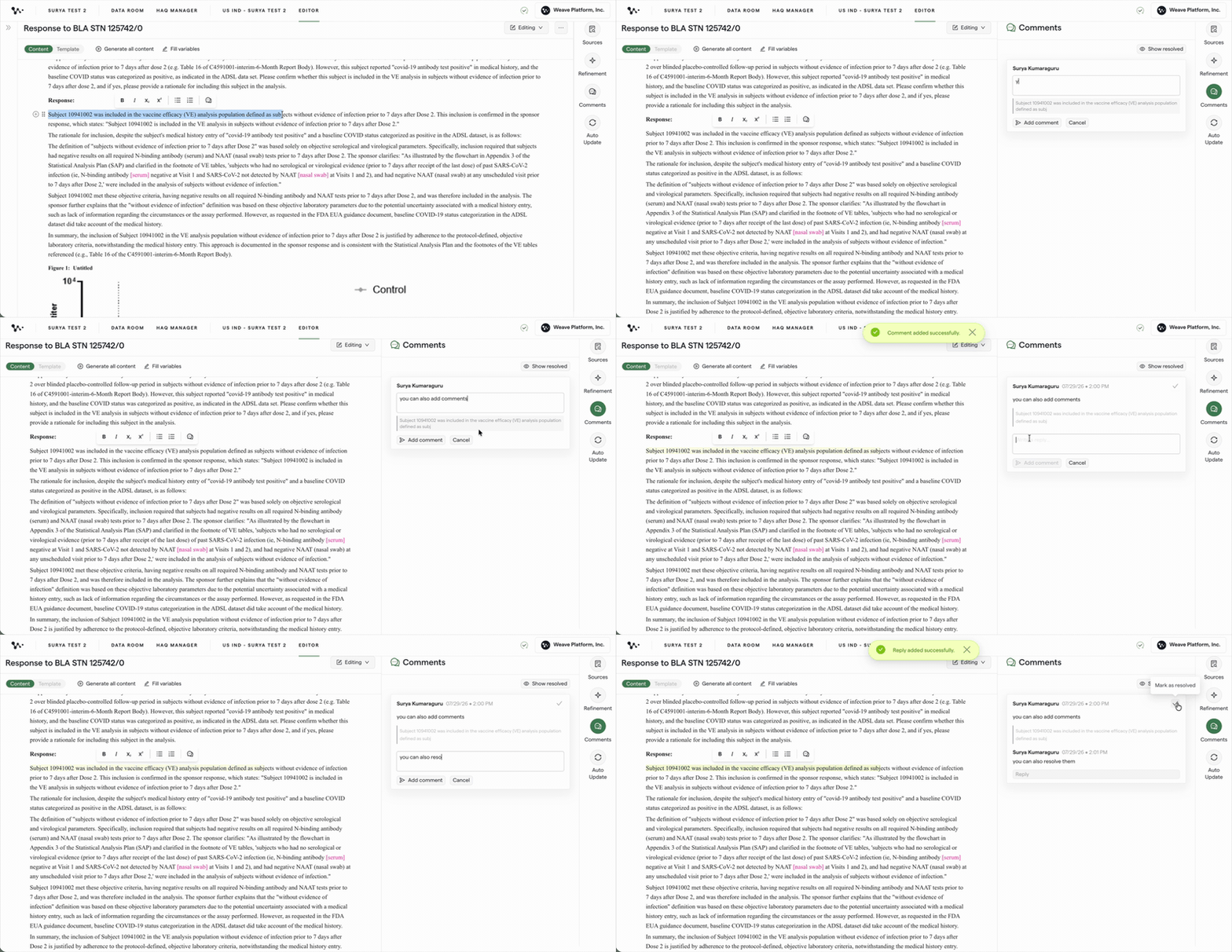
Step 8: Collaborate with reviewers

The editor supports two collaboration modes:

Suggesting mode (track-changes equivalent): Reviewers make edits that appear as suggested changes rather than accepted edits. The author can accept or reject each suggestion. Use this when you want a reviewer's input to be explicit and visible before it's incorporated.

Comments: Reviewers attach comments to specific content blocks without modifying the text. Useful for questions, clarification requests, or strategy notes.

To share the document for review, make sure the reviewer has been assigned in HAQ Manager and has access to the program. They can navigate to the question directly.

Note: Many programs continue to export to DOCX and conduct formal review in their organization's DMS, because review approval chains and audit trails are already established there. Whether in-platform review replaces the DMS review step is a program-level decision, not a platform limitation.


Step 9: Export the final response

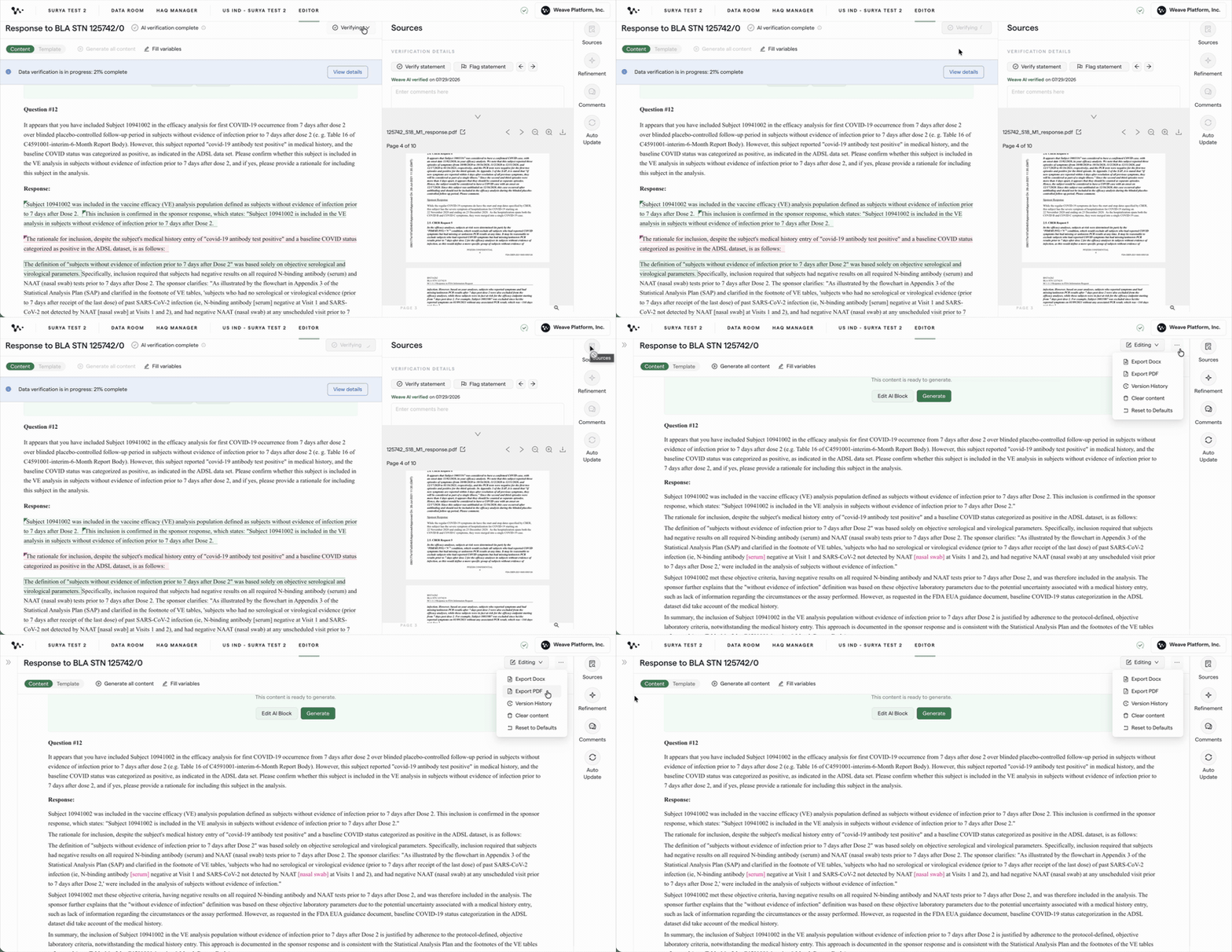
When the response is complete and approved, export to DOCX for submission.

  1. In the editor, click the three-dot menu in the top right
  2. Select Export
  3. Choose DOCX format

07 — Export docx

Important: In-platform reference links (hyperlinks to source files and submission documents) will appear as plain text in the exported Word document — they won't be clickable. If your submission requires clickable hyperlinks or embedded cross-references, add these manually in Word after export. Plan for this step in your publication workflow.


FAQ

Q: The default template instruction is already there when I open the question — do I have to write a new one every time?
Yes, overwrite it every time. The default is a verbatim copy of the health authority's question — it tells the AI nothing useful about how to answer it. The two minutes you spend writing a specific instruction directly translates to a better draft and less rework.

Q: How do I know how long my response should be?
Reference your organization's prior responses to the same health authority for comparable question types. The Similar Questions panel is useful here — if a similar prior question is surfaced, its submitted response document can give you a sense of expected length and format. If you're unsure, be explicit in the template instruction: "Respond in 300–400 words" or "Respond in a table of no more than 10 rows."

Q: The output doesn't look right. Should I tweak the instruction and regenerate, or use refinement?
If the problem is structural — wrong format, key information missing, wrong emphasis — fix the template instruction and regenerate. If the problem is cosmetic — a sentence is awkwardly phrased, a table header needs renaming — use refinement. Rule of thumb: if regenerating would fix the problem, fix the instruction. If it would produce the same issue again, use refinement.

Q: Can I see what instruction was used to generate a specific block if I didn't write it?
Yes — the Refinement panel shows the template instruction that generated the current block directly in the panel (read-only). You don't need to switch to Template view to check.

Q: Can I save and reuse a good template instruction for future questions of the same type?
Not yet as a built-in feature, but you can maintain a personal or team library of effective instructions in a shared document and copy-paste the relevant instruction when you start a new question of the same type. Teams that develop and share strong instructions across programs dramatically reduce the time spent on the first draft.

(Coming soon) A "Promptify" feature is in development that will transform the default template instruction from a verbatim question copy into a structured prompt with format, length, and strategy placeholders — giving you a better starting point without requiring a blank-page instruction.

Q: The Similar Questions panel is showing questions from a completely different functional area — is this a bug?
Not a bug, but a known limitation. The Similar Questions panel currently matches based on question semantics without filtering by discipline. If you're seeing clinical questions in a CMC queue or vice versa, dismiss the irrelevant ones and report the specific example to your customer success contact. Discipline-level filtering is in development.

Q: Can multiple people edit the same response document at the same time?
Yes — collaborative editing is supported. Multiple authors can work in the same document simultaneously. Comments and suggesting mode are available for reviewers who want to provide feedback without directly editing the draft.


Quick Reference: Authoring an RTQ response

Setup (before generating):

  1. Open the question in the editor → switch to Template view
  2. Delete the default instruction and write your own — include format, sources to emphasize, key message, and length
  3. Switch to Content view → review source files; add or remove files as needed

Generation and review:
4. Click Generate (per block) or Generate All Content (full document at the start)
5. Read the output — check accuracy, completeness, and format
6. If output is consistently wrong: fix the template instruction → regenerate
7. If output needs minor fixes: use the Refinement panel (lightning bolt icon)

Verification and collaboration:
8. Switch to Sources view → hover over key claims to verify they trace to the correct source file and page
9. Run Verify mode (optional AI-powered QC pass) to flag areas for human review
10. Share with reviewer — use Suggesting mode for tracked changes or Comments for notes
11. Accept or reject reviewer suggestions in Content view

Export:
12. Three-dot menu → ExportDOCX
13. After export: re-add any hyperlinks or cross-references that must be clickable in the final submission document
14. After submission: return to HAQ Manager and attach the final response file to the question using Submitted Response Files