Content Overview
- What are Data Tags & how the Platform leverages them
- How to review and update Data Tags applied to Source Documents
- For additional information on the Data Room, Managing Source Documents along with Data Tags, please refer to the Deeper Diver into the Data Room article.
- How to verify which Data Tags each Dossier section uses to draft corresponding Content
- How to use the Sources feature to map content to source materials
Data Tags Overview
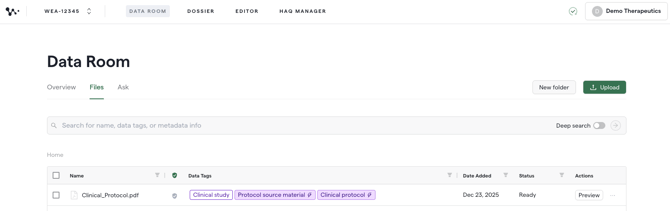
To more effectively categorize and use source data for generation, each file in the Data Room contains Data Tags.
Data Tags enable accurate content generation of individual parts of a section by ensuring the AI is referencing the right study or source material for any given document and section.
This offers greater flexibility when using content templates and providing greater control over the type and length of generated content.
Process
Step 1: AI Data Tag Generation
Upon uploading Source Documents to the Data Room, the AI will automatically apply Data Tags to each file based on its review of the contents.
Step 2: Review & Manage Source Document Data Tags
Verify & modify the Data Tags applied by the AI to ensure the appropriate documents are leveraged to produce content for the corresponding sections in the dossier.
Apply additional tags manually by selecting the Data Tag column for the file of interest and typing the name of the tag(s) you’d like to add.
- As you begin typing out the appropriate tags, the system’s predictive text feature will list potential tags based on the information input into the search bar.

- Note:
- Tags applied by the AI will be purple with purple text and have a lightning bolt icon.
- Tags applied manually will be white with purple text.
Please reference Appendix #1 within this document for Data Tag Mapping Hierarchy & Structure. This framework will guide you as you review & manually modify Data Tags for the Source Documents.
Step 3: Verify Source Documents for Dossier Sections & Generate Content
Once Source Documents have been uploaded & verified in the Data Room, navigate to the Dossier tab and select the Module you’d like to begin working on.
Select the function (e.g., View) within the Actions column that corresponds with the section of the Dossier you’d like to work on. This action will redirect you to the Editor tab.
To be redirected to the Template view of your section of interest, select the ellipsis (*** icon) and click “Open Template” within the pop-up that appears.

Within the Editor tab, you’ll be able to begin generating and refining content for your Dossier. Additionally, you’ll be able to verify which Data Tags along with the corresponding Source Documents will be used to generate content for a particular section.

If source documents have been detected for a indvidual section, the block will be highlighted in green with text stating “sources detected”. To draft the content, select Generate.
To verify which Data Tags & Source Documents will be used to generate the content for this section, select Review sources.

Note that for a source file in the Data Room to be used in the generation, it must have all tags associated with the prompt block. One exception to this logic is that Data Tags also abide by a parent/child hierarchy that allows some tags to encompass others. A guide to the Data Tag Hierarchy can be found here.
Within the pop-up below, you may review & modify the specific Source Documents that will be used to populate the corresponding content.

Step 4: Modifying Data Tags for Specific Sections/AI Content Blocks
To modify the Data Tags for a particular section, you must navigate to the Template view within the Editor.

Within the Template view, select the Block that corresponds to the applicable selection & hover over the existing Data Tags to view the context for them.
Select the “X” to remove any non-applicable tags.
To add Data Tags, select the text field where the Data Tags are located and begin typing to view new tags that may be applied.
- As you begin typing out the appropriate tags, the system’s predictive text feature will list potential tags based on the information input into the search bar.
Step 5: Mapping Dossier Content to Source Documents with the Source feature
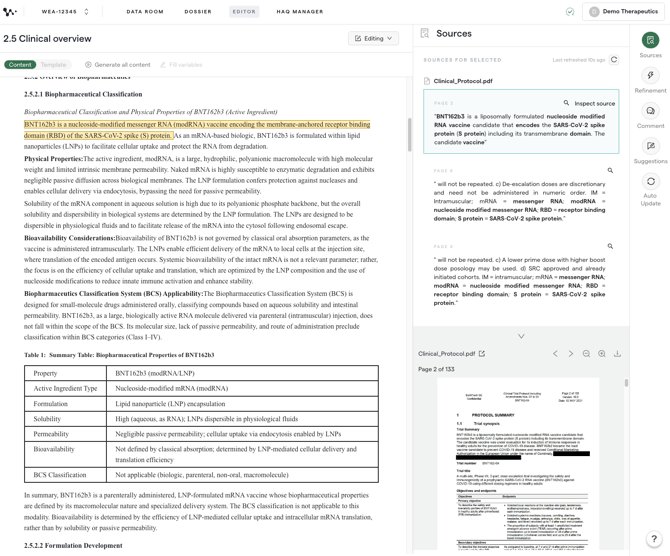
Once you’ve verified the Source Documents/Data Tags and generated content within the Editor tab, the Sources feature may be used to verify which specific Source Documents and content were used to generate each line within the Dossier.

To view source information:
- Click the Sources icon to activate it (the icon turns green).
- Hover over any content in the Dossier to see which source document the AI used.
- Linked text highlights in yellow as you move your cursor.
- The Sources panel on the right displays the Source Document name and the specific text used.
- Click any highlighted content to pin its source information in the Sources panel.
- The panel now shows the source page number and the exact content used to generate that section.

Investigate the Source Document(s) by selecting “Inspect source”.
- Upon selection, the specific Source Document will be opened in the side panel to the page where the content was pulled from.
- From this view you can validate the source of the generated content to confirm the correct source has been selected and the content aligns with your expectations.