
Note: Auto Verification works on documents that have been drafted in Weave. If you're working with a document imported via BYOD, make sure the import is complete before starting.
Step 1: Switch the document to Verifying mode
Select the Editing dropdown in the top-right corner of the editor. Choose Verifying from the menu.
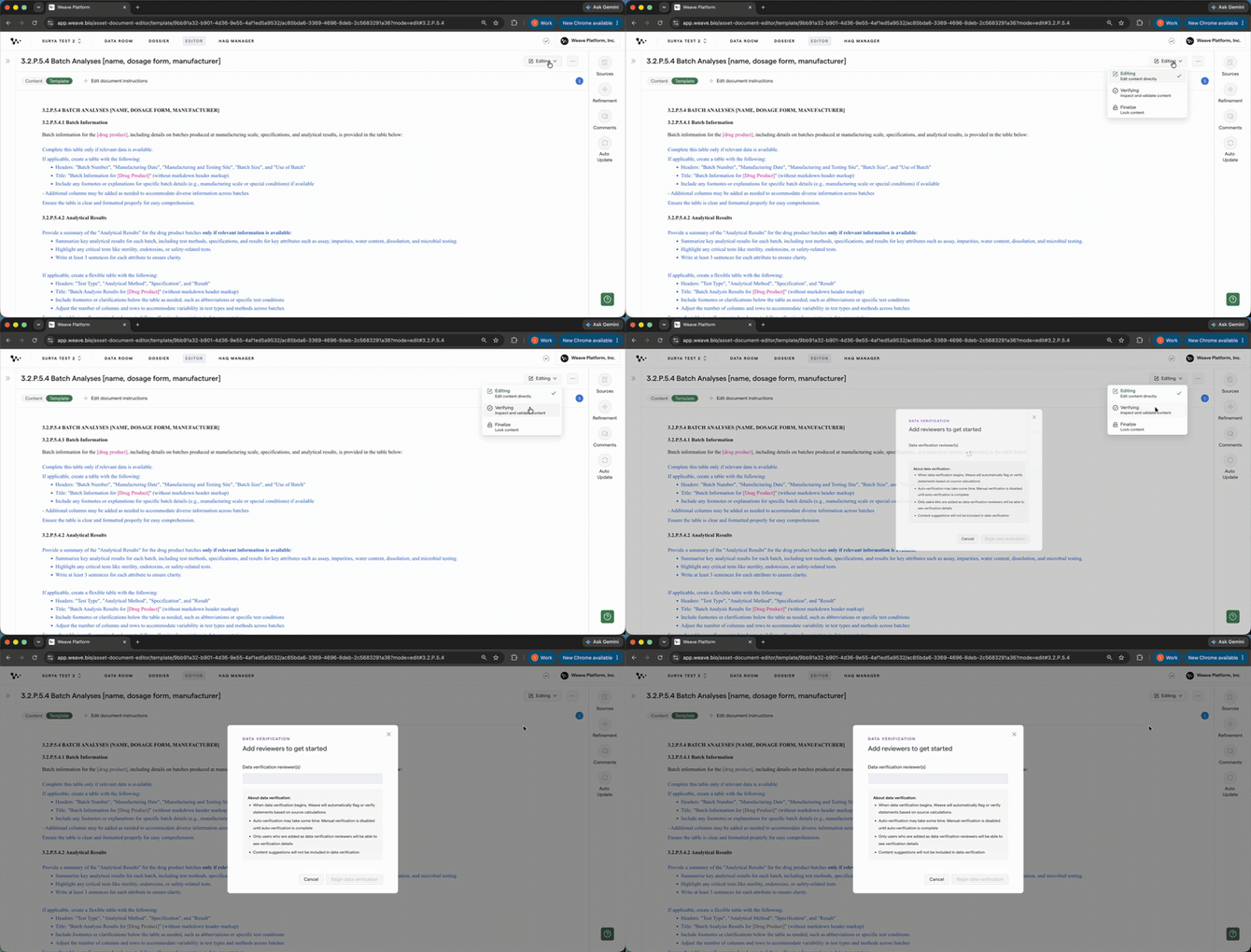
Selecting Verifying from the Editing dropdown
A popup appears asking you to add a reviewer.
Step 2: Add a reviewer and begin
Add yourself as the reviewer for a self-review pass, or type in a colleague's name to assign it to them. Then click Begin review.
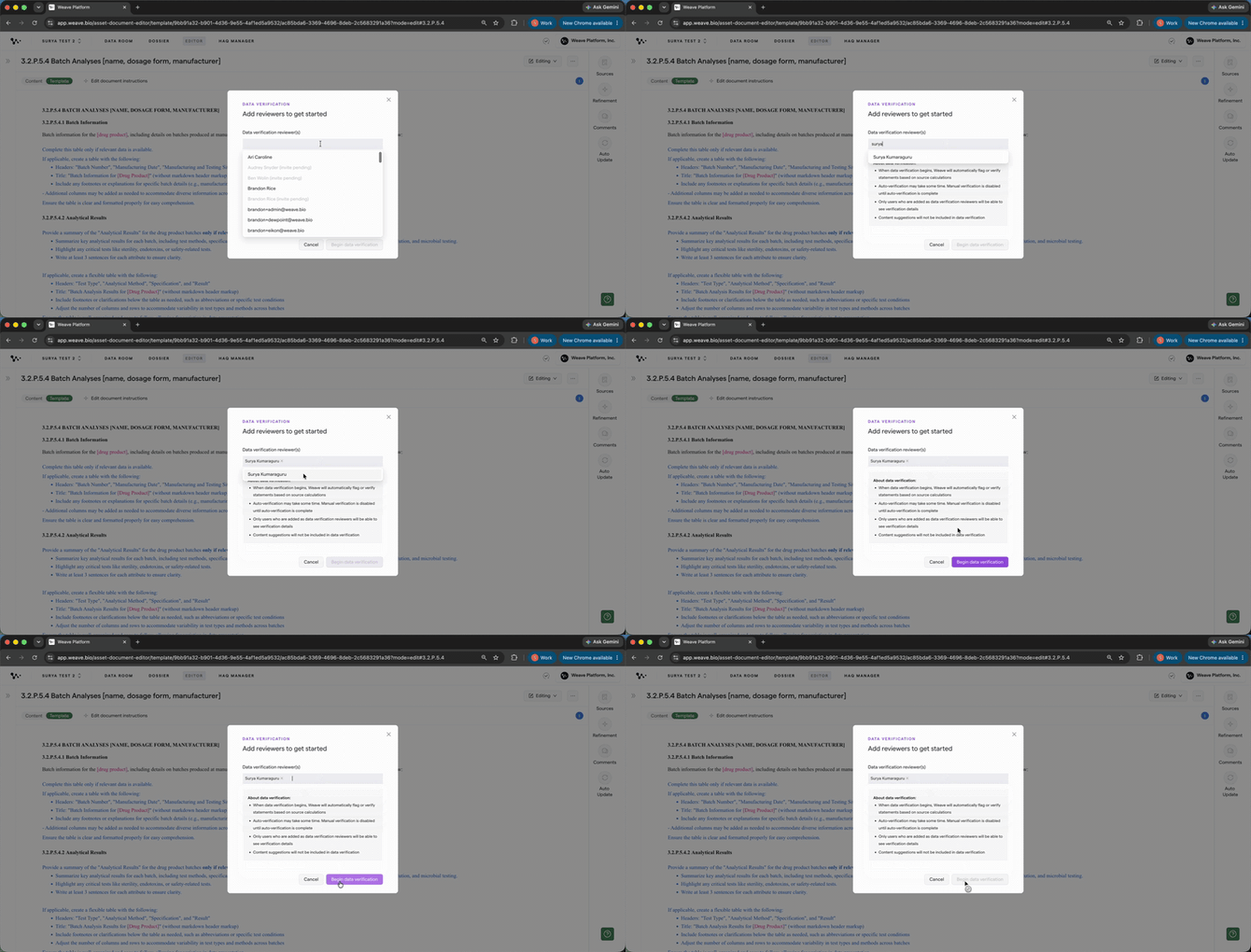
Adding a reviewer and starting the verification run
Weave AI runs automatically. It goes through every sentence and table cell in the document and checks each one against your source files. A progress indicator shows it's running.
Tip: You can add yourself first and run a self-review pass, then assign the document to a colleague for a second pass. Each reviewer sees the same verification results.
Step 3: Review the AI results
Once the run completes, every piece of content in the document is highlighted:
- Green underline: Weave AI verified this statement. It found matching support in your source files.
- Red underline: Weave AI flagged this statement. It needs a human to confirm.
- No highlight: Not evaluated. Weave AI couldn't find enough evidence either way.
A data verification progress bar appears at the top. Click View details to see a full breakdown of verified, flagged, and not-evaluated counts across the document.
Note: Your verification percentage may be below 100% when the AI run finishes. This is normal. The percentage shows how much of your document has been verified so far, not how much Weave attempted to check. Flagged and not-evaluated content still requires human review.
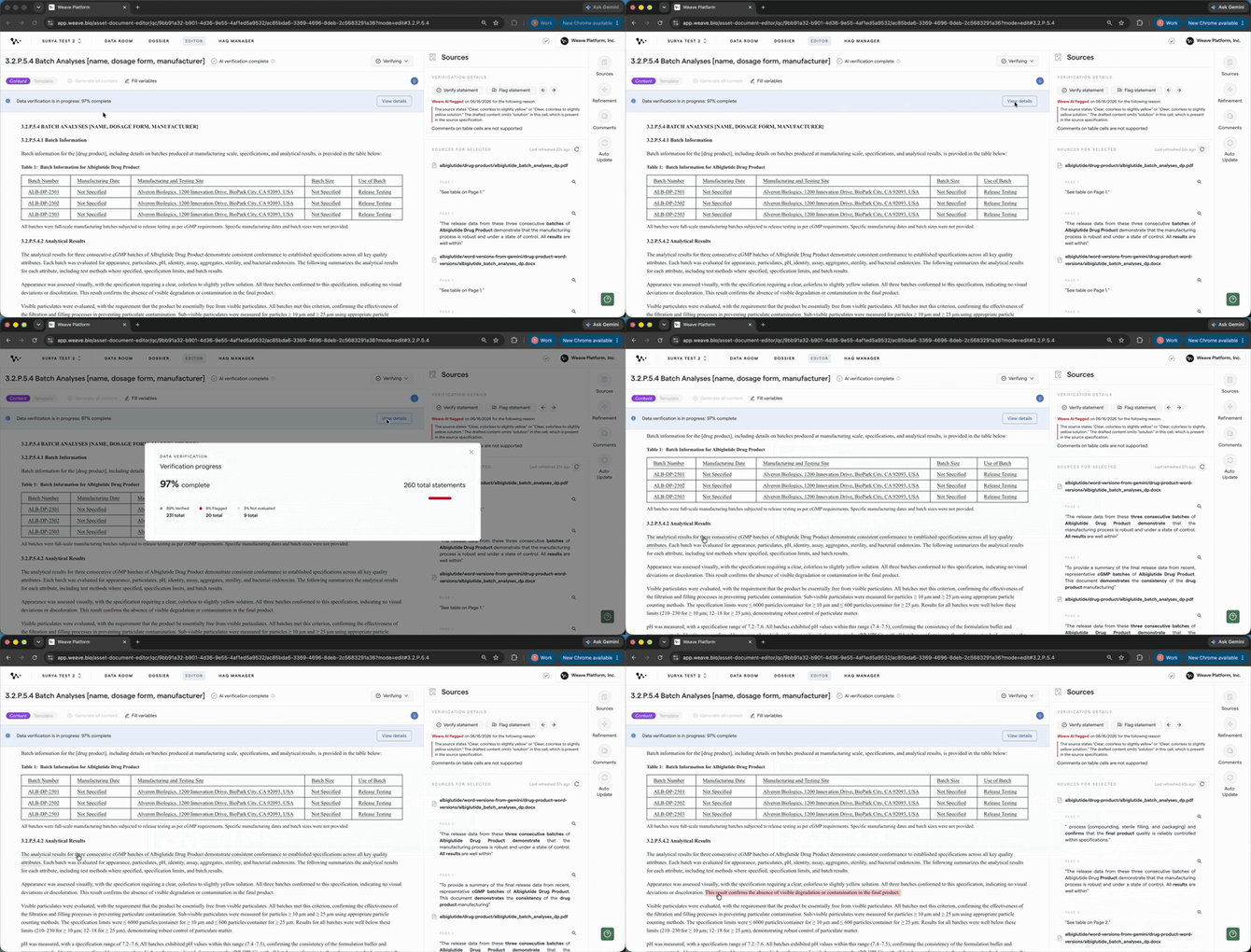
The document after AI verification. Green underlines are verified; red underlines need review.
Note: A red underline doesn't mean the statement is wrong. It means the interpretation of the source material could be vague and requires a human to review. The final call is always yours.
Step 4: Verify or flag each statement
Click any sentence or table cell to select it. The right panel shows the Weave AI verdict and the reason behind it. For example: "Supported by source document, which states the compound was stored at 25°C" or "Value not explicitly stated in source. Calculated from total daily dose."
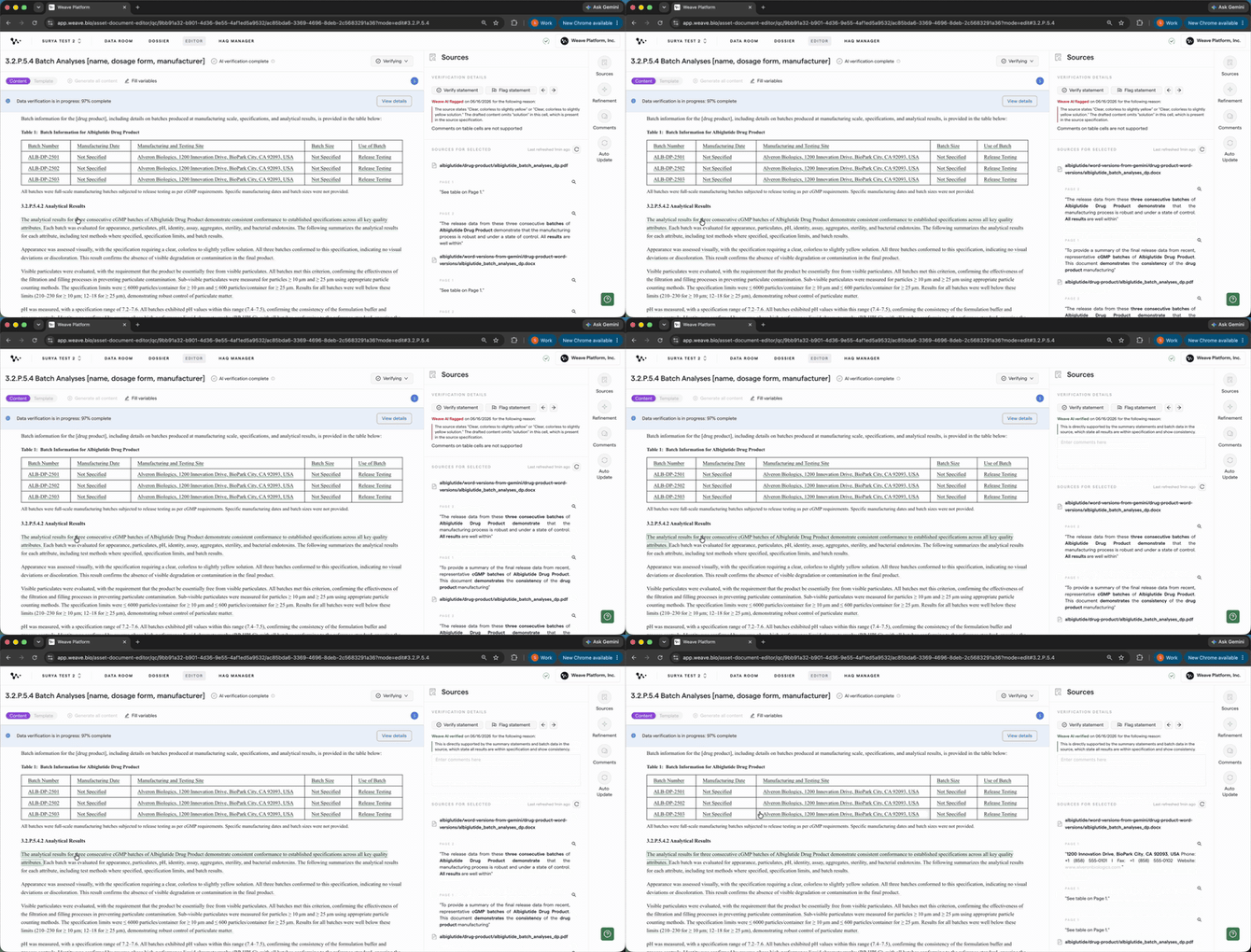
Clicking a sentence to see the AI's verification reason
Once you've reviewed the statement, choose your action:
- Click Verify statement if you agree it's accurate. The sentence turns fully green and a green triangle appears in the top-left corner to show it's been human-verified.
- Click Flag statement if you spot an issue that needs fixing.
Tip: Your verification percentage increases as you verify more statements. Use it to track your progress as you work through the content that still needs review.
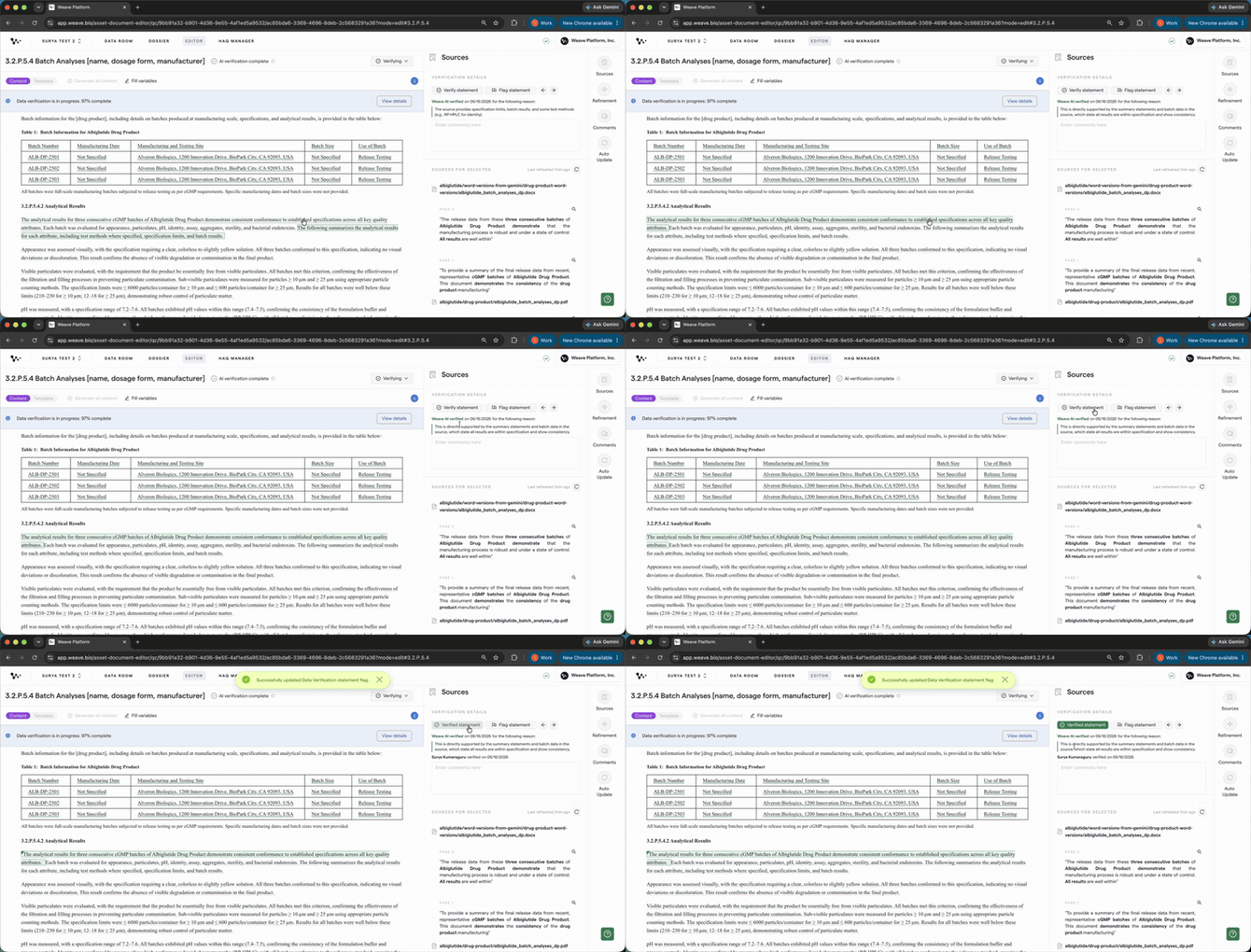
Verifying a statement. The green triangle confirms human review is complete and helps reviewers differentiate between verified content vs. new content in future review cycles.
Use the right arrow key to move to the next sentence without clicking. This lets you move through the document efficiently.
Tip: Work through verified statements quickly using the arrow key. Take your time on flagged ones. Those are the statements that need your judgment.
Step 5: Add comments to flagged statements
If you flag a statement or want to leave a note for the next reviewer, click the statement and add a comment directly in the panel. For example: "Change dose from 100 mg to 50 mg per final study report."
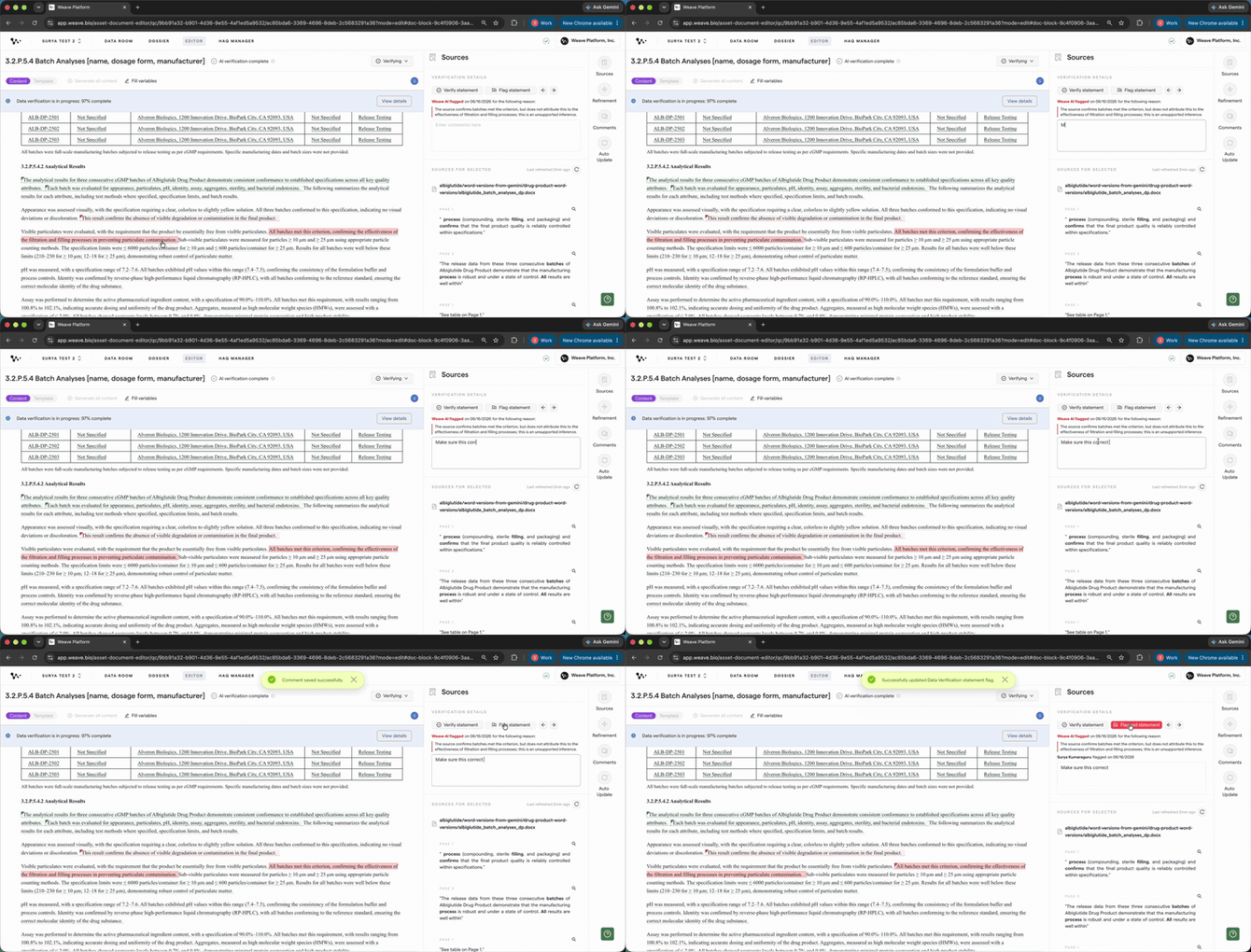
Adding a comment to a flagged statement
Note: Comments are supported on text sentences. Table cells can be verified or flagged, but comments on table cells are not yet available.
The comment is saved and visible to anyone reviewing the document.
Step 6: Make edits and re-verify
The document is locked while you're in Verifying mode. You can't edit text directly. This is intentional. It prevents content from changing after you've already verified it.
To make a change, select Editing from the dropdown in the top-right corner to switch back. Make your edits, then return to Verifying to re-run verification on the updated content.
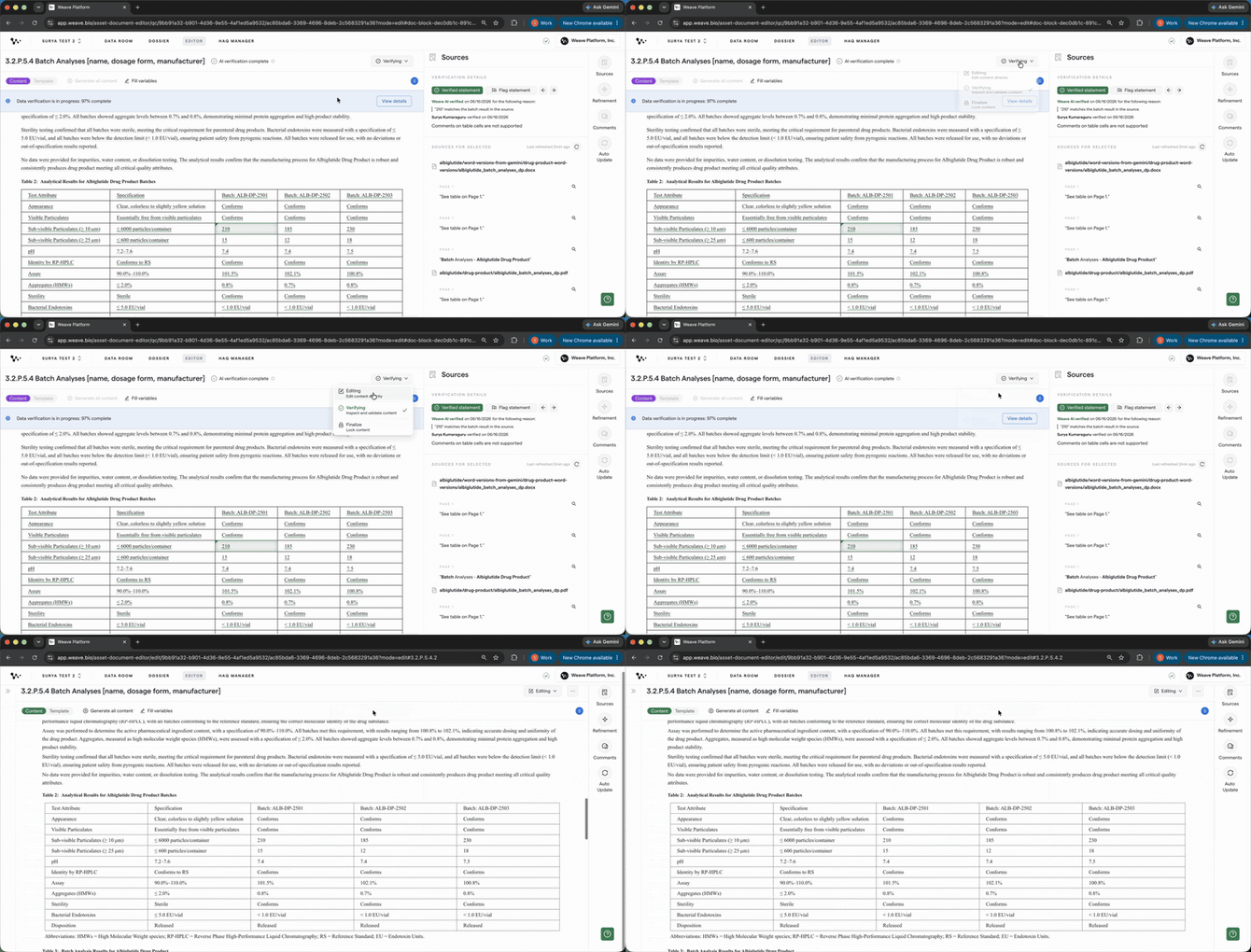
Switching back to Editing mode to make a change
Tip: You don't need to re-verify the entire document after making a small edit. Weave re-evaluates only the content that changed. Everything else stays verified.
Once back in Editing mode, open the Sources panel to see your verification status alongside source matches. Verified statements, flagged statements, and any comments you added are all visible there.
Step 7: Run verification as many times as you need
You can run Auto Verification at any point in your drafting process and as many times as you want. You don't have to wait until every source file is finalized.
A good approach: verify everything you can early, then re-run only for the sections that change when new reports come in. That way you're not re-reviewing the entire document at the end.
Note: Verification results live within Weave. There is no exportable verification report. Review happens in the platform.
Common flag scenarios
Weave AI takes a conservative approach. It flags statements whenever it can't fully confirm them, even if they're likely correct. Here are the most common reasons a statement gets flagged:
Rounding or sig fig differences across source files
One source report uses three significant figures; another uses two. The AI flags the value to make sure you're aware of the discrepancy.
The compound is referenced by different names
If two source documents refer to the same drug by different names or codes, the AI flags the statement and notes the discrepancy. This often reflects how different CROs or labs named the compound in their reports.
Value calculated from source rather than stated directly
If a value in your document was derived from source data (for example, a per-dose figure calculated from a total daily dose), the AI may not be able to confirm it directly. It flags the statement so you can verify the calculation yourself.
In all cases, the AI is asking you to confirm. It is not telling you the content is wrong.
Why your verification percentage may be below 100%
Note: It is normal to see less than 100% after Auto Verification finishes.
The percentage in the banner shows how much of your document has been verified, either by Weave AI or by a reviewer. It does not show how much of the document Weave attempted to check.
Weave maps each statement back to your source files. Some content may not have a traceable source, including standard boilerplate, template headings, or content whose source file has been removed. This can keep the percentage below 100%, but it does not mean the verification run failed or the remaining content is wrong.
Use the remaining percentage to gauge how much of your document still needs human review. Review each flagged or not-evaluated statement against your sources. If you confirm that it is accurate, click Verify statement. The percentage increases as you complete your review.
FAQ
Q: Why did Weave AI flag something I know is correct?
A: Weave AI flags a statement whenever it can't fully trace it back to source data. The statement may still be accurate. The AI is asking you to confirm it, not telling you it's wrong. Click the statement to see the reason, review your source, and click Verify statement if you're satisfied.
Q: Can I edit the document while I'm reviewing it?
A: Not directly. The document is locked in Verifying mode to prevent accidental changes. Switch back to Editing using the dropdown in the top-right corner, make your changes, then return to Verifying.
Q: Can I export the verification results?
A: No. Verification results stay within Weave. There is no exportable report. If you need to share the status of a review, you can do that through the collaboration features in the platform.
Q: What does "Not evaluated" mean?
A: Weave AI couldn't find enough source evidence to either verify or flag that statement. This most often happens with content you wrote manually rather than generated from source files. Those statements need manual review.
Q: Do I have to verify the whole document in one sitting?
A: No. You can verify some statements, switch back to Editing, and come back later. Verified statements stay verified. You can also re-run verification after uploading new source files. Only the changed content needs re-review.
Quick Reference: Auto Verification
- Open your drafted document in the editor
- Select the Editing dropdown (top-right) and choose Verifying
- Add a reviewer and click Begin review
- Wait for the AI run to complete
- Click each sentence or table cell to see the AI verdict and reason
- Click Verify statement to confirm, or Flag statement to mark for revision
- Use the right arrow key to move sentence by sentence
- Add comments to flagged statements as needed
- To edit: switch back to Editing, make changes, then return to Verifying
- Repeat as many times as needed. Verification runs are unlimited.