
Note: Your document needs to be open in the Document Editor with a first draft already generated. The document must be in Editing mode, Refinement doesn't work in Suggesting mode. If the Refinement panel is greyed out, check the mode dropdown at the top of the editor and switch back to Editing.
How to use the Refinement tool
1. Open the Refinement panel
Click the sparkle icon in the right-hand panel of the Document Editor. The Refinement panel opens on the right side of the screen.
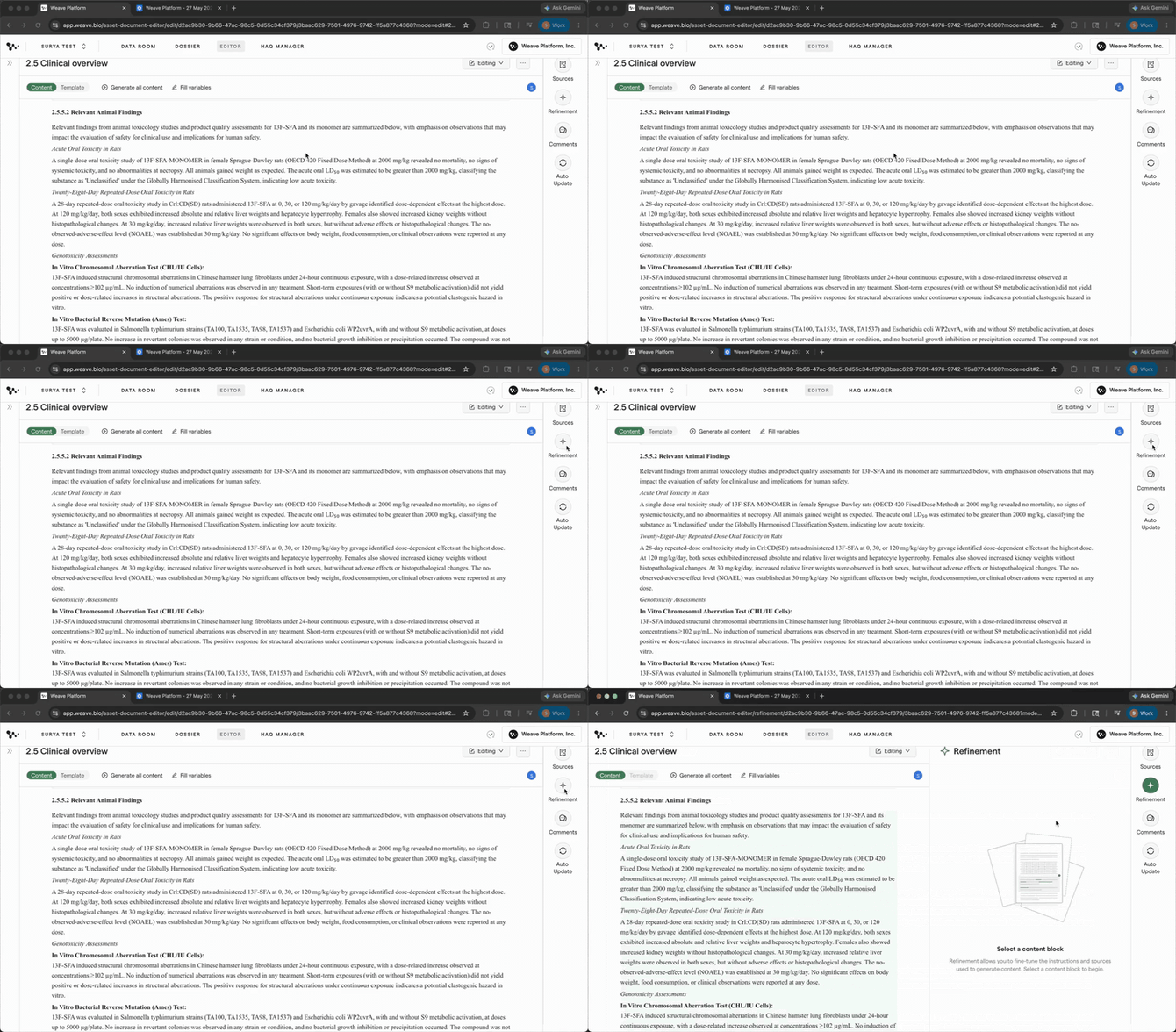
Opening the Refinement panel
Tip: Keep the Refinement panel open while you read through your draft. You can hover over a content block to evaluate them as refinement candidates without committing to select any.
2. Hover over a Content Block and click to select it
Move your cursor over any content block in Content View. The block highlights in green to show it's a candidate for refinement. Click to select it.
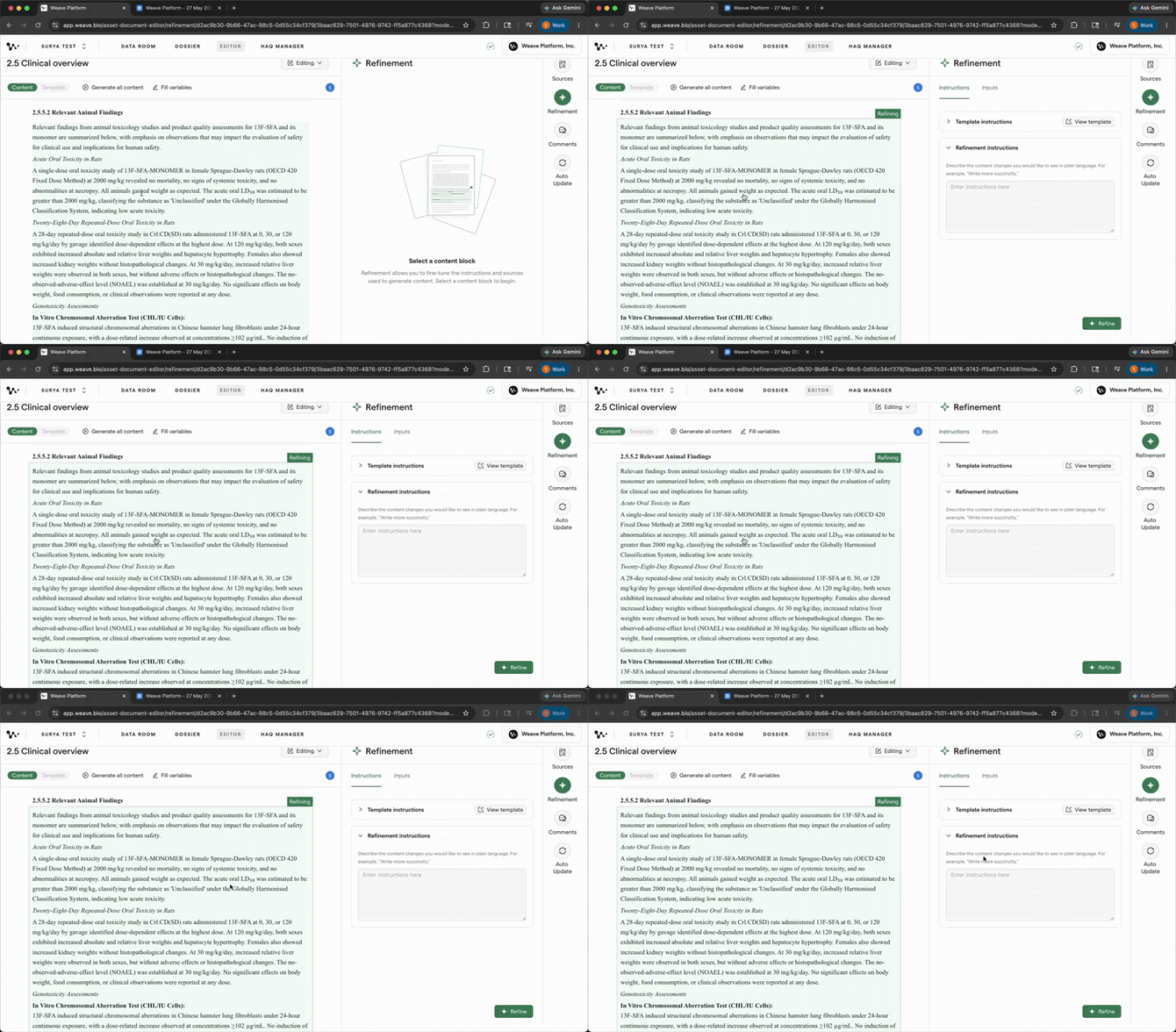
Hovering to see the green highlight, then clicking to select the block
Note: Refinement works on the content block you select: a sentence, a paragraph, or a block of text. Nothing else in the document is affected.
Tip: Select the smallest block that covers the specific issue. A narrower selection produces a more targeted result than selecting an entire section.
3. Write a refinement instruction
Type your instruction in the Refinement panel. Describe exactly what the new version should do, what to change, what to keep, and any constraints on language or format.
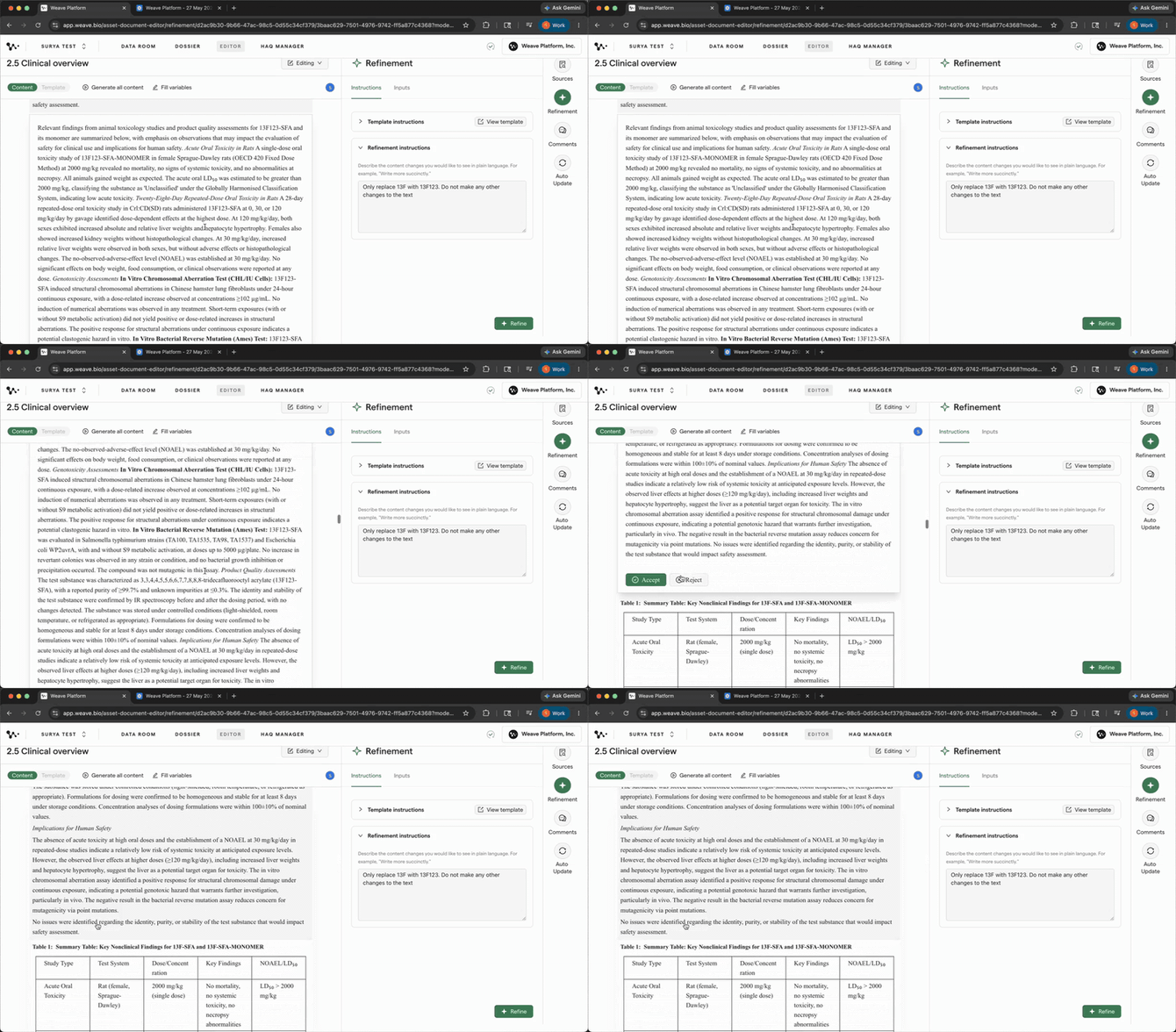
For a targeted change like replacing a specific term throughout a content block, make the constraint explicit: "Only replace [old term] with [new term]. Do not make any other changes to the text." Stating what should stay the same is as important as stating what should change.
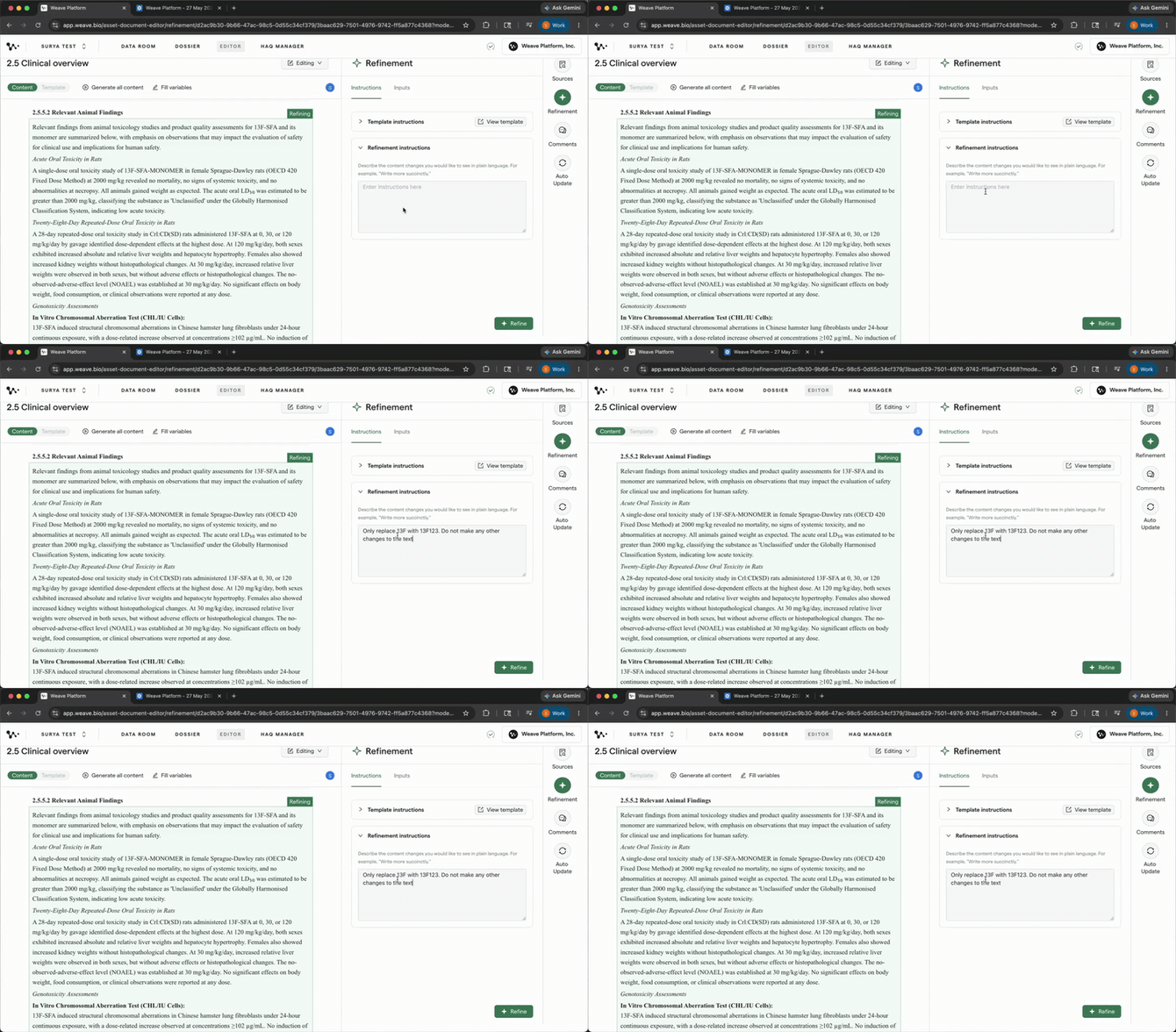
Writing a refinement instruction with an explicit constraint in the Refinement panel
Tip: The more specific the instruction, the better the result. Naming what to change, what to keep, and what the output should look like gives Weave the constraints it needs to produce a targeted result.
4. Click Refine and review the result
Click Refine. Weave generates a new version of the selected content block. When it's ready:
- The original content block appears in gray above
- The new version appears in white below
Read both before deciding. Check that the new version made only the changes you asked for.
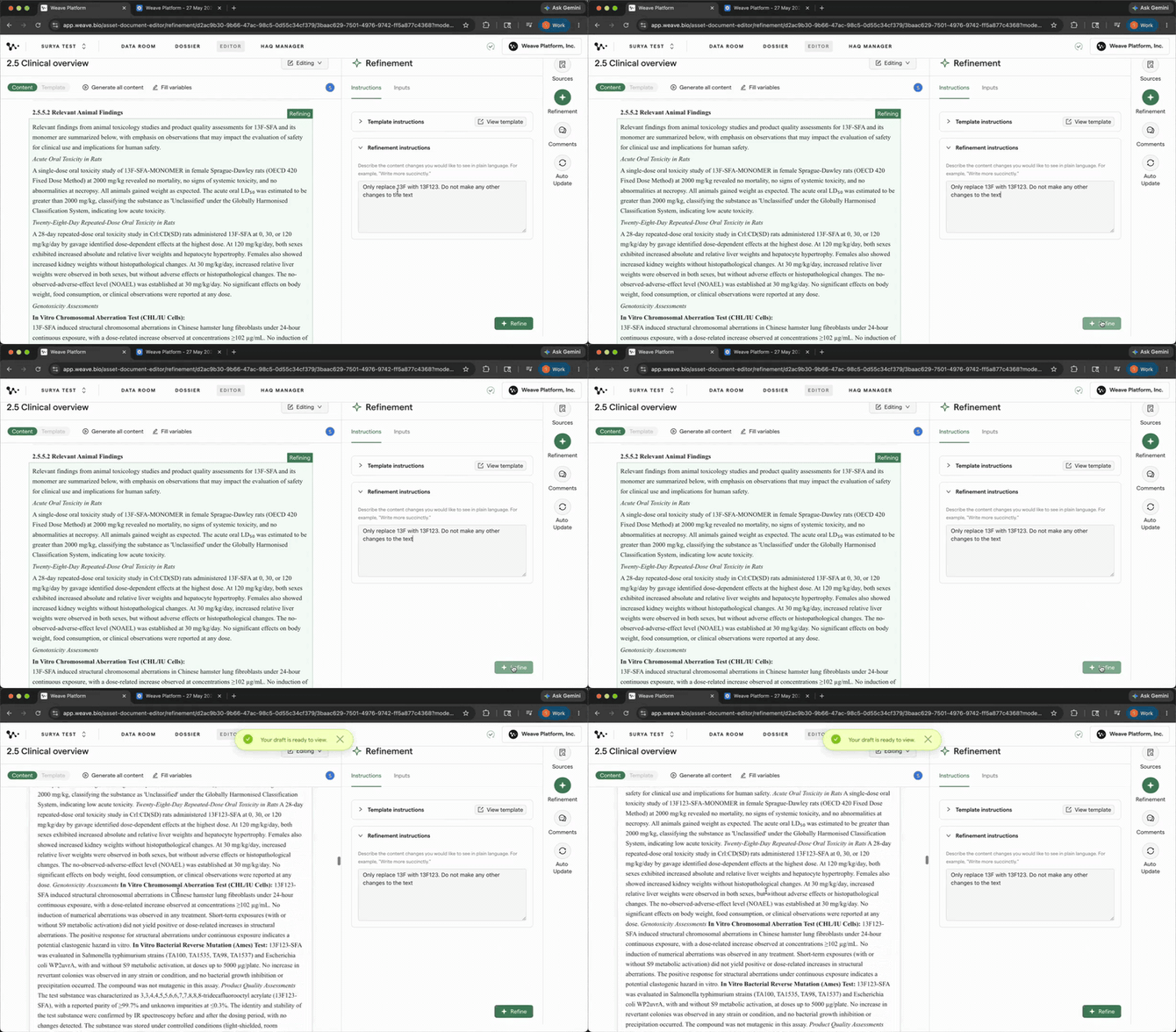
Reviewing the original (gray) and the new version (white) — clicking Reject when the result didn't stay within the specified constraints
Tip: If the result changed more than you intended, or missed the constraint you specified, click Reject. Rejected attempts have no side effects, they don't create version entries or appear anywhere in the document. Write a more precise instruction and try again on the same block.
5. Write a specific instruction and accept the result
Click Reject if the first result misses the mark, then revise your instruction. A vague instruction, "make this sound better," gives Weave no constraints to work within. A specific instruction, "remove hedging language from this block; replace uncertain phrasing with direct, factual statements," produces a targeted result.
Click Refine again with the revised instruction. Review the new version against the original. If the result stays within the constraints you set and improves the content block, click Accept. The document updates immediately.
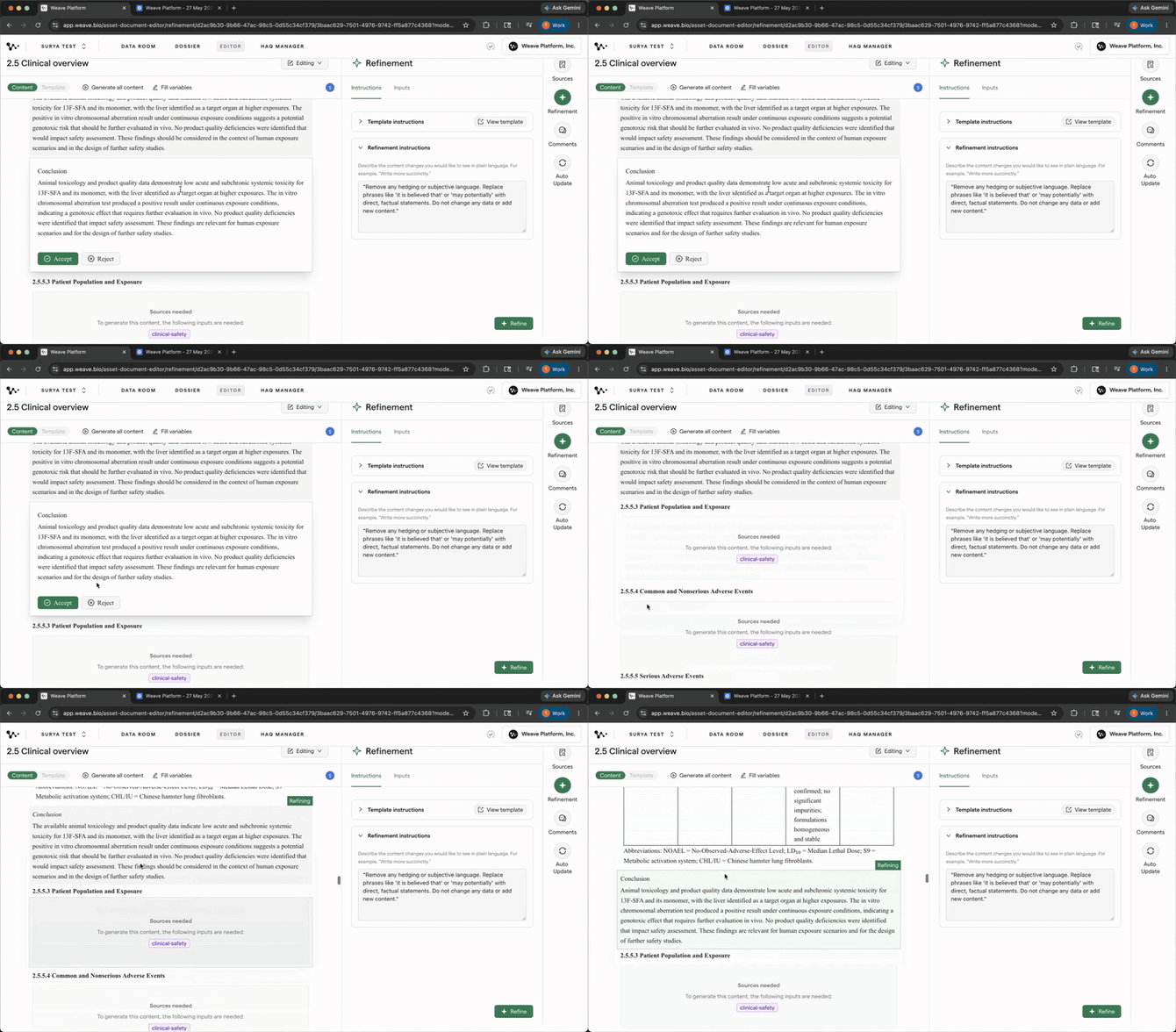
Tip: If the new version is mostly right but one phrase is off, revise the instruction on the next attempt rather than accepting and re-refining. One well-targeted instruction typically produces a cleaner result than two sequential passes.
Important: Accepting a refinement is reversible. Every accepted refinement creates a new version entry for that section in Version History. If you accept a result and change your mind, you can restore the prior state — see Step 6.
6. Check Version History if you need to undo an accepted refinement
Click out of the Refinement panel and find the section where the refinement was accepted. Open the three-dot menu on that section and select Version History.
Version History shows a version entry for each accepted refinement. Click Restore on the entry before the refinement to return the section to its prior state.
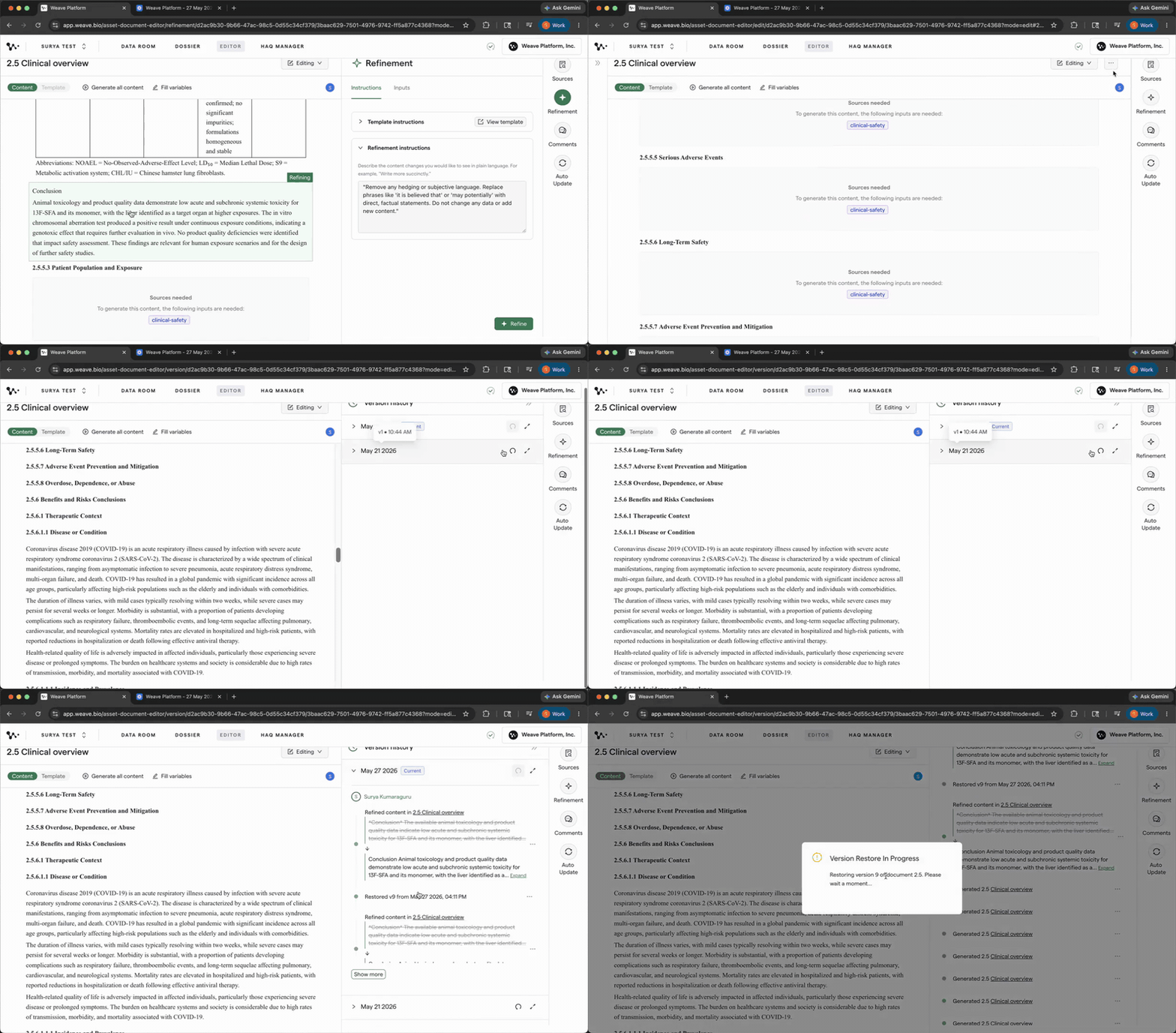
Using Version History to restore a section to its state before an accepted refinement
Note: Only accepted refinements create version entries — rejected attempts are discarded with no record.
What to expect
Refinement is designed for targeted, block-level improvements, not structural changes to an entire section. If a content blockconsistently produces weak results regardless of how you write the instruction, the source data available for that section may be the limiting factor. In that case, check whether the relevant source files are tagged correctly or whether the section's template instruction needs updating, see How to customize your document template instructions.
Refinement doesn't run in Suggesting mode, doesn't change the scope or structure of a whole section, and only draws from the source files already tagged to the section you're working in.
Tips
- Refine after your first full generation pass, not during. Read the full draft first, then go through it with Refinement. Working block by block before the whole document is generated means refining without the full context of what surrounds each section.
- Be specific about what should stay the same, not just what should change. An instruction that names a constraint — "do not change anything other than the term" or "keep the sentence structure, only change the phrasing" — produces a more controlled result than one that only states the desired change.
- Reject and retry freely. Each rejection discards the attempt with no side effects. If the first result misses, revise the instruction and try again on the same content block.
- Check Version History if you accept the wrong result. Every accepted refinement is logged per section. Open Version History from the section's three-dot menu to restore any prior state.
Related features
- Template Instructions — If a whole section needs a different direction rather than a block-level fix, update the template instruction and regenerate that section. See How to customize your document template instructions.
- Source Mapping — For refinements drawing from large source files, use the Sources tab in the Refinement panel to scope which excerpts are retrieved. See How to verify your sources and trace content back to the original document.
- Version History — Every accepted refinement creates a version entry per section. To restore a section to its state before a refinement, use Version History from the section's three-dot menu.
Suggested articles
- Best practices for writing refinement instructions (coming soon) — How to write instructions that produce targeted, high-quality refinement results: scope, specificity, constraints, and worked examples.
Quick Reference
Refine a Content Block
- Open the Refinement panel — click the lightning bolt icon in the right-hand panel
- In Content View, hover over a content block — it highlights in green
- Click to select the block
- Type a specific instruction — name what to change, what to keep, and any constraints
- Click Refine
- Review: original in gray (above) vs. new version in white (below)
- Click Accept to replace, or Reject to discard and retry with a revised instruction
Undo an accepted refinement
- Click out of the Refinement panel
- Open the three-dot menu on the refined section
- Select Version History
- Find the version entry before the refinement
- Click Restore