
Note: This guide assumes you have already created a program and have a document open in the Editor. If you haven't set one up yet, start with Creating a Program.
1. Open your document in the Editor
Navigate to the module and section you want to work with, then click View Draft.
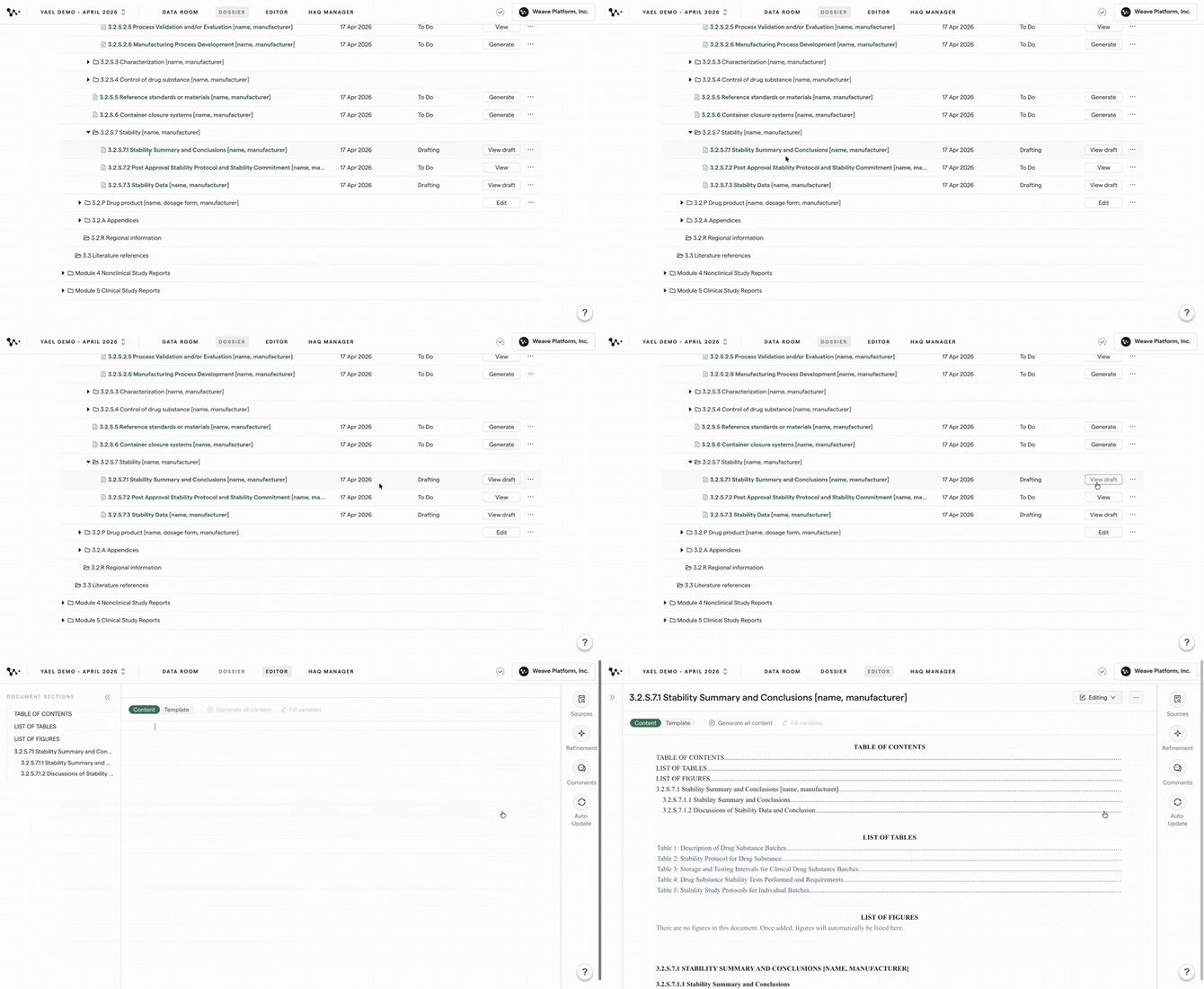
Navigating to a module section and clicking View Draft to open the Editor
2. Switch to Template view
Click the Template tab at the top of the Editor. Document level instructions live here, alongside your section templates.
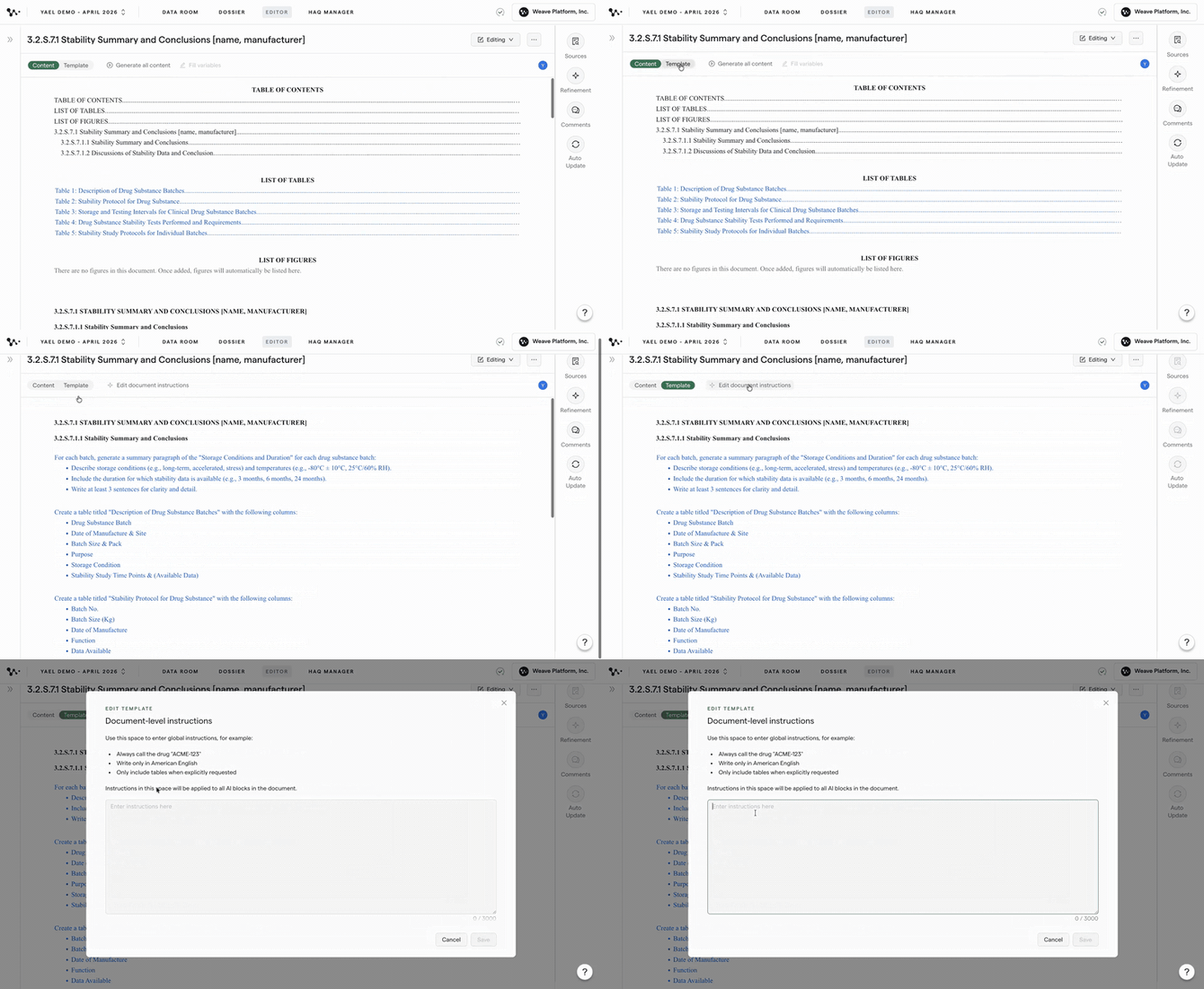
Clicking the Template tab to switch from Content to Template view
3. Add your document level instructions
Type your instructions in the Document Level Instructions field. Write in plain English, for example:
"Always reference [term A] as [term B]."
This field is also a good place to add:
- Internal style guide rules
- Key messages that should appear consistently throughout the document
- Preferred terminology for any names, labels, or references used across sections
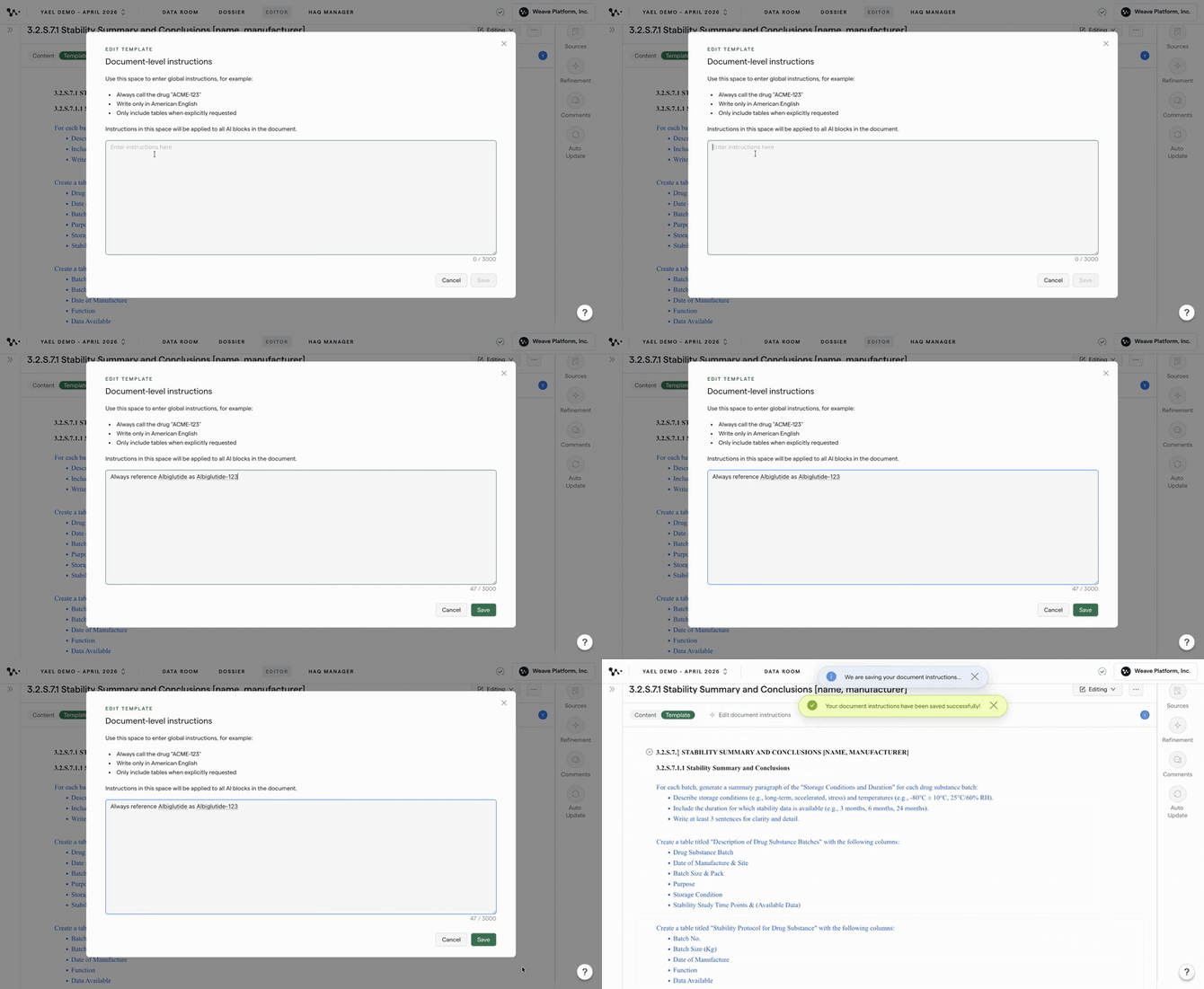 Typing a Document Level Instruction and Clicking Save
Tip: The more specific your instruction, the more consistently Weave will apply it. A clear, direct rule produces more reliable results than a general preference.
Click Save when you're done.
Important: Saving does not immediately update your document. You need to regenerate content for the instructions to take effect.
4. Regenerate content to apply your instructions
Click back to the Content tab, then click Generate All Content.
Weave regenerates the entire document using your updated instructions, including any naming conventions or style rules you just added.
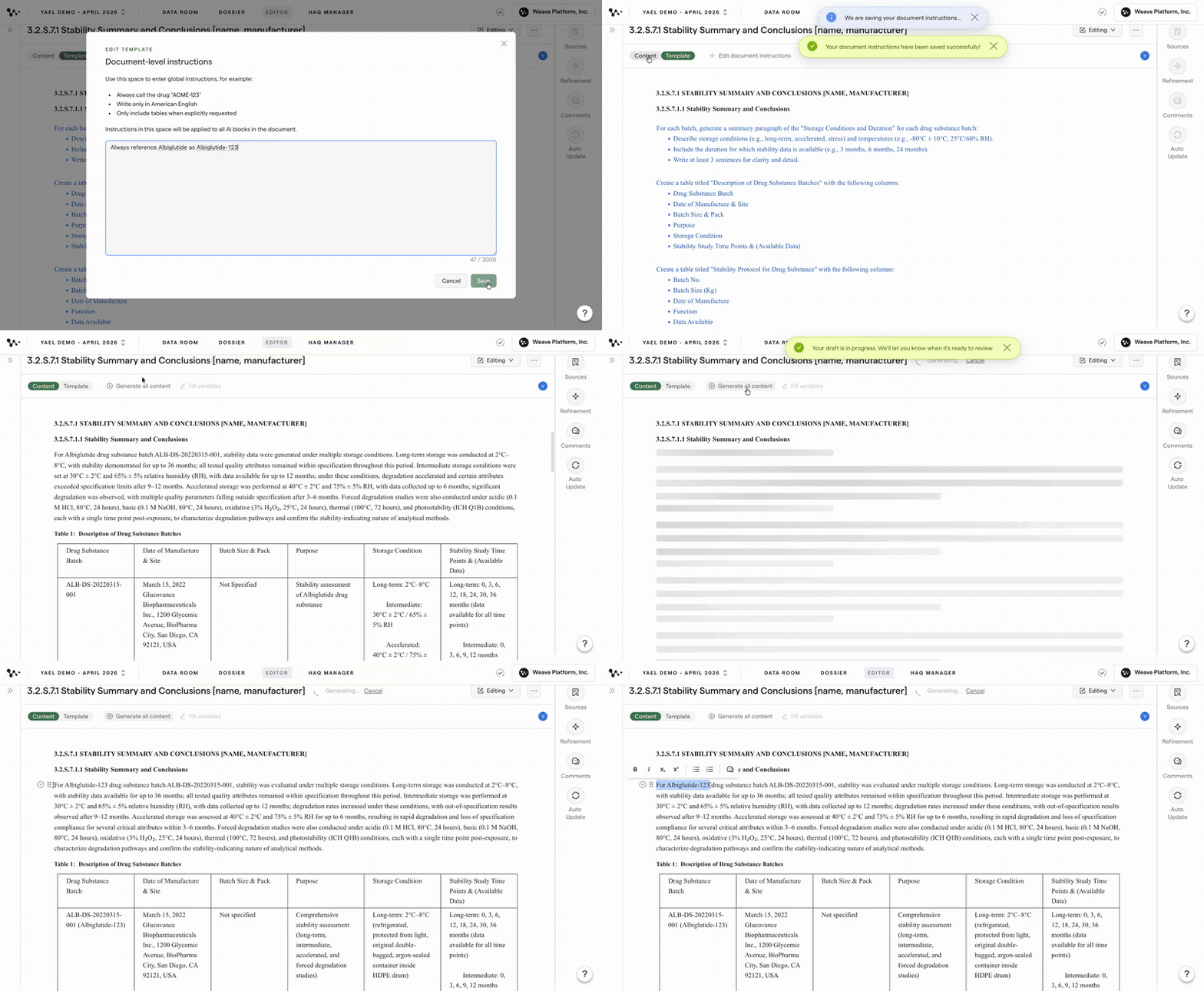
Switching to Content view, clicking Generate All Content, and seeing the updated naming convention applied
Once generation is complete, review your document to confirm the instructions were applied as expected.
Note: Generate All Content regenerates your entire document. If you've made manual edits you want to keep, use block-by-block regeneration instead, click the Generate button on individual sections rather than running the full document.
Best practices
Apply document level instructions before your first generation. Setting your instructions upfront gives Weave the full context it needs from the start and reduces manual corrections later.
Be mindful when regenerating after you've edited manually. If you update document level instructions partway through a draft, regenerating the full document will overwrite any manual changes you've made. Apply instructions early, or regenerate section by section to stay in control.
Example: Document Level Instructions for a regulatory document
Here's a real example from a regulatory writing context. Adapt the rules to match your document type, terminology, and style preferences.
Style and Tone: Use clear and engaging language in an active voice. Provide only the essential context, results, and conclusions — avoid excessive procedural details unless critical to interpretation. Focus on the main findings and significance, rather than repeating standard laboratory conditions or methods at length. Where possible, follow the wording from the provided source context rather than this instruction.
- Target brevity and lean writing — Limit most paragraphs to 5 or fewer sentences unless extra detail is clearly needed. Ask: "What would end up in a table?" and keep that out of the narrative.
- Focus on design and key outcome — Always cover: system (species/cell line, sex when relevant), doses/concentration ranges and key conditions, main readout, and one sentence of interpretation.
- Avoid method-level detail unless requested — Don't mention exact culture media, lot numbers, names of statistical tests, or every PK parameter in prose if they're in tables.
- Simplify sentence structure — Prefer 1–2 clause sentences.
- Use a neutral, regulatory tone — State facts directly. Avoid rhetorical framing or narrative flourish.
- Let tables do the heavy lifting — Use text to interpret patterns, not re-list all numerical values.
- Bold all headers in all tables.
- Present studies in species order: Mice, Rat, Hamster, Guinea Pig, Rabbit, Pig, Dog, Monkey, Human.
- Never add clinical significance statements unless explicitly stated in the source documents.
FAQ
Q: What should I put in Document Level Instructions?
A: Anything that should apply consistently across every section of your document — naming conventions, tone, style rules, terminology, formatting preferences, or key messages. The more specific the rule, the more reliably Weave will follow it. See the example above for inspiration.
Q: Do document level instructions apply to all sections, or just the one I have open?
A: Document level instructions apply across the entire document. Every section that gets generated will follow the rules you've set, regardless of which section you were in when you saved them.
Q: What if I only want to update one section after changing my instructions?
A: Instead of clicking Generate All Content, regenerate individual sections one at a time. Click the Generate button on a specific section to apply updated instructions there without affecting the rest of the document.
Quick Reference: Document Level Instructions
- Navigate to your module and section, then click View Draft
- Click the Template tab
- Type your instructions in the Document Level Instructions field
- Click Save
- Click the Content tab
- Click Generate All Content