
Looking for specific use cases? If you already know how AutoReview works and want scenario-specific instructions — CMC parameter checks, simulated health authority reviews, style guide audits, and more — head to the AutoReview Use Cases Guide.
Run an AutoReview
1. Open AutoReview from your dossier
Navigate to your dossier and click Auto-Review in the left navigation.
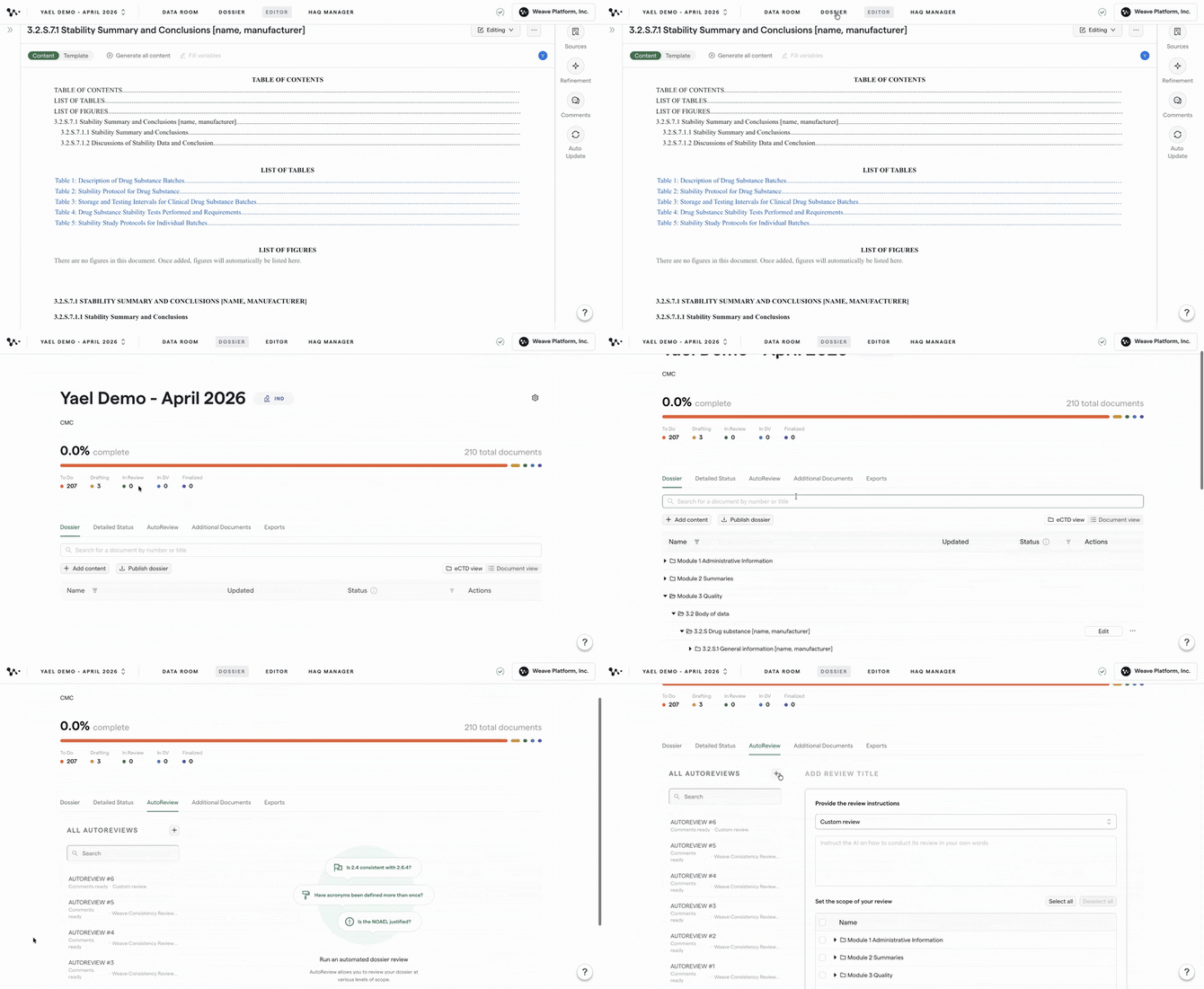
Opening AutoReview from the dossier
2. Add a review prompt
Click the + icon to add a prompt. You can write a custom prompt describing what to check, or select the Weave Consistency Reviewer to use the built-in consistency check.
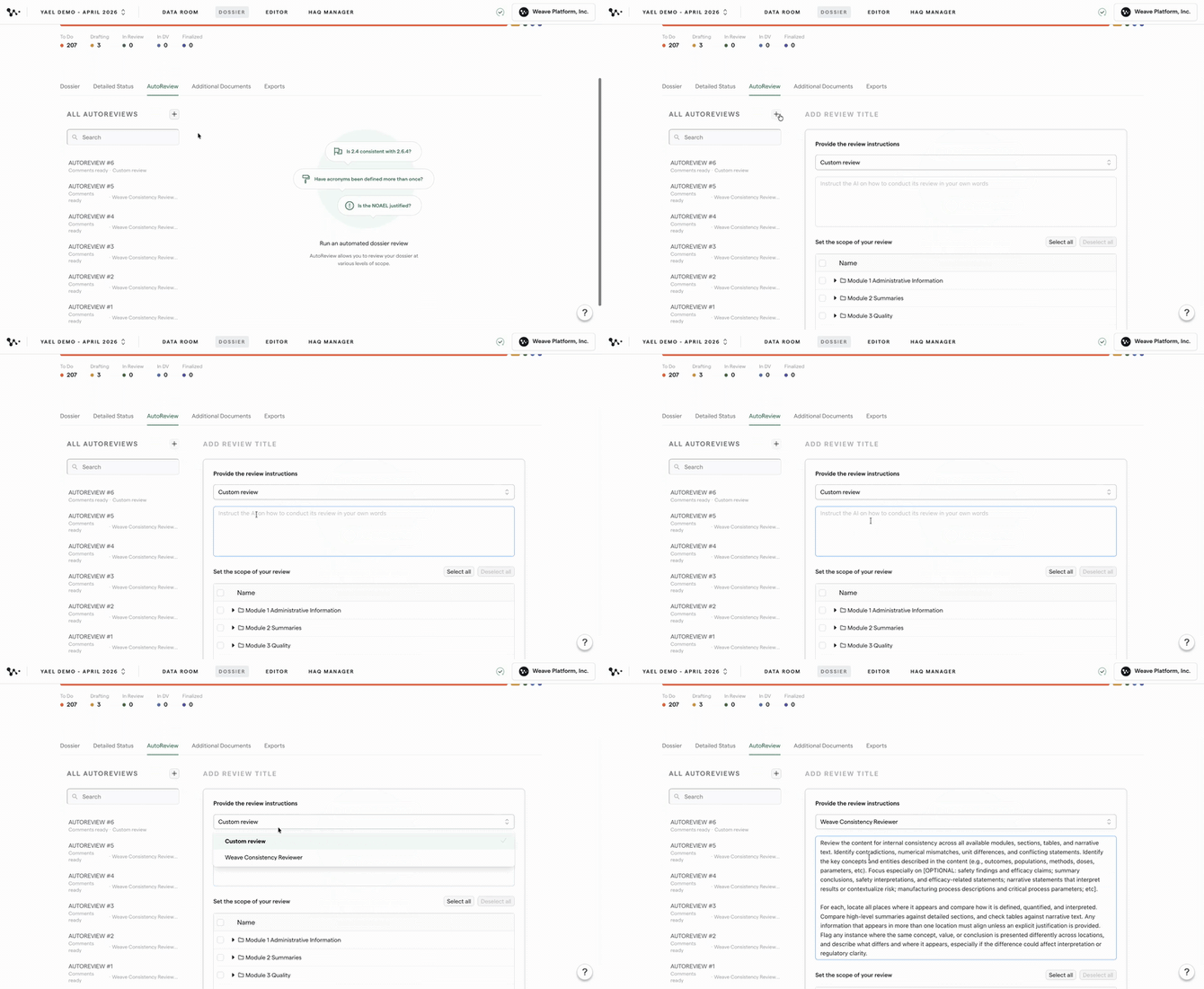
Choosing a review prompt type
Tip: The Weave Consistency Reviewer is especially useful for catching naming convention mismatches across sections — it's designed for exactly this kind of cross-section scan.
Attach reference files when your review needs them
Add the reference files in the review setup when you want AutoReview to check your draft against a style guide, regulatory guidance, or an updated source document.

Providing the document that defines the review criteria
Name the reference file in your custom prompt and explain exactly what to check. Attaching a file provides context, but the instruction still needs to define the task.
For example:
"Review the selected sections against the attached [style guide title]. Flag abbreviation and terminology violations only. For each finding, quote the draft wording, identify the applicable rule, and suggest a correction. Do not comment on content that already follows the guide."
For an updated source file, ask AutoReview to identify values that disagree with that source. Specify the metrics or topics to compare and require the comment to identify the supporting source location.
Tip: For detailed style checks, start with one section or a small group of sections. Review the findings before expanding the scope. AutoReview can miss issues and does not replace your final review.
Reference files supply the rules or evidence for the check. The sections you choose next are the content AutoReview will review.
3. Select the sections to review
Once your prompt is set, select which sections of the dossier you want AutoReview to scan.
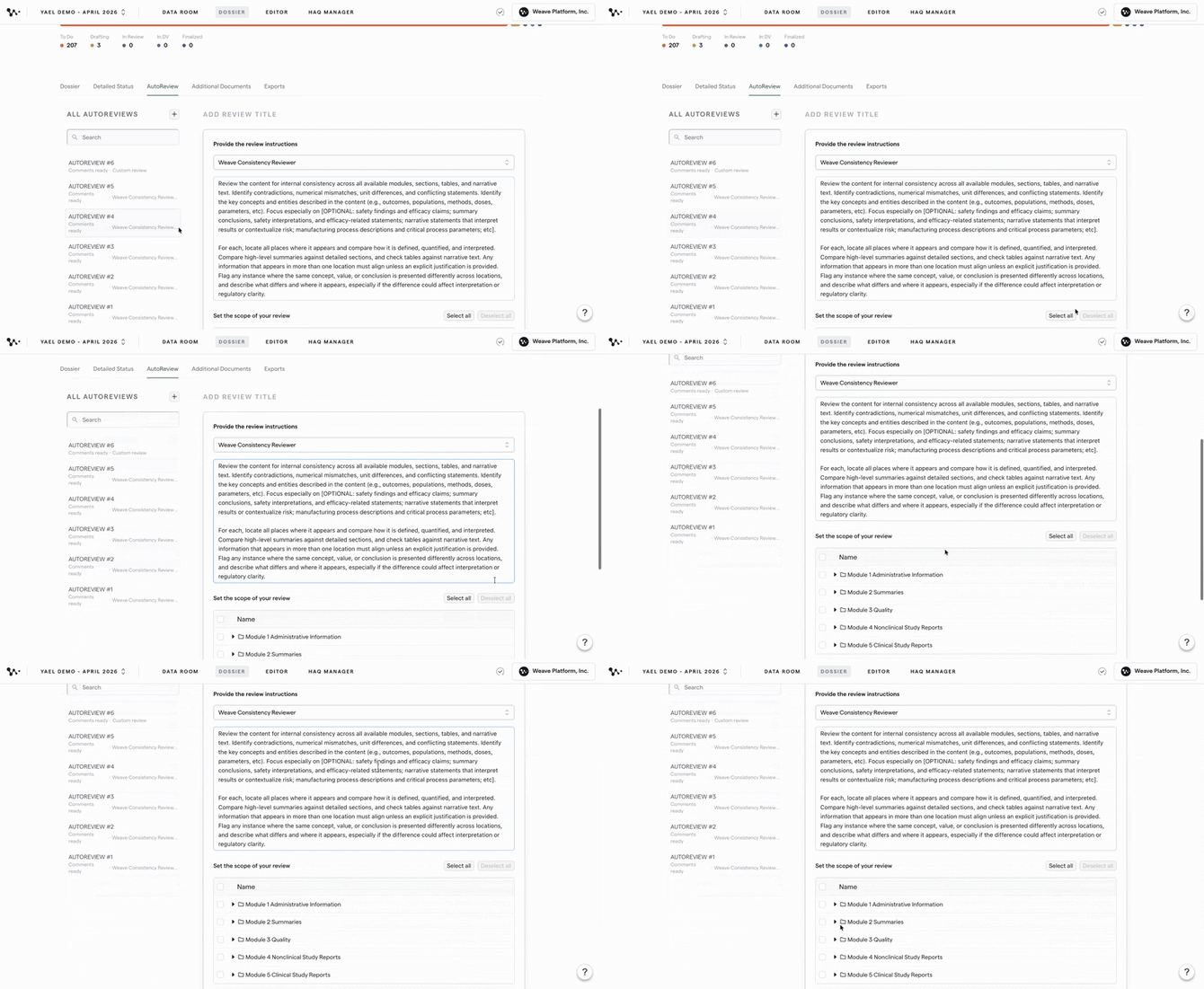
Selecting sections for AutoReview to scan
4. Run the review
Run the review. AutoReview will scan the selected sections and surface anything that looks inconsistent as comments in the panel.
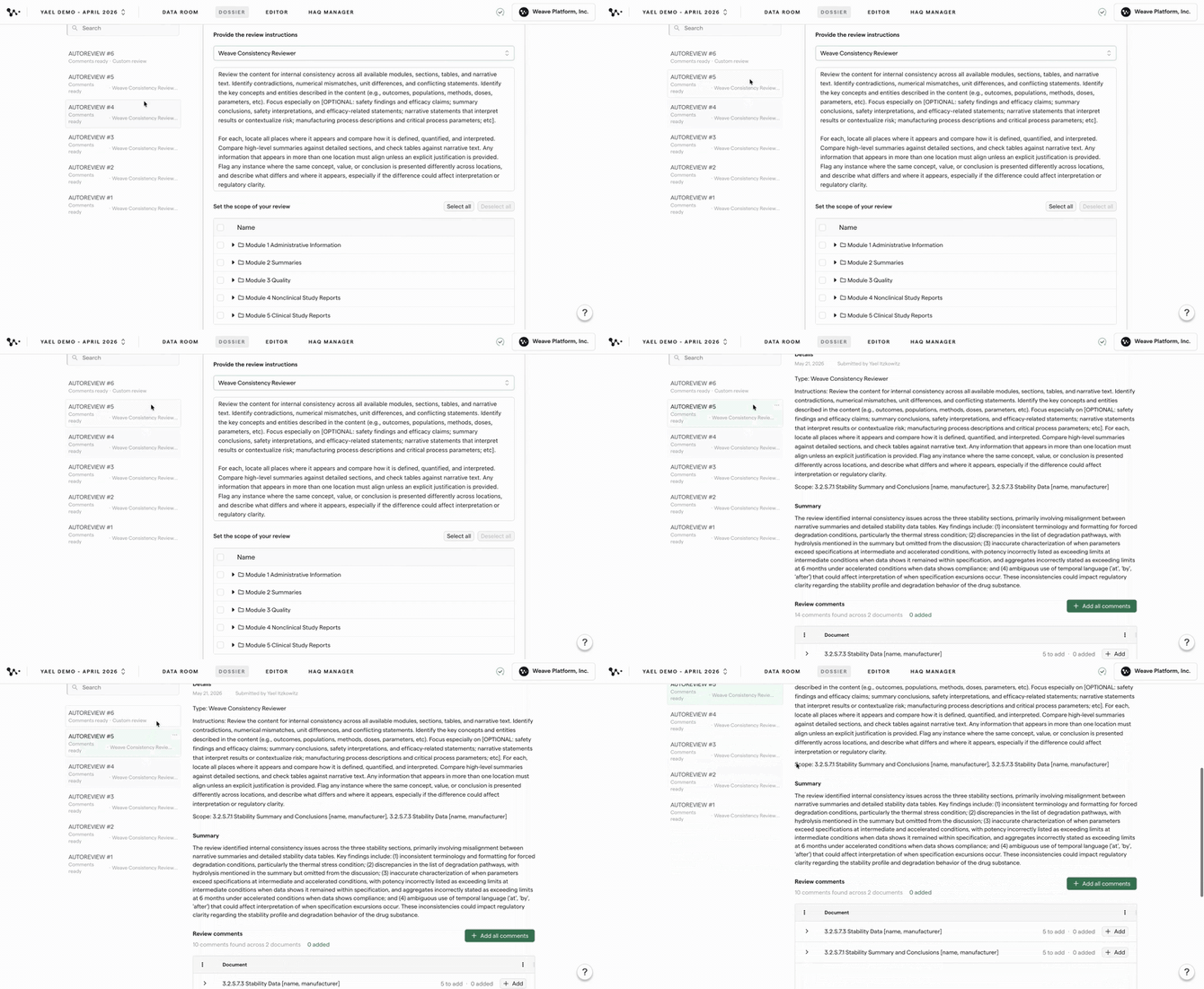
AutoReview surfacing inconsistencies as comments
5. Add comments to the document
For each flagged item, click Add to push it into the relevant section as a comment. You can add comments one at a time or work through all of them.
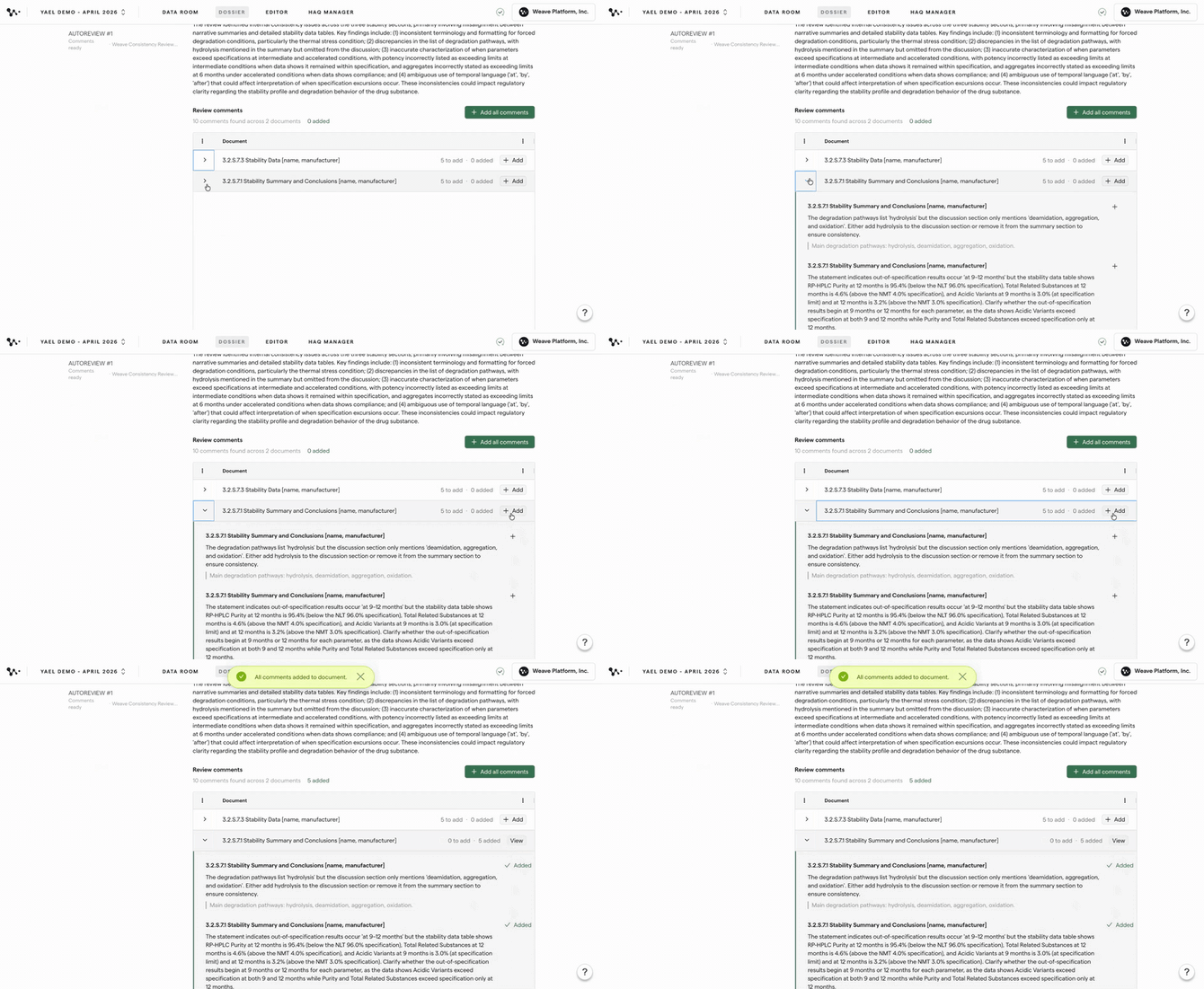
Adding an AutoReview comment to a section
6. Review and act on the comments in the document
Navigate to the section and open the draft. The AutoReview comments appear in the Comments panel, attributed to Weave AI. Each comment tells you specifically what to look at. Any changes are manual — you decide what to update.
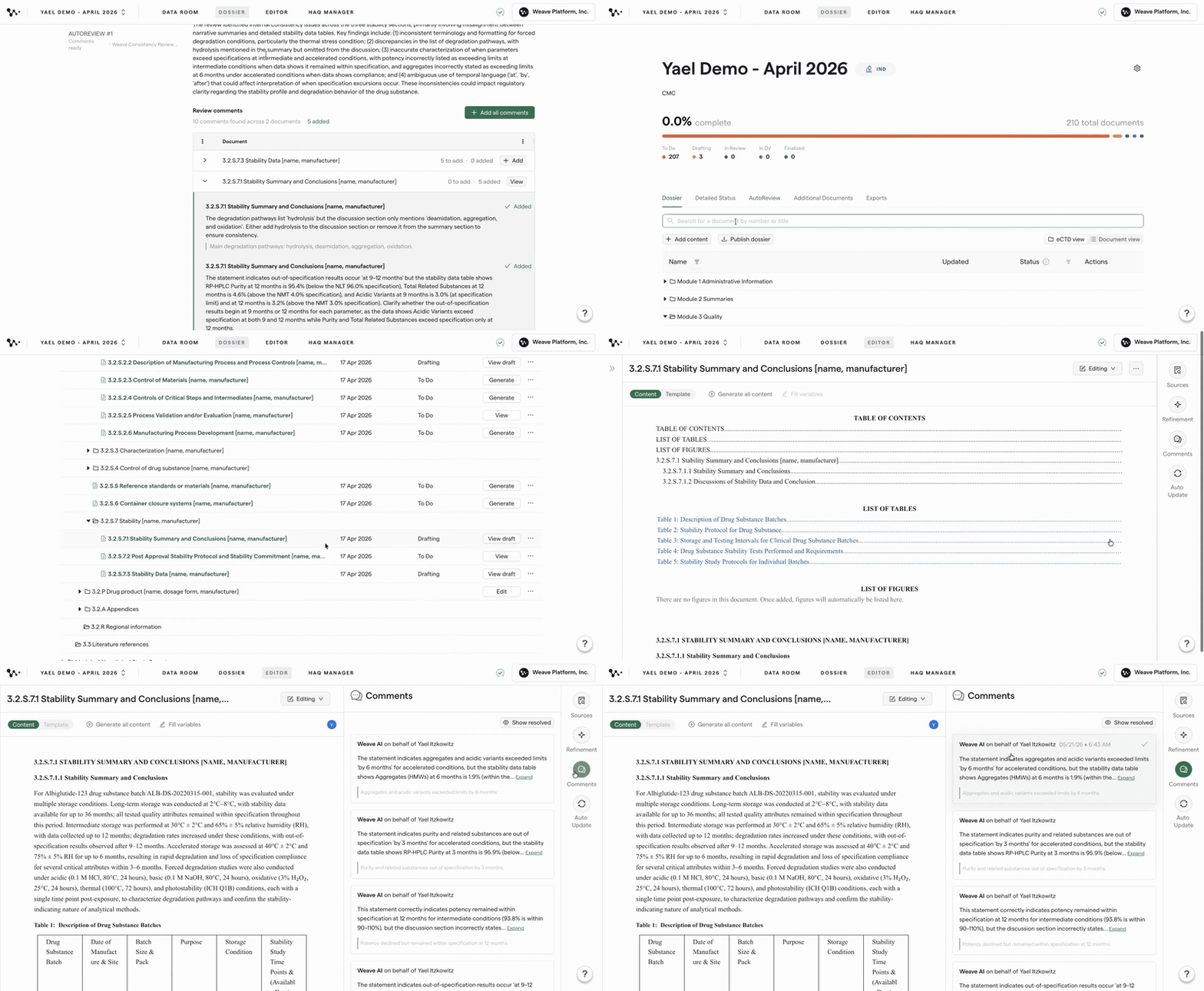
Viewing AutoReview comments in the document editor
Note: AutoReview flags potential inconsistencies — it does not make changes automatically. You stay in full control of every edit.
Once you've worked through the comments, you're done with your review. Repeat the process any time you want to check a new set of sections or after making significant changes to the document.
What's Next
Now that you know how to run AutoReview, the [AutoReview Use Cases Guide] walks through specific scenarios — from CMC parameter consistency checks to simulated health authority reviews — with tested example instructions you can adapt for your program.
FAQ
Q: Can AutoReview scan the entire dossier at once, or only specific sections?
A: You select which sections to include when you set up the review. You can include as many sections as you need.
Q: Who do the AutoReview comments appear as in the document?
A: Comments are attributed to Weave AI on behalf of the user who ran the review.
Q: Does AutoReview make changes to my document automatically?
A: No. AutoReview surfaces potential issues as comments only. Every change is a manual edit you make yourself.
Quick Reference: AutoReview
- Open your dossier and click Auto-Review
- Click + to add a prompt, or select Weave Consistency Reviewer
- Select the sections to scan
- Run the review
- Click Add on any flagged items to push them to the document as comments
- Navigate to the section, open the draft, and review the comments in the Comments panel
- Make any edits manually based on what AutoReview flagged