
Note: Manual tables are inserted in Content View. AI Table blocks are set up in Template View. The article will tell you which view you need at each step.
Part 1: Inserting a table
There are two ways to add a table in Weave, depending on whether you want to fill it manually or have the AI populate it from your source files.
Option A: Insert a manual table in Content View
Use this when you want to add a table directly to your document and fill it yourself, similar to inserting a table in Word.
Open your document in Content View. Navigate to the section where you want the table. Click the plus sign (+) that appears at the insertion point and select Table from the menu.
Weave inserts a blank table. From there you can:
- Add or remove rows and columns
- Type directly into any cell
- Delete the table if you no longer need it
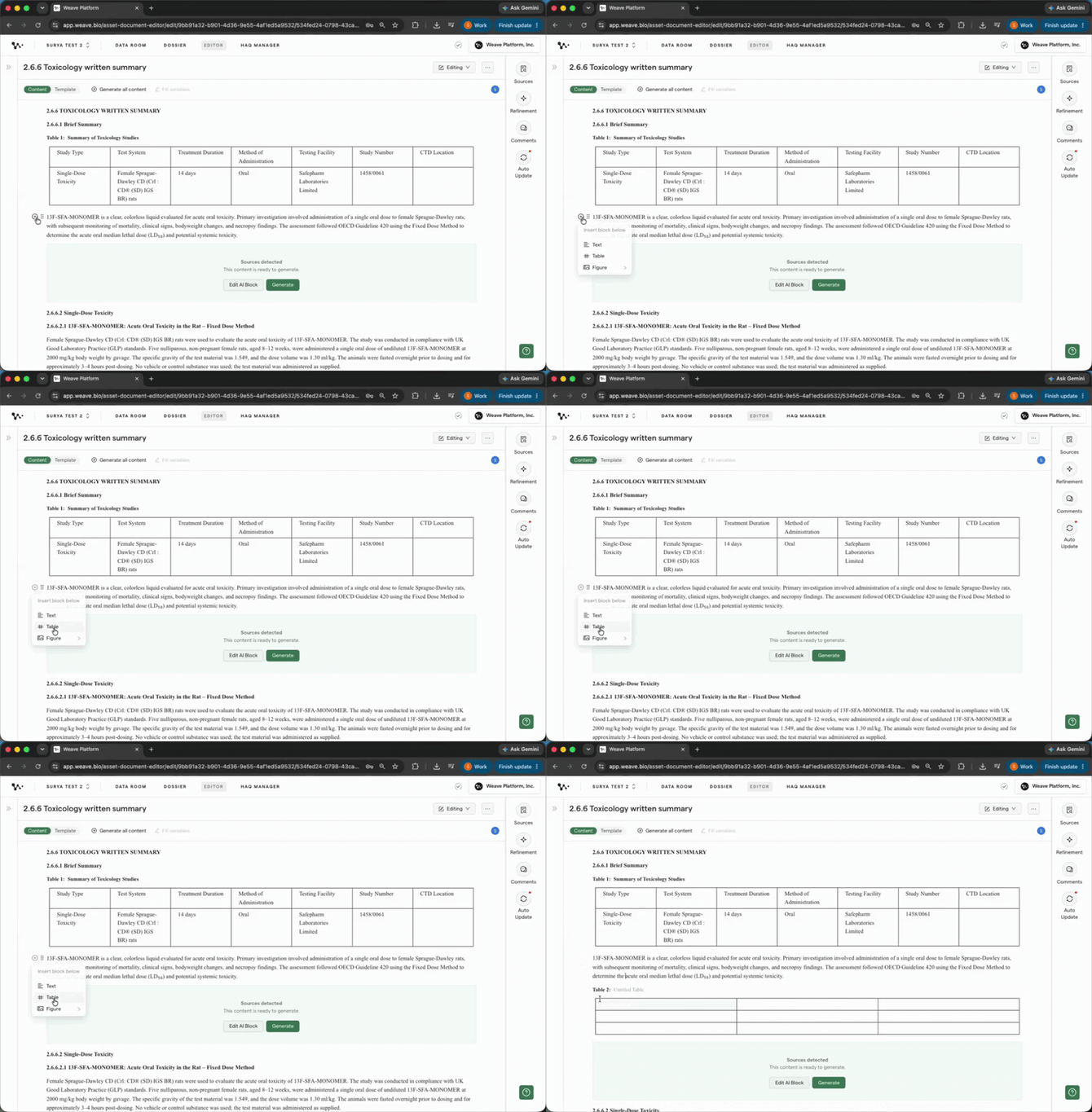
Inserting a manual table from the plus sign menu in Content View
Tip: Use a manual table for content that doesn't come from your source files, such as a manually authored schedule, a reviewer checklist, or a summary you're writing from scratch.
Option B: Insert an AI Table block in Template View
Use this when you want Weave to populate the table from your source files, the same way it populates any other generated section.
Open your template in Template View. Find the content block for the section where you want the table. Click the plus sign (+) in the top left of the content block and select AI Table from the menu.
Weave inserts an AI Table block. You then edit the structure and add a prompt instruction telling the AI what to generate into it (covered in Part 2).
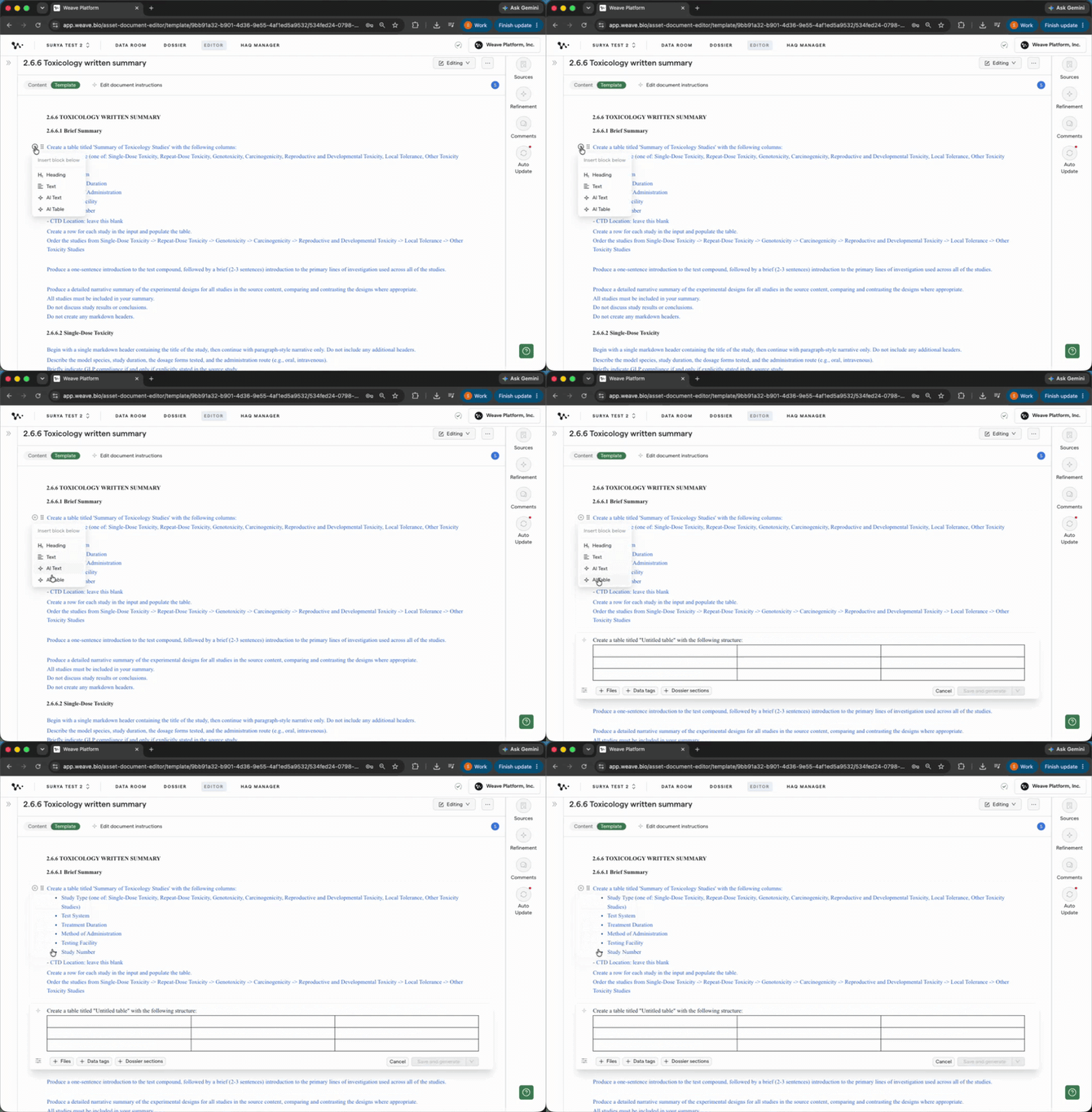
Inserting an AI Table block from the content block menu in Template View
Note: The AI Table option is only available in Template View. In Content View, the plus sign menu only offers the manual table option.
Part 2: Building your AI Table block structure
Once you've inserted an AI Table block, you have two ways to define its structure: bring one in from Word or Excel, or build it directly in Weave.
Bring in a table structure from Word or Excel
If you have an existing table in a Word or Excel file that matches the structure you want, the fastest path is to copy it directly into the AI Table block.
Open your Word or Excel file and copy the table you want to use as the structure.
Tip: Use a real, completed table from your document library rather than building one from scratch. A prior PK or Tox table already captures the exact column structure, merged cell arrangement, and header conventions your new table should match.
Paste the copied table into the AI Table block in Template View. Weave captures it, preserving merged cells, multi-column headers, and multi-row headers.
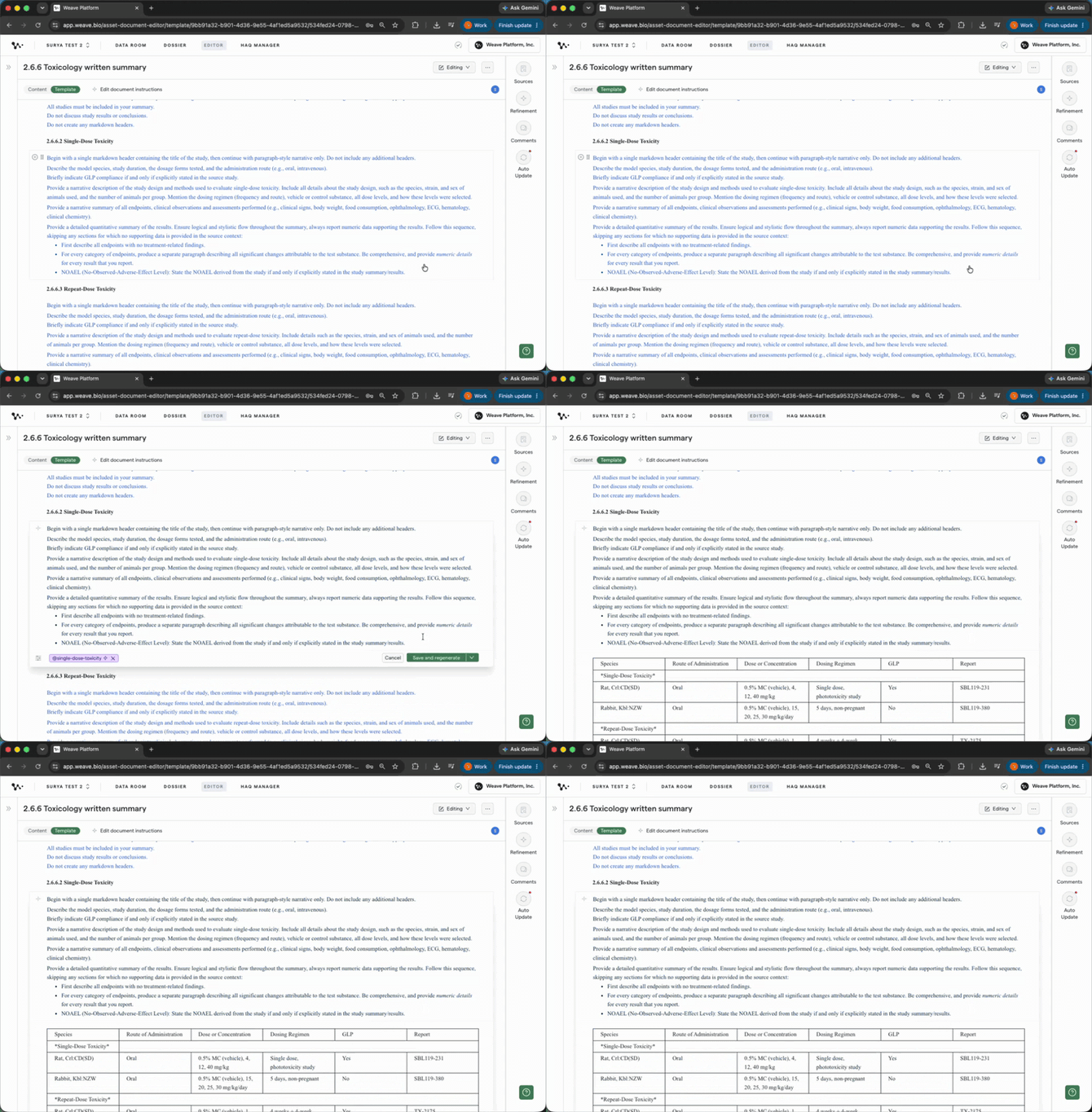
Pasting the table structure into the AI Table block
Edit the structure directly in Weave
Whether you pasted a structure in or are building from scratch, you can adjust the AI Table block directly in Weave.
Click into the AI Table block to make changes:
- Edit header cell text
- Adjust column widths
- Add or remove rows
Tip: Keep the structure as close as possible to what the final table should look like. The AI uses it as a model. Precision here means less reformatting after generation.
Add the prompt instruction beneath the table block
Click below the AI Table block and type your prompt instruction. This tells the AI what data to generate into the table.
A good table instruction includes:
- Which source files to draw from
- Which specific data points to populate into each column
- Formatting requirements: units, decimal places, statistical notation
Tip: The AI uses both the structure and the instruction together. The structure tells it what shape to produce; the instruction tells it what data to fill in. A detailed instruction is especially important for tables because small errors in units or precision are easy to miss in a dense table layout.
Tip: You can also paste a table directly into the prompt instruction text block as a format reference, without creating a full AI Table block. Weave will use it as a structural guide. This works well for simpler tables where the structure can be conveyed inline.
Your AI Table block is set up. The next section covers editing a table block already in an existing template.
Part 3: Editing an AI Table block in an existing template
If a table block is already set up in your template and you need to update the structure or the prompt instruction, the process is the same as the initial setup.
Open the template in Template View and navigate to the section
Go to Template View for the template you want to edit. Find the section that contains the AI Table block.
Edit the structure or prompt instruction
Click into the AI Table block to edit the structure, or click the prompt instruction below it to update the text. Save the template when you're done.
[GIF: Clicking into the AI Table block to edit a header, then clicking the instruction below and updating the text]
Editing the table structure and prompt instruction in an existing template
Note: Changes to the template don't automatically update documents already generated from it. After updating the template, regenerate the affected sections in your document to apply the new structure and instruction.
Part 4: Generating and reviewing your table
Generate the section
Use the three-dot menu (...) on the section and select Generate.
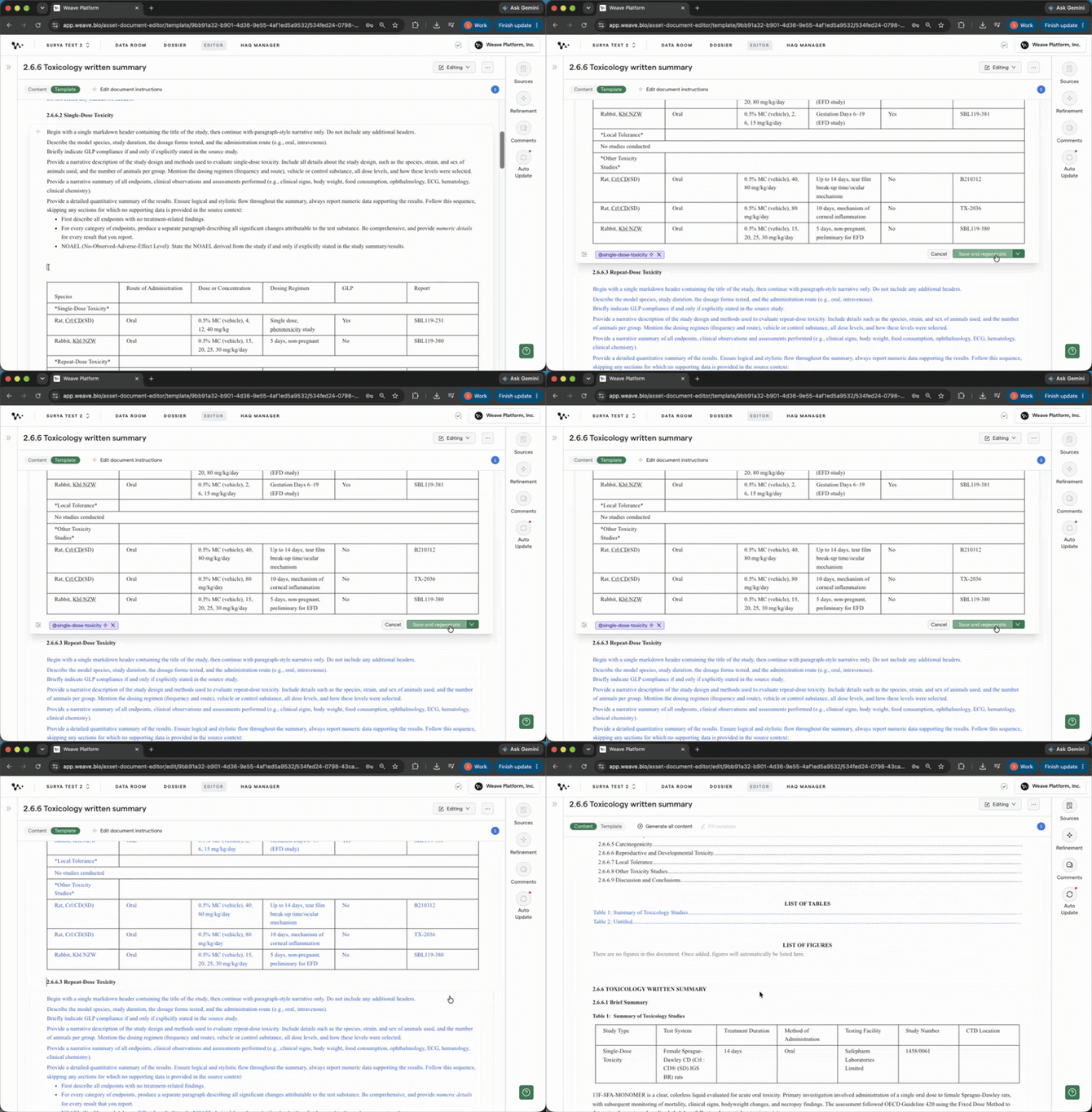
Generating the section that contains the AI Table block
Tip: Generate table sections individually rather than as part of a full document run until you've confirmed the structure and data look right. It's faster to iterate on one section than to regenerate everything.
Review the result in Content View
Switch to Content View to see the generated table. Check:
- Table structure is preserved: merged cells, header hierarchy, column layout
- Data populated correctly from the source files
- Units, decimal places, and statistical notation match your requirements
Tip: If the structure looks right but the data is wrong, the fix is usually in the prompt instruction or the source file tagging, not the table block itself. Update the instruction to be more specific about which data to pull, or check that the correct files are tagged to the section.
Tip: After generation, run Source Verification to confirm that the values in your table trace back to the source files. Click any cell and the Sources panel shows you exactly which source document and table the value came from.
Part 5: Refining and troubleshooting table content after generation
Merge or unmerge cells
- Select the cells you want to combine in the table.
- Click the merge icon in the formatting controls.
- Select a previously merged cell when you want to separate it again.
- Click the un-merge icon to split that cell.

Using table controls to merge or split cells
Note: Select a merged cell to use the un-merge control. After splitting it, check the cell content and its alignment with the surrounding headers.
Resize columns and rows
- Drag a column border to change its width.
- Drag a row border to change its height.
Check that the resized table keeps its headers and values easy to read.
Format multiple cells together
- Drag across the cells, rows, or columns you want to format.
- Choose bold or italic from the formatting controls.
Note: Selecting multiple rows or columns for formatting is not the same as inserting or deleting multiple rows or columns at once.
Apply superscript or subscript
- Select the characters you want to format within a cell.
- Choose superscript or subscript from the formatting controls.
Use Ctrl+Z on Windows or Cmd+Z on Mac to undo manual text edits. Do not assume undo reverses every structural table action.
Refine table content, captions, and footnotes
Open Refinement for the table and write a focused instruction describing the change you need. Refinement can apply to the table caption and footnotes as well as the table itself.
For example, ask it to update a caption or clarify a footnote. Review the proposed result before accepting it, including whether the table values and structure remain correct.
If values are missing, check the connected source files and the prompt before regenerating. For example prompts to add a column or refine existing content, see Weave Prompting Best Practices. For the review-and-accept workflow, see How to use the Refinement Tool.
Once the table is organized and formatted, review its factual values against the sources before exporting.
FAQ
Q: Can I paste a table from Excel into the template?
A: Yes. Copy the table from Excel and paste it into an AI Table block in Template View. Weave captures the structure the same way it does for Word tables.
Q: Can I paste a table directly into the document in Content View?
A: Directly pasting a completed Word or Excel table into Content View is not currently supported. To reuse a table structure for AI generation, paste it into an AI Table block in Template View. To create a manual table, use the + menu in Content View and select Table.
Q: Does the AI pull data from tables inside my source PDFs, or only from text?
A: Both. The AI extracts data from tables inside your source PDFs and populates the corresponding columns and rows in your template table. You can verify this using the Sources panel: click any cell in the generated table and it shows you the exact source table it pulled from.
Q: What if the table structure looks wrong after generation?
A: Go back to Template View and check the AI Table block. If a header or merged cell wasn't captured correctly, edit it directly in the block and regenerate the section. If the structure is right but the data is off, the fix is usually in the prompt instruction.
Quick Reference
Insert a manual table (Content View)
- Open the document in Content View
- Click the plus sign (+) at the insertion point
- Select Table
- Add rows, columns, and cell content manually
Set up an AI Table block (Template View)
- Open the template in Template View
- Click the plus sign (+) in the top left of the content block
- Select AI Table
- Paste a table structure from Word or Excel, or build directly in Weave
- Edit the structure if needed
- Add a prompt instruction below the block
Generate and review
- Use the ... menu on the section and select Generate
- Switch to Content View to review
- Check structure, data, and formatting
- Use Source Verification to confirm values trace back to source files
- Select cells and use the merge icon, or select a merged cell and use the un-merge icon
- Drag row or column borders to resize
- Select multiple cells to apply bold or italic formatting
- Select characters to apply superscript or subscript
- Use Refinement for targeted changes to the table, caption, or footnotes