
Note: The Veeva integration is available for full implementations only. If you're in a pilot or proof of concept, your team will upload source documents manually for now. Reach out to your Weave CSM to plan the integration for your full rollout.
Who this guide is for
This article has two parts:
- Admins (IT / Veeva SysAdmin): Start with Part 1: Set up the integration. You'll only need to do this once per organization.
- Authors and RegOps: You can skip Part 1 if your admin has already connected Weave to Veeva. Start with Part 2: Sync source files from Veeva.
Part 1: Set up the integration
This section is for Admins only. Complete this before your team starts using the integration.
Step 1: Connect Weave to your Veeva vault
Go to your organization's homepage, open Org Settings, and select the Integrations tab. Click Connect Veeva Vault.
You'll be prompted to authenticate. Weave supports two methods:
- OAuth: recommended for most organizations, especially if your Veeva instance uses MFA
- Basic authentication: enter your Vault DNS, username, and password
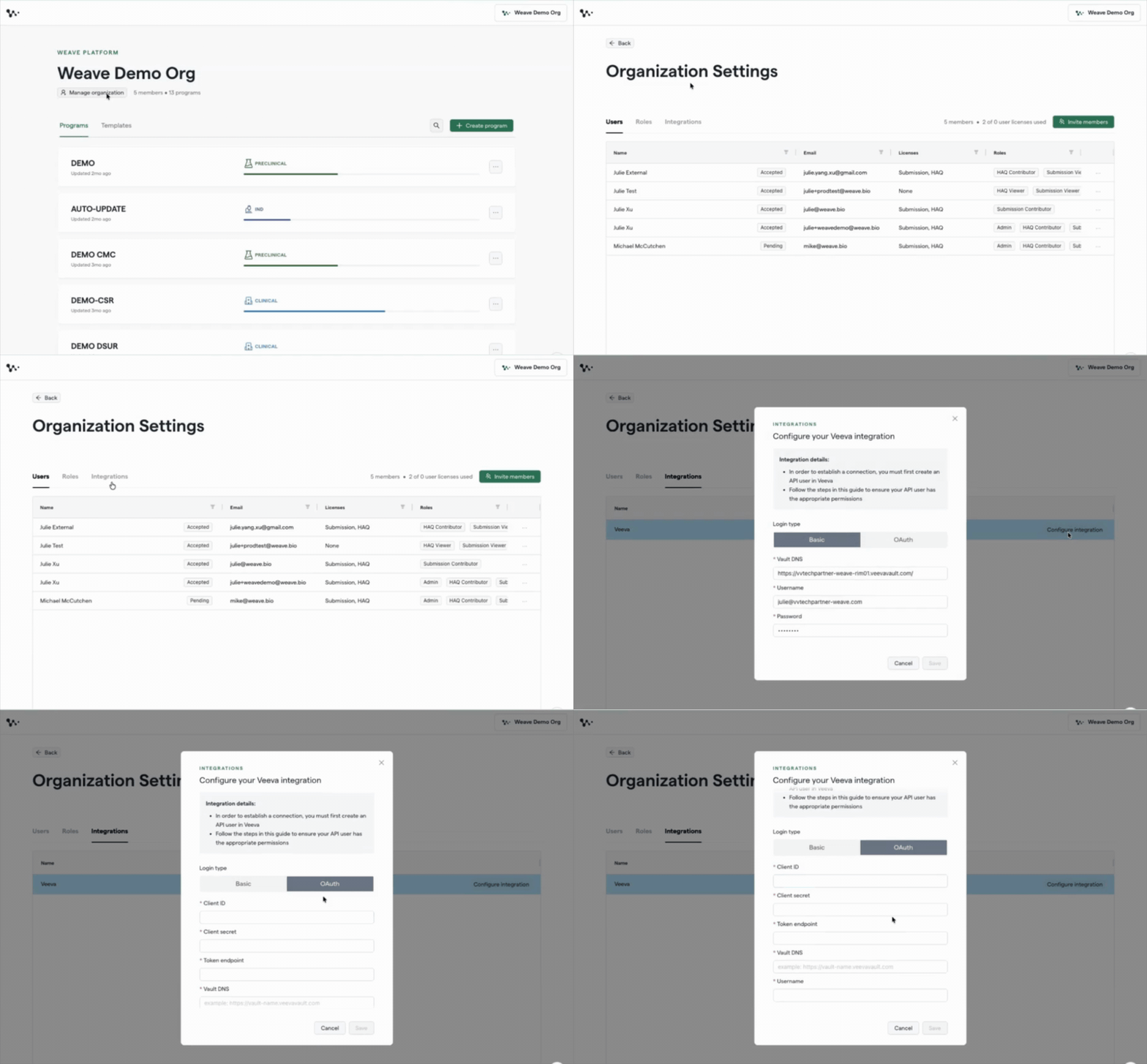
Note: Weave connects to one Veeva vault per organization. If your team uses multiple vaults (e.g., both RIM and Quality), work with your Weave CSM to determine the best connection strategy. See Multi-vault setups at the end of this article.
Once authenticated, Weave confirms the connection and the integration is active for your org.
Step 2: Link a program to a Veeva Product Family
The vault connection gives Weave access to your vault, but you still need to tell Weave which content belongs to each program. You do this by mapping each program to its corresponding Veeva Product Family.
Open the program you want to link. In the program settings, you'll see a Veeva Product Family field. Select the Product Family that corresponds to this program's compound or asset in Veeva.
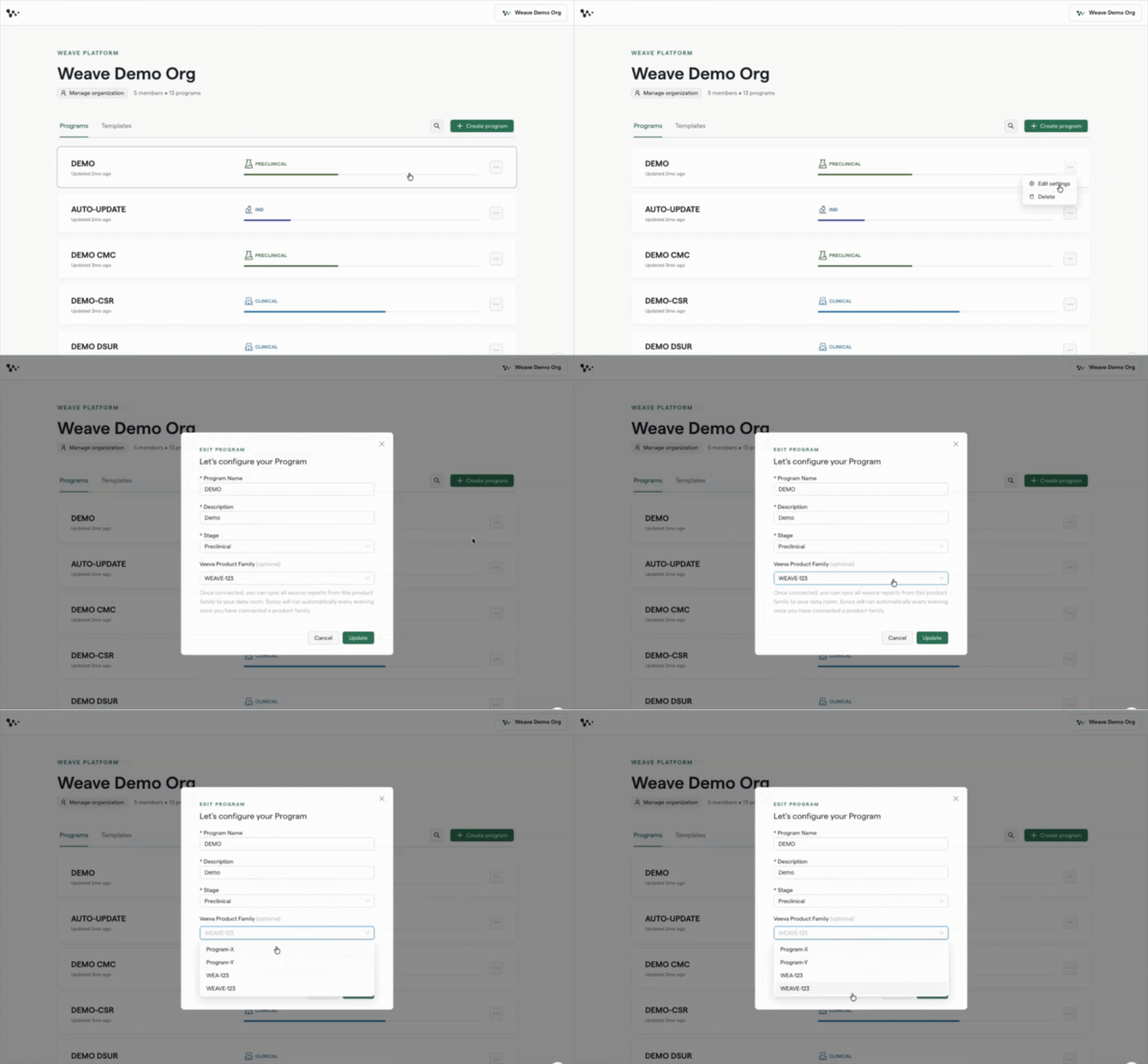
Tip: Product Family is the standard Veeva metadata field for identifying which compound or asset a document belongs to. If your team uses a different term internally, check with your Veeva SysAdmin to confirm which field maps to Product Family in your instance.
Once linked, the program is ready to sync. The first nightly sync will pull all source files associated with that Product Family into the program's Data Room.
Note: Until a program is linked to a Product Family, the Export to Veeva option won't appear for documents in that program, and no source files will sync in.
Part 2: Sync source files from Veeva
This section is for authors and RegOps users. Your admin must complete Part 1 before the sync will work.
How the sync works
Once your program is linked to a Product Family, Weave automatically syncs source files from Veeva into your Data Room every night. You don't need to do anything. The files appear on their own.
Synced files land in a Veeva Source Files folder in your Data Room. The folder structure mirrors your Veeva vault; the same subfolders you'd see in Veeva appear here, so it's easy to find what you're looking for.
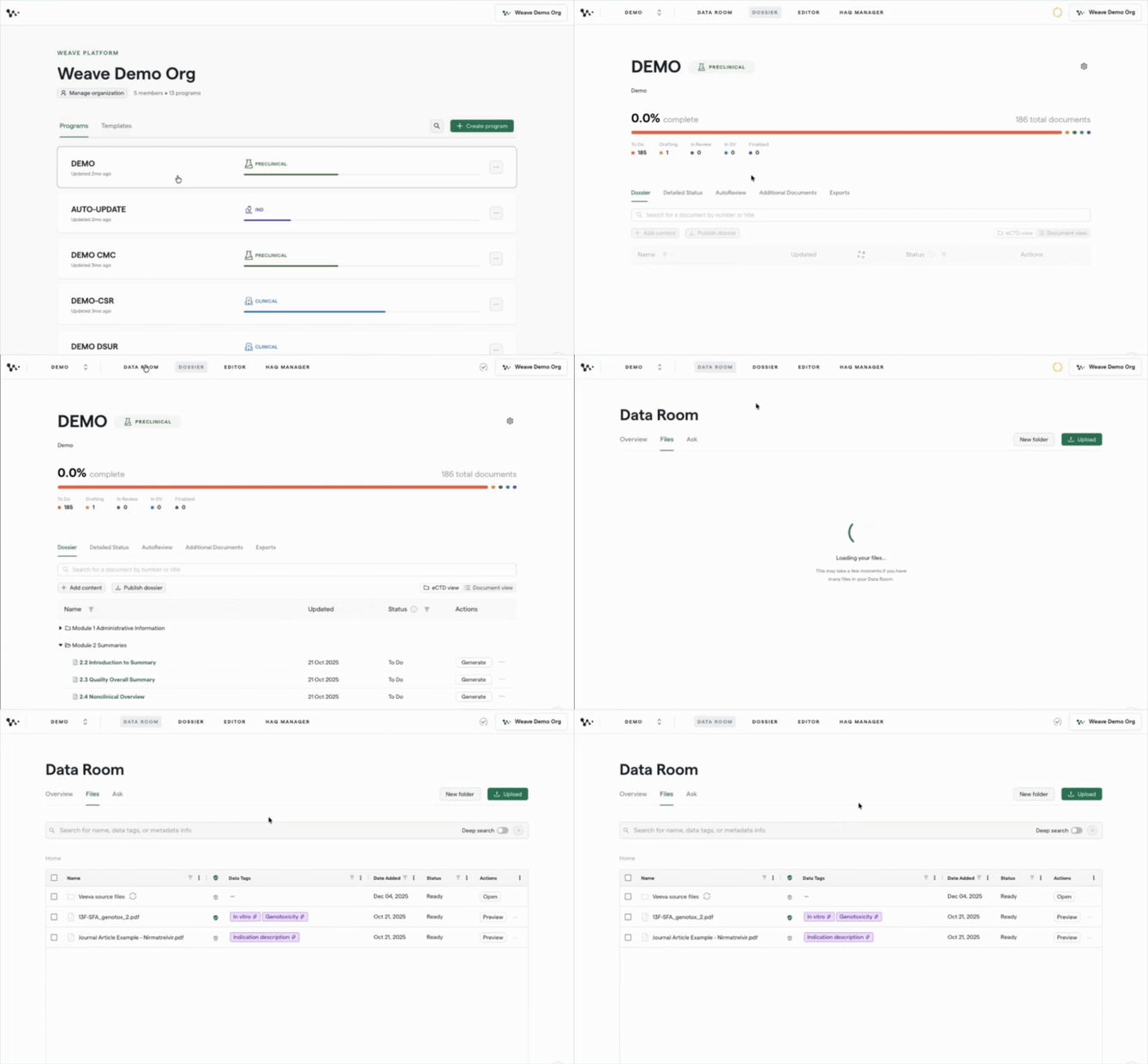
A few things to know about how the sync behaves:
- It's one-way. Files come from Veeva into Weave. Nothing syncs back automatically. Only a manual export does that (covered in Part 3).
- Updates replace, not duplicate. If a source file is updated in Veeva (say, a study report gets a new amendment), the next sync pulls in the new version and replaces the old one in Weave. Your Data Room always reflects the latest version of each source file.
- Deletions don't carry over. If a file is removed from Veeva, it stays in your Weave Data Room. You'll need to remove it manually if you don't want it there.
Note: The sync pulls all documents associated with your Product Family. In large vaults this may include content you don't need for authoring, like meeting minutes or briefing packages. These files won't affect your dossier output because they won't match your template's data tags. You can ignore them, or use the folder-level targeting (below) to keep your sections focused on the right sources.
Step 3: Trigger a manual sync (optional)
If you need files updated sooner than the next nightly sync (for example, if a critical study report just landed in Veeva), you can force a sync immediately.
Open your Data Room, navigate to the Veeva Source Files folder, and click Sync Now. The sync runs immediately and your Data Room updates within a few minutes.
Step 4: Point a dossier section to a specific source folder
When you're building a dossier section, you can tell Weave exactly which subfolder in your Veeva source files to draw from. This gives you precise control over which documents inform each section. For example, you can make sure your toxicology summary only pulls from the Toxicology subfolder, not your entire Data Room.
Open the dossier section you're working on and click Add Content. Select the Veeva subfolder that contains the relevant source files for that section.
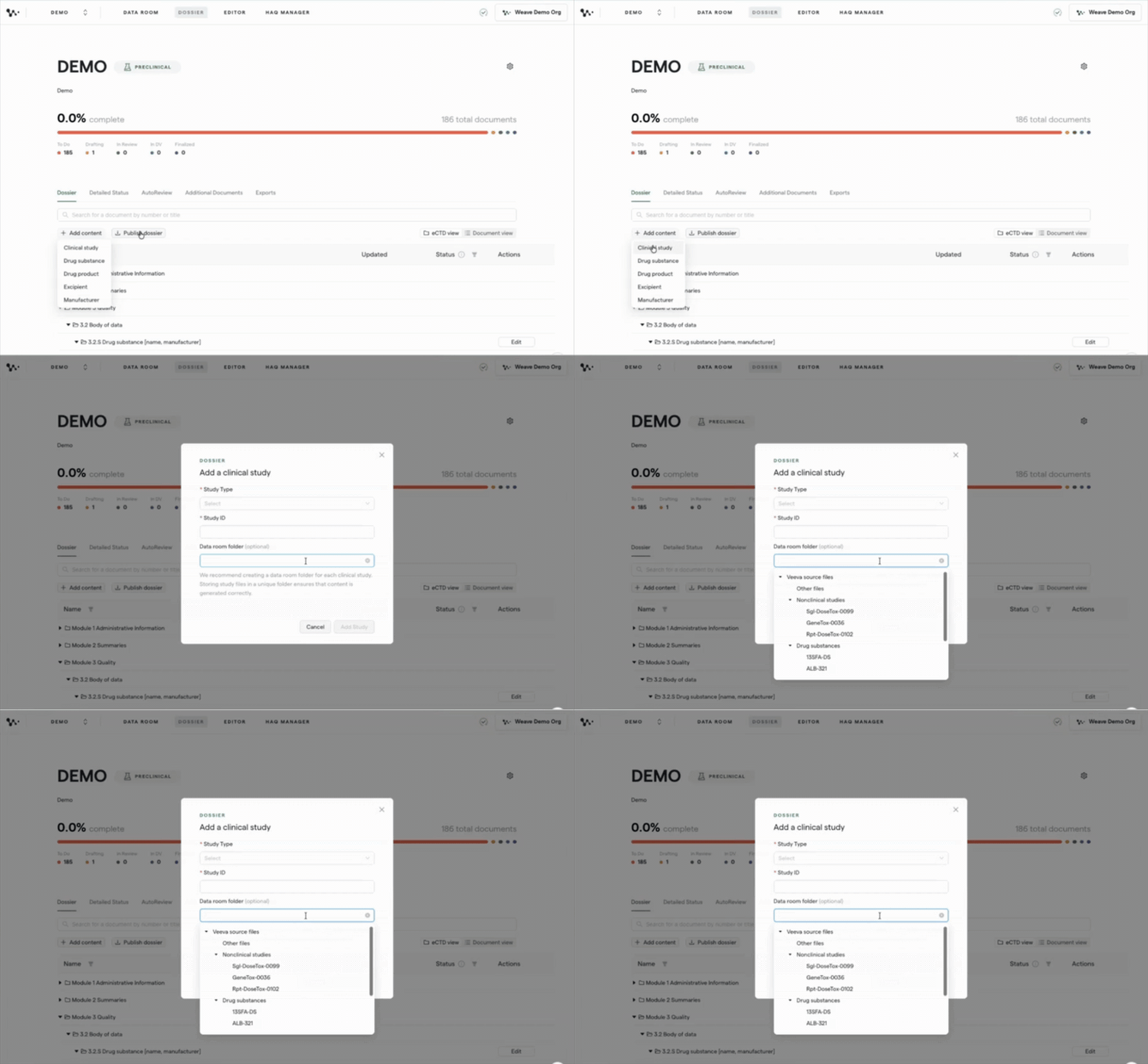
Tip: This is the most reliable way to keep each section grounded in the right sources, especially if your vault contains a broad mix of document types under a single Product Family.
Once your source files are in place and your sections are pointed at the right folders, you're ready to generate content. Weave will draw from the files you've selected just like it would from any other Data Room document.
Part 3: Export documents back to Veeva
When you are ready to move your document from drafting into the next phase, such as managerial review or finalization, you are able to export each individual document back into Veeva.
Step 5: Export a document to Veeva
Open the document you want to export. Click the export menu (the same place you'd find .docx and .pdf) and select Export to Veeva.
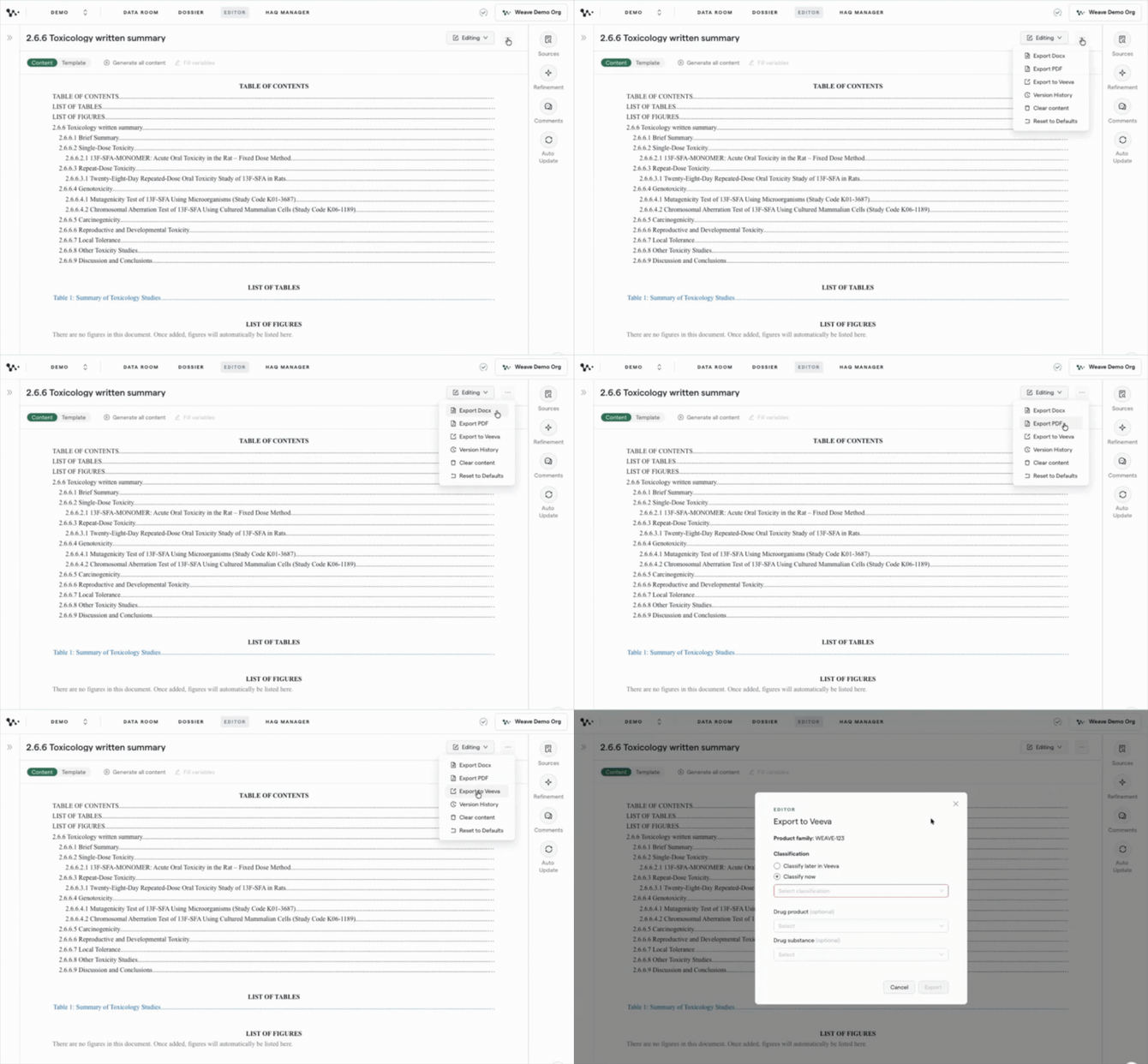
You'll see two options before the export runs:
Classify now or later
- Classify now: select the Document Type, Subtype, and Classification directly in Weave before the file is sent. Weave pulls your organization's full Veeva classification hierarchy dynamically, including any custom values your team has added, so the options you see here match exactly what you'd see in Veeva.
- Classify later: the document lands in Veeva unclassified. Someone on your team will need to open it in Veeva and assign the Document Type, Subtype, and Classification manually before Veeva's security and workflow rules apply.
Tip: If you know where this document belongs in your Veeva hierarchy, classifying now saves a manual step later. If you're not sure, classify later and let your Veeva admin handle it.
Drug product or substance (optional)
For Module 3 documents, you can specify the relevant drug product or substance at export time.
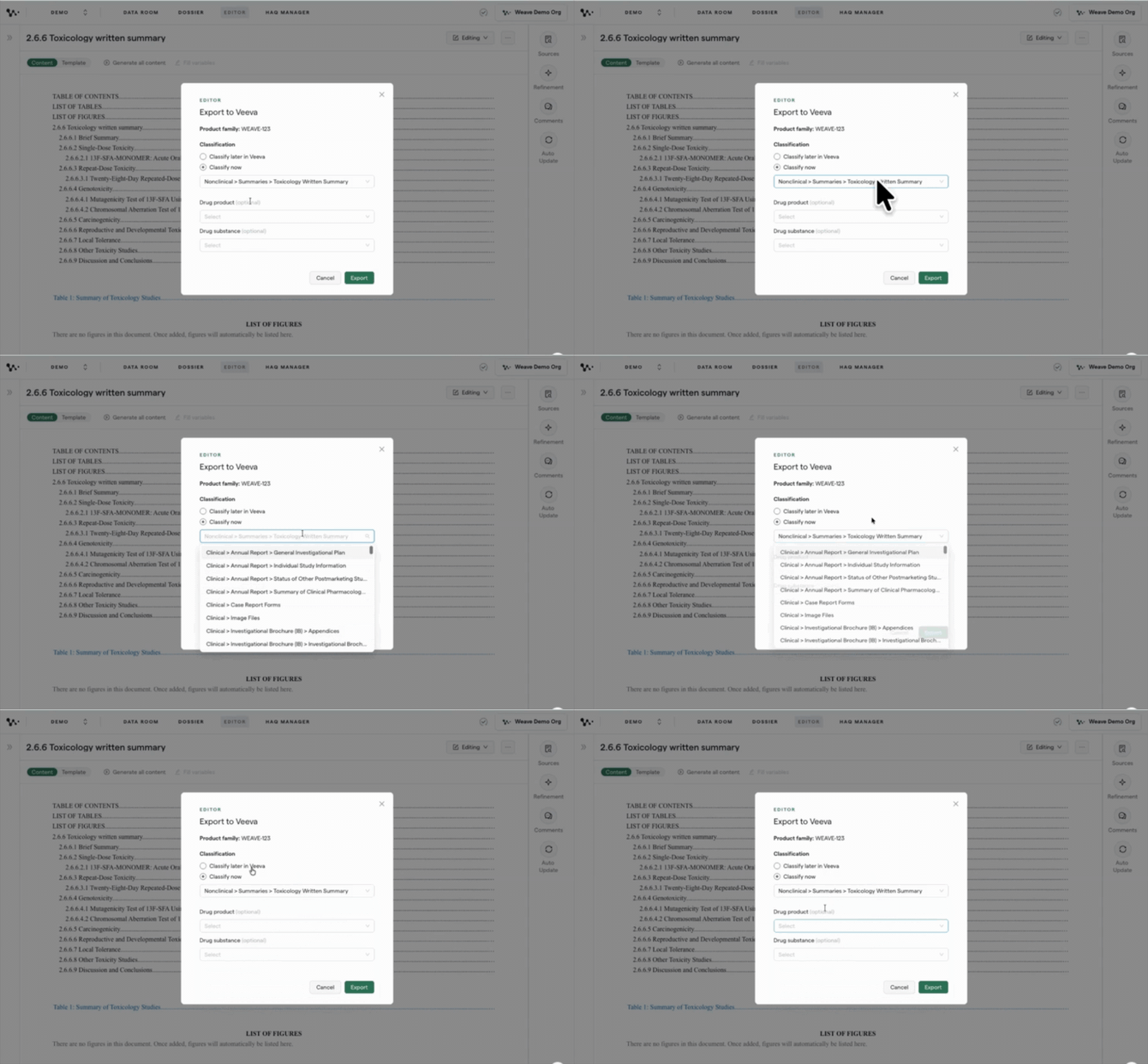
Once you click Export, Weave sends the document to Veeva as a .docx file, filed under the program's mapped Product Family.
How versioning works in Veeva
The first time you export a document, it creates version 0.1 in Veeva, a brand new document record. Every subsequent export of that same document creates the next version (0.2, 0.3, and so on) under the same document record. Veeva never creates a duplicate file.
This means your version lineage in Veeva stays clean. Reviewers and regulators can track the full history of any document through a single record.
Important: You only need to classify a document in Veeva once. After the first export and classification, subsequent exports carry the same high-level metadata automatically, so your Document Type, Subtype, and Classification settings carry forward to each new version.
Part 4: Keeping documents current as studies evolve
Regulatory documents don't get written once and filed. Study reports get amended. New data comes in. Your tox written summary needs to reflect what's actually in the clinic. The Veeva integration and Auto-Update work together to handle this without you having to manually track every source change.
Here's how the update loop works:
- A source file updates in Veeva: a study report gets an amendment, an interim analysis lands, a protocol is revised.
- The overnight sync picks it up: Weave pulls in the new version of that file and replaces the old one in your Data Room.
- Auto-Update surfaces the delta: Weave analyzes what changed between the old and new source versions and flags the specific parts of your dossier document that are affected.
- You review the recommendations: Auto-Update shows you exactly what it thinks needs to change and why. You accept, reject, or edit each suggestion.
- You export the updated version: when the document reflects the new data, export it back to Veeva as the next version (0.2, 0.3, etc.) under the same document record.
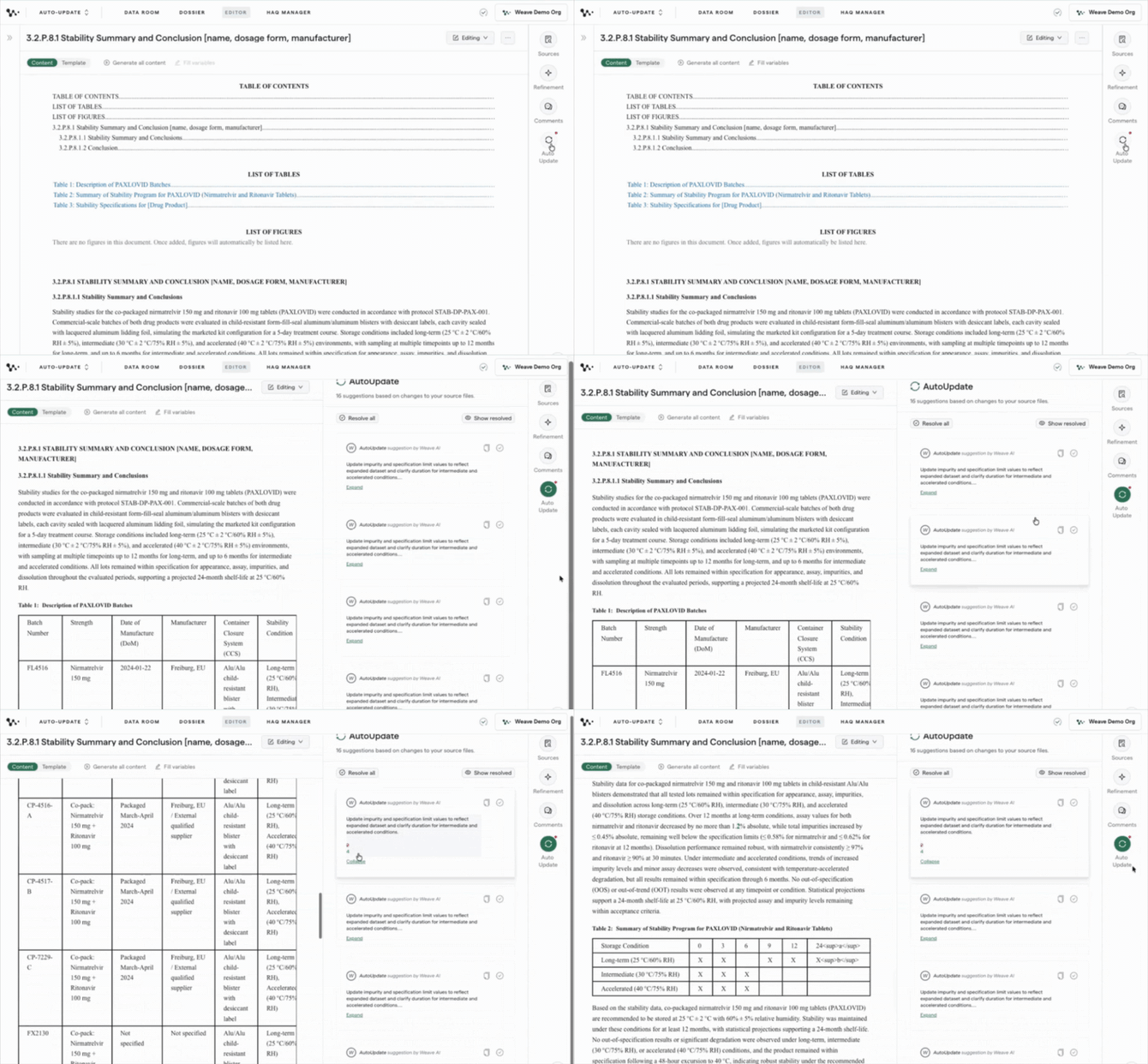
This loop means your dossier stays aligned with your live study data, without you having to remember which documents are affected every time a source file changes.
Tip: You don't have to wait for Auto-Update to catch everything. If you know a specific source file changed, you can open the affected document and run Auto-Update manually at any time.
Recommended workflow: how Weave and Veeva work together
The Veeva integration is designed around a clear division of labor: Weave is where you write; Veeva is where documents go after they're ready.
Here's how it plays out across a typical document lifecycle:
| Phase | Where it happens | What you use |
|---|---|---|
| Source files land | Veeva → Weave (automated) | Nightly sync |
| Initial draft | Weave | Content generation + templates |
| Peer review | Weave | Comments, tracked changes, Viewer licenses |
| Source updates incorporated | Weave | Auto-Update |
| Document ready for formal review | Weave → Veeva (manual export) | Export to Veeva |
| Formal review / approval | Veeva | Veeva workflows |
| Further revisions after review | Weave | Edit + re-export as new version |
On Viewer licenses: If reviewers don't need to author and just need to leave comments, they can do that in Weave for free with a Viewer license. This keeps more of the review cycle in Weave before you hand off to Veeva, which reduces the number of export-and-re-import loops.
On round-tripping: If a document is exported to Veeva for review and you need to bring it back into Weave to incorporate changes, be aware that re-importing it will break its version history in Weave; the re-imported file becomes a new source document with no connection to the draft that preceded it. The cleanest approach is to keep drafting and early-stage review in Weave, and only export when the document is ready for late-stage formal review or final.
(Coming soon) The ability to re-import an exported document as an active dossier section, preserving round-trip continuity, is in development. Ask your Weave CSM for the latest status.
FAQ
Q: Will all my Veeva files sync into Weave, including documents I don't need for authoring?
A: Yes. The sync currently pulls everything under the mapped Product Family, which may include meeting minutes, briefing packages, and other non-authoring content. These files won't affect your dossier output because they won't match your template's data tags. You can also use folder-level targeting in each dossier section to point Weave to only the subfolders you care about.
Q: Does exporting to Veeva create a new document each time, or update the existing one?
A: It updates the existing document. Your first export creates version 0.1 in Veeva. Every export after that creates the next version (0.2, 0.3, etc.) under the same document record. No duplicates.
Q: Do I need to classify the document in Veeva every time I export a new version?
A: No, only once. After the first export and classification, subsequent exports of the same document carry the same high-level metadata, so your classification carries forward automatically.
Q: Can Weave connect to Veeva Quality, or only Veeva RIM?
A: Weave's connector works with any Veeva vault type, not just RIM. If your source documents are in Veeva Quality or another vault, the setup process is the same. Your IT team just needs to confirm API access and metadata configuration for that vault.
Q: What happens if a source file I'm using gets updated in Veeva?
A: The next nightly sync pulls in the new version and replaces the old file in your Data Room. Auto-Update then flags the parts of your dossier document that are affected and surfaces specific recommendations. You review and accept or reject each change before exporting the updated document.
Q: Can reviewers leave comments in Weave without a paid license?
A: Yes. Weave offers free Viewer licenses that let reviewers leave comments on any document without needing a full authoring seat. This is a good way to keep early review cycles in Weave before you export to Veeva.
Q: If I export a document to Veeva for review, can I bring it back into Weave to make revisions?
A: You can re-import it as a source document, but doing so breaks the version history in Weave; the re-imported file won't have any connection to the draft that came before it. The recommended approach is to complete drafting and peer review in Weave before you export, so you don't need to round-trip. The ability to re-import an exported document as an active dossier section with version continuity is in development. Ask your CSM for the latest status.
Q: The sync runs nightly. What if I need a file updated sooner?
A: You can trigger a manual sync at any time from the Veeva Source Files folder in your Data Room. Click Sync Now and the files update within minutes.
Q: If I export a document without classifying it, what happens in Veeva?
A: The document lands in Veeva as unclassified. Unclassified documents cannot trigger Veeva workflows until someone opens the document in Veeva and assigns the Document Type, Subtype, and Classification manually. If your team relies on Veeva workflows for review or approval routing, classify the document at export time to avoid a manual follow-up step.
Q: If we add a new document type or classification in Veeva, how quickly does it appear in Weave?
A: Weave pulls your classification hierarchy dynamically from Veeva, but the list is cached for up to 15 minutes. New document types or classifications added in Veeva will appear in Weave within 15 minutes. No configuration steps are required on the Weave side.
Q: Where can I find an audit trail for integration activity, and who will appear as the document creator in Veeva?
A: For integration activity on the Veeva side, go to Admin > Logs in your Veeva vault. This captures API usage and document events triggered by the integration. Documents created via the integration will show the Weave integration user as the creator. This is a dedicated user in Veeva, and your team can name it whatever you'd like during setup. Weave also tracks file changes internally, though that data is not currently exposed in the UI. For troubleshooting, contact your Weave CSM.
Q: What happens if a document fails to export to Veeva?
A: You'll see a status indicator on the file in your Data Room flagging the failure. For outbound exports (Weave to Veeva), the integration retries up to four times automatically. For inbound syncs (Veeva to Weave), the integration retries on each nightly sync or whenever you trigger a manual sync. Errors that can't be resolved automatically require Weave customer support. Reach out to your CSM.
Q: Are there any limitations on file types or document size?
A: Supported file types are PDF, RTF, DOCX, and XLSX. The maximum file size is 500 MB.
Q: What metadata is sent to Veeva when I export a document?
A: When you export a document, the following metadata can be set: Document Type, Lifecycle, Subtype, Classification, Drug Product, and Drug Substance. Product Family is set automatically based on the program the document belongs to. Metadata does not sync back from Veeva into Weave. Changes made in Veeva after export are not reflected in Weave.
Q: Can we set up a dedicated admin account to manage the integration?
A: Yes. Any Weave Admin user can manage the integration configuration in Org Settings. We recommend designating a dedicated admin account specifically for integration management so your IT team has a clear owner for setup, credential updates, and troubleshooting.
Q: How are user permissions and access controls handled for documents exported from Weave?
A: Access to documents exported from Weave into Veeva is governed by the permissions configured for the Weave integration user in Veeva, not by Weave user roles. Work with your Veeva SysAdmin to confirm the integration user has the appropriate access for your document types and vault workflows.
Quick Reference: Veeva Integration Workflow
Admin setup (one time)
- Go to Org Settings → Integrations and connect your Veeva vault via OAuth or basic auth
- In each program's settings, link the program to its Veeva Product Family
Daily authoring workflow
3. Source files sync automatically each night. Find them in Data Room → Veeva Source Files
4. To sync sooner, click Sync Now in the Veeva Source Files folder
5. When building a dossier section, click Add Content and select the relevant Veeva subfolder
6. Draft and review your document in Weave; use Viewer licenses for reviewers who don't need authoring access
7. When the document is ready, open the export menu and select Export to Veeva
8. Choose Classify now (select Document Type, Subtype, Classification) or Classify later
9. Subsequent exports of the same document create the next version in Veeva automatically
Keeping documents current
10. When source files update in Veeva, the nightly sync picks them up → run Auto-Update to surface what needs to change in your document → review recommendations → export the updated version