
Watch: How to use approved language from one document to generate consistent summaries in another
Note: The upstream document (the one you want to reference) must already have generated content before you start. If it's empty, the AI has nothing to read. Complete and review your lower-module documents first.
How to link your documents
1. Open Template View on the downstream document
Open the downstream document, the higher-level summary that should draw from an already-written document.
Click the three-dot menu at the top right of the Document Editor and select Open Template.
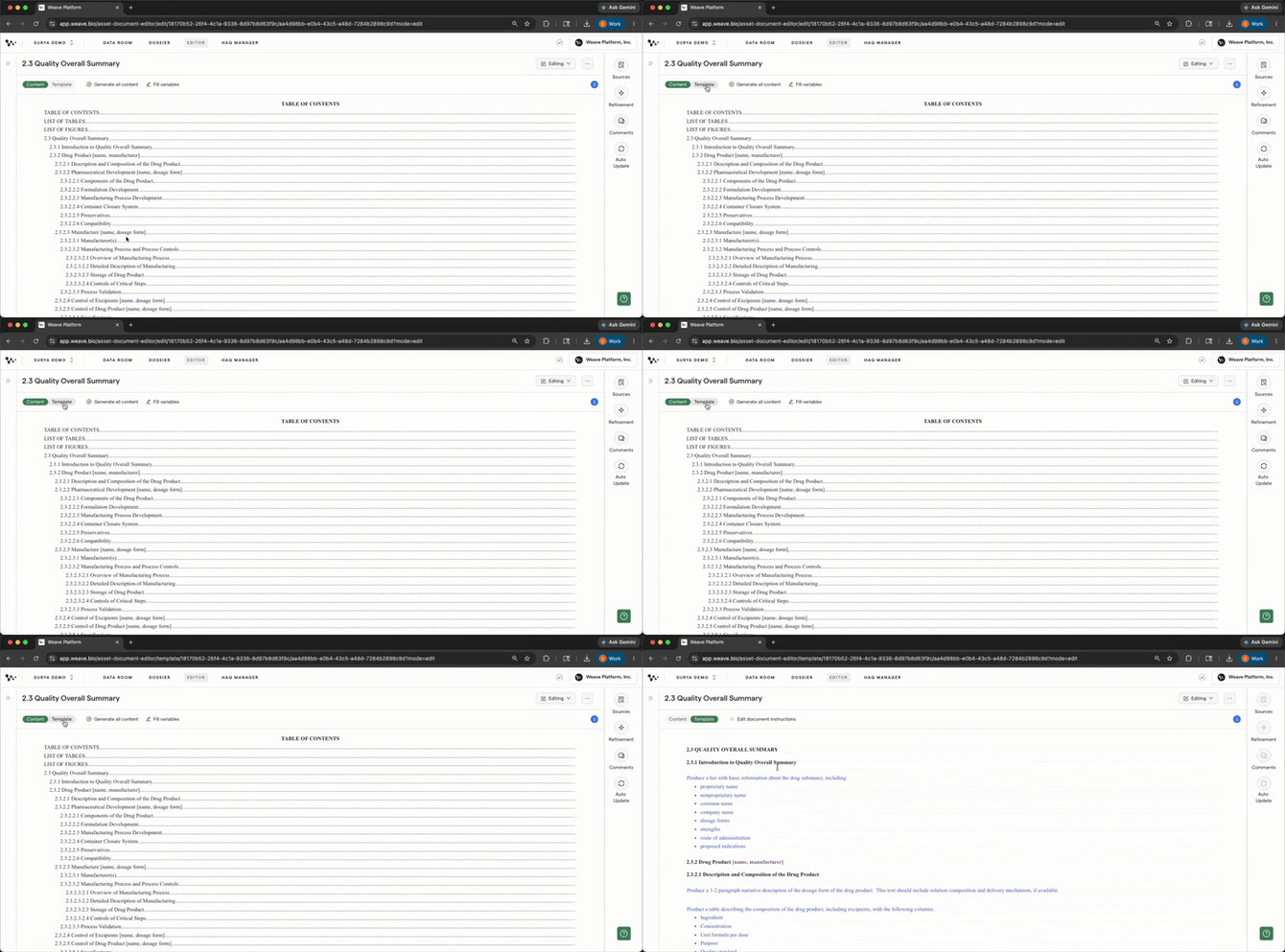 Opening Template View to see the data tags and AI instruction blocks
Tip: The data tag beneath each blue instruction block controls what the AI reads. By default it points to the Data Room. You're changing it to point to a document you've already written.
2. Clear the existing data tag
Scroll to the section you want to configure.
Click the data tag field beneath the instruction block and clear the existing tag.
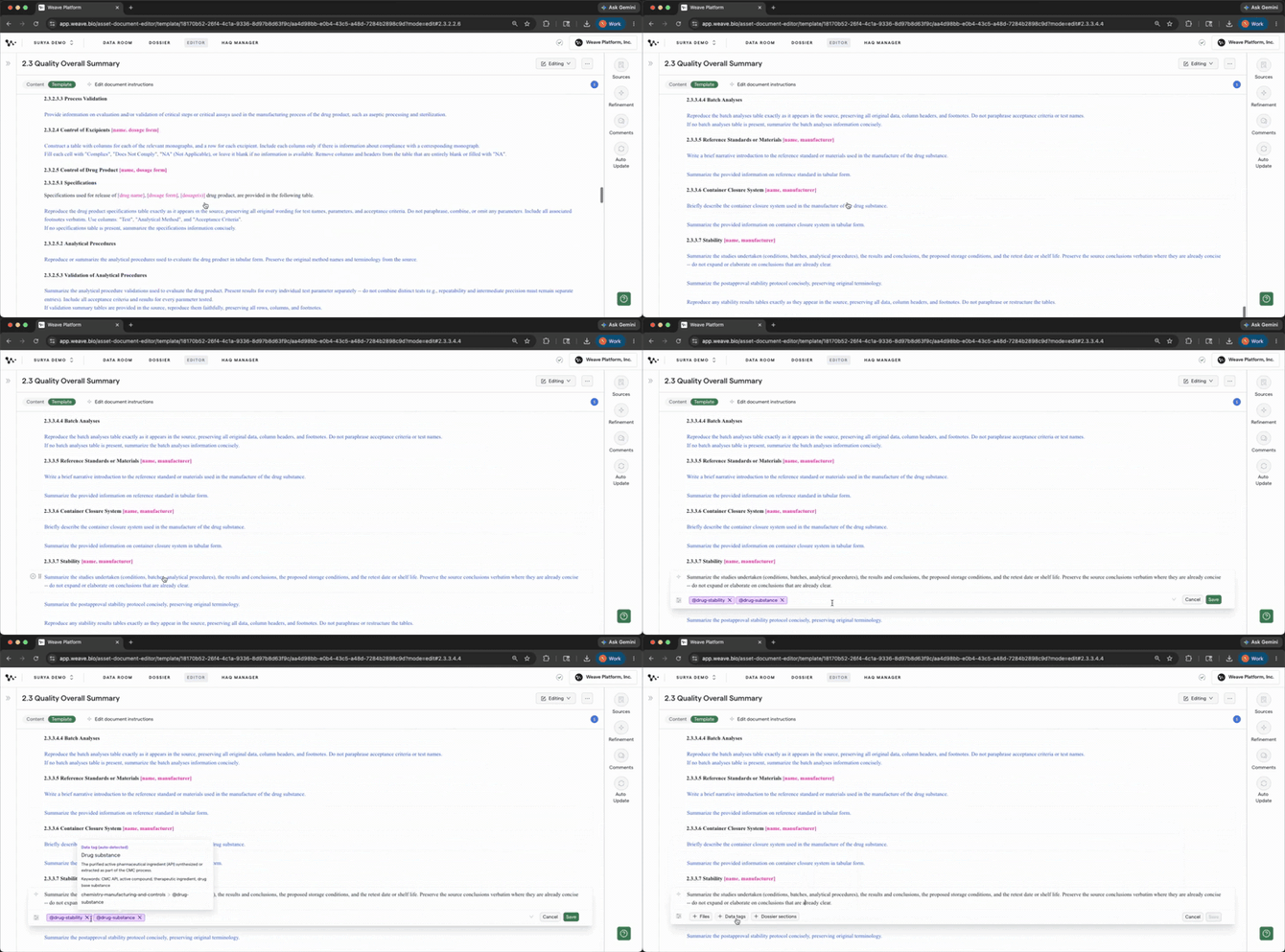
Clearing the default Data Room tag before pointing to an upstream document
Note: Clearing the tag doesn't affect any content already in the document. It only changes what the AI reads the next time this section is generated.
3. Point the tag to your upstream document
Type the name of the upstream Weave document in the tag field. Matching documents in the program appear in a dropdown as you type.
Select the correct document.
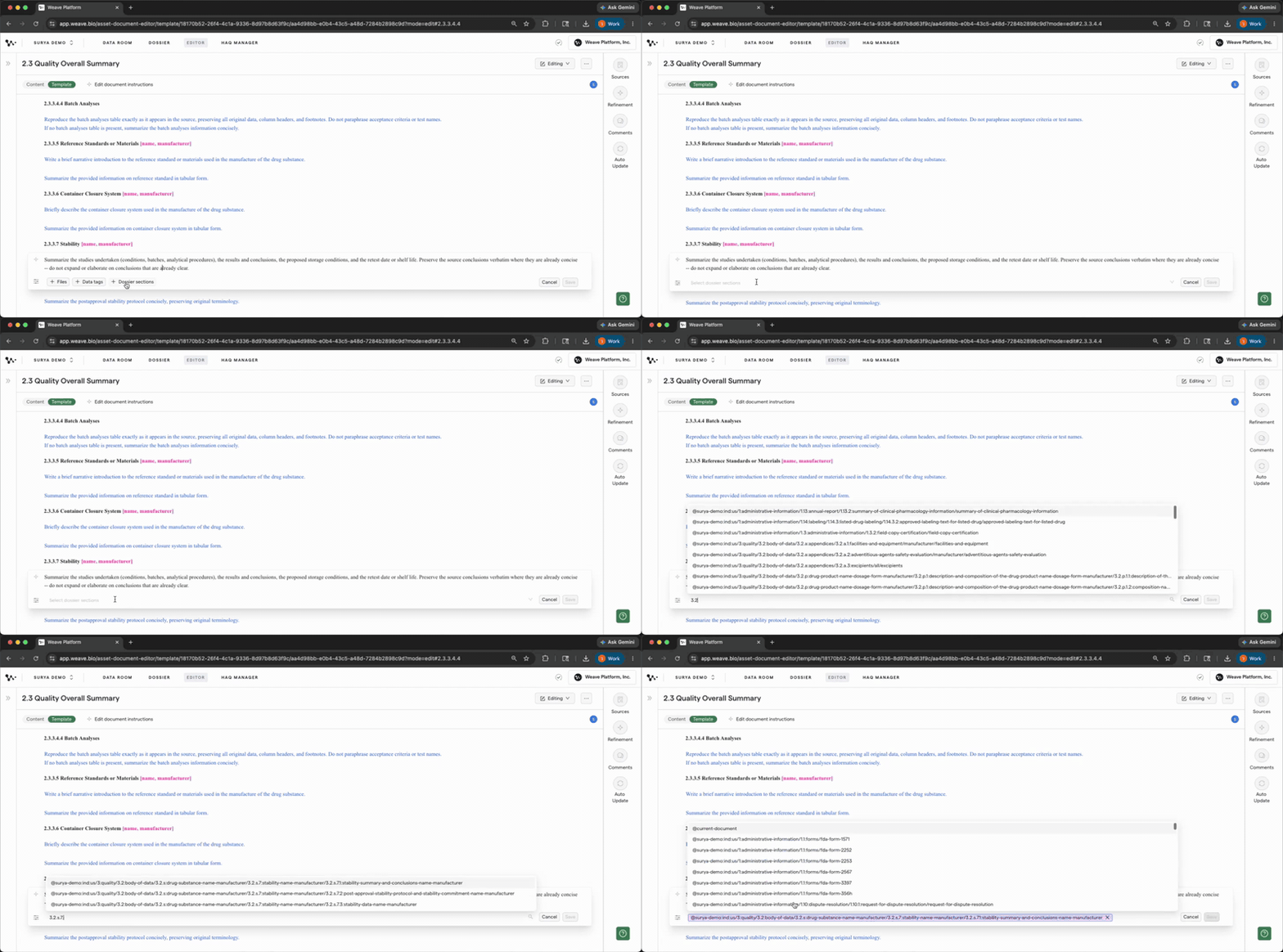
Selecting the upstream document — the AI will now read from this document instead of the Data Room
Important: Only documents in the same program appear in the dropdown. If the document you want isn't listed, confirm it was created within this program.
Two ways to use upstream language
Once you've pointed the tag to an upstream document, decide how closely you want the AI to follow that language — this shapes what you put in the instruction block:
- Synthesize — the AI draws from the upstream document's conclusions and terminology and condenses them for the summary context. In the instruction block, add: "Maintain the same conclusions and key terminology from the referenced document."
- Verbatim — the AI copies specific phrasing, conclusions, or tables exactly as written. Use this when approved language must carry through unchanged. In the instruction block, add: "Copy the conclusions verbatim from the referenced document. Do not paraphrase."
To focus the AI on a specific section of the upstream document, name it in the instruction: "Focus on the conclusions section of the referenced document."
See How to pull approved language verbatim across documents for a full walkthrough of the verbatim use case.
4. Generate the section and verify the source
Save the template, then switch to Content View.
Scroll to the the section and select Generate to generate this section only.
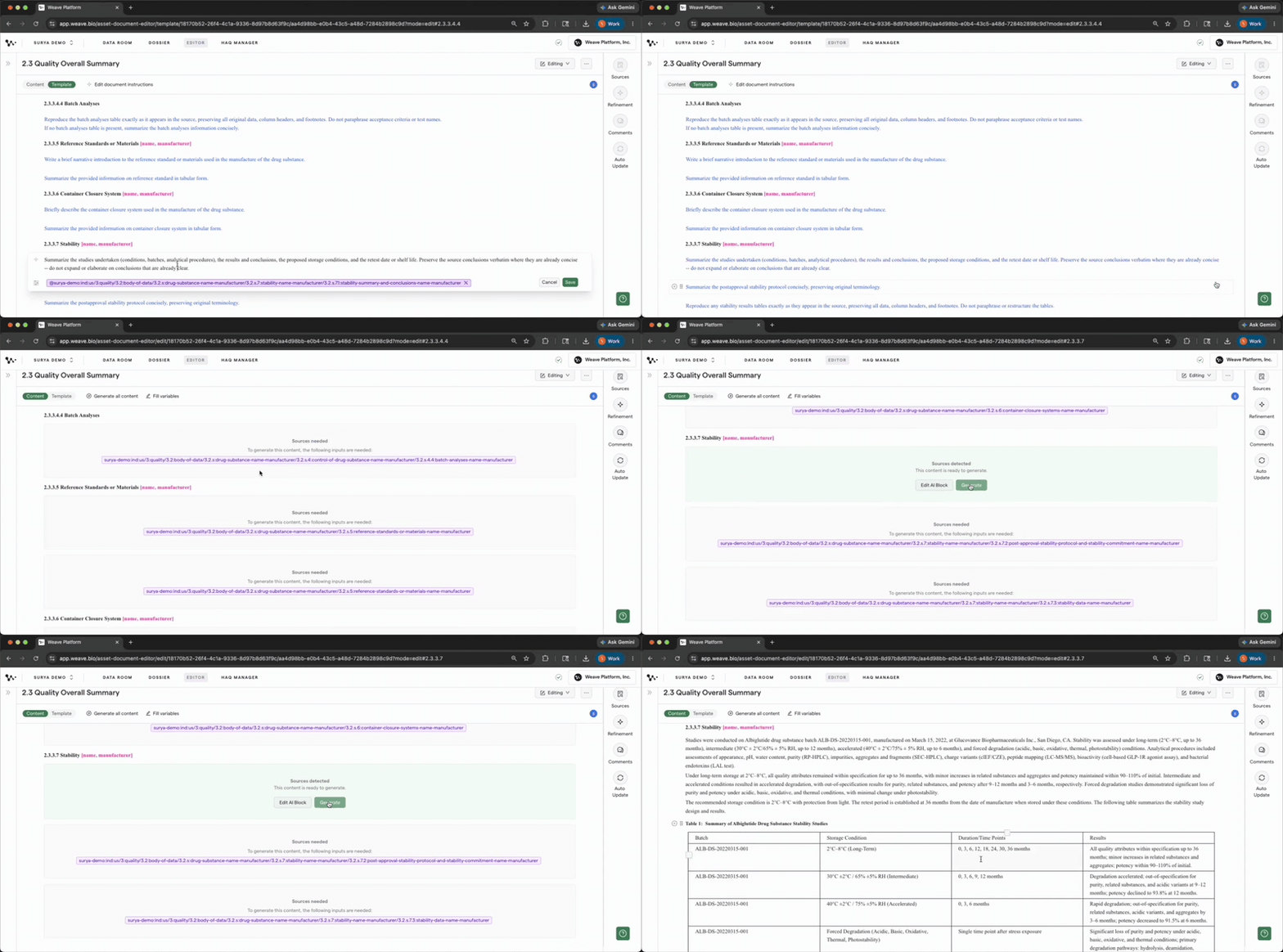
Open the Sources panel and hover over the generated content to confirm the AI cited the upstream Weave document — not the Data Room.
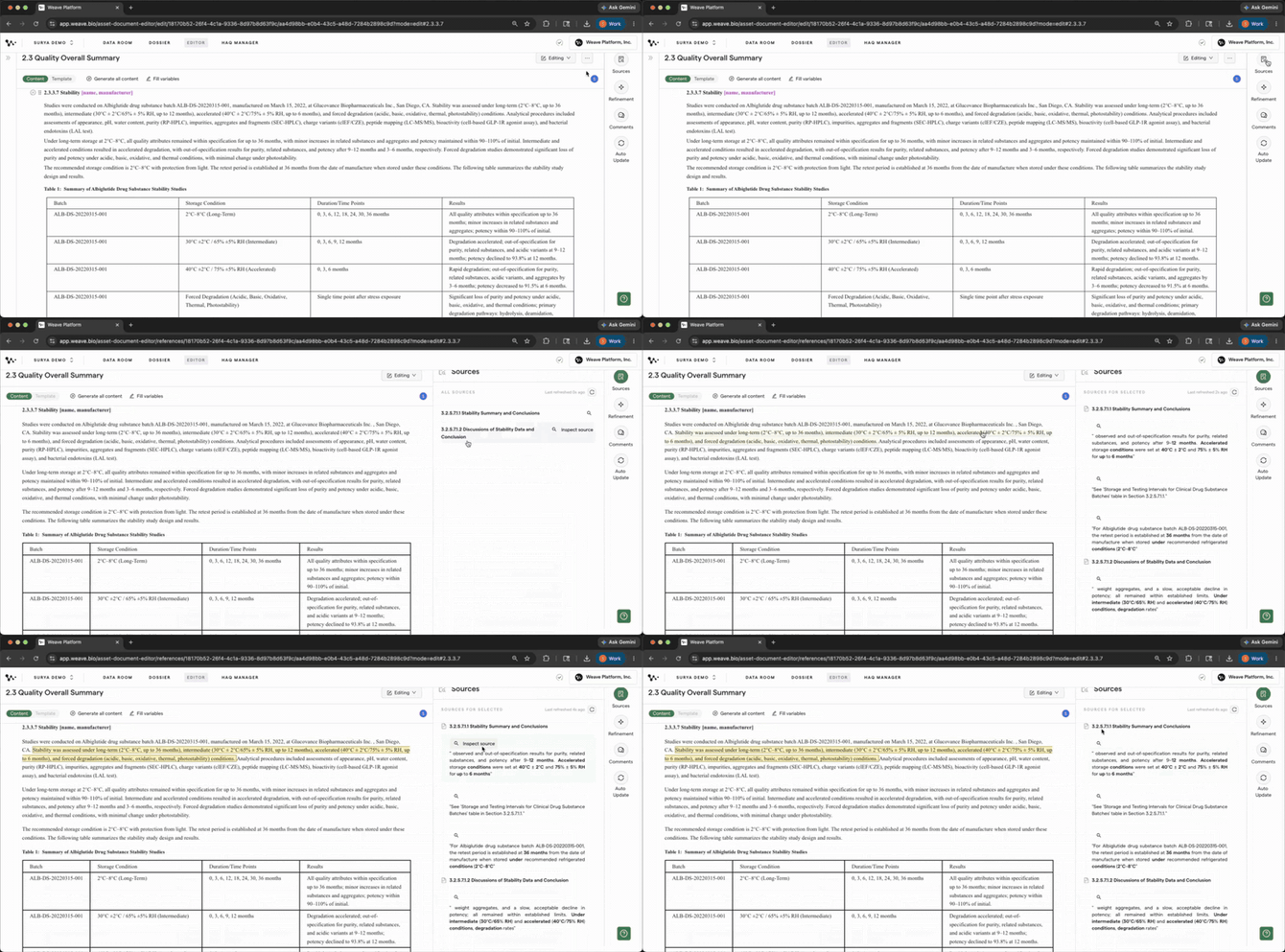
The Sources panel confirms the AI read from your upstream document, not the Data Room
Important: Generate All Content overwrites every section in the document, including content you've already written and reviewed.
Tips
- Work bottom-up. Generate and review upstream documents before generating the summaries that depend on them. The chain only works if the upstream content exists.
- Update downstream sections manually. If you revise an upstream document, regenerate the sections that reference it. Nothing updates automatically.
- Chains can go deeper. You can link three or more documents in sequence — each link is configured independently in Template View. The Sources panel traces the full chain.
FAQ
Can I use this to reference content I've already written earlier in the same document?
Yes, instead of pointing to a separate document, select Current Document from the Dossier Sections options in the tag field. The AI will read content already generated and saved earlier in the same document.
Do I need to point the AI to a specific section, or does it read the whole document?
It reads the whole document by default. To direct it to a specific section, name it explicitly in the instruction: "Focus on the Summary and Conclusions section." The AI follows plain-language direction.
Can I mix Data Room tags and document-to-document tags in the same document?
Yes. Different sections can have different tag types, some pointing to the Data Room, others pointing to upstream Weave documents. Configure each section independently in Template View.
How do I know the AI actually used the upstream document and not the Data Room?
Open the Sources panel after generation and hover over the generated content. The panel shows which document the AI read for each sentence. If you see the upstream Weave document cited instead of a Data Room file, the link is working.
Related features
- Template Instructions — The instruction you write in the AI block is the primary quality lever.
- Source Verification — After generating a linked section, run Data Verification to audit the full traceability chain from downstream summary back through the upstream document to the original source data.
- AutoReview — Once you've generated interconnected summaries, use AutoReview to check that language and conclusions are consistent across your dossier.
Quick Reference
Link a downstream section to an upstream document
- Open the downstream document → three-dot menu → Open Template
- Scroll to the target section → click the data tag field → clear the existing tag
- Type the upstream document name → select it from the dropdown
- Edit the AI instruction block to specify how to use the upstream content
- Save the template → switch to Content View → scroll to the section → Generate
- (Optional) Open the instruction block → append a verbatim or synthesis direction
- Open Sources panel → hover over content → confirm upstream document is cited