
Note: Import requires Flexible Dossier to be enabled on your program. The document you want to import into must already exist in your dossier before you can bring content into it. If you need to add a document first, use the Customizing Your Dossier Structure guide.
Import your file
1. Navigate to your dossier and locate the target document
Open your program and go to the Dossier tab. Find the document you want to import content into.
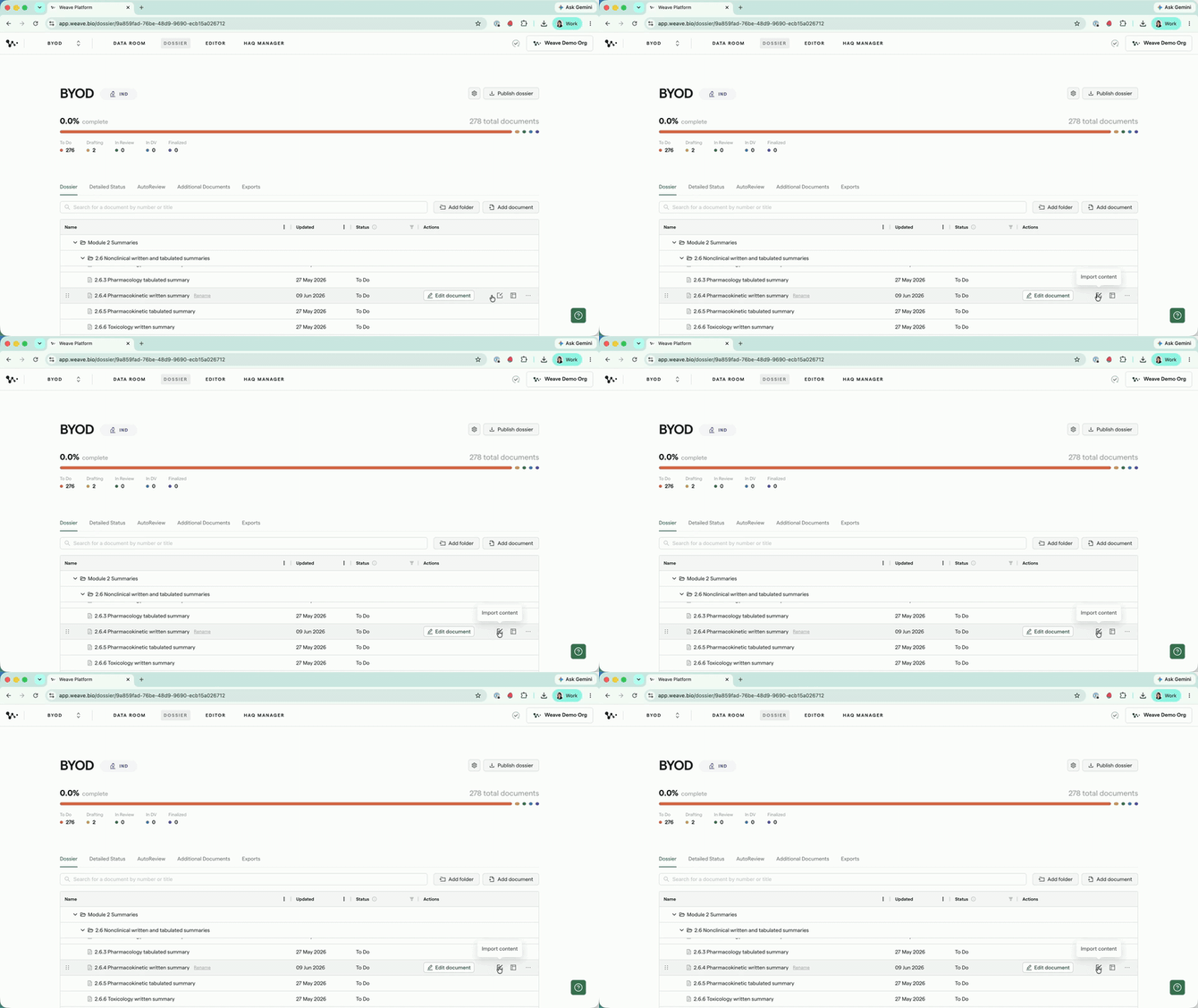
2. Click Import on the document
Hover over the document to reveal its action menu, then select Import.
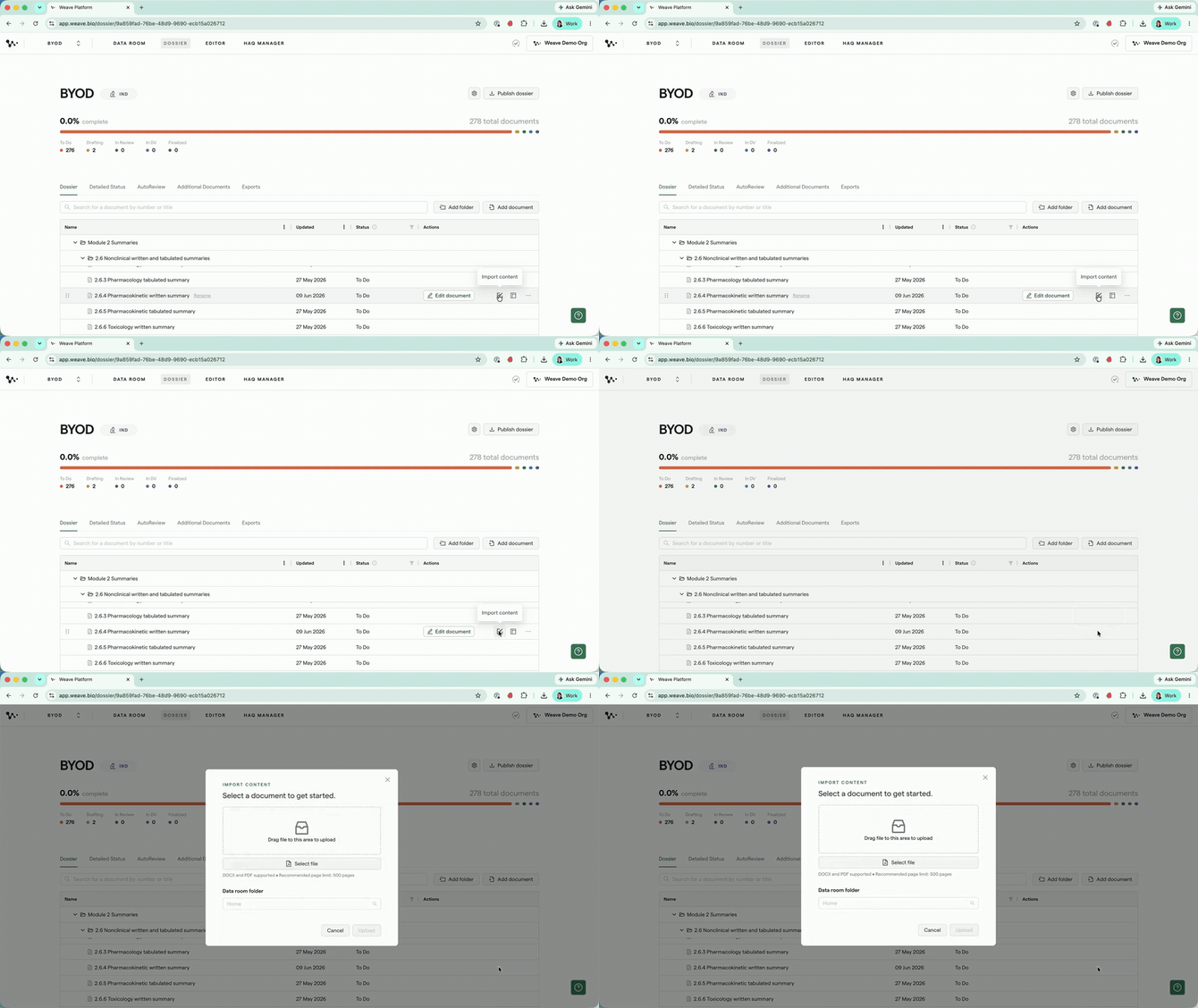
Note: The Import option is always visible on a document, but may be disabled in certain states, for example, while a previous import on the same document is still processing.
3. Choose your file and upload
Select a .docx or .pdf from your computer. If you want the imported file stored in a specific location, pick a Data Room folder from the optional dropdown. Then click Upload.
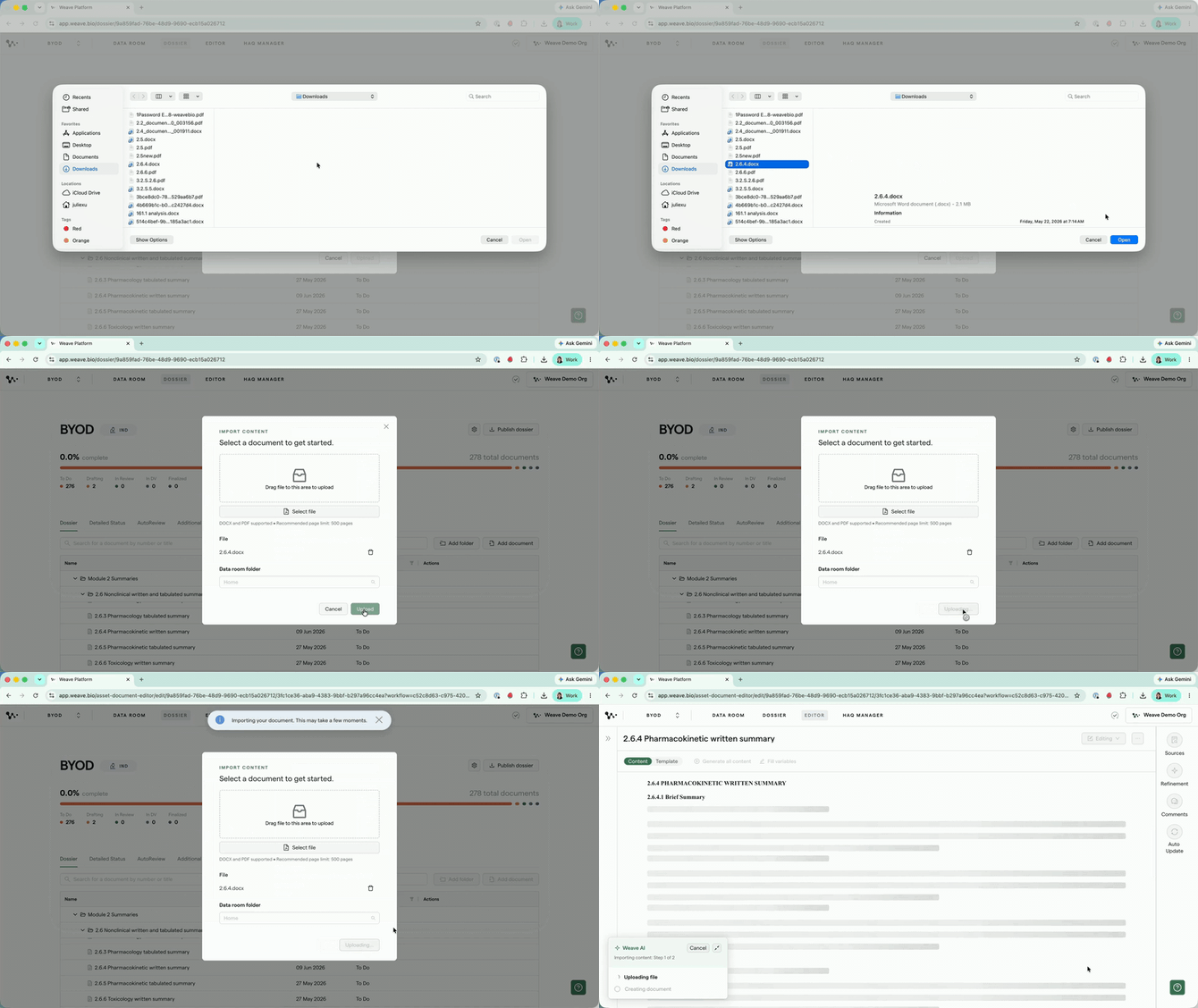
Note: We recommend keeping files under 500 pages for best results.
4. Watch the progress card
A progress card appears in the bottom left of the screen. It runs through two stages: uploading file and creating document. You'll get a notification when it's done.
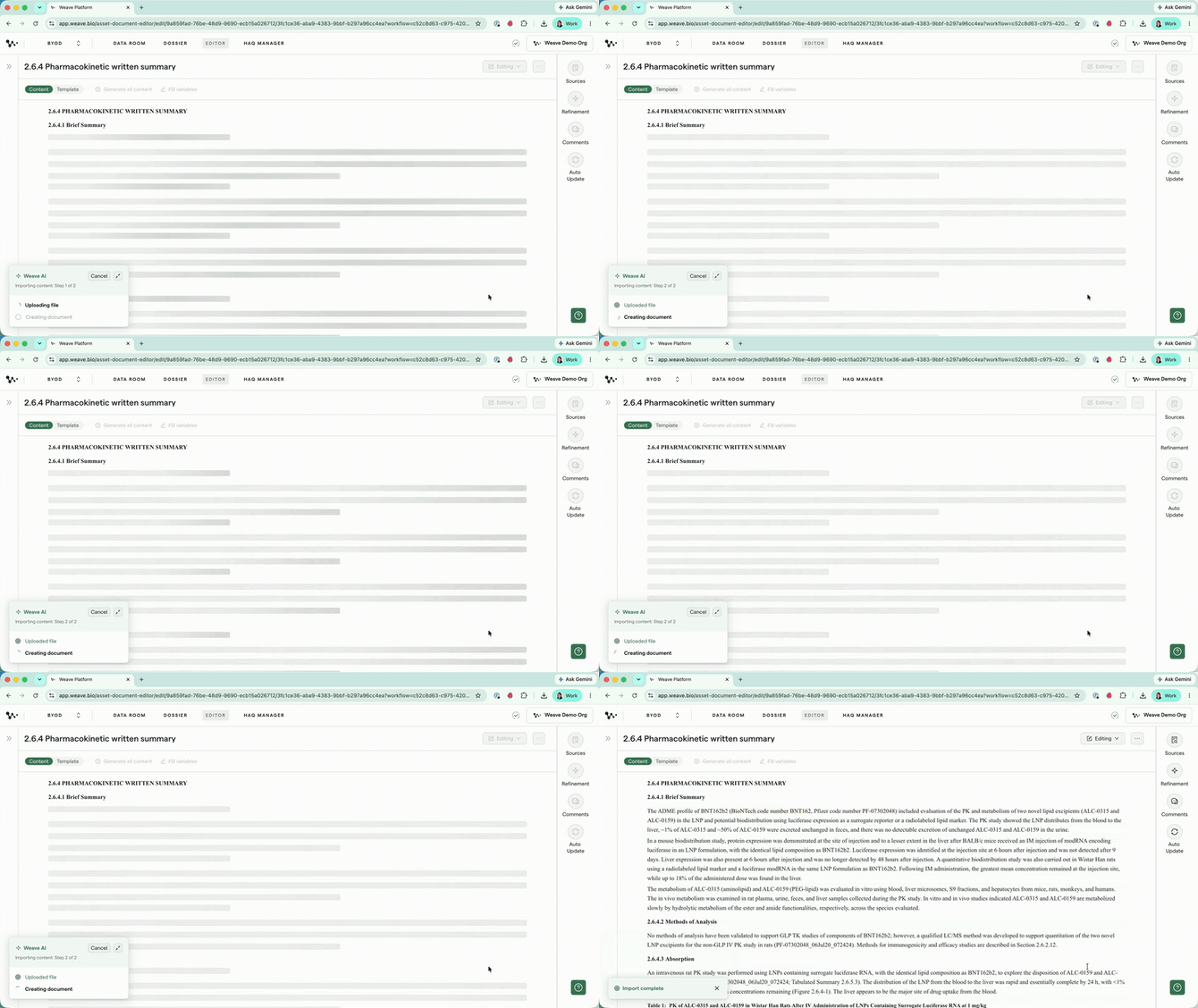
Tip: You don't need to stay on this page. You can navigate elsewhere in Weave and come back when the import is complete.
Important: Importing into a document that already has content will overwrite it. Weave shows a warning before proceeding. If you need to preserve the existing draft, export it first — or you can restore a previous version from Version History after import.
Once the import is complete, your document is ready to open in the editor.
Review what was imported
5. Open the document and check the Content view
Click the document title to open it in the editor. The Content view shows your imported text, tables, figures, and any intra-document cross-links from the original file, preserved as-is.
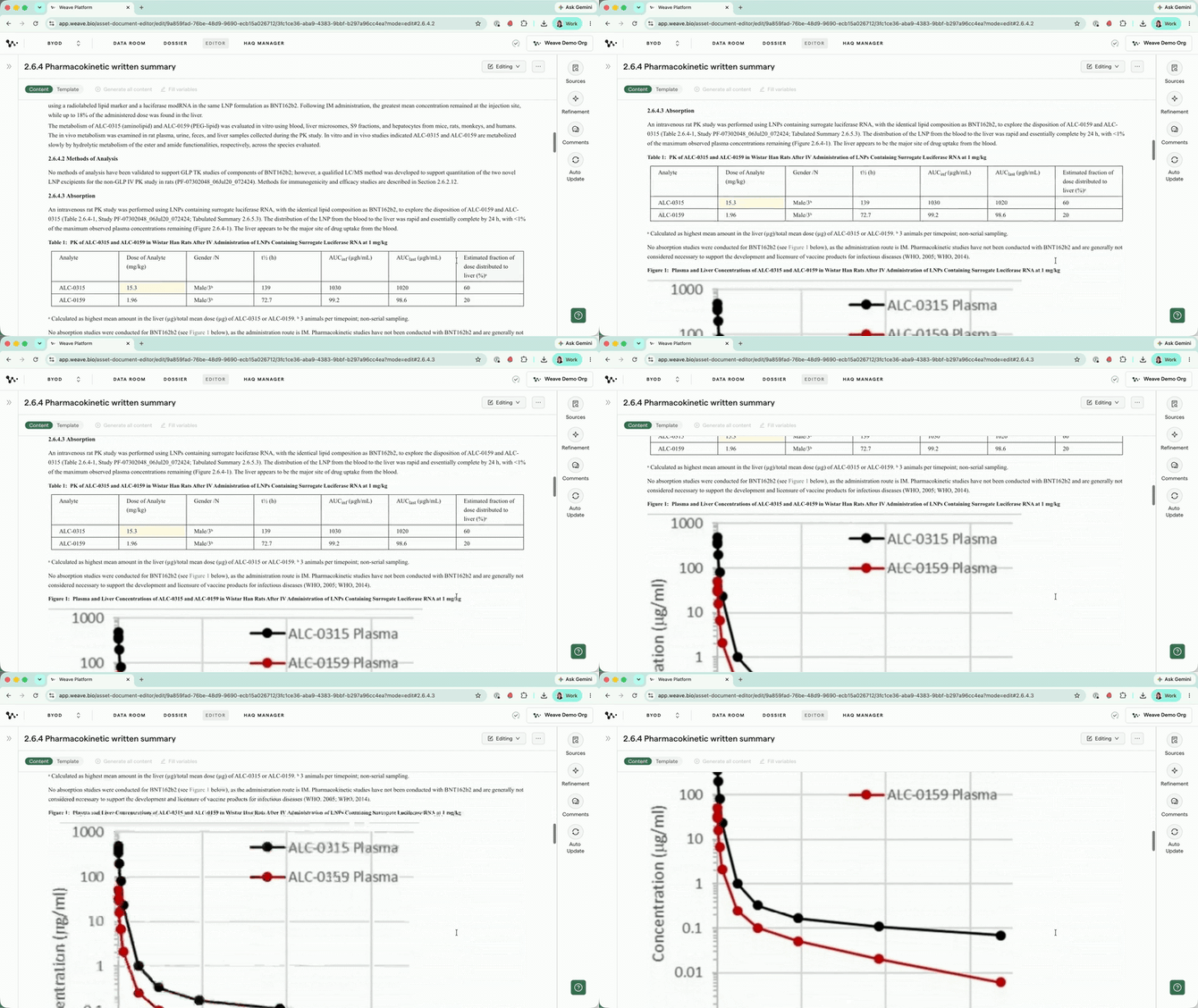
Note: A few content types don't carry over: custom table and figure numbering, suggestions or tracked changes, and inter-document cross-links. Headings and heading structure do update to match your imported file.
6. Check the Template view for reverse-engineered prompts
Switch to the Template view. Weave has automatically generated prompt blocks to match the structure of your imported content. These let you regenerate or refine any section using standard editor workflows.
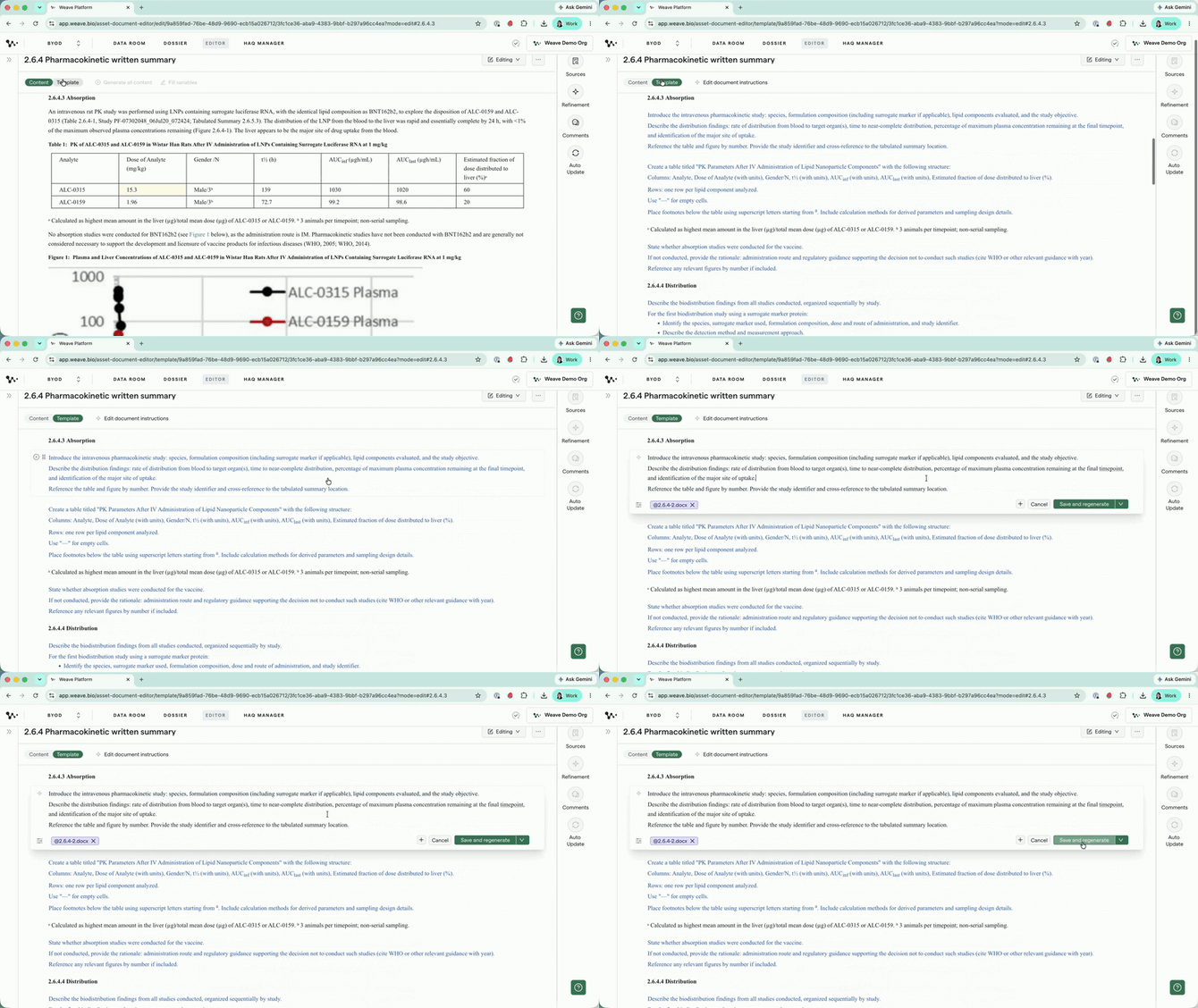
Note: These prompts use the imported file as their source, not the files in your Data Room. That's intentional for this first version, but it means AutoUpdate won't trigger from new files automatically.
Tip: Treat the reverse-engineered prompts as a starting point. The structure can vary between imports of the same file. If your organization has a standard template, importing it here will replace the reverse-engineered one. To edit imported content directly, use the Refinement tool — or update the Data Tags in each prompt block manually if you want to use the document as a new baseline template.
7. Check the Comments panel for imported Word comments
If your original file had Word comments, open the Comments panel. They'll be there alongside any Weave comments. You'll see three visually distinct comment types in the panel: comments imported from Word, comments you've created directly in Weave, and comments generated by AutoReview.
Note: The date shown inside the comment reflects the original Word timestamp. The timestamp on the comment card itself reflects the import date.
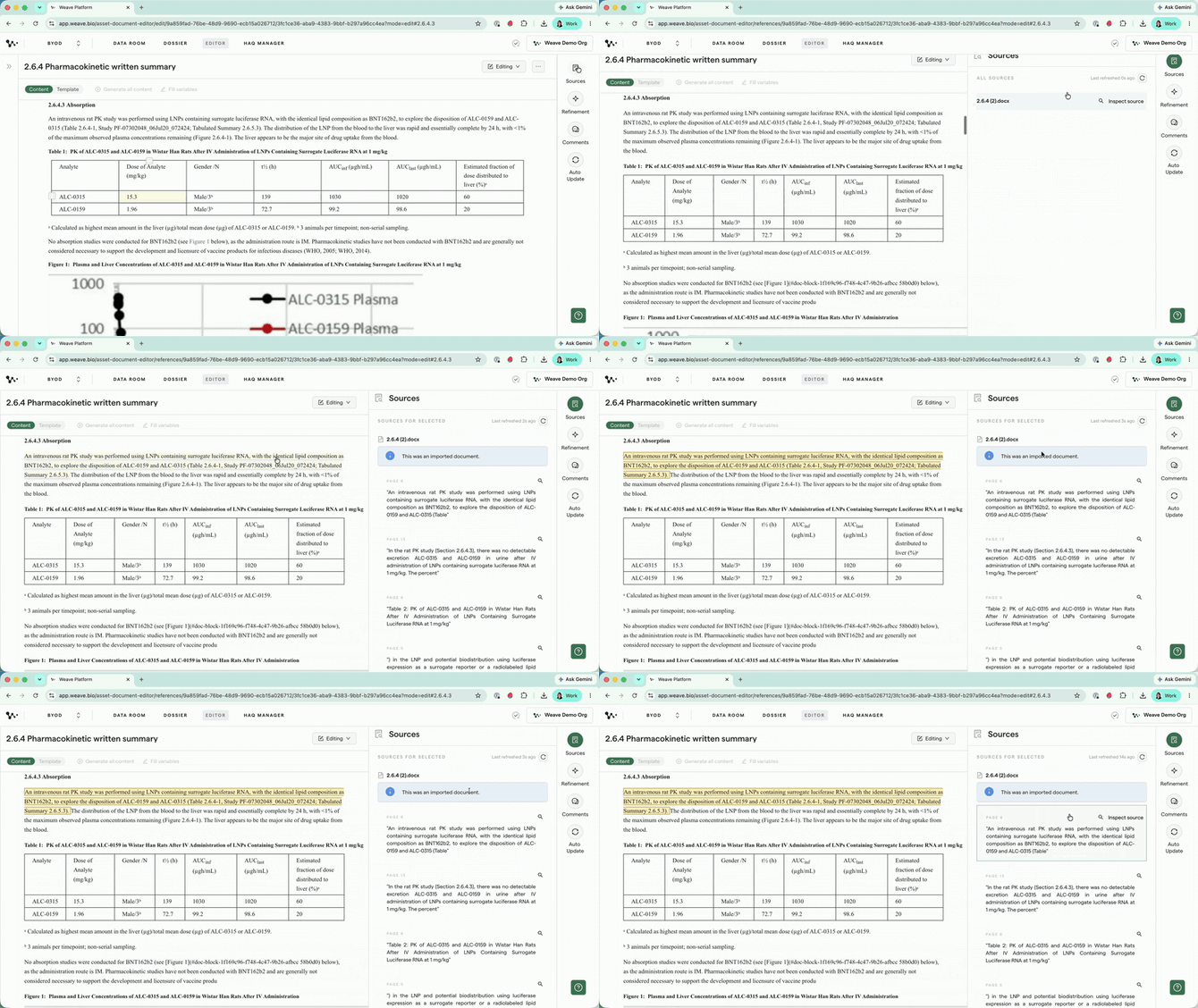
From here, you can use the full Weave editor: regenerate sections, run AutoReview, export, refine content, check Sources, and publish. The only feature that doesn't work automatically after import is AutoUpdate. See the FAQ below for how to re-enable it on specific sections.
FAQ
Q: Why isn't AutoUpdate working on my imported document?
A: After import, every section's prompt uses the imported file as its source rather than a standard Data Room tag. AutoUpdate needs a standard Data Room tag to trigger from new files. To re-enable it for a section: go to the Template view, open that section's prompt block, replace the imported file source tag with a standard Data Room tag, click Save (not Save and Regenerate), then regenerate separately. AutoUpdate will work for that section from that point forward. You only need to do this for sections where AutoUpdate matters.
Q: I imported a document and the table and figure numbers changed. Is that expected?
A: Yes. Weave converts custom table and figure numbering to standard sequential numbering during import. To keep references accurate, intra-document cross-links are automatically updated to match the new numbering.
Q: Can I import a document that already has content in it?
A: Yes, but importing will overwrite the existing content. Weave warns you before it does this. If you want to keep your existing draft, export it before running the import.
Q: Can I import the same document more than once?
A: Yes. There's no limit on how many times you can reimport into the same document. Each import creates a new entry in version history, so you can always navigate back. Import is disabled while a previous import on the same document is still processing.
Q: If I export from Weave, get comments added externally, and reimport, do those comments come through?
A: Yes. Comments from the reimported Word file appear in the Comments panel. The original Word timestamps are preserved on the comment content; the import date is shown on the comment card itself.
Q: Does import support PDF files?
A: Yes, both .docx and .pdf are supported.
Q: Can I import multiple documents at once?
A: Not yet. Import currently supports one document at a time. (Bulk import is planned for a future release.)
Quick Reference: Importing a Document
- Go to the Dossier tab in your program
- Hover over the target document and click Import (document must be in Editing mode)
- Select a
.docxor.pdfand optionally choose a Data Room folder - Click Upload and wait for the progress card to complete
- Open the document in the editor
- Review imported content in the Content view
- Review reverse-engineered prompts in the Template view
- Open the Comments panel to review any imported Word comments