
Note: Uploading, renaming, and deleting stylesheets requires a Submission Contributor or HAQ Contributor role. Viewers can preview available stylesheets but can't manage them. Your program's existing export permissions still determine who can export.
Note: A stylesheet is a Word (
.docx) file with your organization's headings, body text, lists, tables, and fonts already defined. It's different from a written style guide. Weave applies the stylesheet's Word styles during export. It doesn't apply written formatting rules during content generation.
Upload a custom stylesheet
- Go to Stylesheets from the Weave home page.
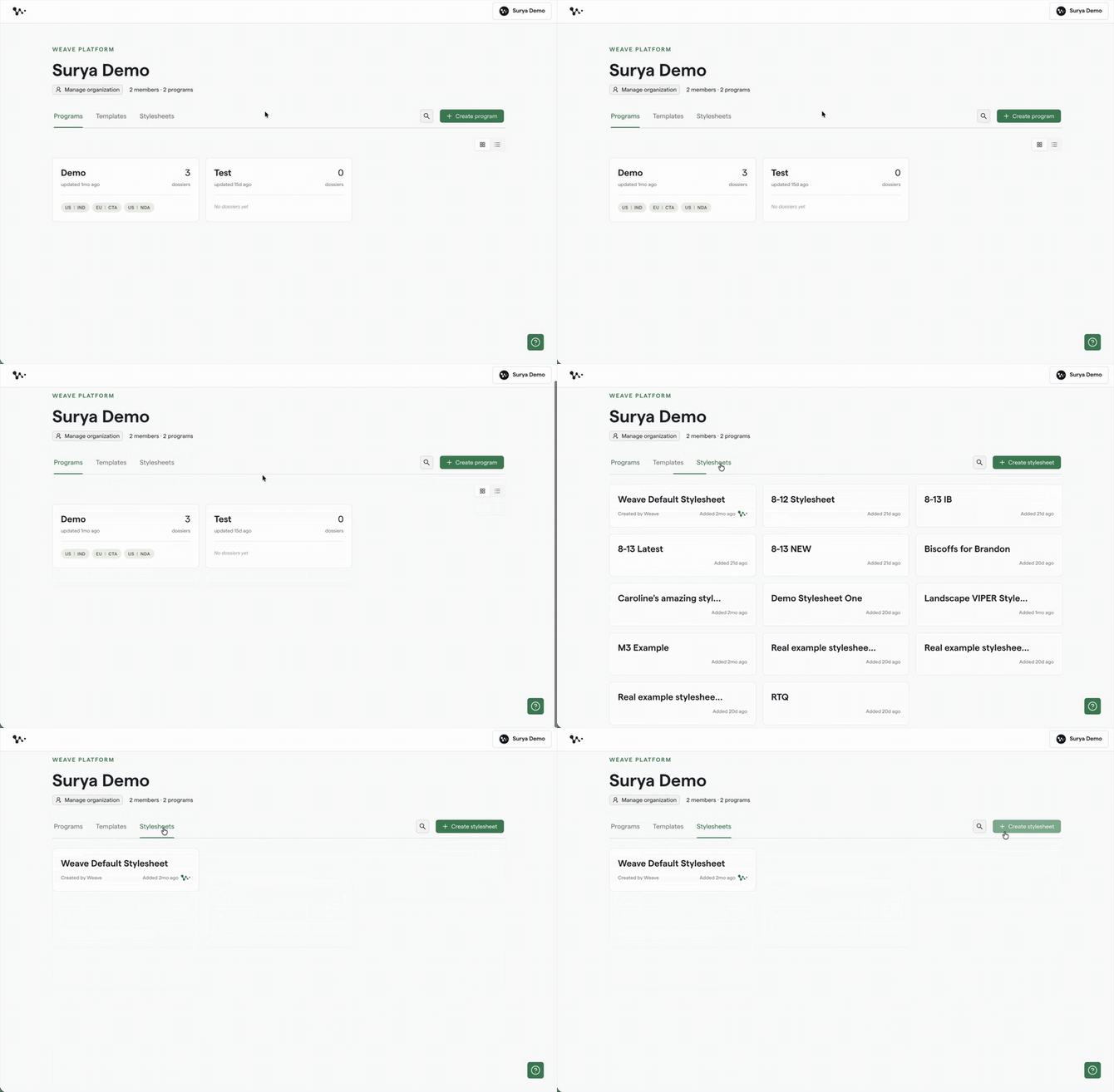
Opening the Stylesheets tab from the Weave home page
- Click Create stylesheet to open the upload flow.
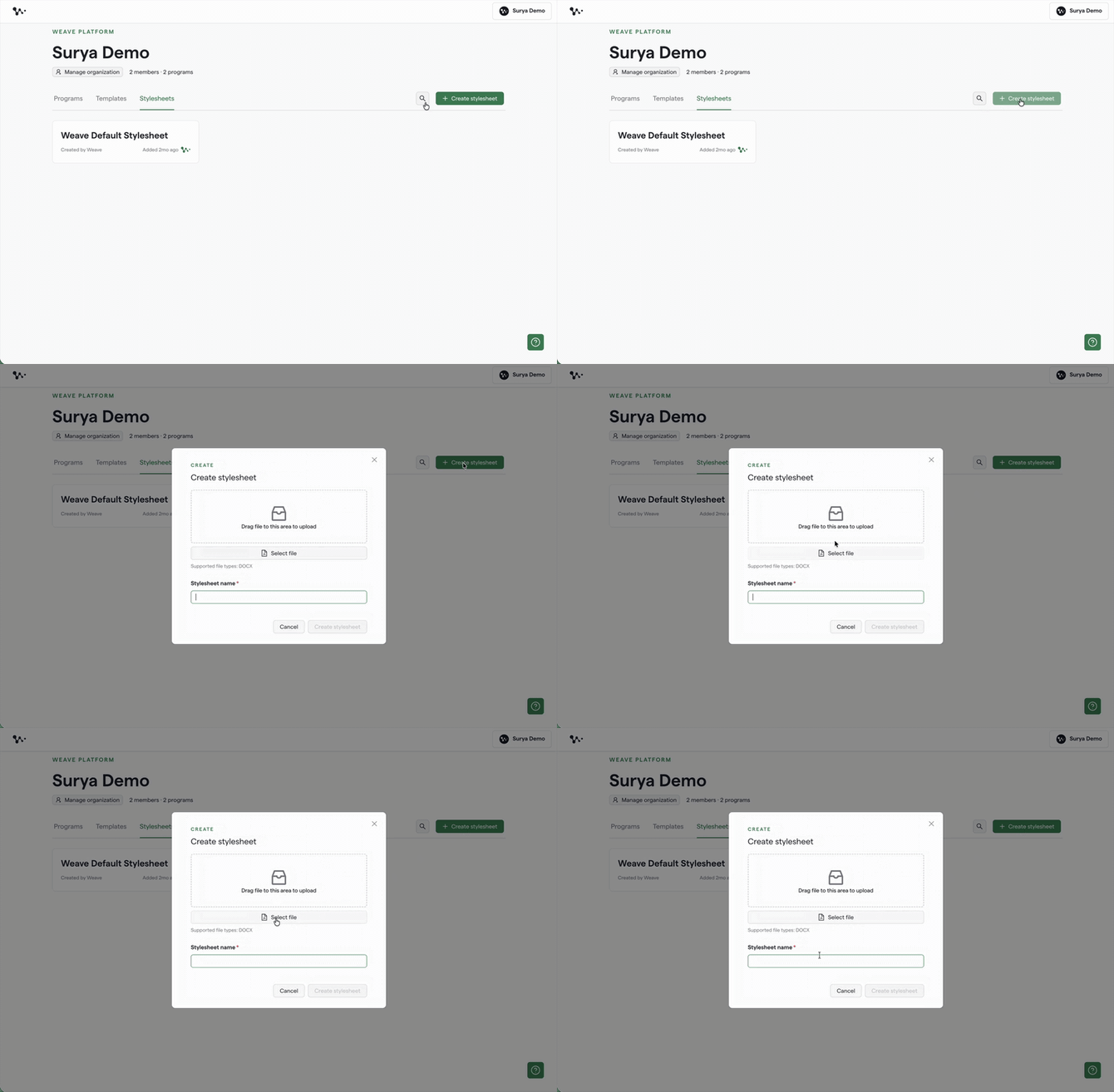
Opening the custom stylesheet upload flow
- Upload your DOCX file. You can upload one file for each stylesheet, and it must be a
.docx.
Tip: If you opened or resaved your Word file through Google Drive, download an original copy before uploading. Google Drive can strip custom Word styles, which can prevent the stylesheet from applying correctly.
- Name your stylesheet. A name is required before the upload can finish.
- Confirm the stylesheet appears in your organization's stylesheet list. You can preview, rename, or delete it later if your role allows it.
Once your stylesheet is uploaded, it's available across your organization, not only in the program where you started. The next section walks through applying it to a DOCX export.
Export a DOCX with your stylesheet
- Open the document you want to export in the Editor.
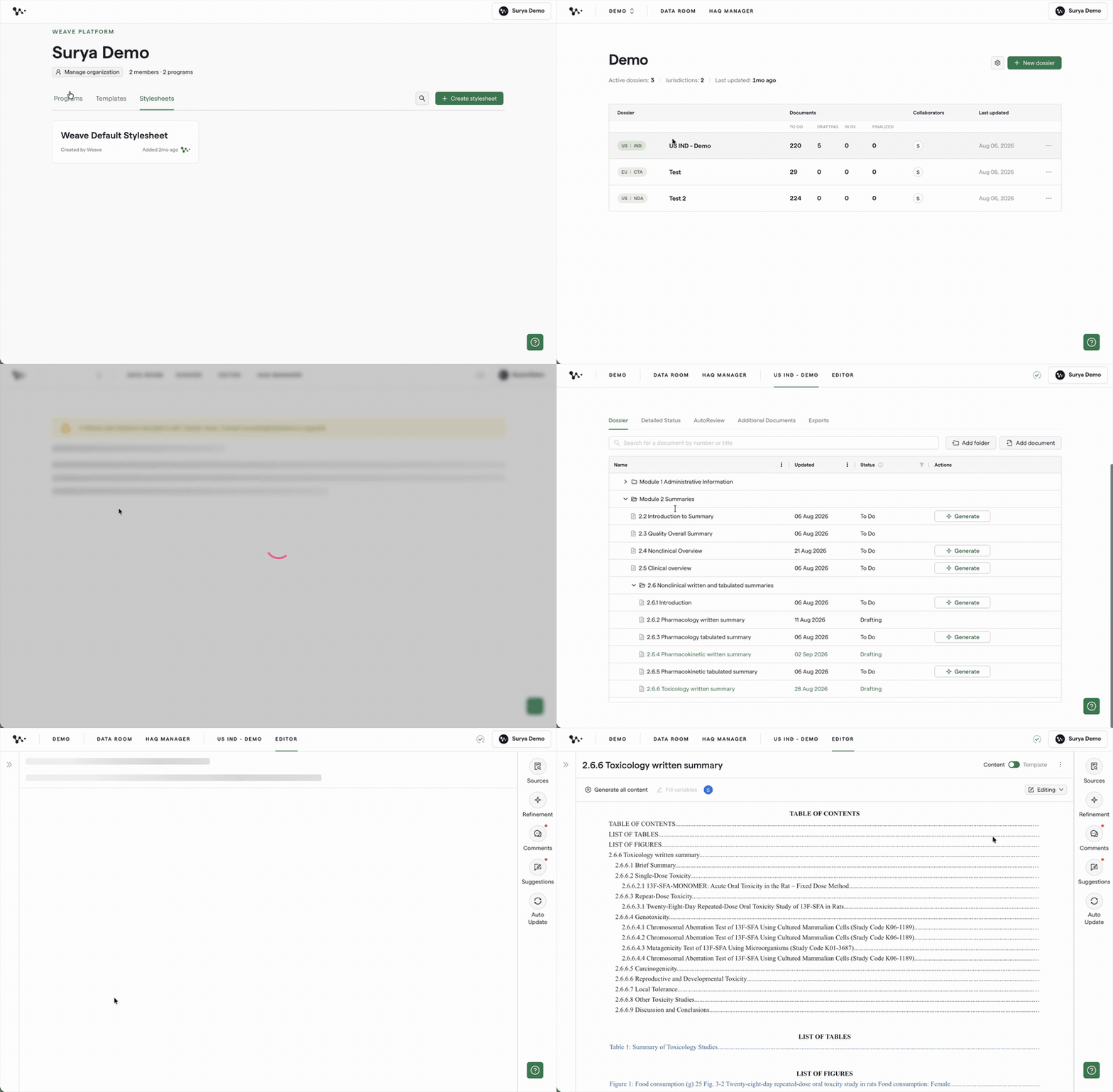
Opening the document you want to export
- Open the document overflow menu and select Export Docx.
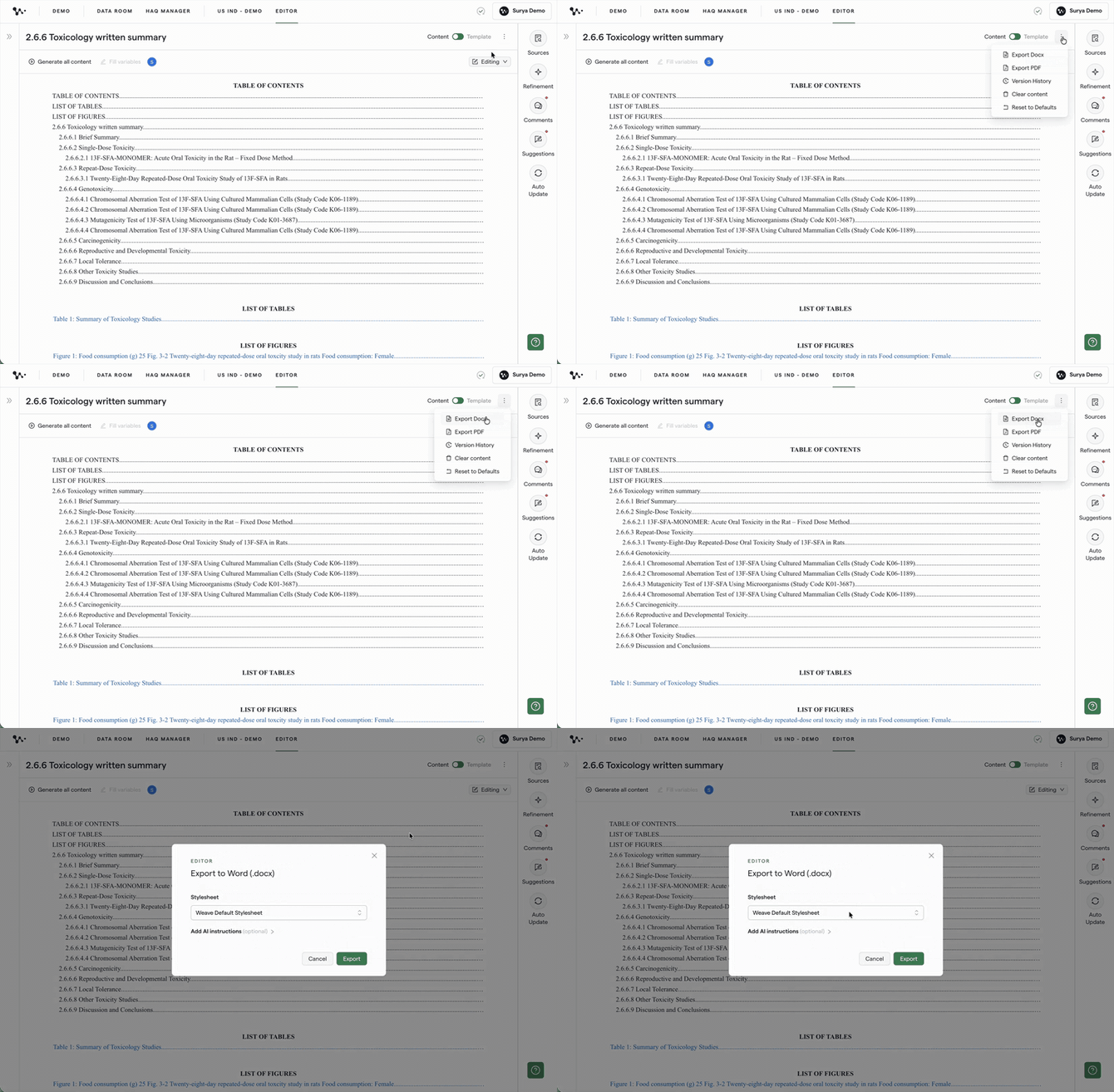
Opening the DOCX export modal
- Select your stylesheet in the export modal. Weave Default Stylesheet is selected unless you choose a custom stylesheet.
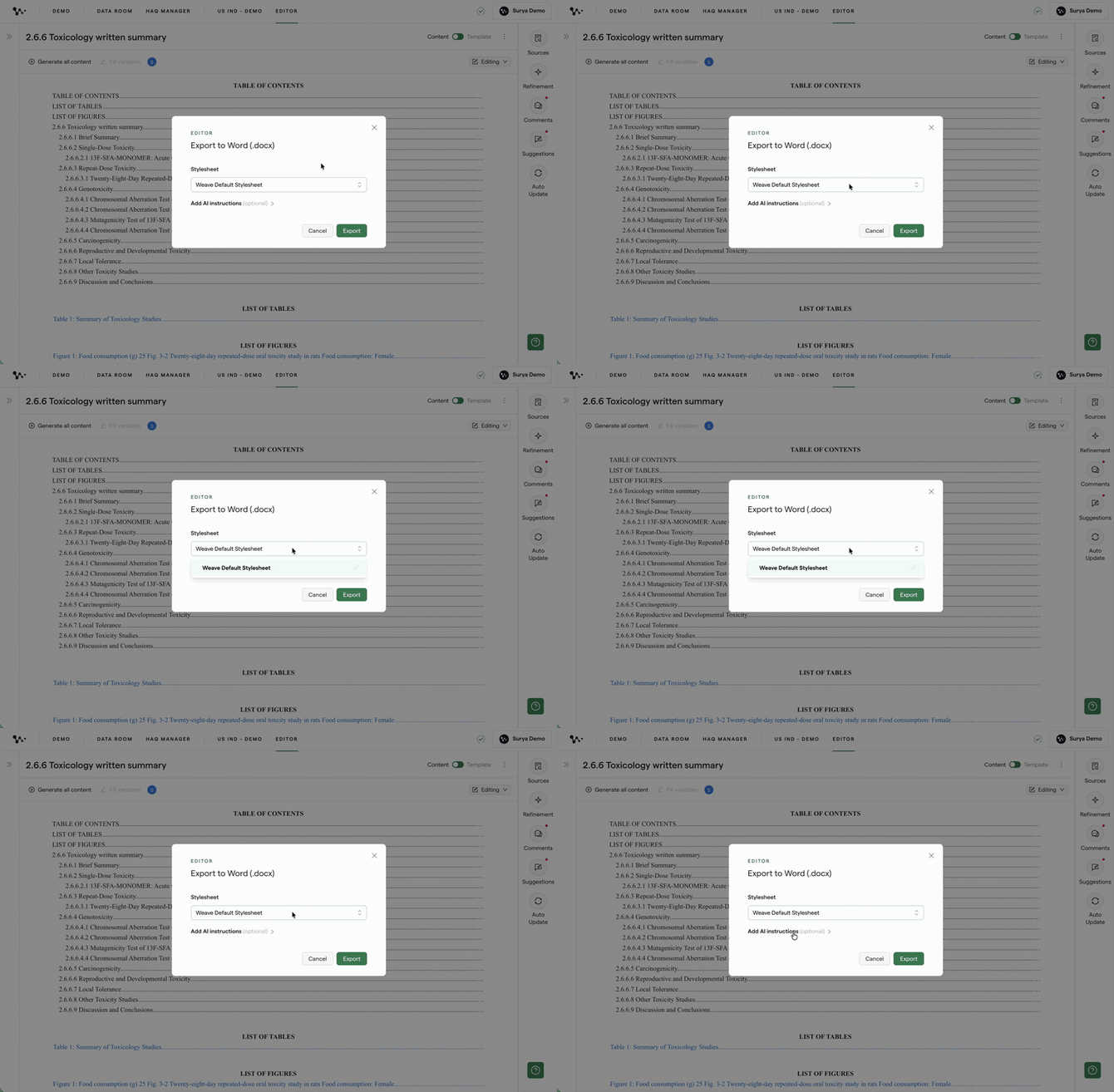
Choosing a stylesheet for a DOCX export
- Add export instructions if needed. Expand Add AI instructions to request a specific formatting adjustment for this export. Instructions apply only to that export. They are a manual override, not a replacement for defining the style in your stylesheet.
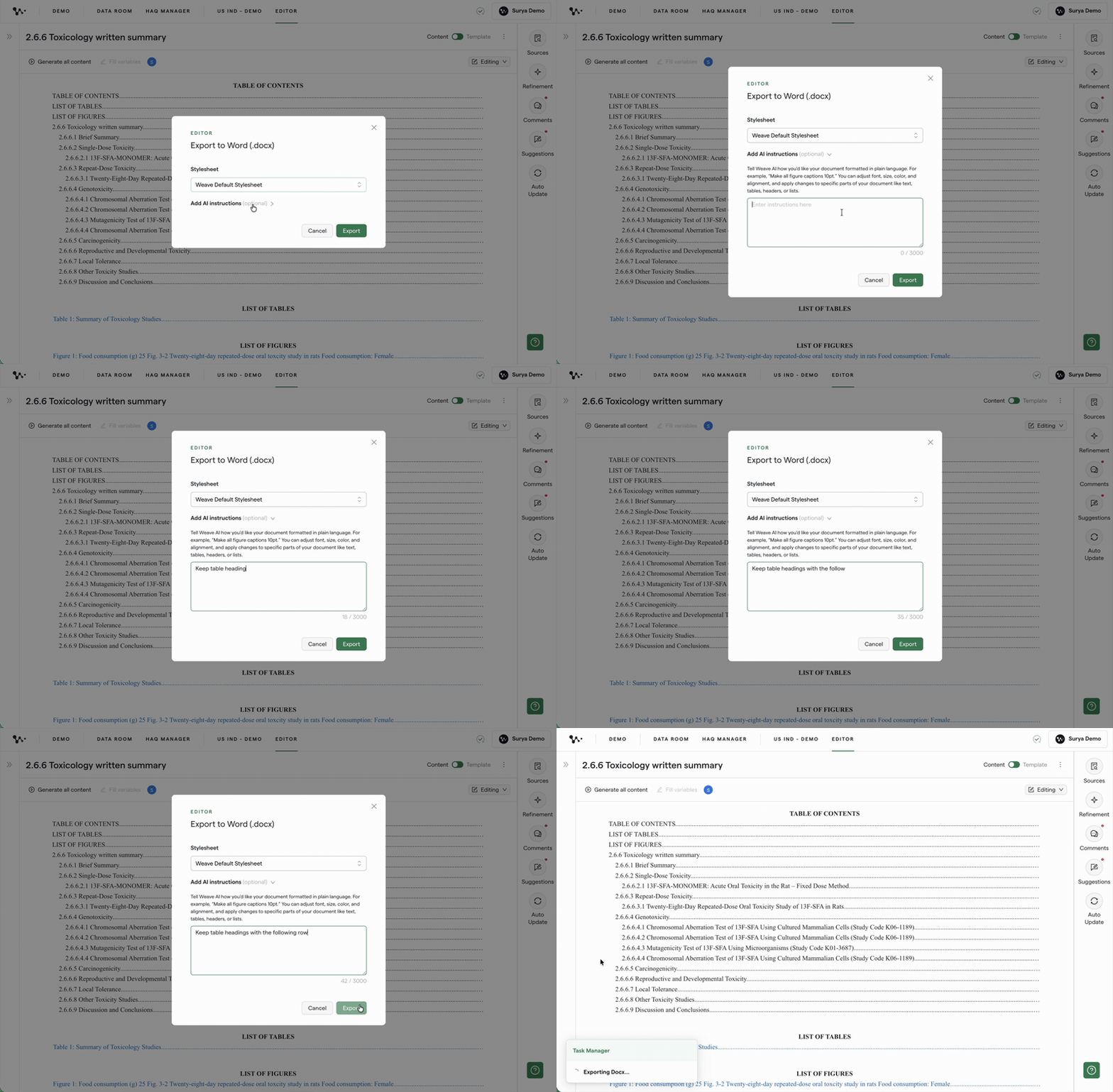
Adding an optional instruction for one DOCX export
- Start the export. When processing finishes, your download begins automatically. The file keeps your authored content and applies the styles from the stylesheet you selected.
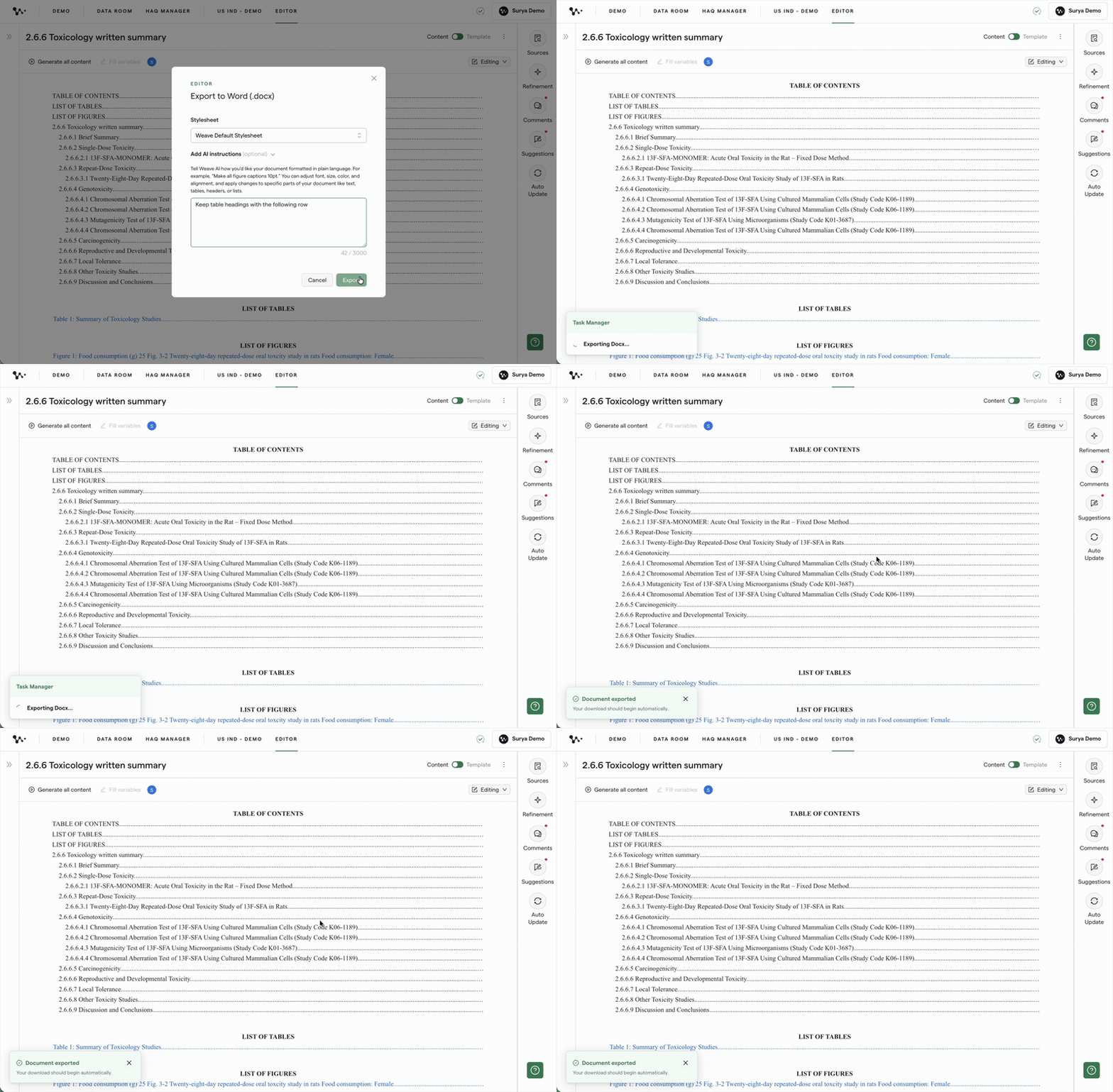
Exporting and downloading the formatted DOCX
Once you've confirmed the DOCX looks right, you can apply the same stylesheet when exporting to Veeva.
Export to Veeva with your stylesheet
- Open the document you want to export in the Editor.
- Select Export to Veeva from the document overflow menu.
- Select a stylesheet in the Veeva export modal.
- Add export instructions if needed. Use the optional instructions control the same way you would for a DOCX export.
- Start the export. The DOCX placed in Veeva uses the stylesheet you selected. Your existing Veeva configuration and export permissions still apply. BYOF doesn't change who can export to Veeva.
Once the export finishes, confirm the formatted document in your configured Veeva location. The FAQ below covers common stylesheet and export questions.
FAQ
Q: What file types can I upload as a stylesheet?
A: Only .docx Word files.
Q: Is there a limit to how many custom stylesheets my organization can have?
A: No stated limit. Upload as many as your organization needs.
Q: What happens if I export without selecting a custom stylesheet?
A: Weave uses its built-in stylesheet. It's always available, even after you've uploaded custom ones, and it can't be renamed or deleted.
Q: I uploaded a stylesheet, but the exported document isn't using the styles I expected. What should I check?
A: Confirm you selected the right stylesheet in the export modal, then confirm the uploaded .docx still has the Word styles you expect. If the file passed through Google Drive, try re-uploading an original Word copy. If it's still off, add a narrowly scoped export instruction and re-export.
Q: Can I use a custom stylesheet with PDF exports?
A: No. Custom stylesheets currently apply only to DOCX and Veeva exports.
Q: Can I edit or delete a stylesheet after I've uploaded it?
A: Yes, if you're a Submission Contributor or HAQ Contributor. The built-in Weave stylesheet is the only one that can't be renamed or deleted.
Q: Will Weave remember the stylesheet I used last time?
A: Not currently. You'll need to select your stylesheet each time you export.
Quick Reference: Exporting with Custom Styles
- Go to Stylesheets on the Weave home page
- Click Create stylesheet and upload a
.docxfile - Name the stylesheet and confirm it appears in your list
- Open your document in the Editor
- Select Export Docx or Export to Veeva
- Choose your stylesheet in the export modal
- Add export instructions if needed
- Start the export and download the file, or confirm the Veeva push