
Where to find the export option
Export is accessed from inside the Document Editor. Open the document you want to export, then click the three dots (...) in the top-right corner of the editor.
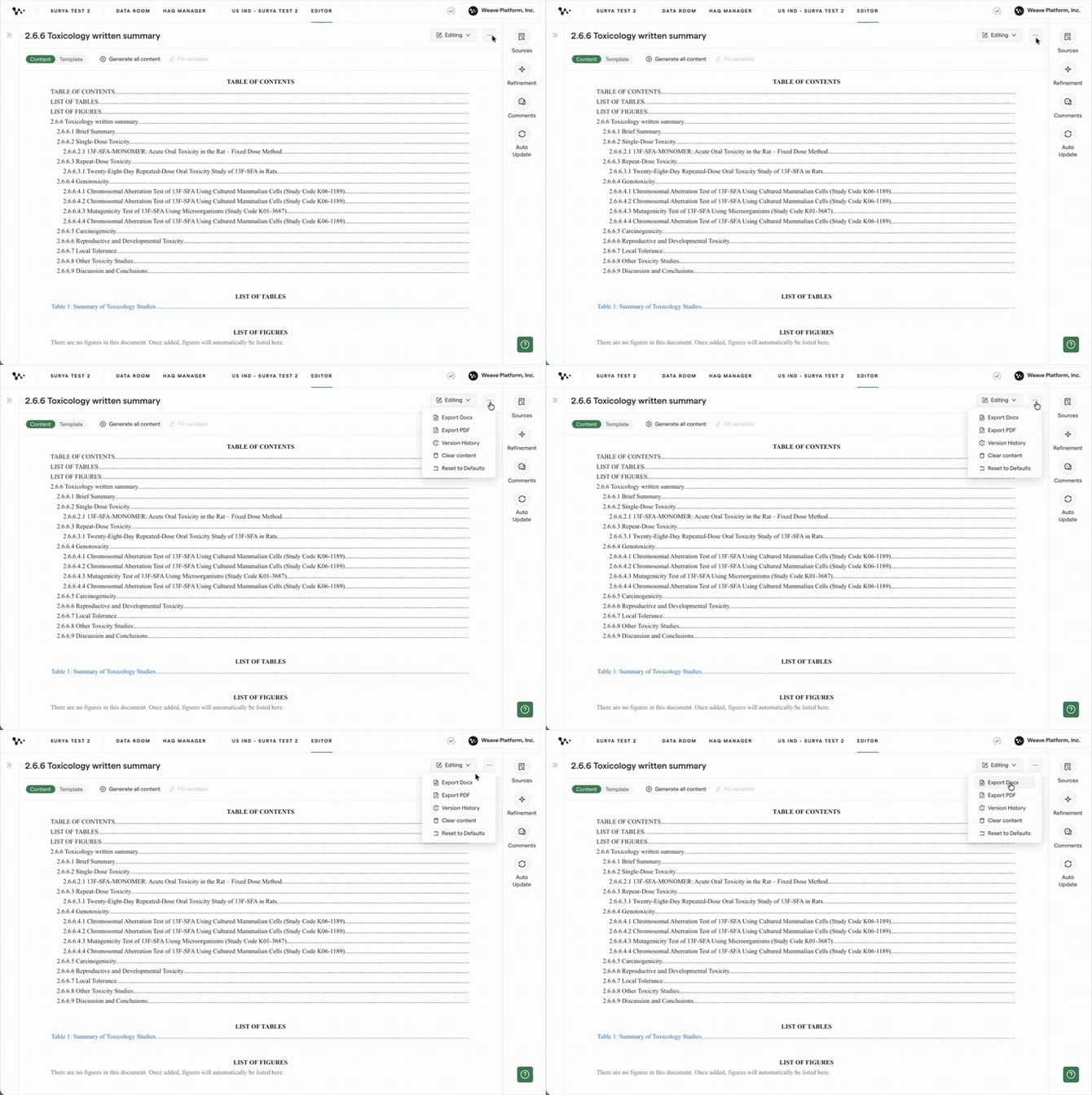
You'll see two or three options depending on how your program is set up:
- Export to DOCX downloads the document as a Word file
- Export to PDF downloads as a PDF
- Export to [DMS name] appears only if your program is connected to a document management system via integration
Export to Word (DOCX)
Click Export to DOCX. The file downloads to your browser's default Downloads folder.
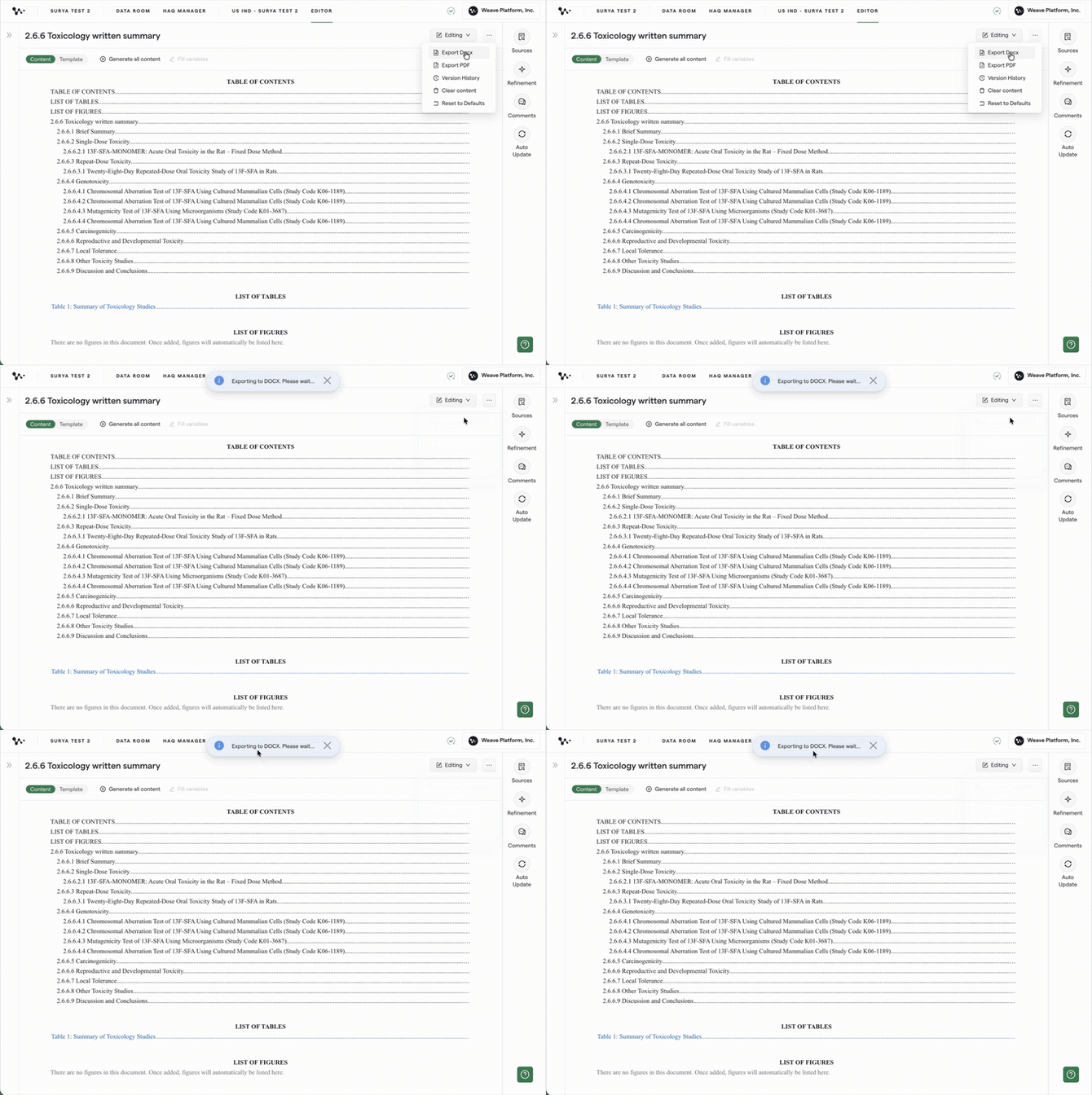
Tip: If nothing downloads after you click, check your browser for a blocked pop-up notification in the address bar. Allow pop-ups from Weave. This is a one-time step and won't be needed again.
The downloaded DOCX reflects the current accepted state of the document. This means:
- All manually edited text is included as-is
- Suggested changes (redlines) that have been accepted are included
- Suggested changes that are still pending are not included. The export always shows the clean state.
- Comments are not included in any export format
Note: Track changes and redlines do not appear in exported files. If you need a colleague to review changes in Word, the intended workflow is to review and resolve suggestions inside Weave before exporting, then share the clean DOCX.
Export to PDF
Click Export to PDF. The file downloads the same way as the DOCX.
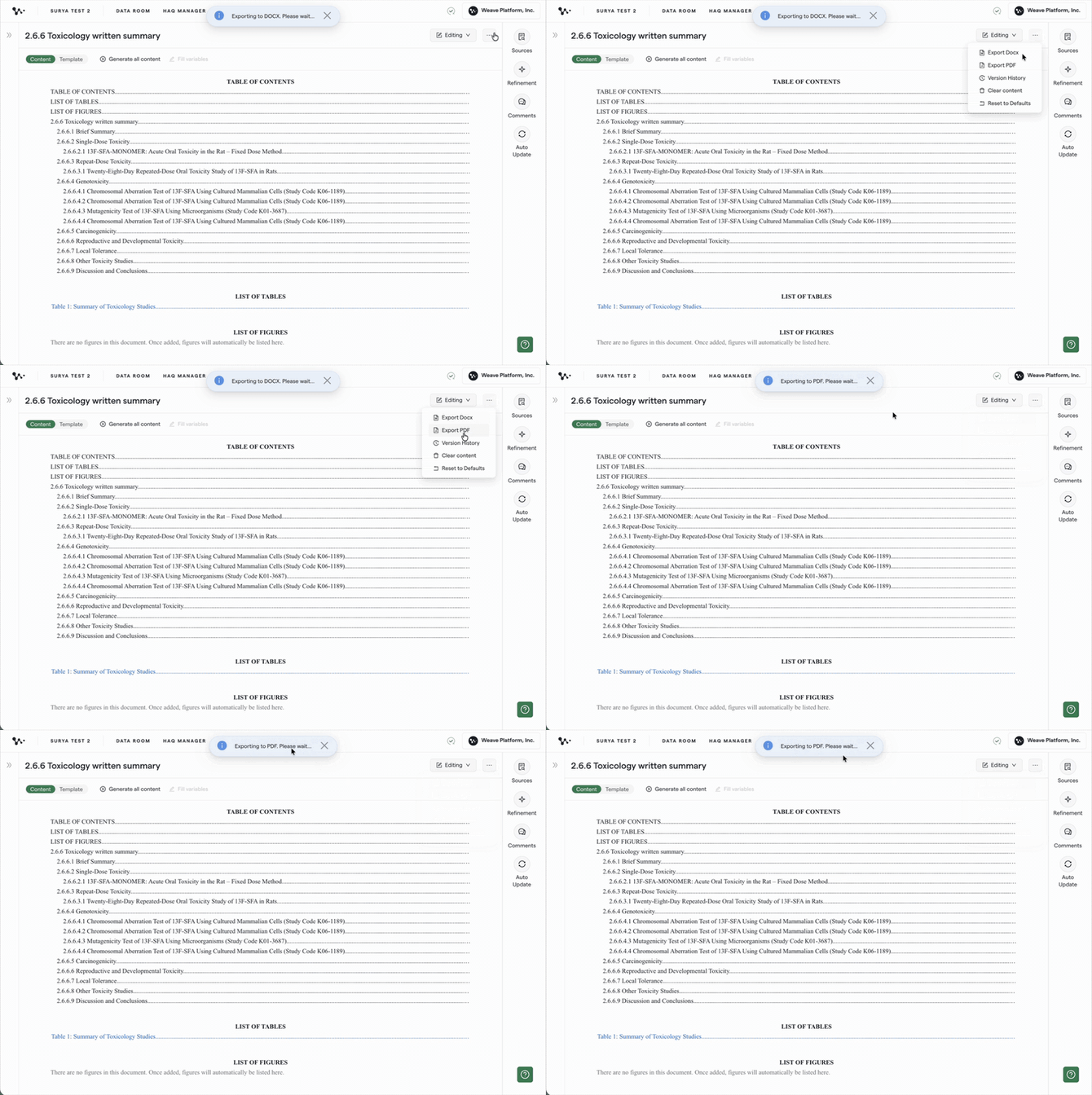
The PDF follows the same rules as the DOCX: it reflects the clean, accepted state of the document. No tracked changes, suggestions, or comments are included.
Tip: Use PDF export when you need a locked, read-only version for submission or archival. Use DOCX when the recipient will need to make edits or apply formatting.
Export to a document management system (DMS)
If your program is connected to a DMS (such as Veeva) via integration, a third export option appears. This pushes the document directly to the DMS in draft status.
Click Export to [DMS name] to trigger the push.
Key things to know about DMS export:
- The export is always manually triggered. Nothing is ever pushed to your DMS automatically.
- Each subsequent export increments the file version in the DMS automatically. You don't need to rename the file.
- The DMS export reflects the clean, current state. No tracked changes or comments are included.
Note: The DMS export option only appears if an Admin has set up the integration for your organization and mapped your program to the corresponding record in the DMS. If you don't see this option and expect to, contact your Admin.
What's included in an export
| Content | Included in export? |
|---|---|
| Authored and generated text | Yes |
| Accepted suggestions (track changes) | Yes |
| Pending suggestions (unresolved redlines) | No |
| Comments | No |
| Figures inserted into sections | Yes |
| Data Verification underlines | No |
FAQ
Q: Are track changes or redlines included in the exported DOCX?
A: No. Exported files always reflect the clean, accepted state of the document. Pending suggestions are not included in any export format.
Q: I clicked export and nothing downloaded. What do I do?
A: Check your browser for a blocked pop-up notification in the address bar and allow pop-ups from Weave. This is usually the cause and only needs to be done once.
Q: Are intradocument hyperlinks (links between sections) preserved in the exported Word file?
A: Not yet. Hyperlink preservation in Word export is on the roadmap. (Coming soon)
Q: Can I export a document that's still in progress?
A: Yes. You can export at any point in the authoring process. The file reflects whatever state the document is in at the moment of export.
Q: Will each DMS export overwrite the previous version?
A: No. Subsequent exports to the DMS increment the version number automatically, so prior versions are preserved.
Quick Reference: Exporting a Document
- Open the document in the Document Editor
- Click the three dots (...) in the top-right corner
- Select Export to DOCX, Export to PDF, or Export to [DMS name]
- If nothing downloads, check your browser for a blocked pop-up and allow it
- The export always reflects the clean, accepted state. Pending suggestions and comments are not included.