
You can add a figure from the Data Room, upload an image from your computer, or paste an image from the clipboard.
Note: For the Data Room workflow, upload the source document containing the figure to your program's Data Room first. Weave can find figures in PDF and Word documents.
Add a figure from the Data Room
- Open your document and make sure you are in Content View.
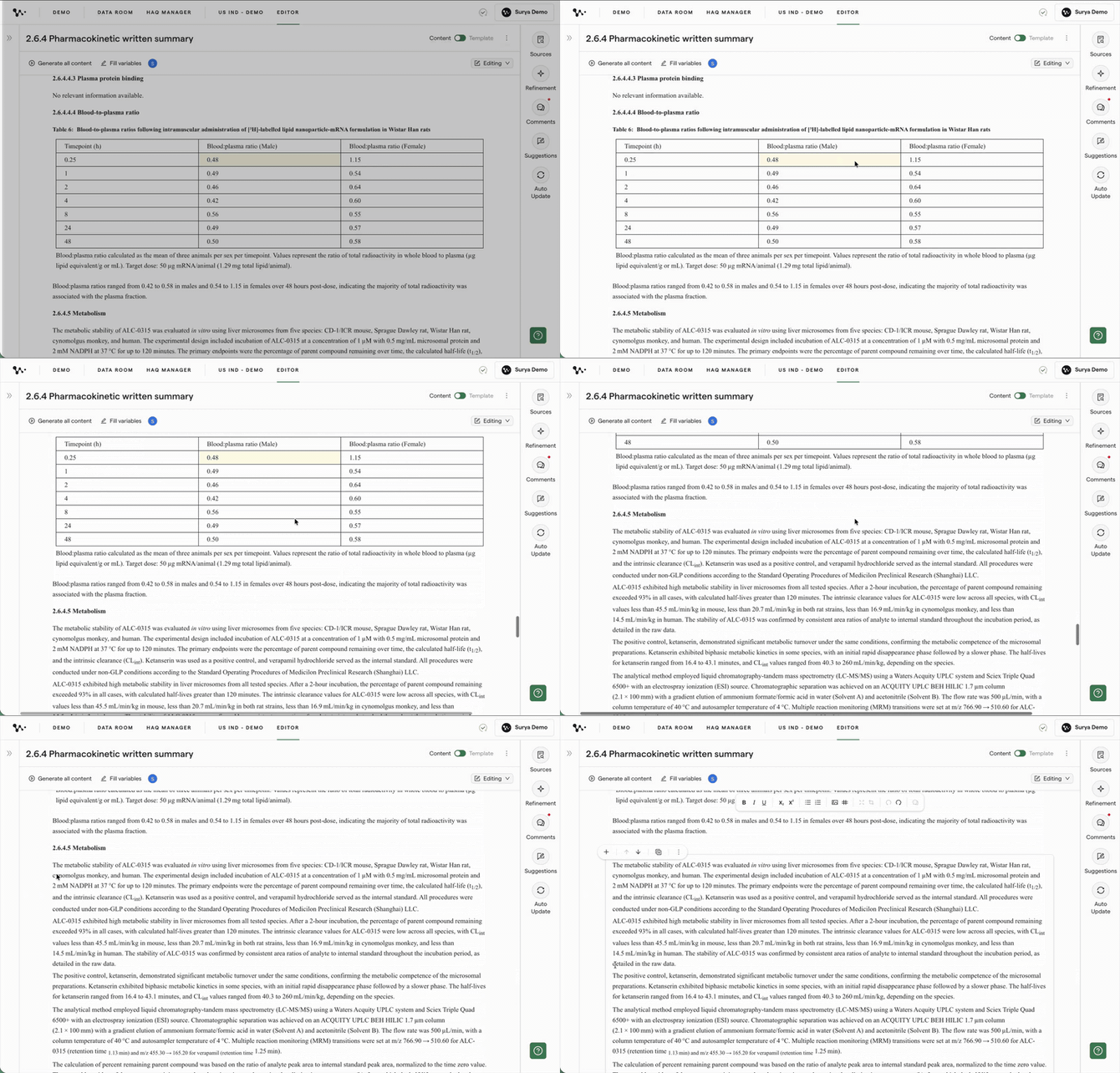
Opening Content View in the Document Editor - Hover over the left margin at the point where you want the figure to appear, then click the + icon.
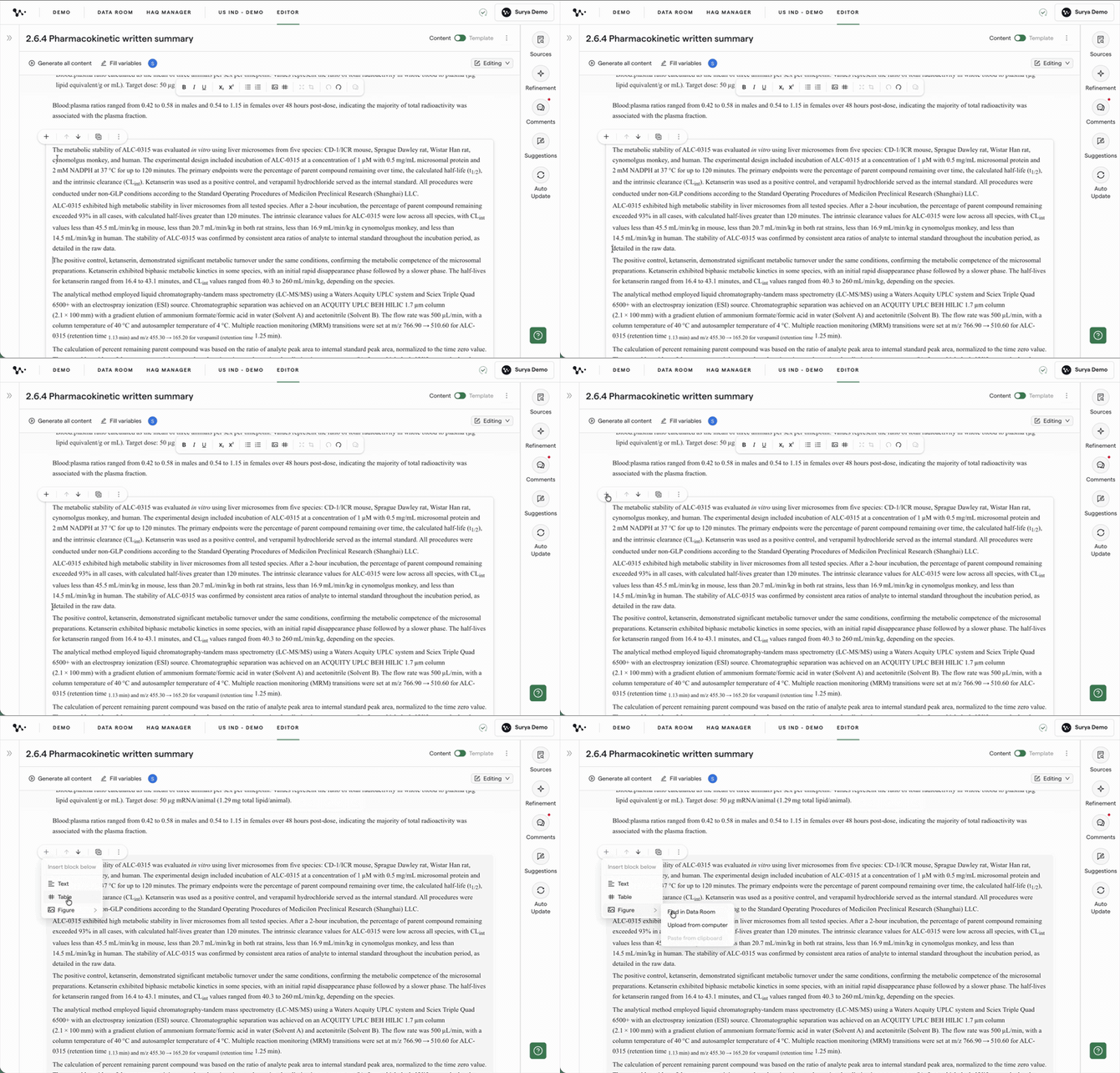
Choosing where to add the figure - Select Figure, then choose Find in Data Room.
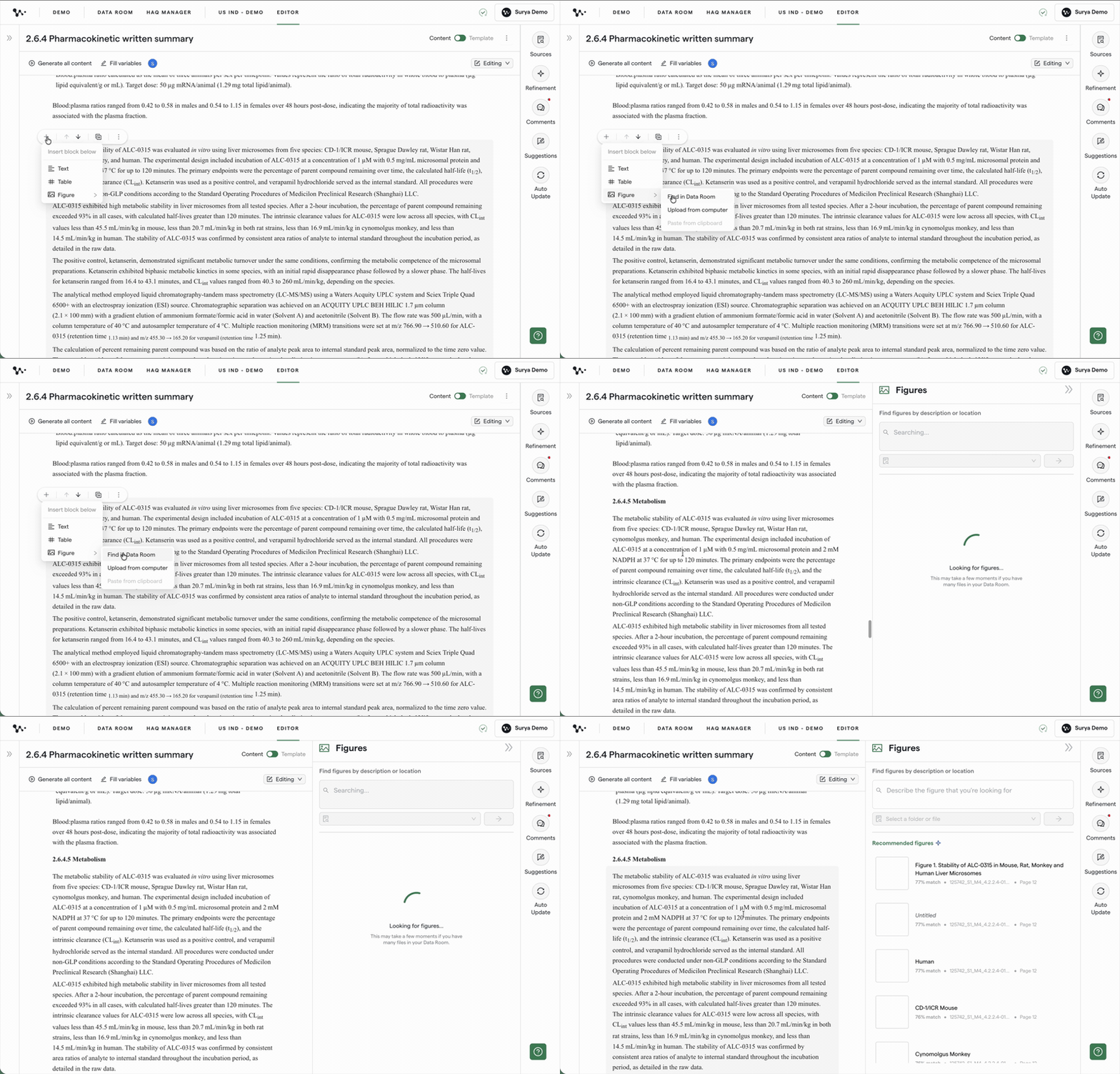
Opening figure recommendations from the Data Room - Review the recommended figures. Each recommendation includes a match score and an explanation of why Weave suggested it, including the source file and relevant data tags.
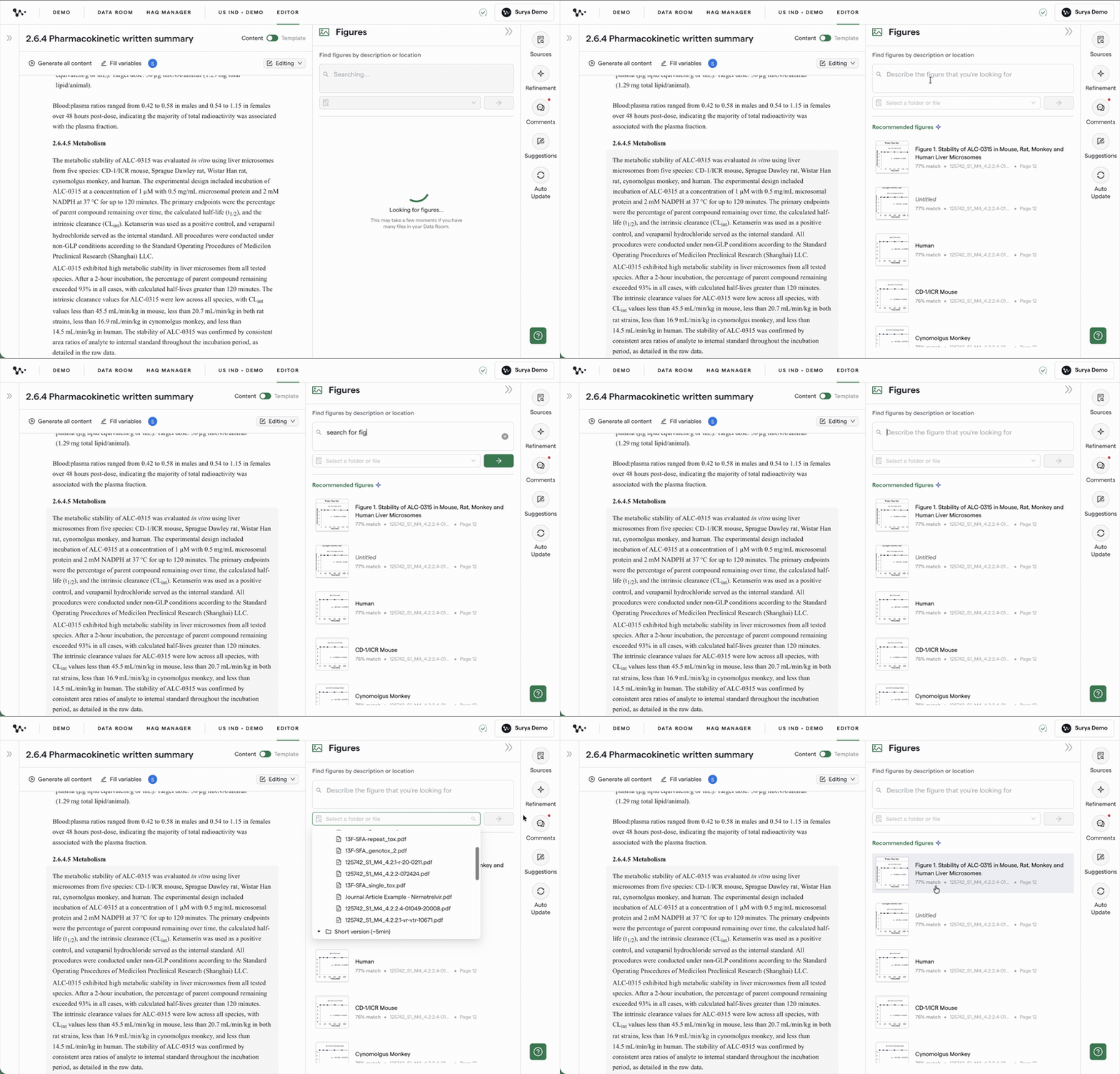
Reviewing Weave's figure recommendationsNote: Weave extracts figures from your source documents, but it does not insert them automatically. You decide which figure belongs in the section.
- Preview the figure you want to use and confirm it is the correct image.
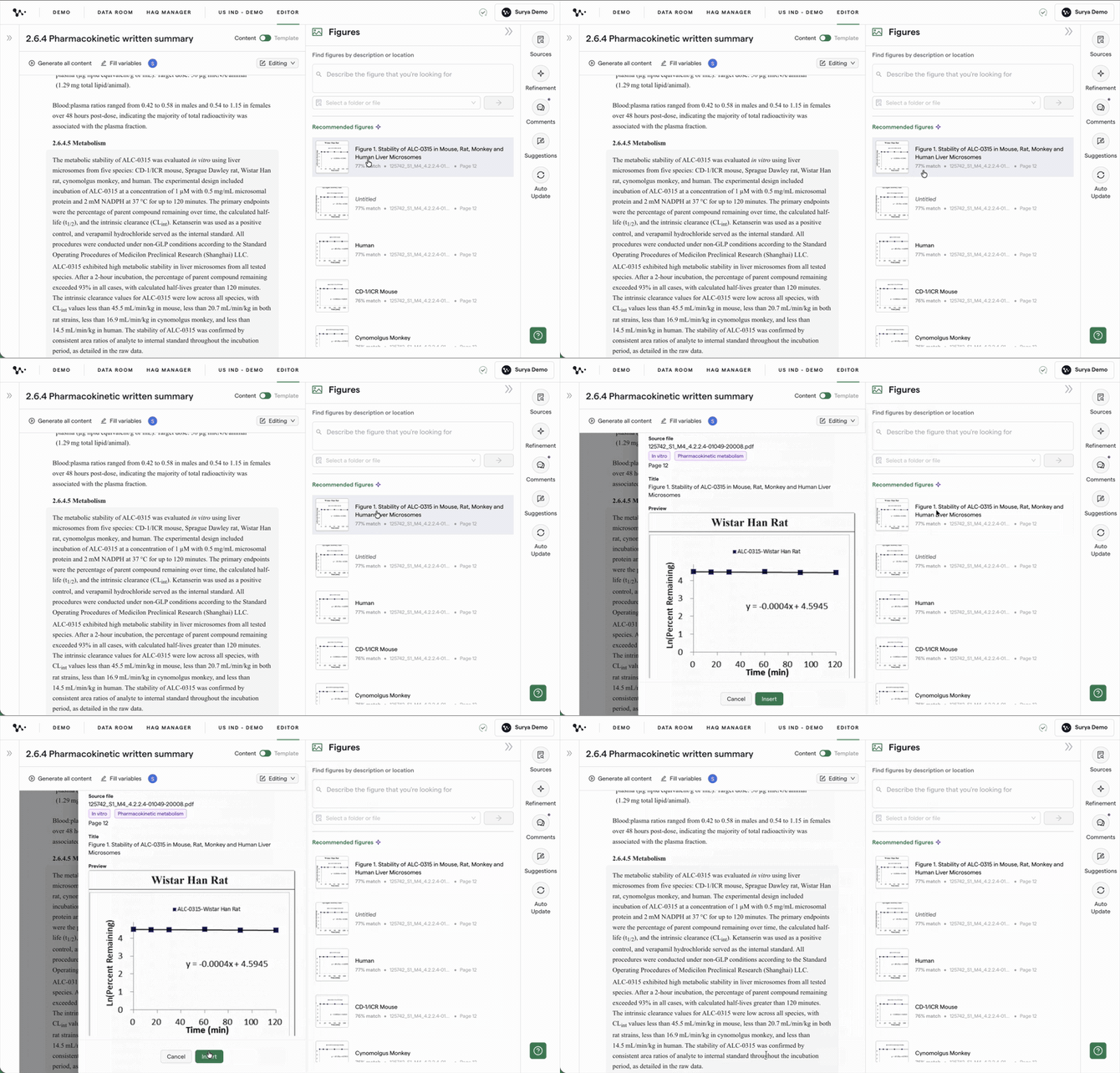
Checking a figure before adding it to the document - Insert the selected figure. It appears below the insertion point in your document.
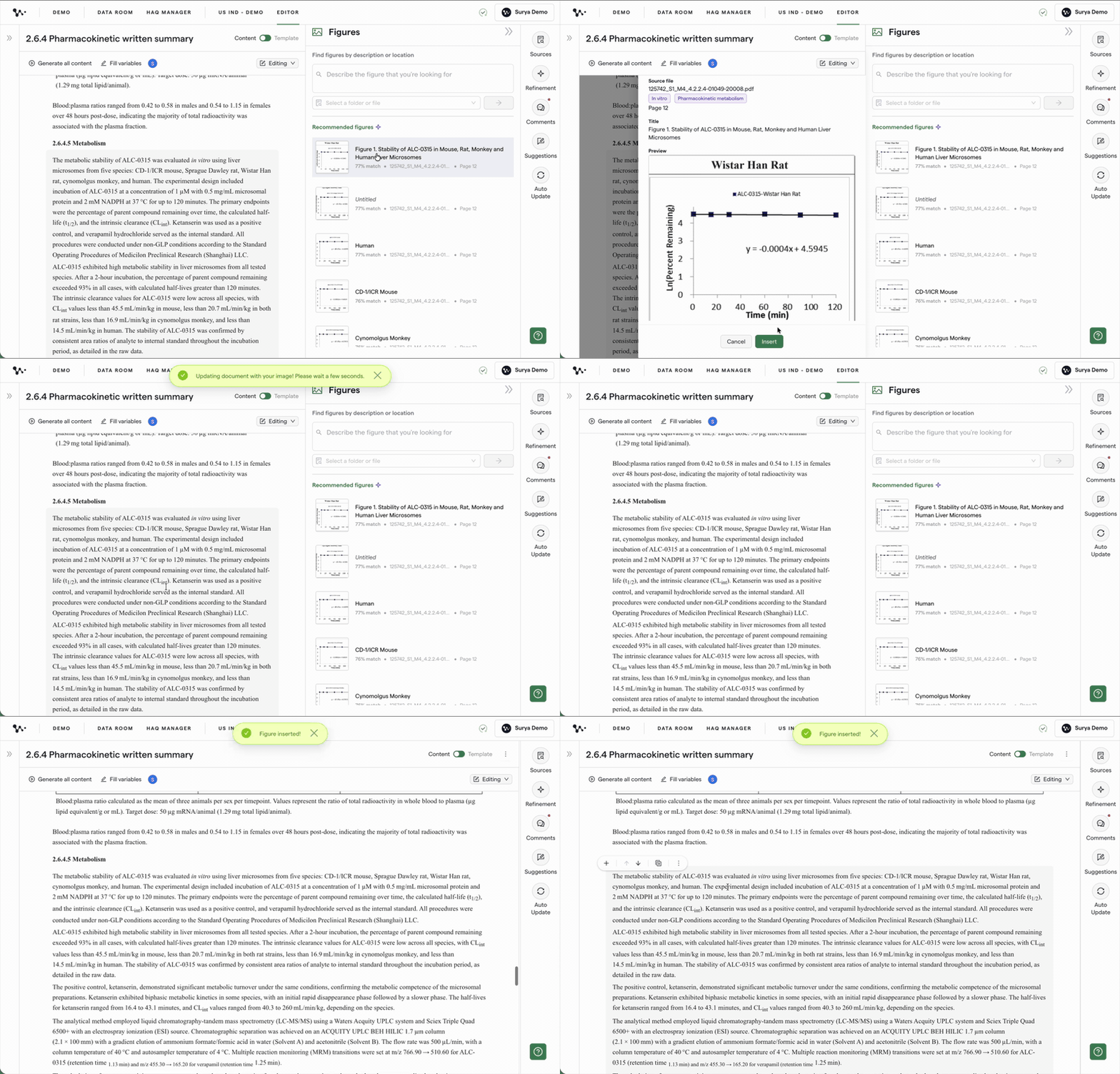
Adding the selected figure to the documentTip: Inserted figures are numbered and added to the document's table of contents automatically.
Once the figure is in your document, you can adjust its description, size, or placement as you continue editing.
Upload a figure from your computer
- Open the image insertion controls from the toolbar or the Figure action at your insertion point.
- Choose the option to upload from your computer and select the image.
Check the image and its placement before continuing.
Paste an image from Word or Google Docs
- Copy the image in Word or Google Docs.
- Paste it into the Weave editor using your usual keyboard shortcut, Ctrl+V on Windows or Cmd+V on Mac.
Images are inserted as separate blocks, not side by side in one block. Once inserted, use the same resize and crop controls as for a Data Room figure.
Manage an inserted figure
Edit the figure description
- Select the inserted figure to show its editing controls.
- Edit the figure description directly in the editor.
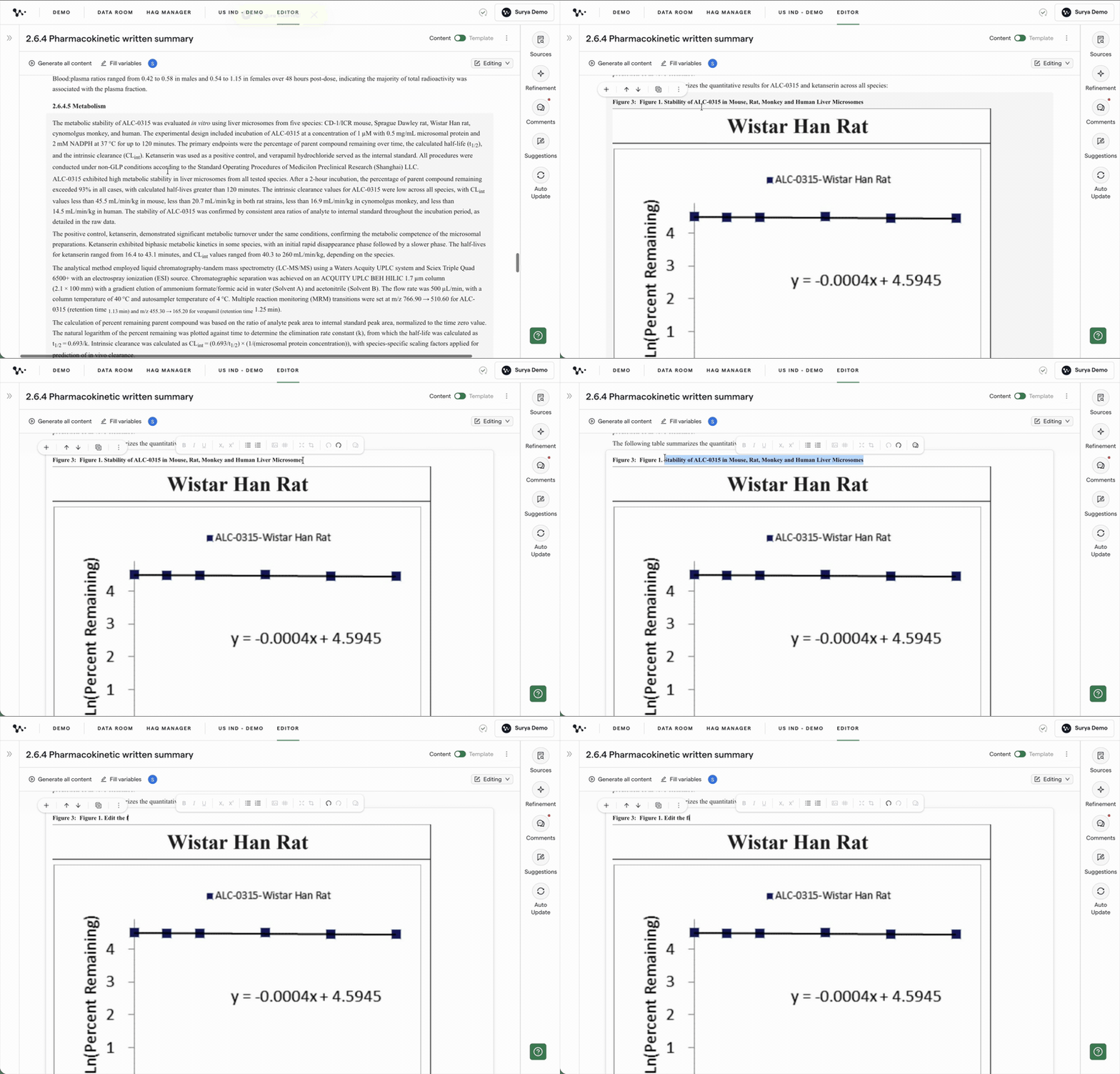
Updating a figure description in the editor
Resize a figure
- Select the figure you want to resize.
- Drag a corner to adjust the size while keeping the aspect ratio.
- Choose a size from the dropdown when you want consistent sizing across figures.
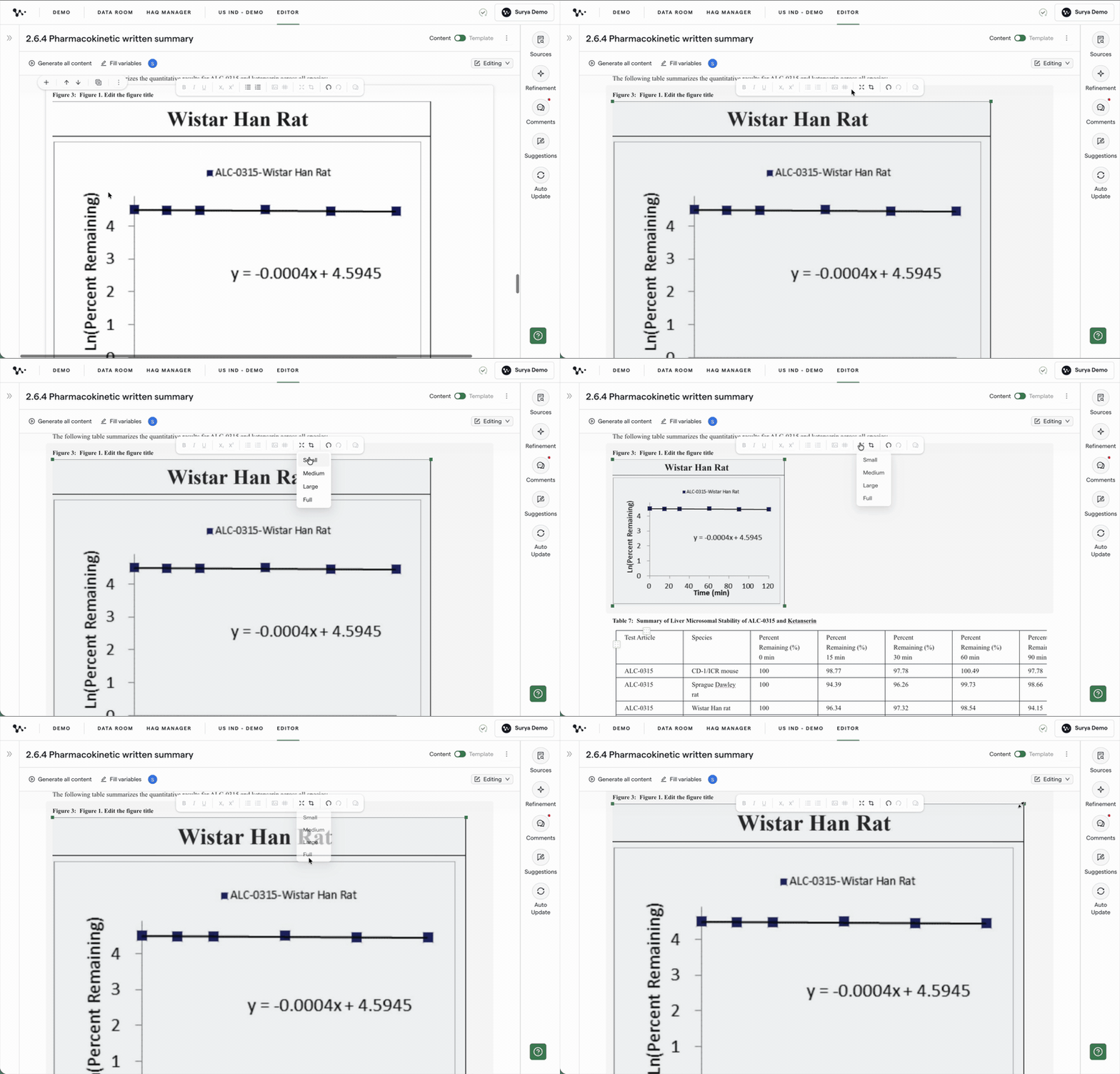
Resizing a figure in the document
Crop a figure
- Select the figure you want to crop.
- Open the crop controls and adjust the visible area of the figure.
- Press Enter or click outside the image to confirm the crop when the preview shows the content you want to keep.
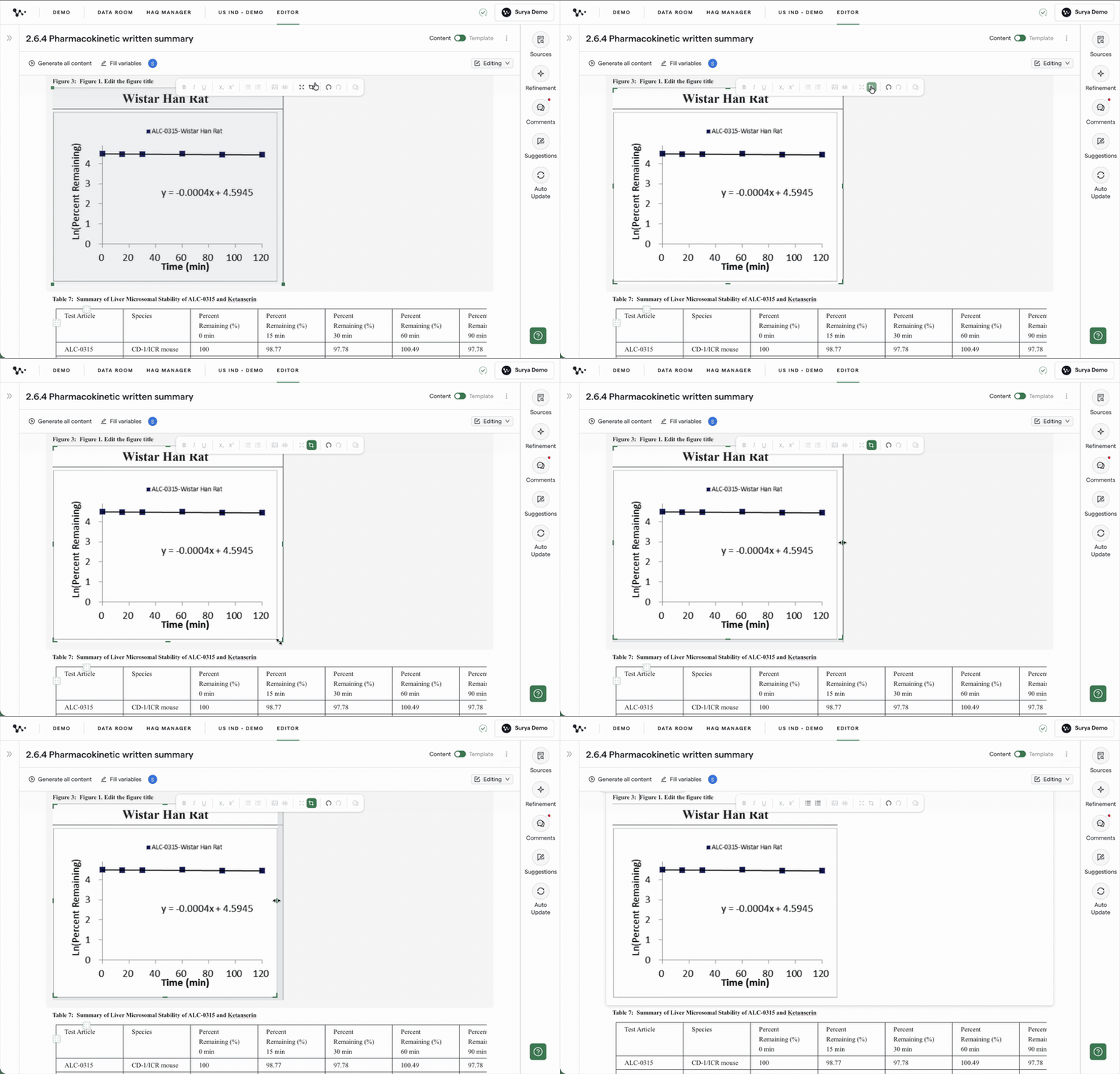
Cropping a figure to show the content you need
Move a figure to another section
- Select the figure you want to move.
- Use the up or down controls to move it between sections.
- Continue moving the figure until it appears in the correct section.
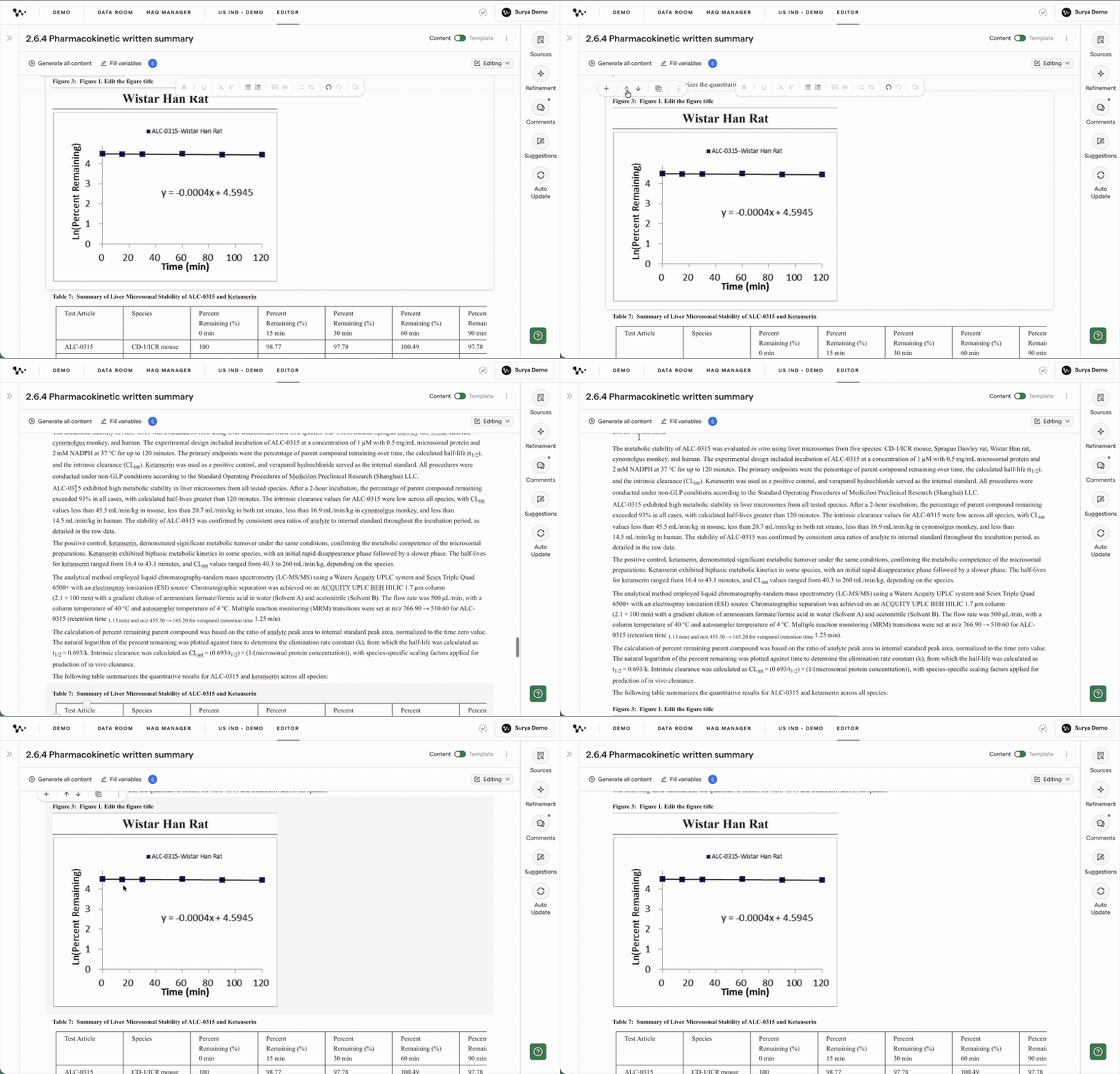
Moving a figure between document sections
Tip: Check the surrounding text after moving a figure to make sure its new location still provides the right context.
Delete a figure
- Select the figure you want to remove.
- Use the figure controls to delete it from the document.
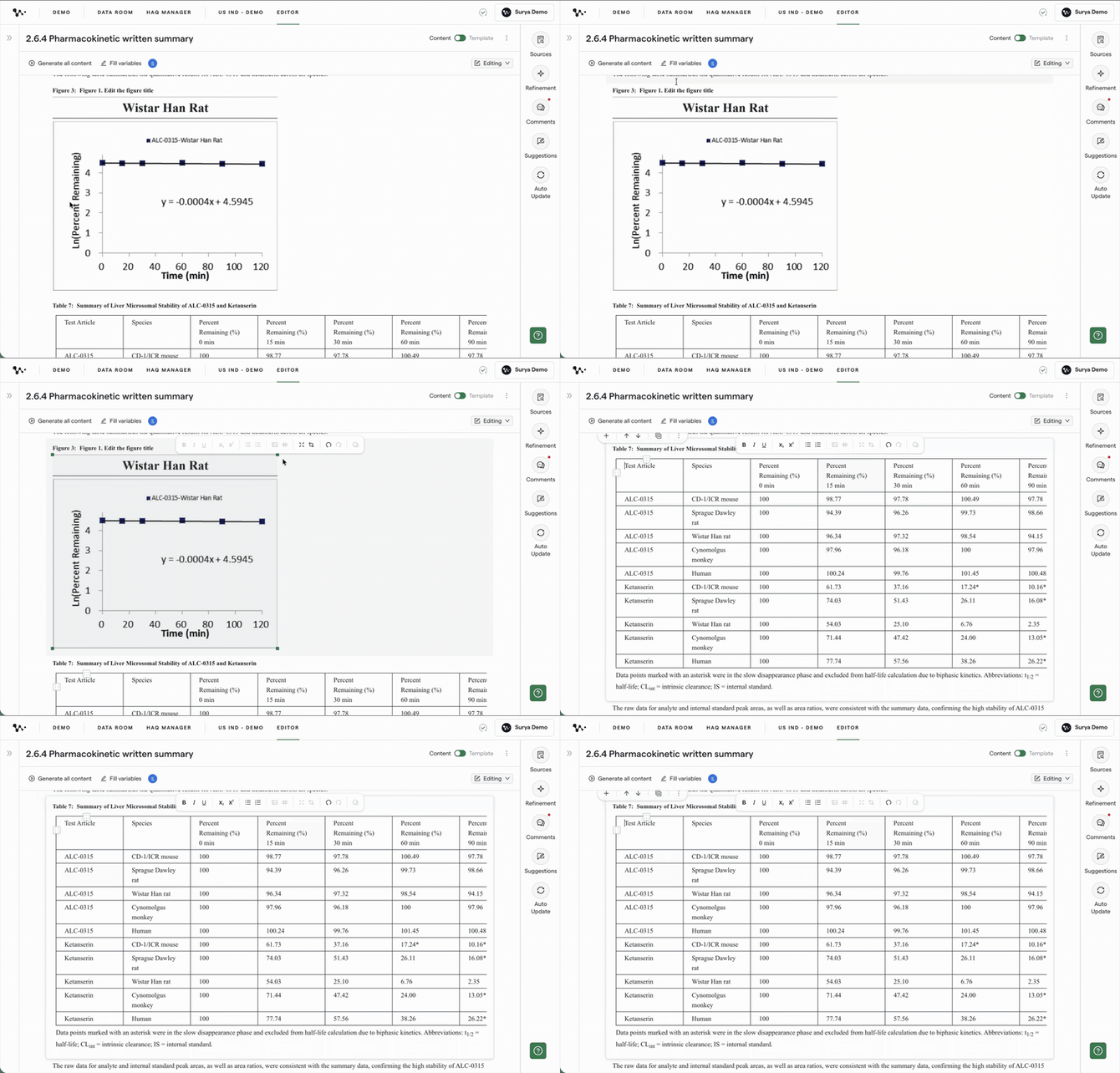
Removing a figure from the document
You can continue editing the rest of the document once the figure looks the way you want and appears in the correct section.
Frequently asked questions
Q: Why didn't Weave add figures from my source document automatically?
A: Weave extracts figures from source documents but does not automatically place them in your draft. You choose the insertion point and select the appropriate figure manually.
Q: Can I paste a figure from an email or another application into Content View?
A: Yes. You can paste images from the clipboard, including images copied from Word or Google Docs. You can also upload an image from your computer or use Figure and Find in Data Room.
Q: Can I ask Weave to pull a specific figure through a prompt?
A: No. Prompt-driven figure extraction is not currently supported. Figure insertion is a manual workflow.
Q: Can I crop, resize, move, or delete a figure after inserting it?
A: Yes. You can crop, resize, delete, and move an inserted figure within its section using the editor controls. Moving a whole section is a separate action.
Q: Why is part of a footnote showing in my figure?
A: Select the figure and use the crop controls to adjust the visible area until the footnote or other unwanted content is excluded.
Quick Reference: Add and manage a figure
- Open the document in Content View.
- Choose an insertion point and open the figure or image controls.
- Find a figure in the Data Room, upload an image, or paste one from the clipboard.
- Review the source details when using a Data Room recommendation.
- Preview and insert the figure.
- Select it to edit its description.
- Drag a corner or choose a dropdown size to resize it.
- Adjust the crop and press Enter or click outside to confirm.
- Use the up or down controls to reposition it within its section.
- Delete the figure if you no longer need it.