
Note: You need access to the document before you can comment. Viewer access includes adding comments and replies, mentioning teammates, and reading AutoReview feedback.
Add a comment
You can attach a comment to generated content in Content View, including text, headings, and table cells.
1. Select the content
Highlight the text you want to discuss, or select the relevant table cell.
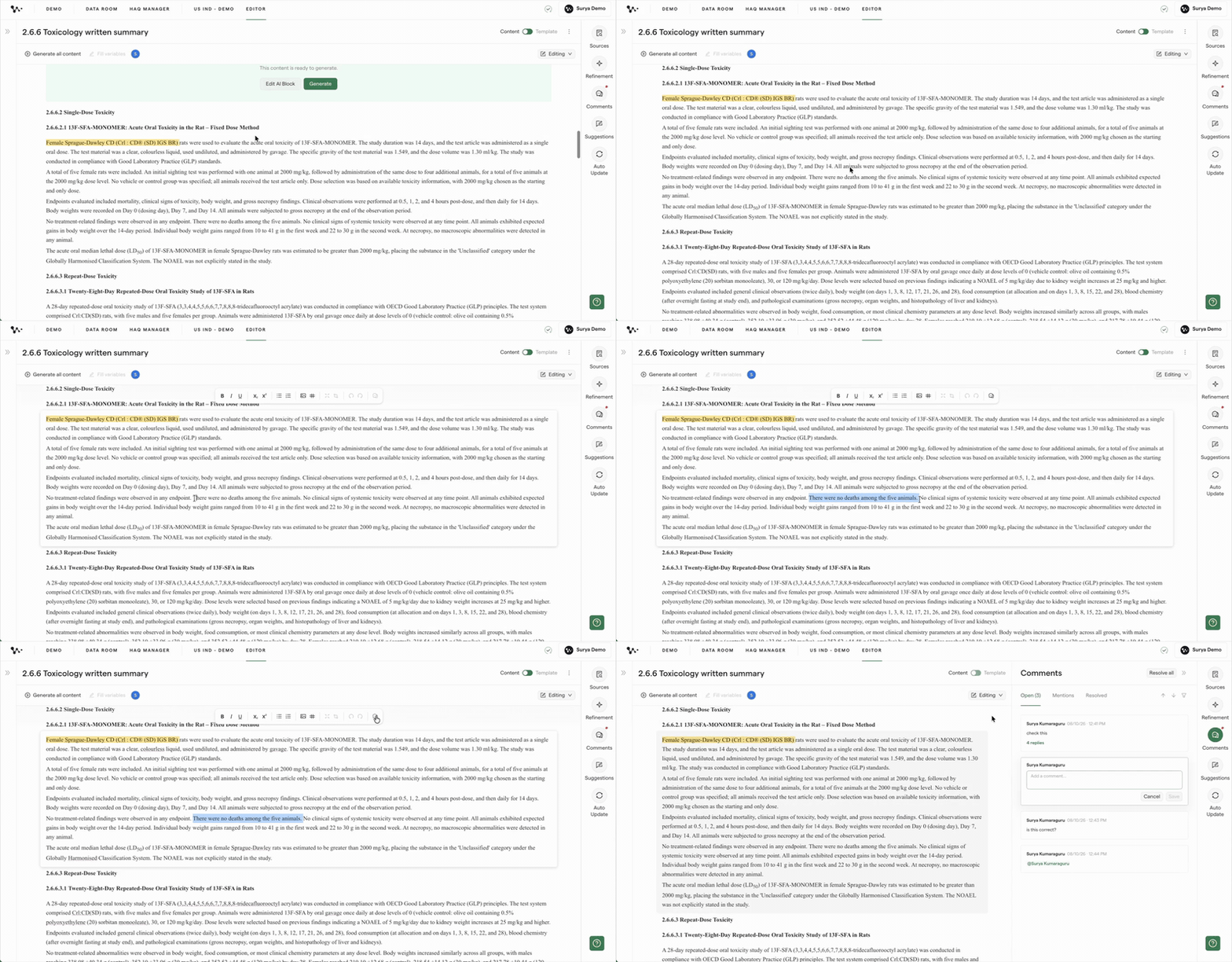
Selecting the content that needs feedback
Note: Comments are added to generated content in Content View. You cannot add a comment directly to an AI prompt block in Template View.
2. Open a comment
Click the comment icon in the formatting toolbar.
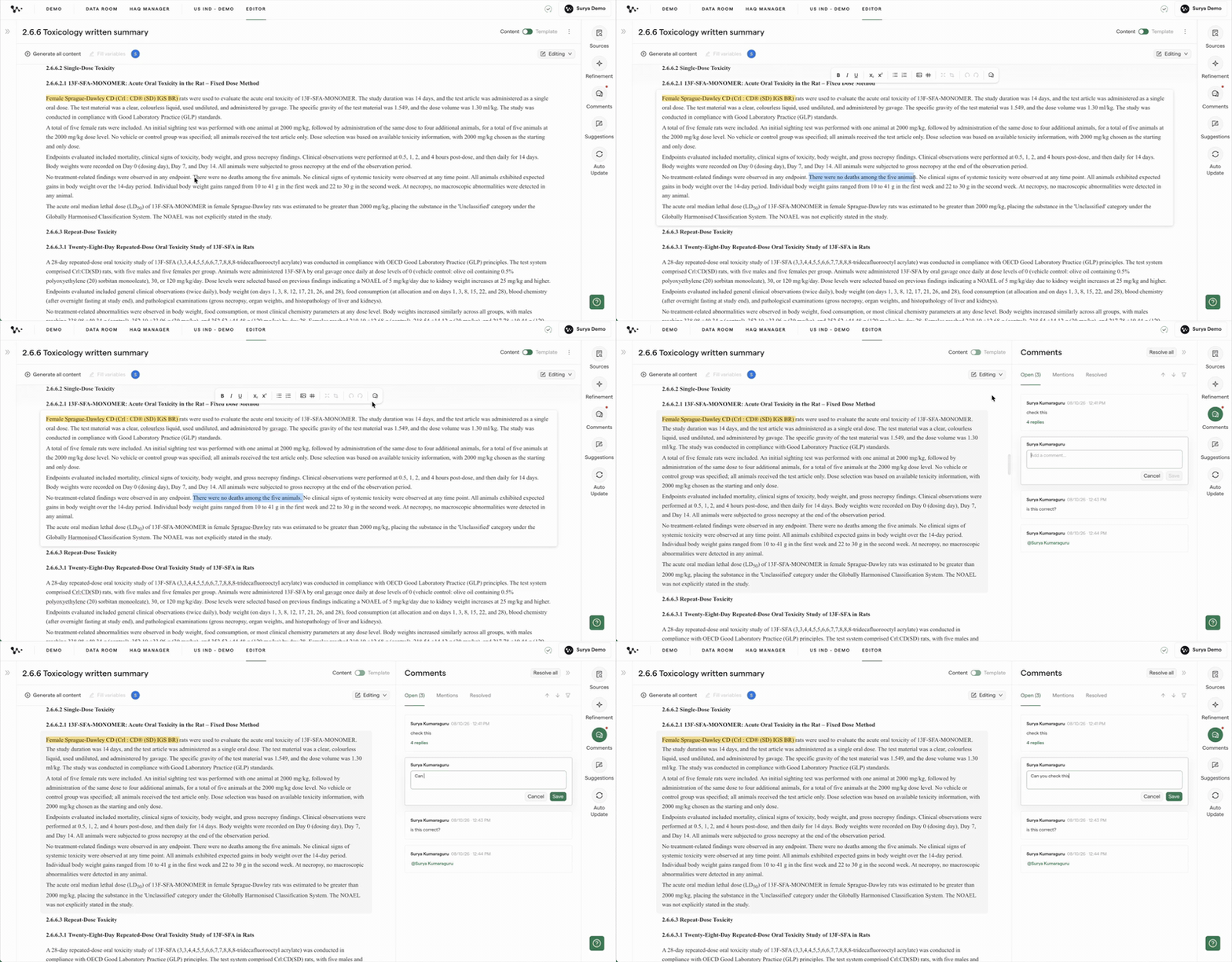
Opening a comment beside the selected content
The Comments panel opens automatically. The new comment box appears beside the selected content, and your cursor is ready in the text box.
3. Save the comment
Type your feedback, then click Save. Press Enter when you want to start a new line.
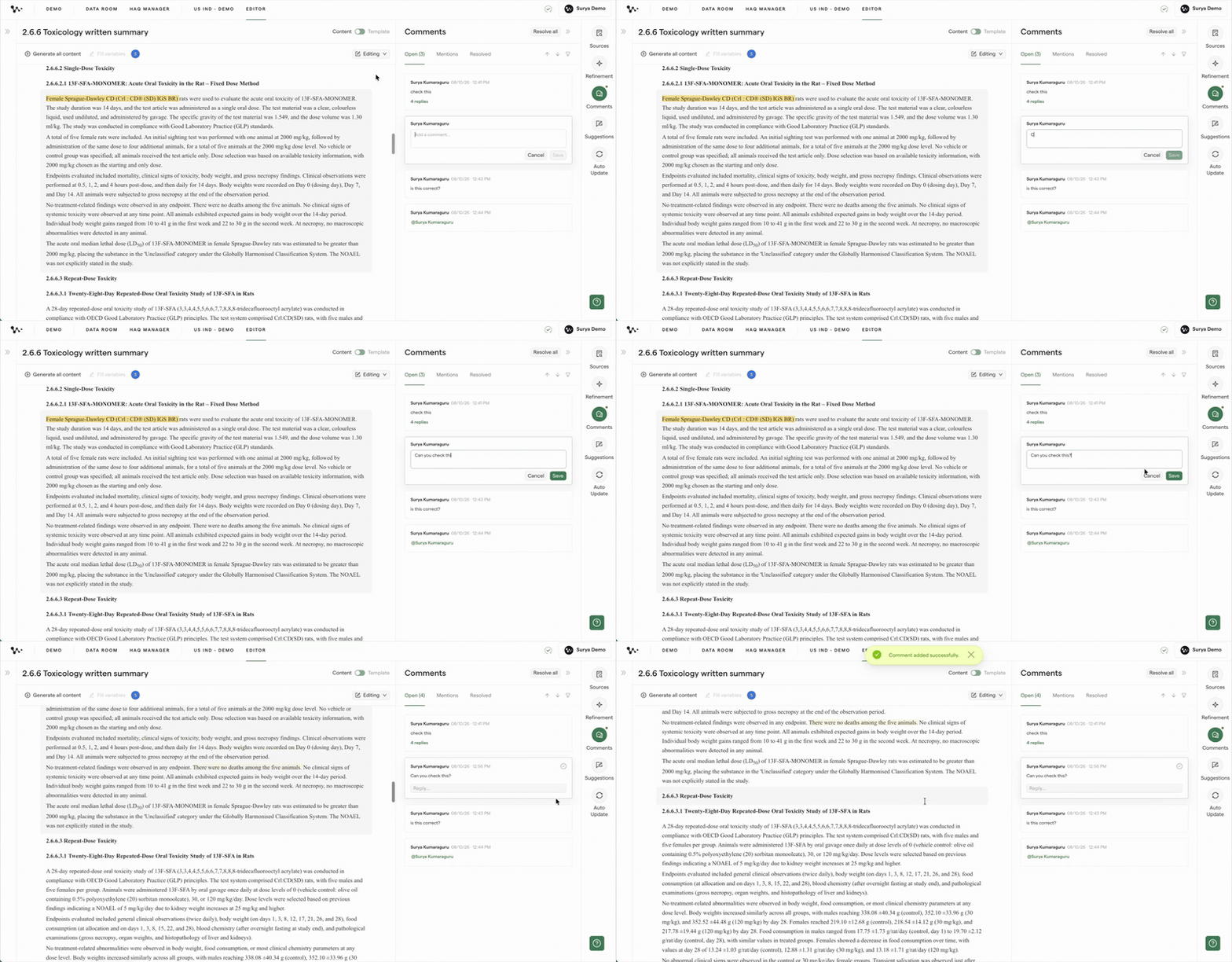
Saving a comment in the Comments panel
The saved comment stays connected to the highlighted content. Selecting either the comment or its highlight brings the other into view.
Comments appear live for everyone in the document without a refresh. Their anchors stay connected through edits, formatting changes, and moves, so teammates can keep the discussion beside the relevant content.
Tip: Keep each comment focused on one point. Separate comments are easier to answer and resolve.
Once your comment is saved, you can use the same thread to continue the conversation.
Reply to a comment
Replies keep the discussion and its resolution in one thread.
1. Select the comment
Click the comment card you want to answer. Weave scrolls the document to the content connected to that comment.
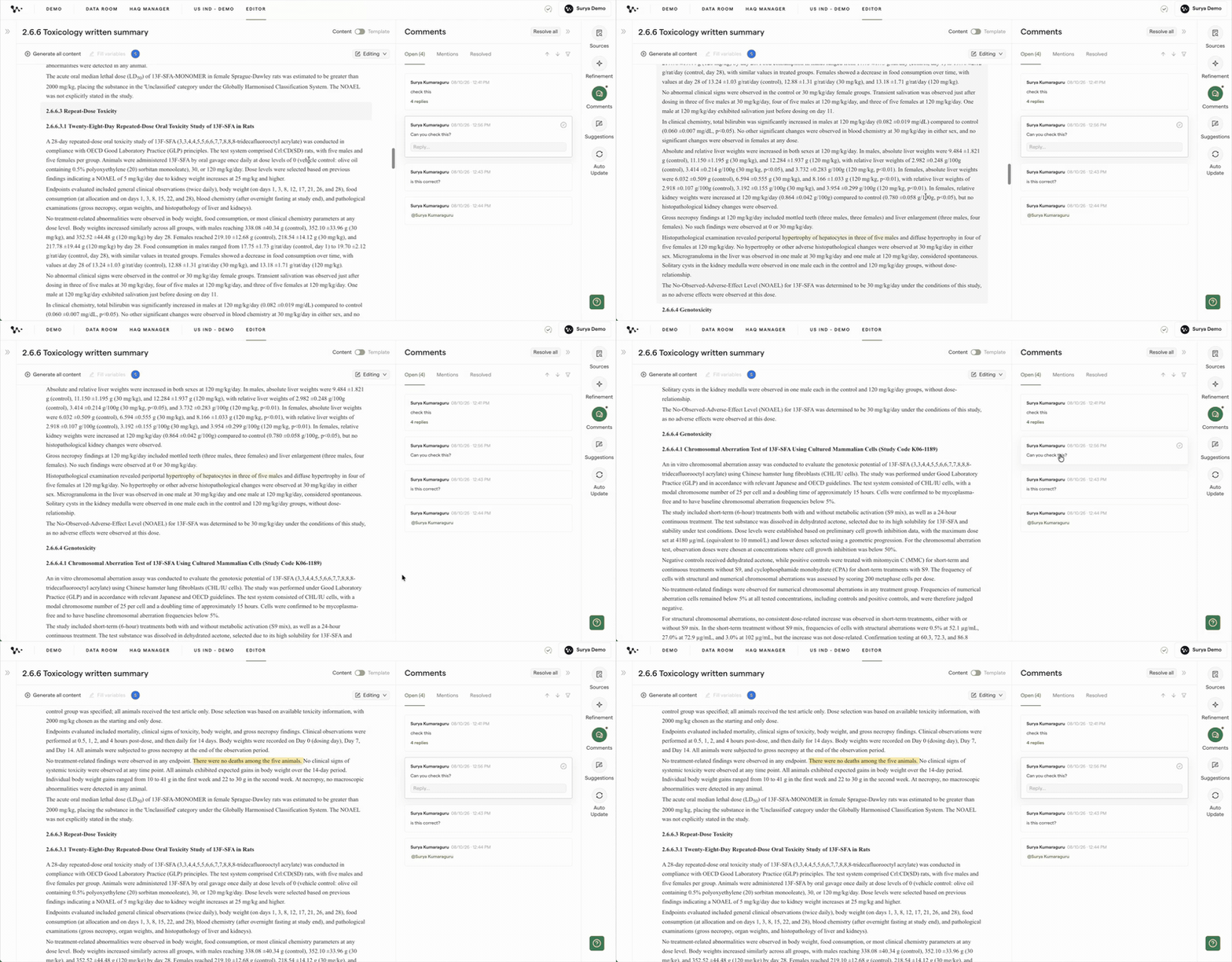
Opening the comment and its highlighted content together
2. Write the reply
Click the reply box, type your response, and click Save.
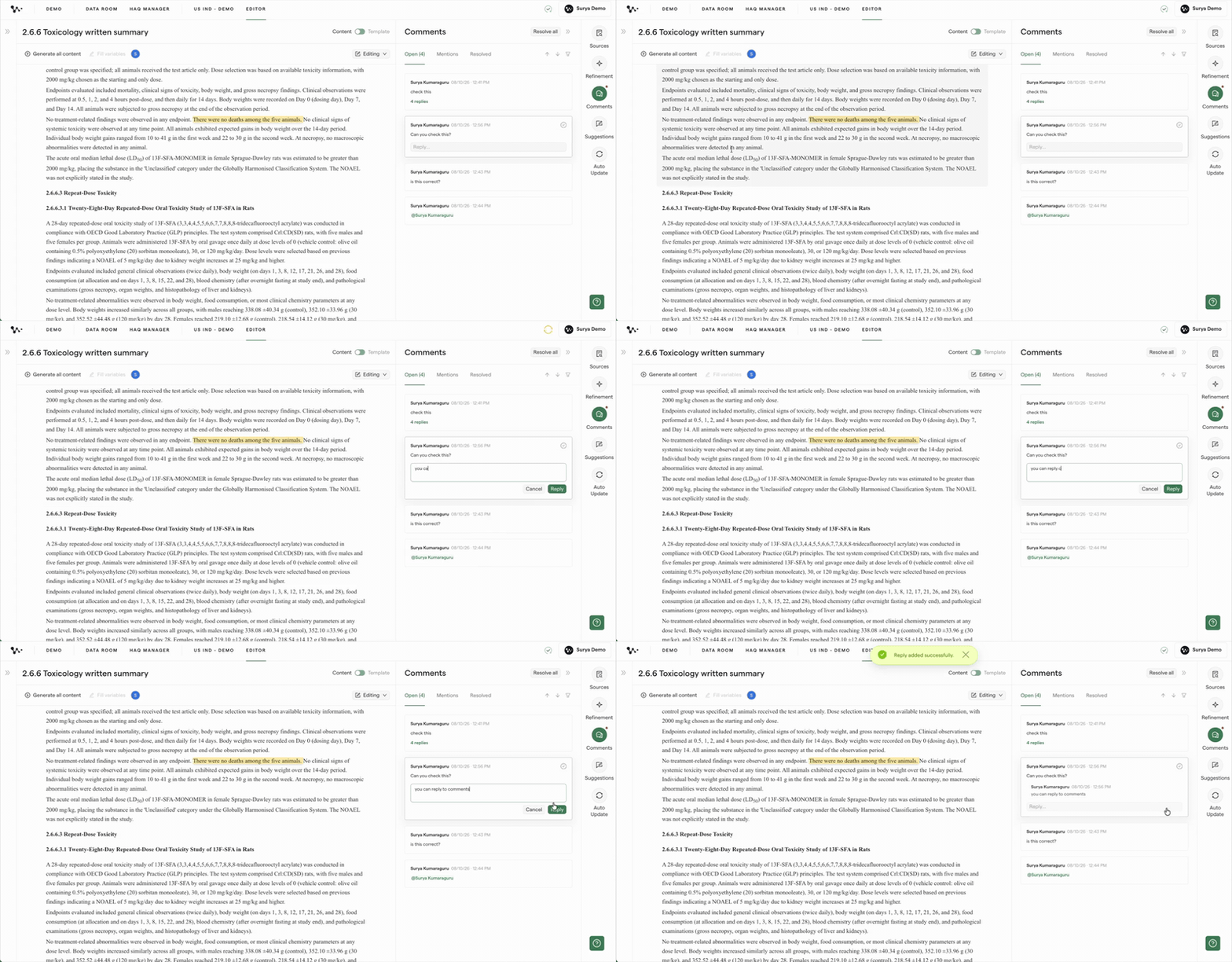
Adding a reply to an existing comment
When you move away from the thread, Weave collapses its replies into a short reply count. Select the comment again to reopen the conversation.
Note: If you start a reply and try to leave before saving it, Weave asks whether you want to discard it or keep editing.
Now that the discussion is in one thread, you can mention a teammate when you need their attention.
Mention a teammate
Use an @mention when a specific teammate needs to read or respond to a comment.
1. Find the teammate
Type @ in a new comment or reply, then continue typing the person's name. Weave filters the available users as you type.

Finding a teammate from the mention list
2. Add the mention
Select the person's name from the list. You can click their name or press Enter to select the first result.
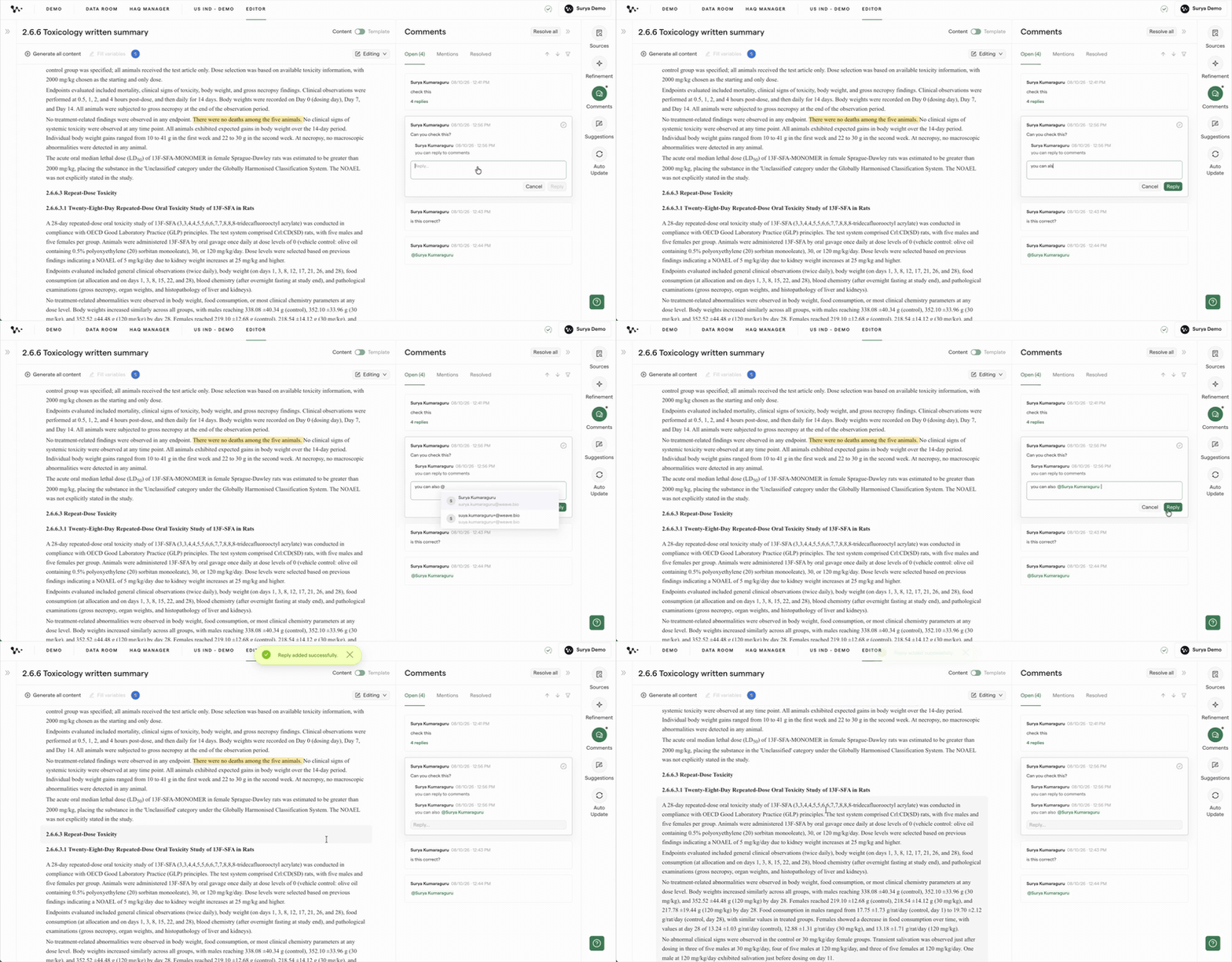
Adding a teammate to the comment
When you save the comment, the teammate receives an email with a link to the document, comment, and highlighted text. The open thread also appears in their Mentions tab.
Note: You can mention people who have a valid email address and at least Viewer access to the document. If the person does not appear, ask your administrator to give them access.
Once teammates are responding, use the Comments panel to focus on the feedback that matters to you.
Find and navigate comments
The Comments panel organizes feedback into three tabs:
- Open shows unresolved comments in the document.
- Mentions shows open threads where someone mentioned you.
- Resolved shows feedback that has already been closed.
Each tab includes a count so you can see how much feedback it contains.
1. Choose a tab
Click Open, Mentions, or Resolved at the top of the panel.
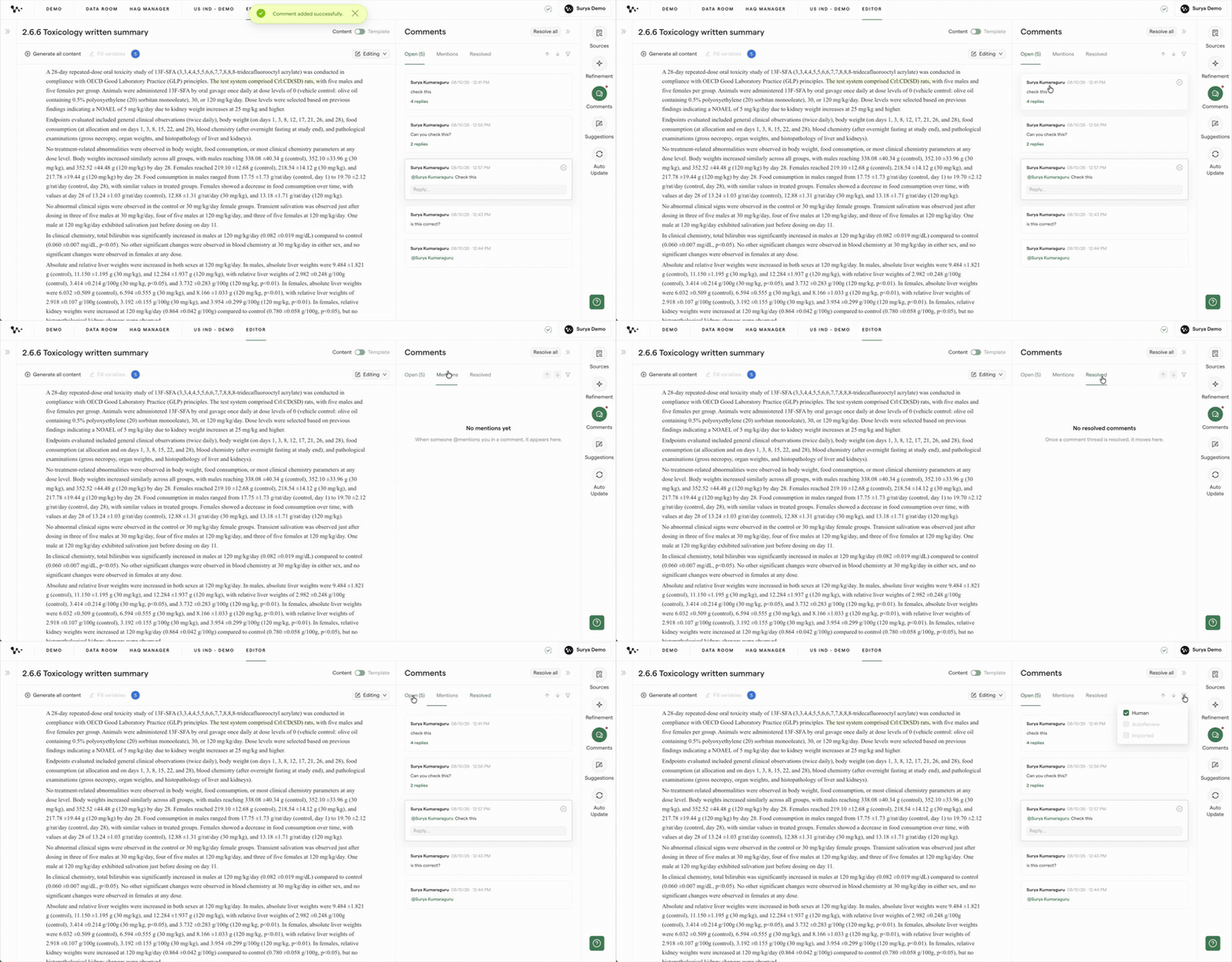
Moving between open, mentioned, and resolved feedback
The document highlights only the comments in your current view. For example, the Mentions tab shows highlights for the open threads that mention you.
2. Filter the list
Open the filter menu and choose the type of feedback you want to see:
- Human for comments written by people
- AutoReview for feedback added by Weave AI
- Imported for imported comments, when present

Filtering the panel by comment type
3. Move between comments
Click the previous or next arrow to move through the comments in the current tab and filter. You can also use the arrow keys.
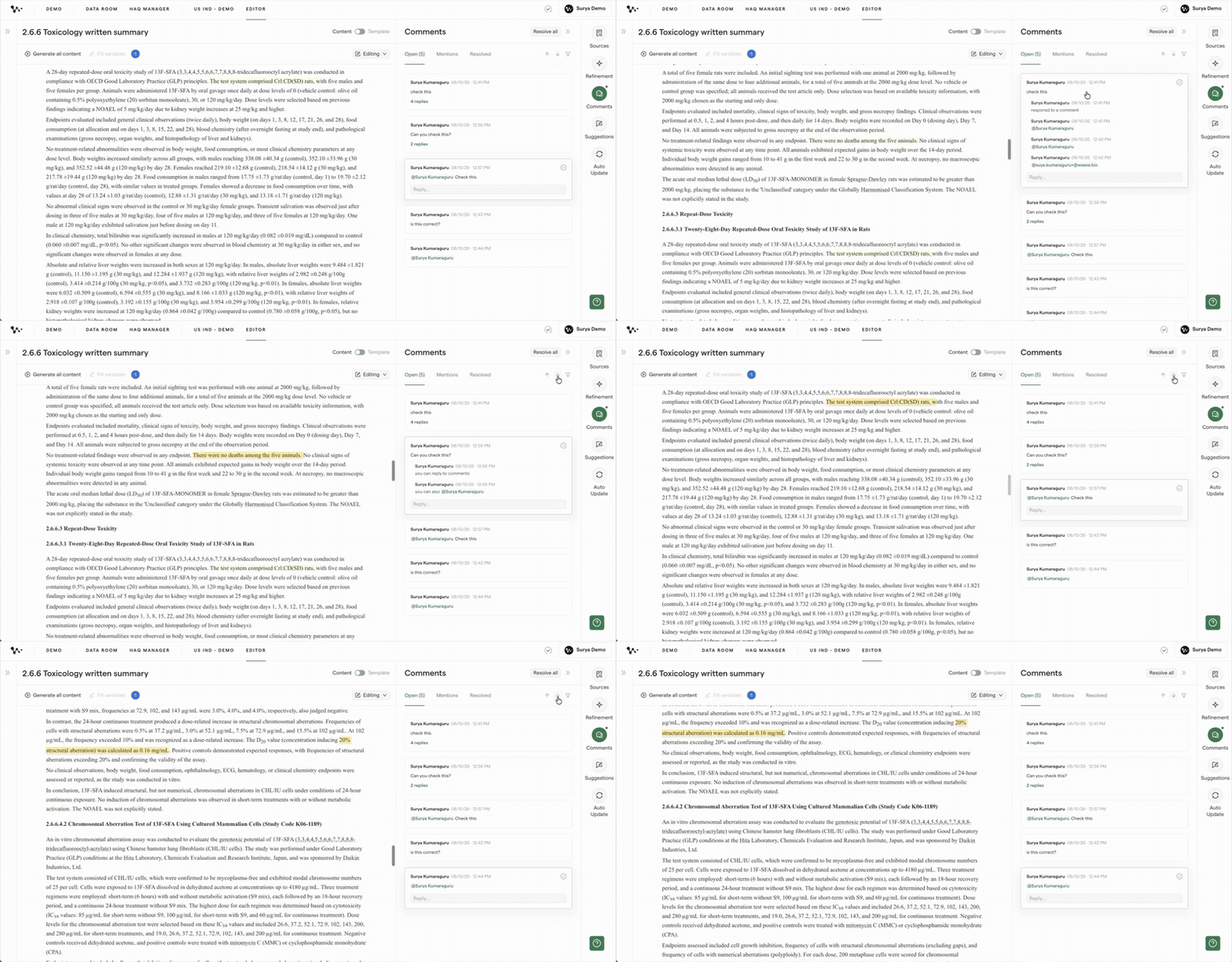
Moving through the comments shown in the current view
Selecting a comment scrolls the document to its highlight. Selecting highlighted text opens the panel and focuses the associated comment.
Once you find the right thread, you can correct your own comment or close the feedback when the work is done.
Edit your own comment
You can edit comments and replies you wrote. You cannot edit another person's feedback.
1. Open the editor
Hover over your open comment or reply, then click the pencil icon.
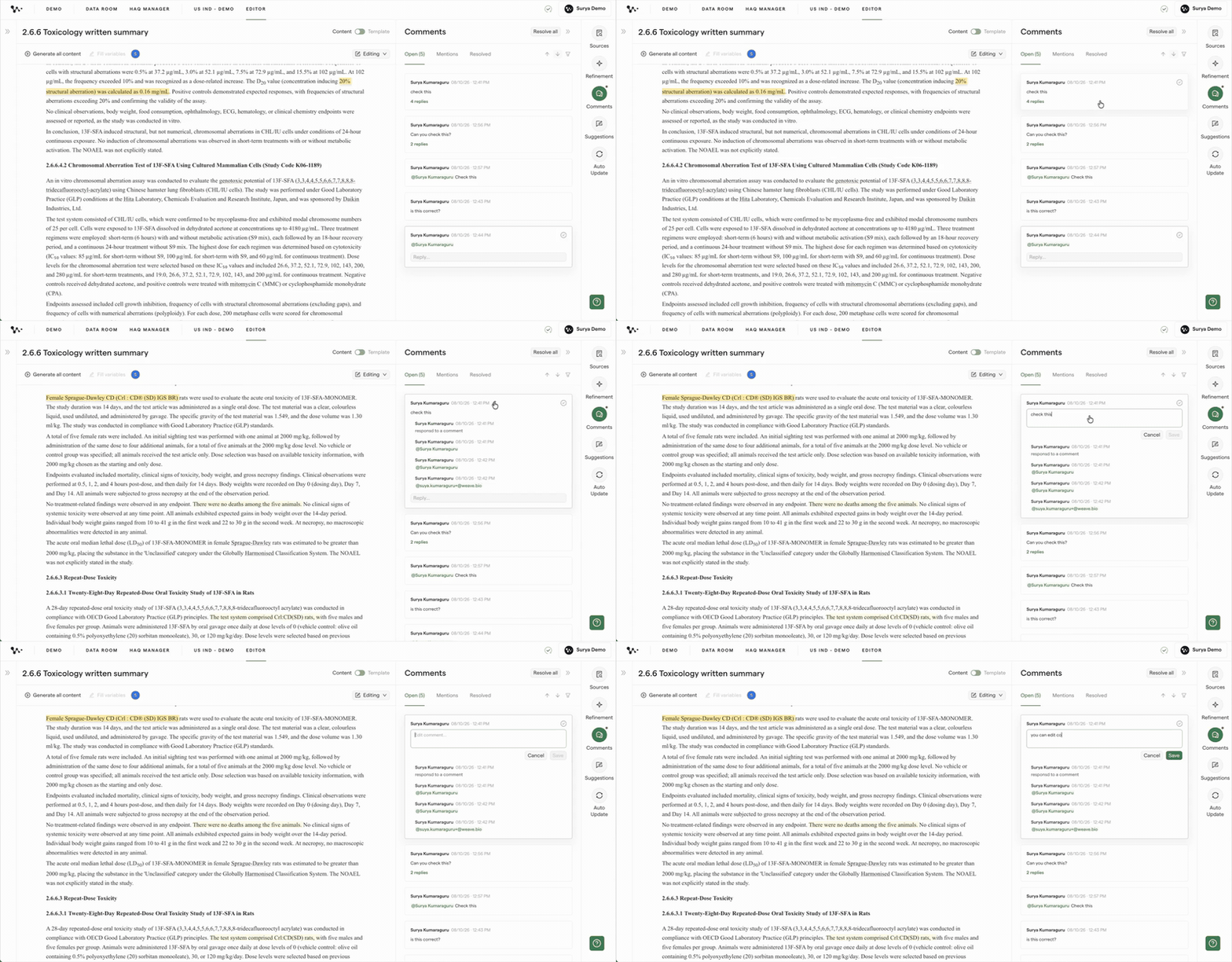
Opening your own comment for editing
2. Save the change
Update the text, then click Save. Click Cancel if you want to keep the original comment.
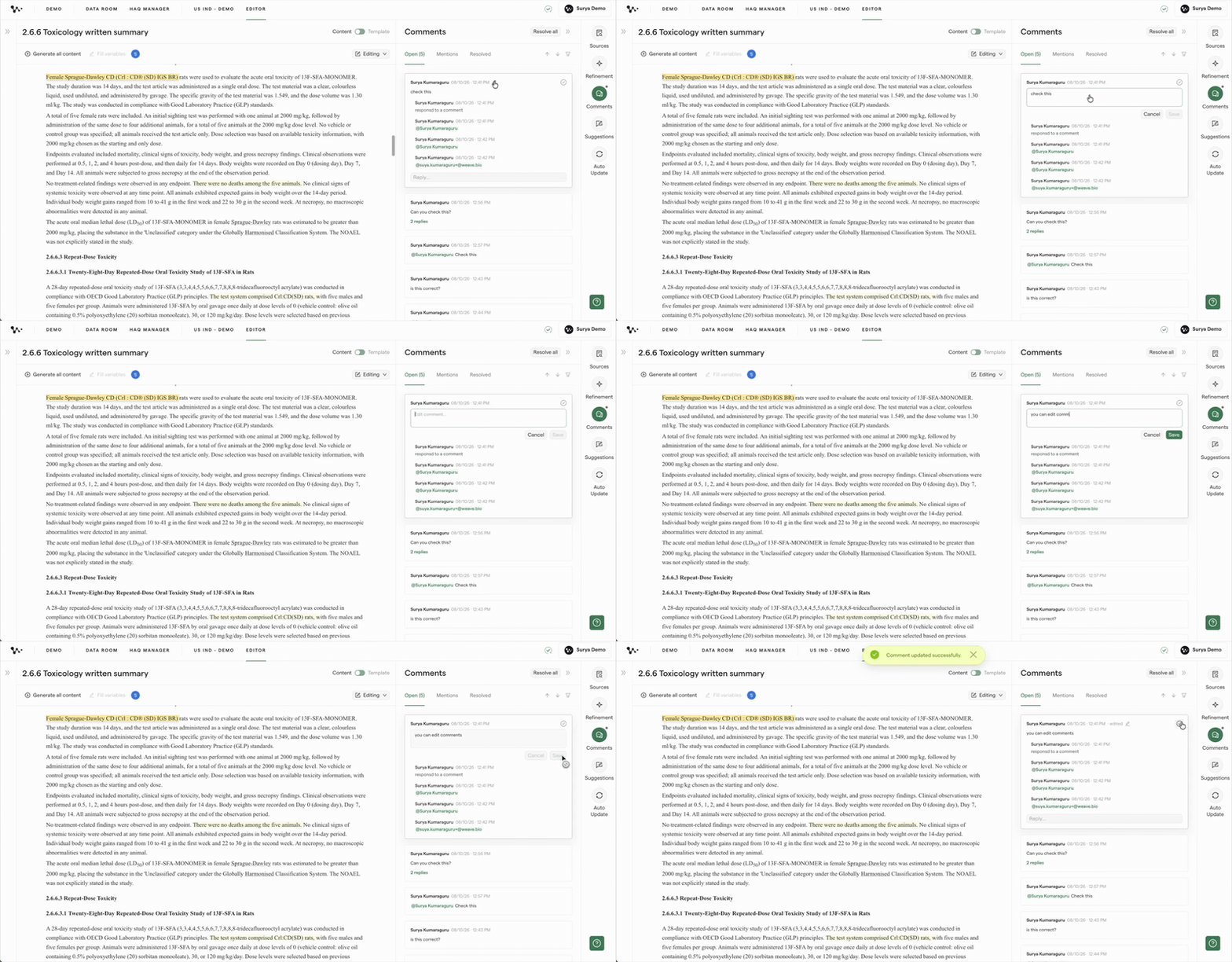
Saving an edited comment
The comment keeps its original anchor and timestamp. An edited marker appears beside the timestamp.
Note: You can edit your own comments and replies, but you cannot delete them. If you leave an unsaved edit, Weave asks whether you want to discard it or keep editing.
After the feedback has been addressed, resolve the thread so the Open tab stays focused on active work.
Resolve and reopen comments
Resolving a comment closes the thread without deleting it.
1. Resolve the thread
Click the resolve icon on the open comment.
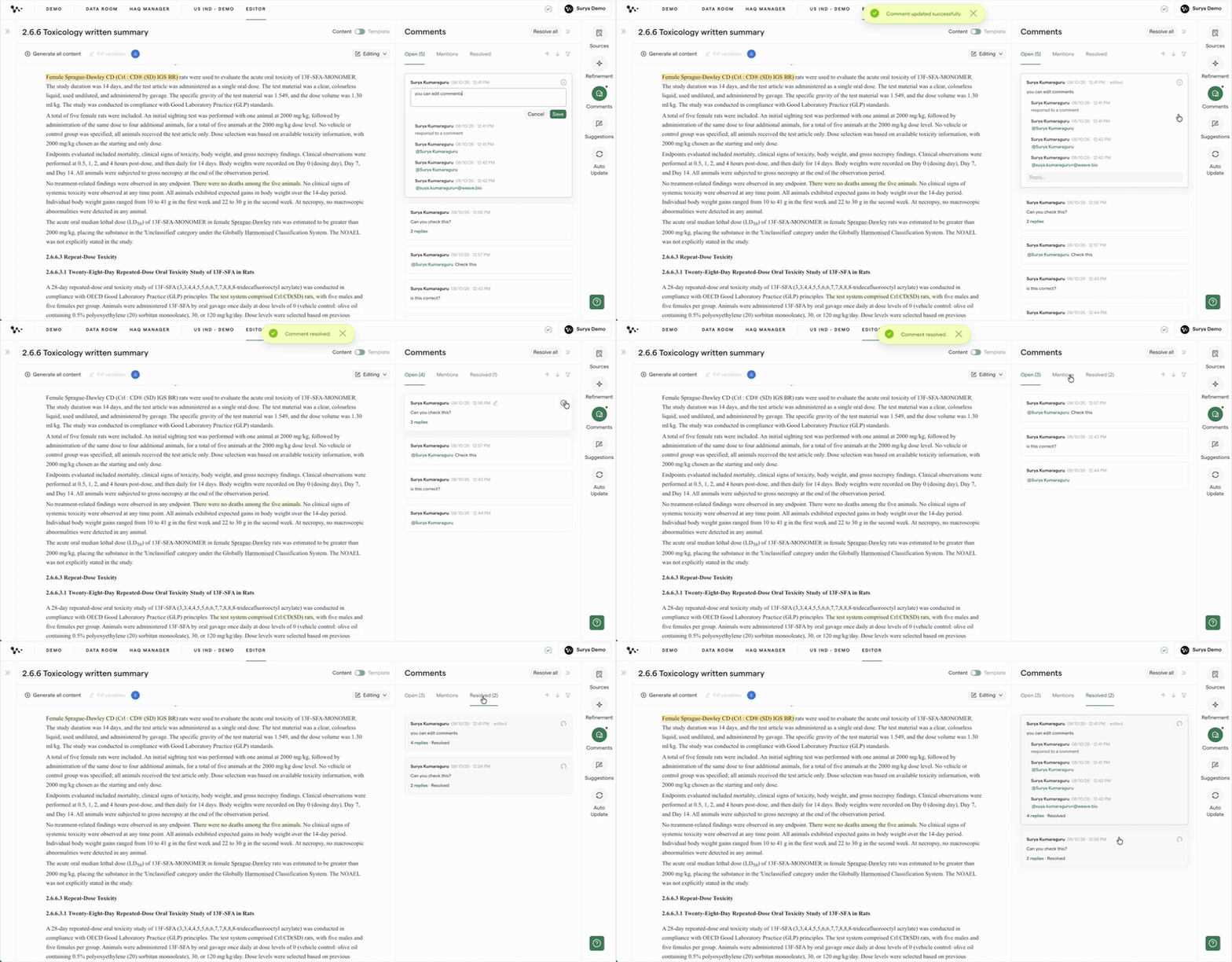
Moving completed feedback to the Resolved tab
Weave moves the thread from Open to Resolved and updates the tab counts.
2. Reopen the thread
Open the Resolved tab, select the comment, and click Reopen when more work is needed.
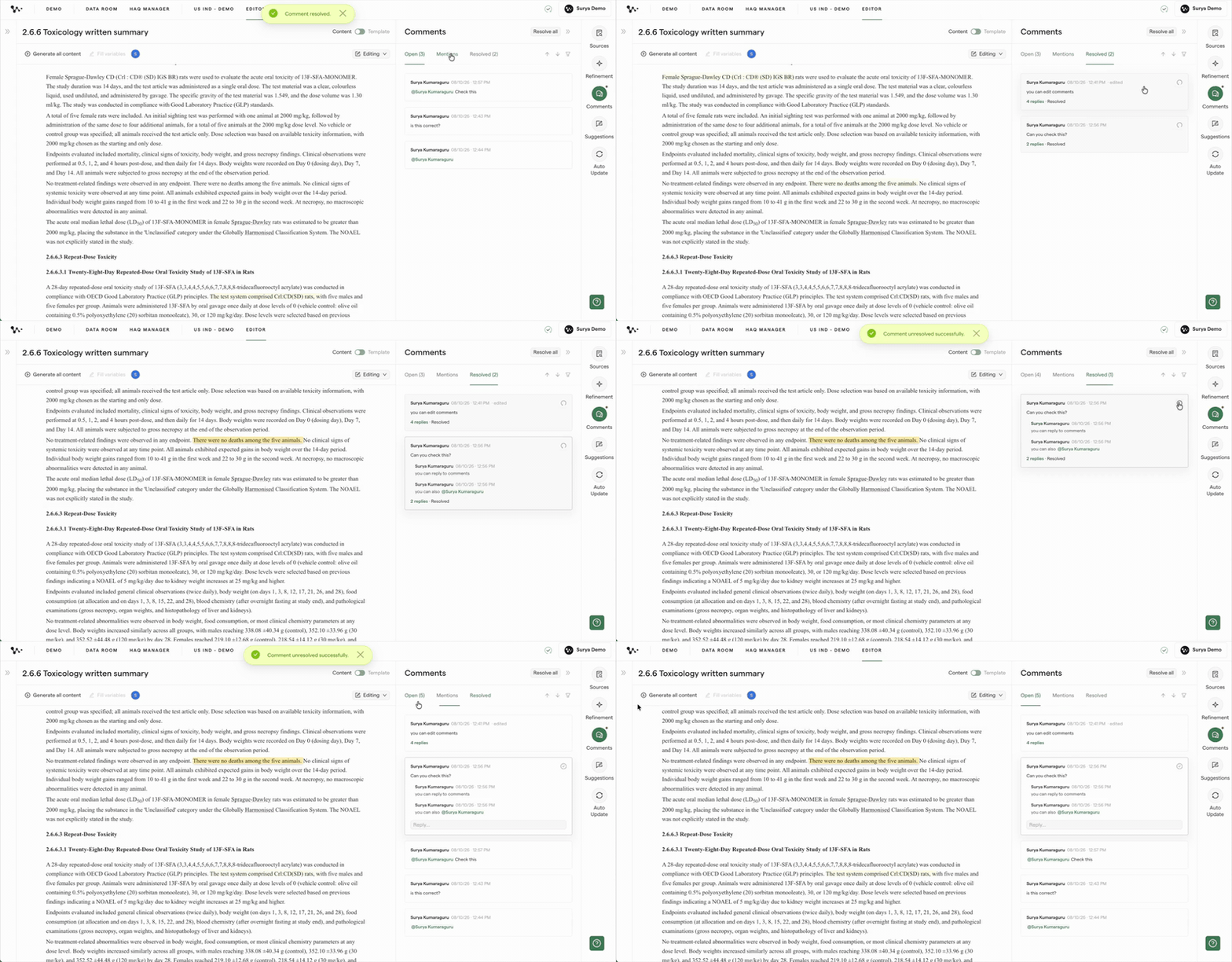
Returning a resolved comment to the Open tab
The reopened thread returns to Open. If it mentions you, it also returns to your Mentions tab.
You are now ready to manage a complete comment conversation without changing the document text.
FAQ
Q: Can I edit or delete a comment after I post it?
A: You can edit comments and replies you wrote while the thread is open. You cannot delete comments.
Q: Can I number comments for a review meeting?
A: Weave does not number comments automatically. You can type a number at the beginning of each comment, such as "[1]" or "[2]," when your team needs numbered references.
Q: Can I leave a comment on an AI prompt block?
A: No. Add comments to the generated document in Content View, not to AI prompt blocks in Template View.
Q: Can someone without a paid Contributor seat review and comment?
A: Yes. Viewer access includes viewing documents, adding comments and replies, and mentioning teammates. It does not include editing document content.
Q: Can a Viewer respond to an AutoReview comment?
A: Yes. Viewers can read AutoReview comments added by an author and reply to those threads. They cannot run AutoReview themselves.
Q: Do exported documents include comments?
A: No. DOCX and PDF exports contain the clean document text. Comments are not included.
Q: Can I bring external Word or PDF review comments back into Weave?
A: The full tracked-comment Import Content workflow is not currently available. Do not rely on external comment round-tripping for a formal review workflow.
Quick Reference: Comments
- Select text, a heading, or a table cell in Content View
- Click the comment icon
- Type your feedback and click Save
- Select a comment to read or add a reply
- Type @ to mention a teammate
- Use Open, Mentions, and Resolved to organize feedback
- Filter comments by Human, AutoReview, or Imported
- Resolve individual threads, or use Resolve all after reviewing all open feedback
- Reopen a thread from Resolved when more work is needed