
Note: You need Contributor access to create suggestions. Viewers can read the document and participate through comments, but they cannot propose text changes.
Enter Suggesting mode
Documents open in Editing mode, where your changes immediately update the accepted text. Switch to Suggesting when you want your changes to remain pending for review.
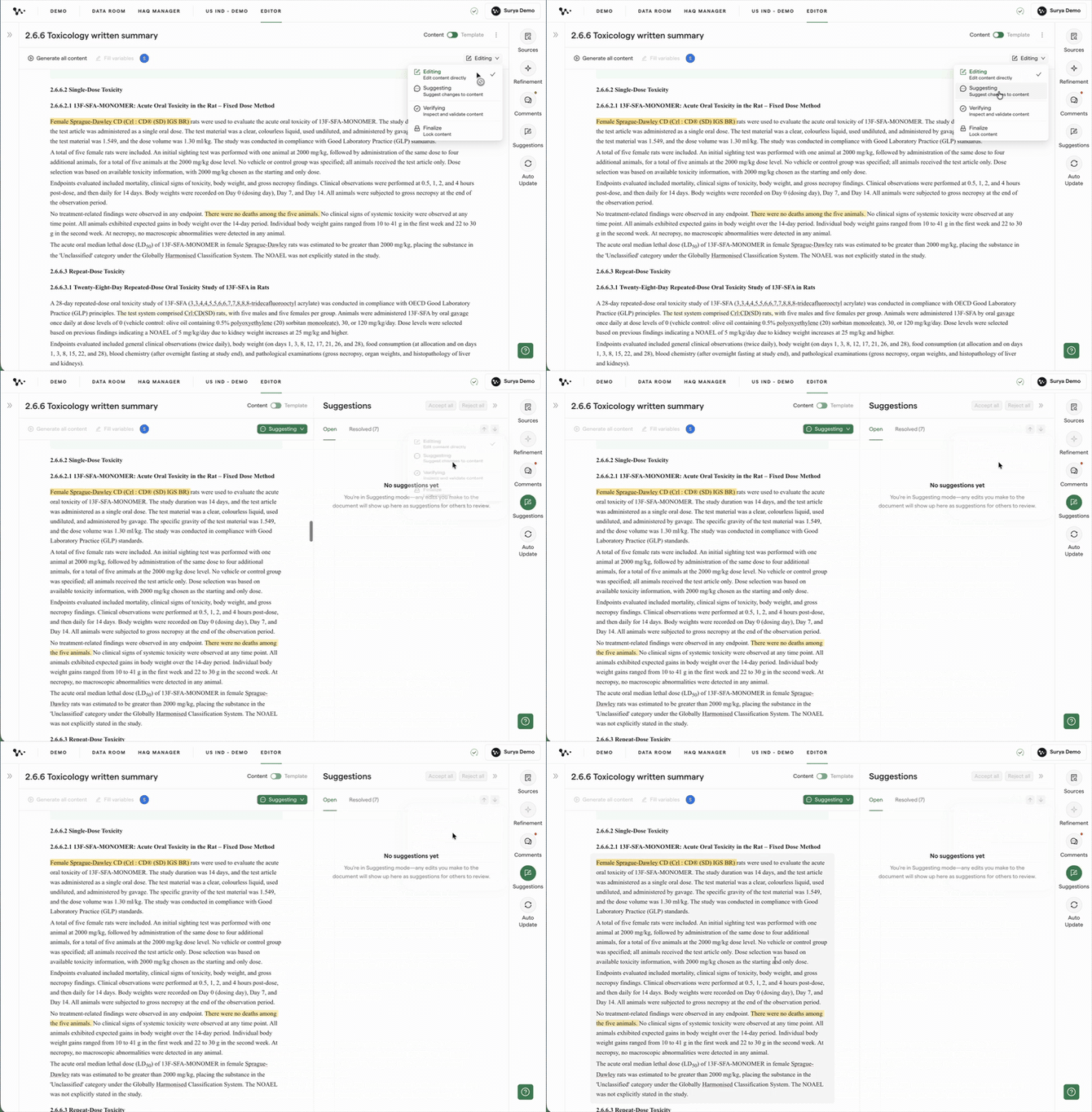
1. Select Suggesting mode
Open the current document mode menu in the Editor header, then select Suggesting. A visible mode indicator confirms that Suggesting mode is active.
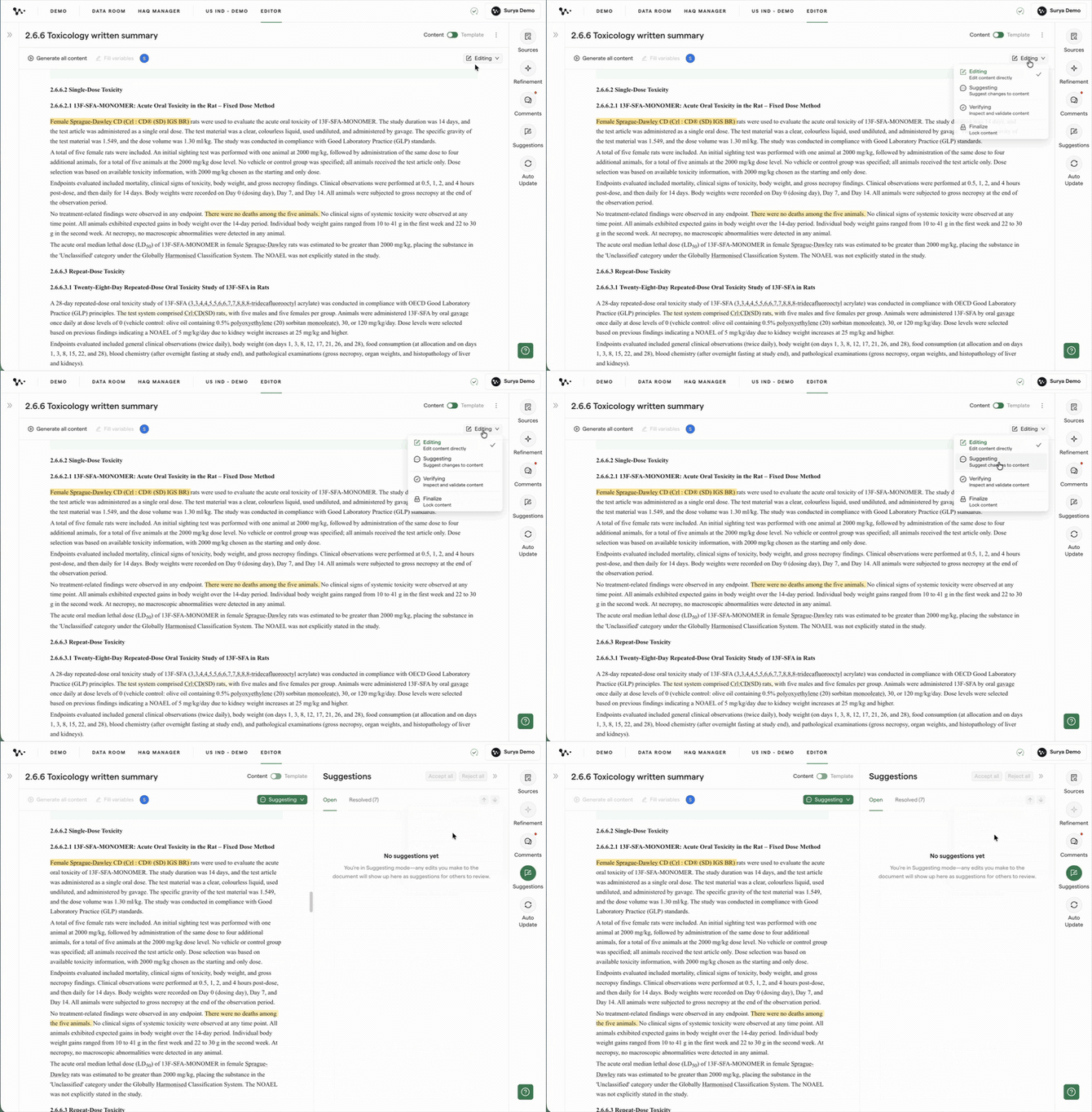
Switching from direct editing to suggested changes
The Suggestions panel does not open automatically. You can open it when you are ready to review the suggestions connected to the document.
Once Suggesting mode is active, your supported text edits appear as redlines instead of immediately replacing the accepted text.
Suggest a text change
Suggested Changes tracks additions, deletions, and replacements in generated document text.
1. Add text
Click where you want to add content, then type your proposed wording.
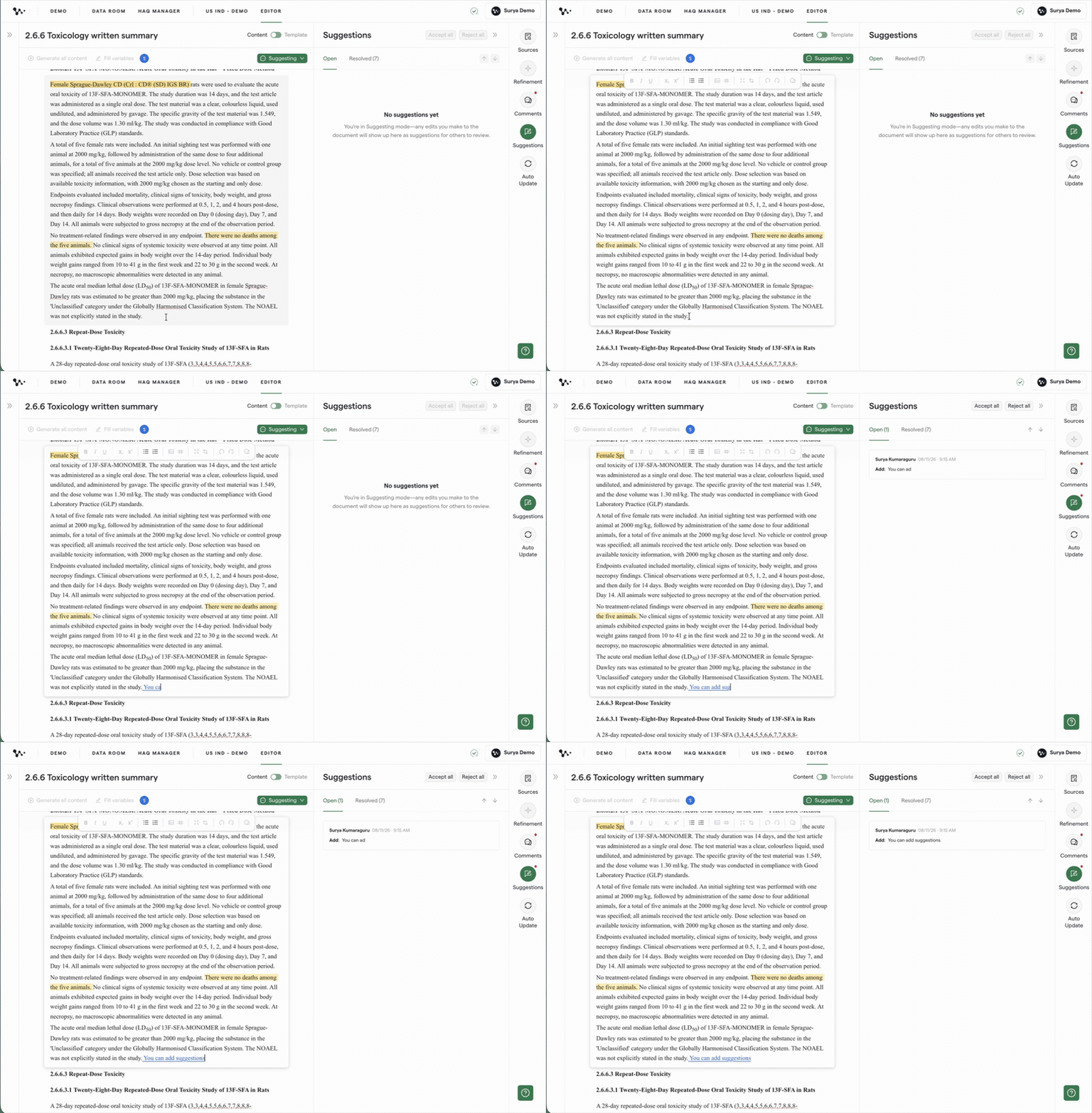
Adding proposed wording without changing the accepted text
Weave marks the addition as a redline and adds an attributed card to the Suggestions panel. A notification dot indicates that the document has a new suggestion.
2. Replace text
Highlight the wording you want to revise, then type the replacement.
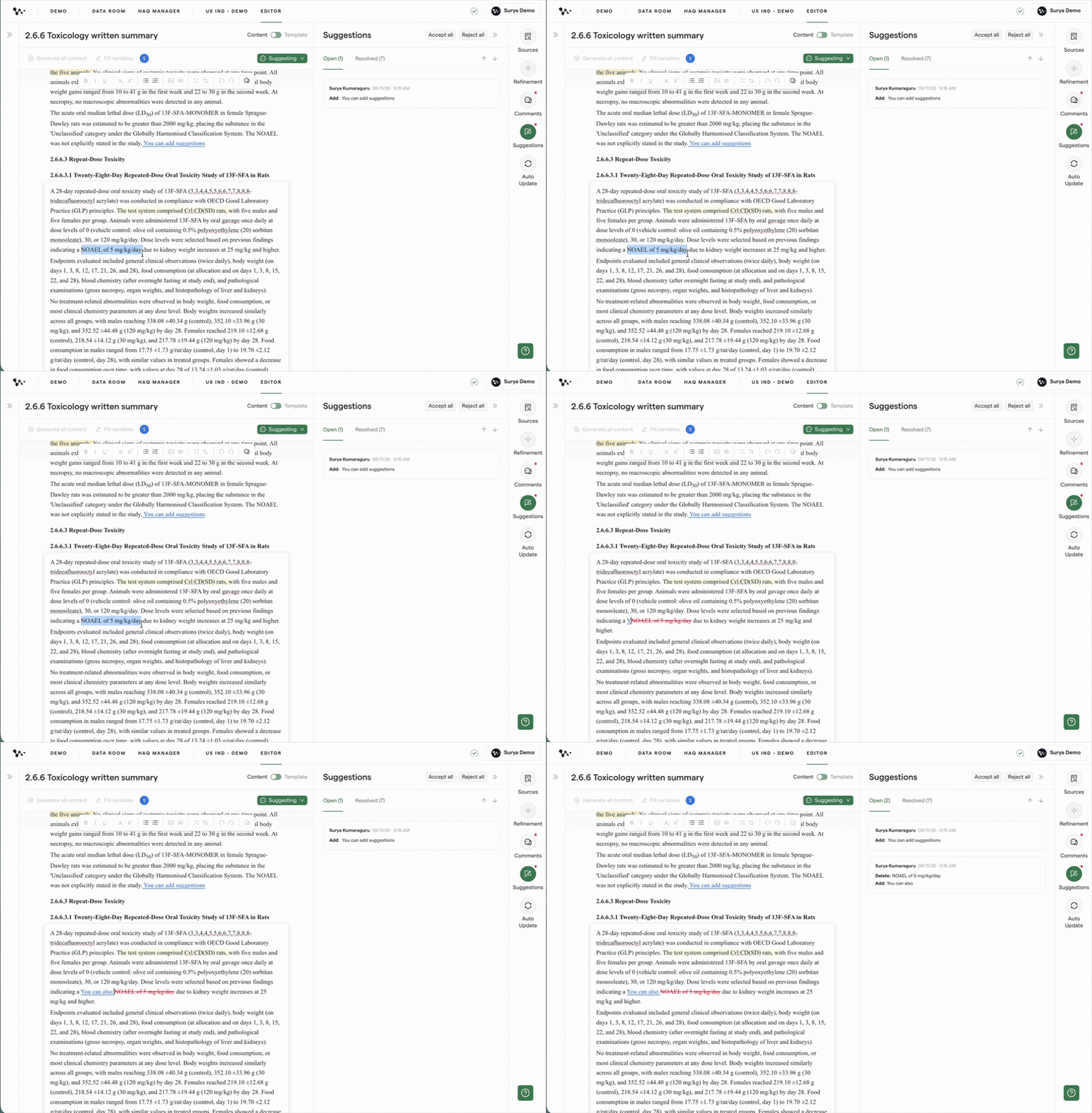
Proposing replacement wording as a tracked change
The original and proposed wording stay connected so a reviewer can evaluate the full replacement.
3. Delete text
Select the text you want to remove, then press Delete or Backspace.
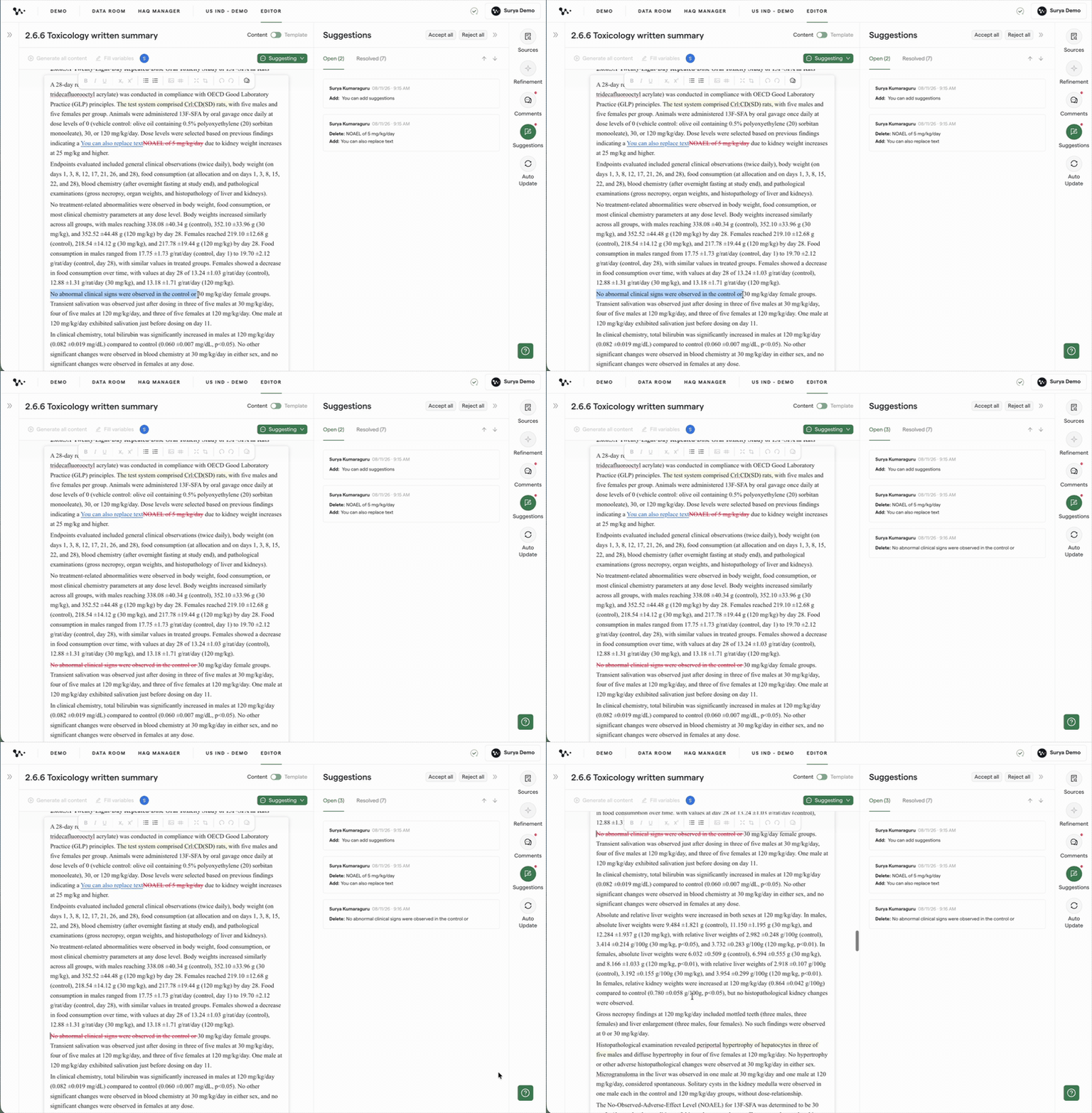
Proposing that selected text be removed
Note: This launch workflow covers suggestions in document text. Do not rely on Suggested Changes for tables, figure captions, new blocks, crosslinks, pasted formatted content, or new list structures until those actions are confirmed in the released version.
After you create suggestions, use the Suggestions panel to move between each proposed change.
Find, review, and resolve suggestions
The Suggestions panel keeps pending changes together and connects each card to its redline in the document.
1. Open the Suggestions panel
Click Suggestions in the right navigation.
Viewing pending changes in one place
Each card identifies the contributor who proposed the change and shows the text involved.
2. Move from a card to its redline
Select a suggestion card. Weave scrolls the document to the connected redline.
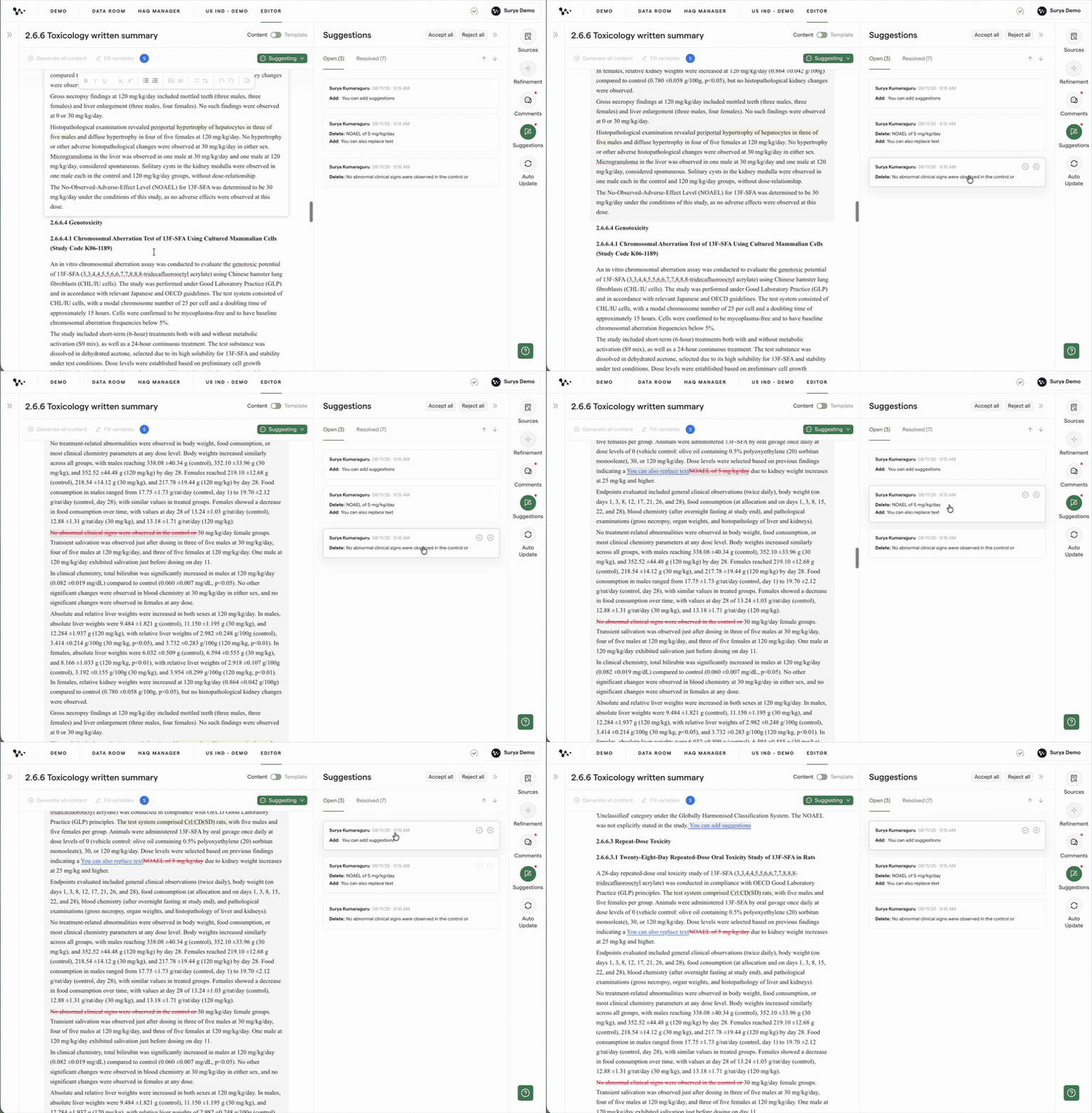
Finding the text connected to a suggestion card
Once you have reviewed the proposed wording and its context, you can accept or reject the change.
Accepting a suggestion applies the proposed wording to the document. Rejecting it keeps or restores the original wording.
3. Accept a suggestion
Select Accept on the suggestion you want to apply.
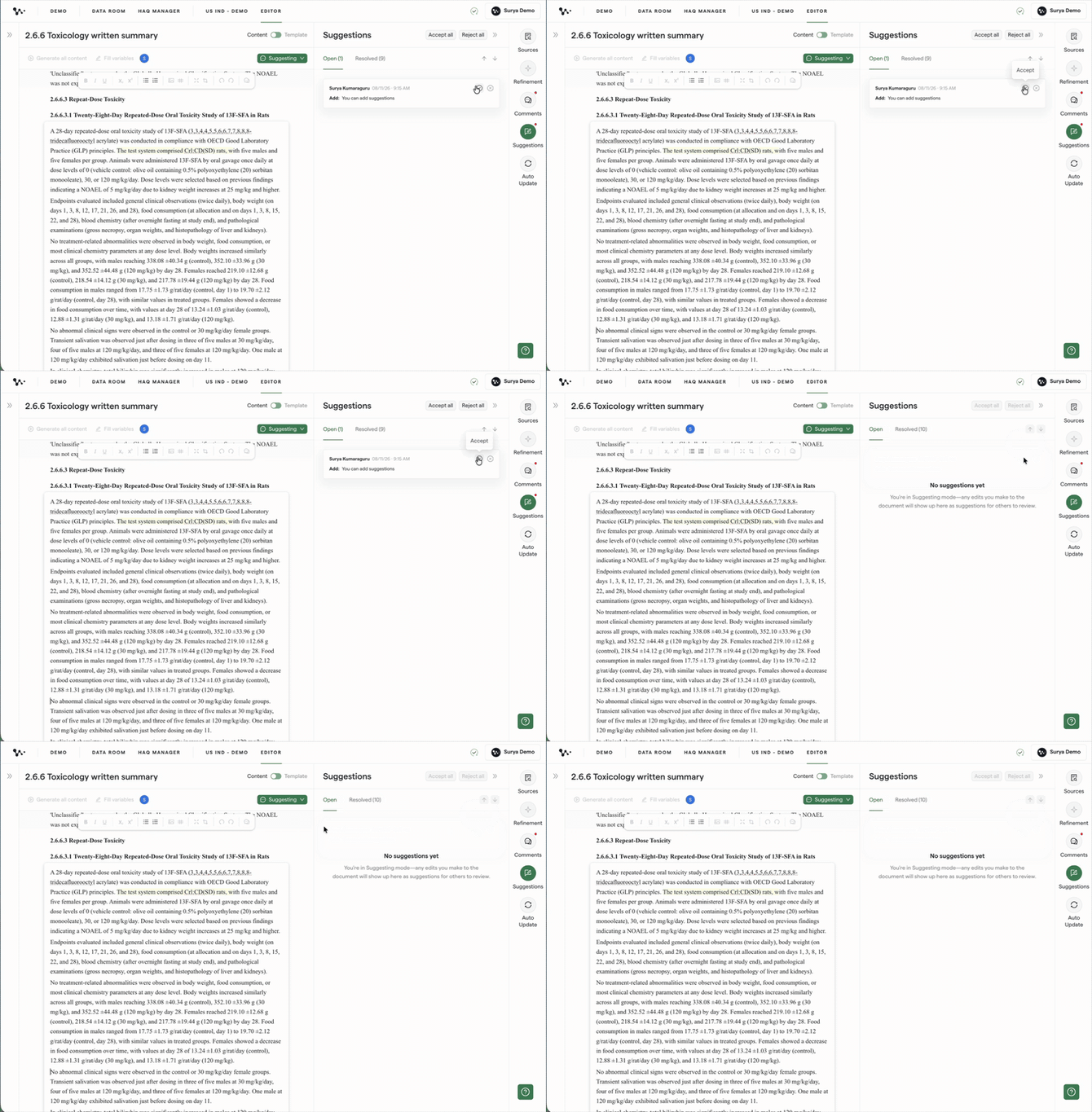
Applying a proposed change to the accepted text
4. Reject a suggestion
Select Reject on the suggestion you do not want to apply.
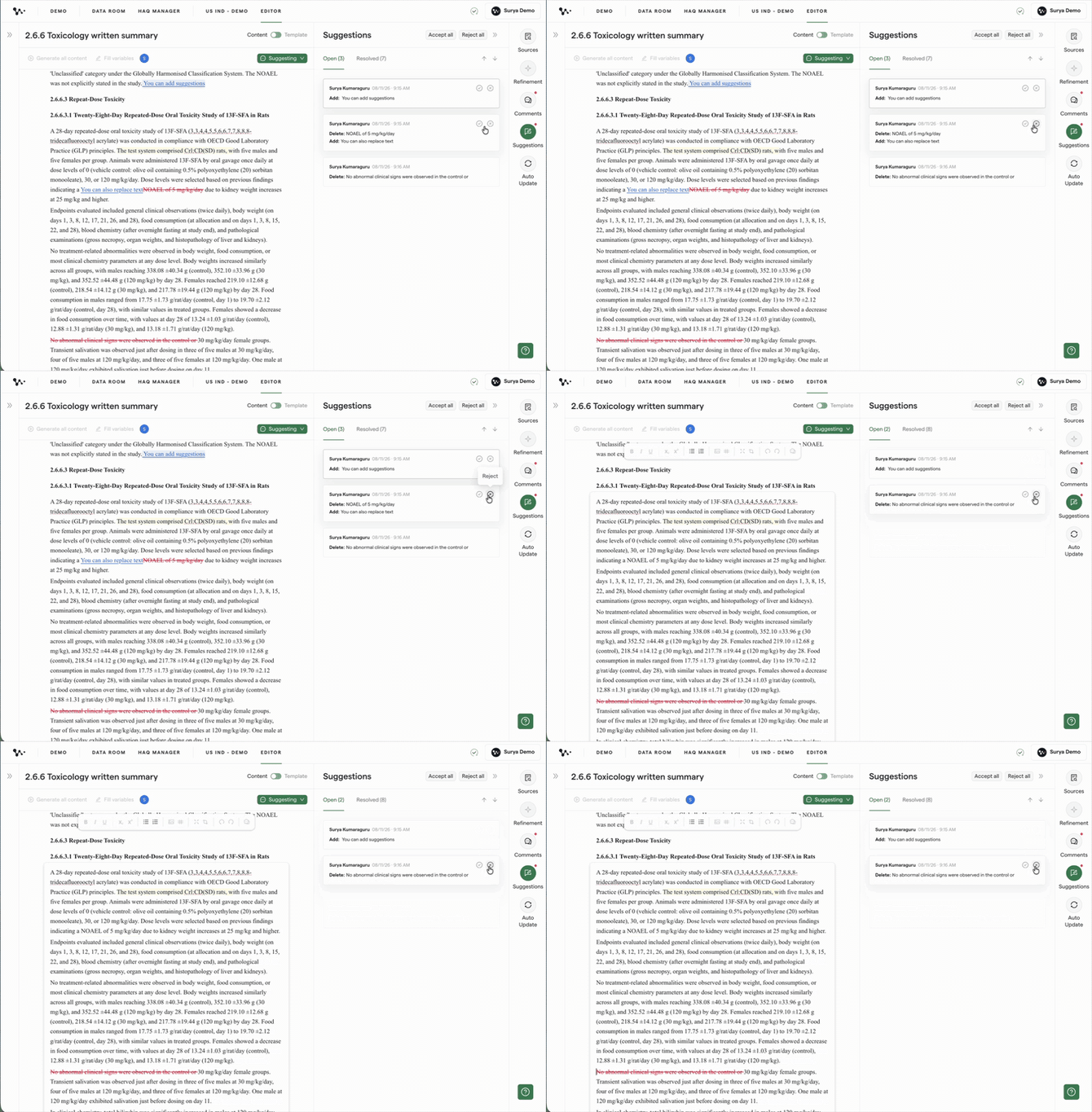
Keeping the original text instead of the proposed change
5. Resolve all open suggestions
Open the panel actions and select Accept all or Reject all when every open suggestion should receive the same decision.
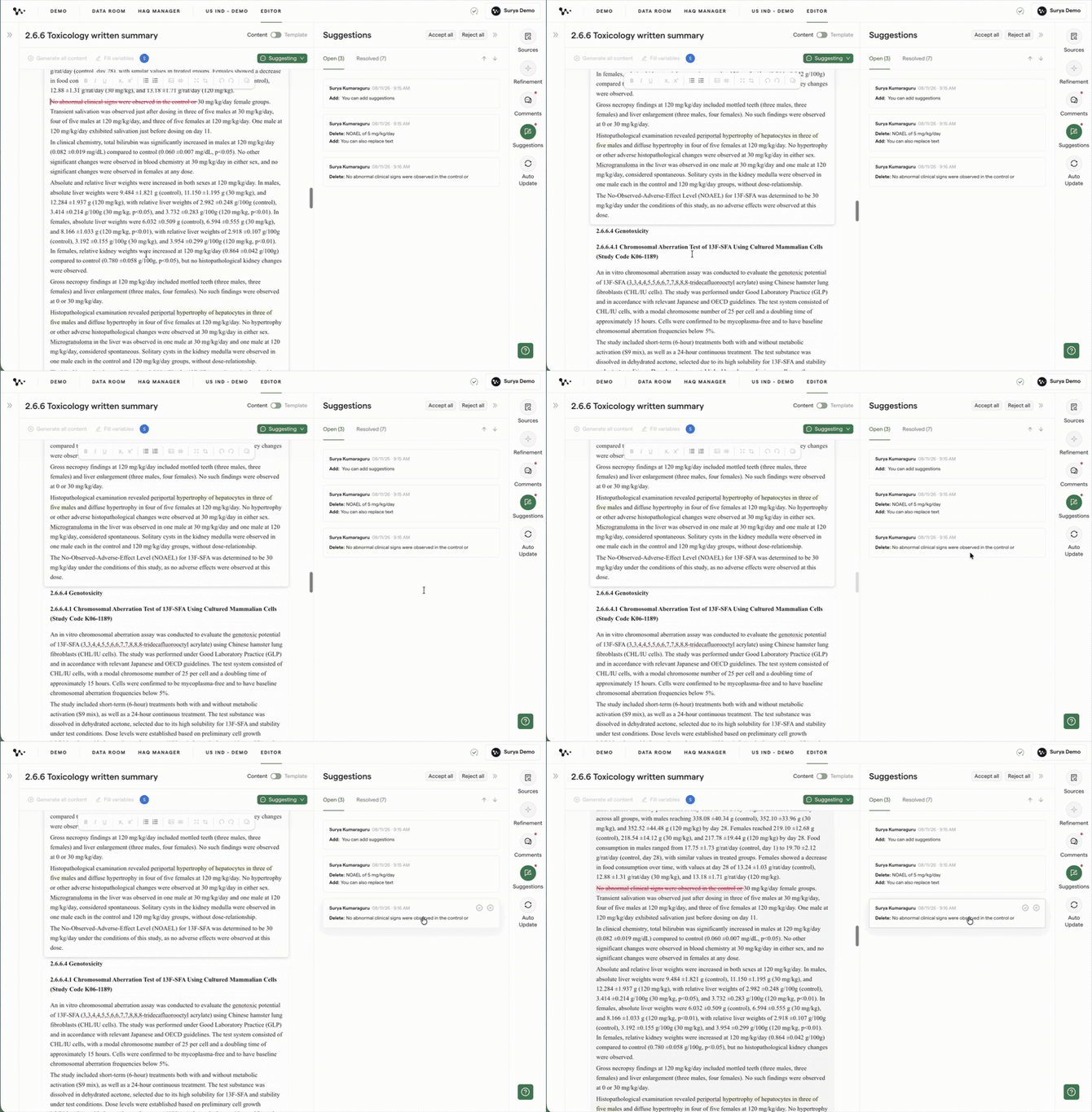
Applying one decision to every open suggestion
Important: Review the document before using a bulk action. Accepting or rejecting all affects every open suggestion in the document.
After you make a decision, the suggestion moves out of the open list and remains available in resolved history.
Review resolved suggestions
Resolved history shows which suggestions were accepted or rejected.
1. Open Resolved
Select Resolved in the Suggestions panel.
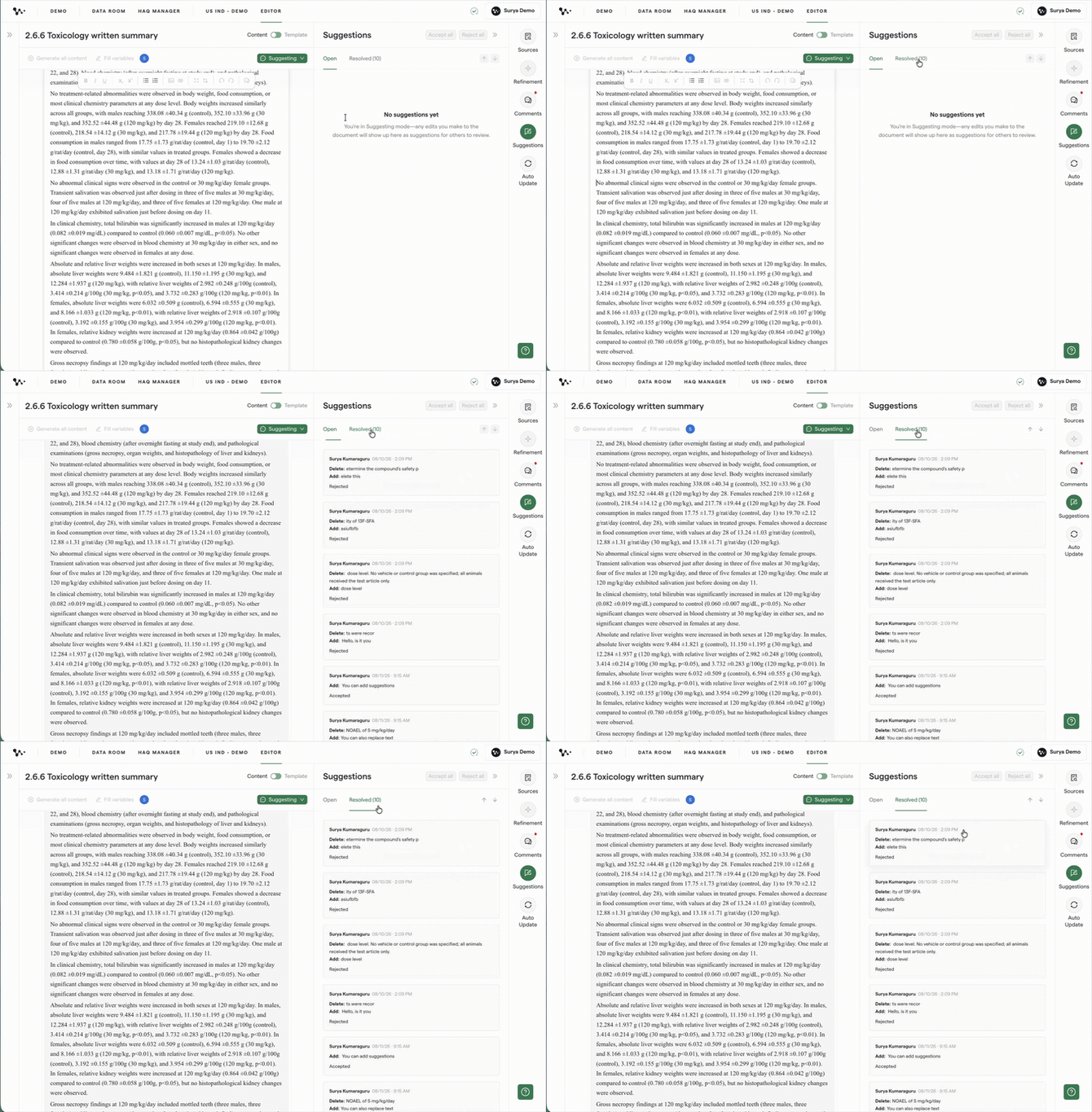
Reviewing decisions made during the document review
2. Review the decision
Select a resolved card to review its location, contributor, and outcome.
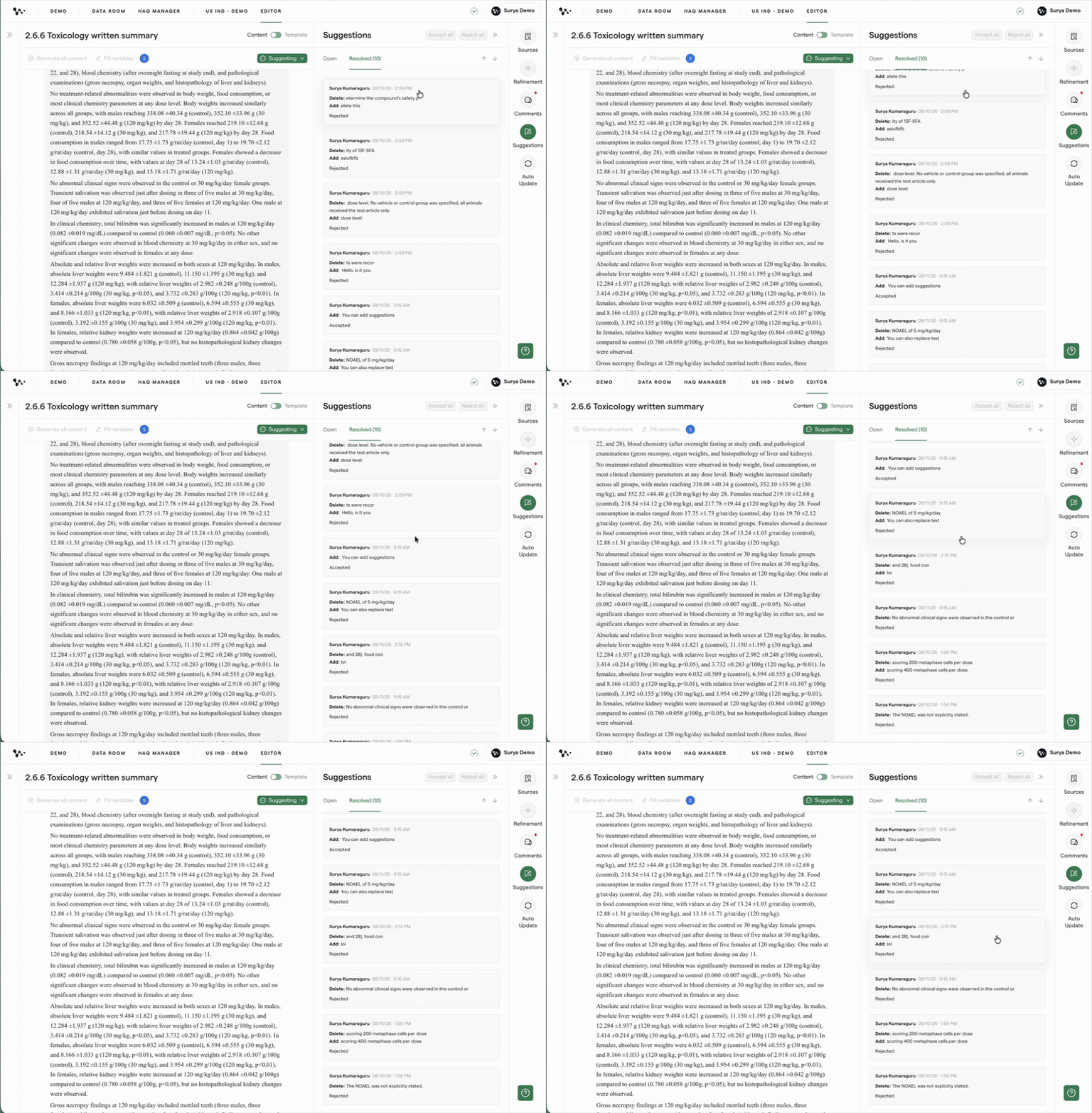
Checking who proposed a change and how it was resolved
You are now ready to propose and review text changes without immediately changing the accepted document.
FAQ
Q: What is the difference between a comment and a suggested change?
A: A comment starts a discussion without proposing replacement text. A suggested change shows specific wording as a redline that can be accepted or rejected. Viewers can participate through comments, while creating suggestions requires Contributor access.
Q: Do I need to be in Suggesting mode to review pending changes?
A: Use Suggesting mode when you want to create a tracked change. You can review anchored suggestion cards while the Suggestions panel is open in Suggesting or Editing mode.
Q: Can I suggest changes inside a table?
A: The core launch workflow covers document text. Table redlines are not included in this article because table support has not been confirmed for release.
Q: Can several contributors create suggestions in the same document?
A: Suggestions identify the contributor who proposed each change. Guidance for simultaneous suggestions and overlapping redlines will be added after final multiplayer validation.
Q: Do exported DOCX or PDF files include Weave redlines?
A: No. Exported files contain the accepted document text and do not include Weave redlines as native tracked changes. Resolve the suggestions you need before exporting.
Q: Can I import Word tracked changes and continue resolving them in Weave?
A: A complete Word tracked-change round trip is not part of the core workflow. Review and resolve Weave suggestions inside the platform instead of relying on imported Word redlines.
Quick Reference: Suggested Changes
- Open the document mode menu and select Suggesting
- Add, replace, or delete document text
- Open the Suggestions panel
- Select a suggestion card to review its context
- Accept or reject individual suggestions
- Use Accept all or Reject all when one decision applies to every open item
- Review accepted and rejected changes under Resolved