
Before you begin: Make sure the relevant source files have been uploaded to the Data Room and assigned the appropriate data tags. Generation quality depends on having the right files connected to the right sections.
Opening your document
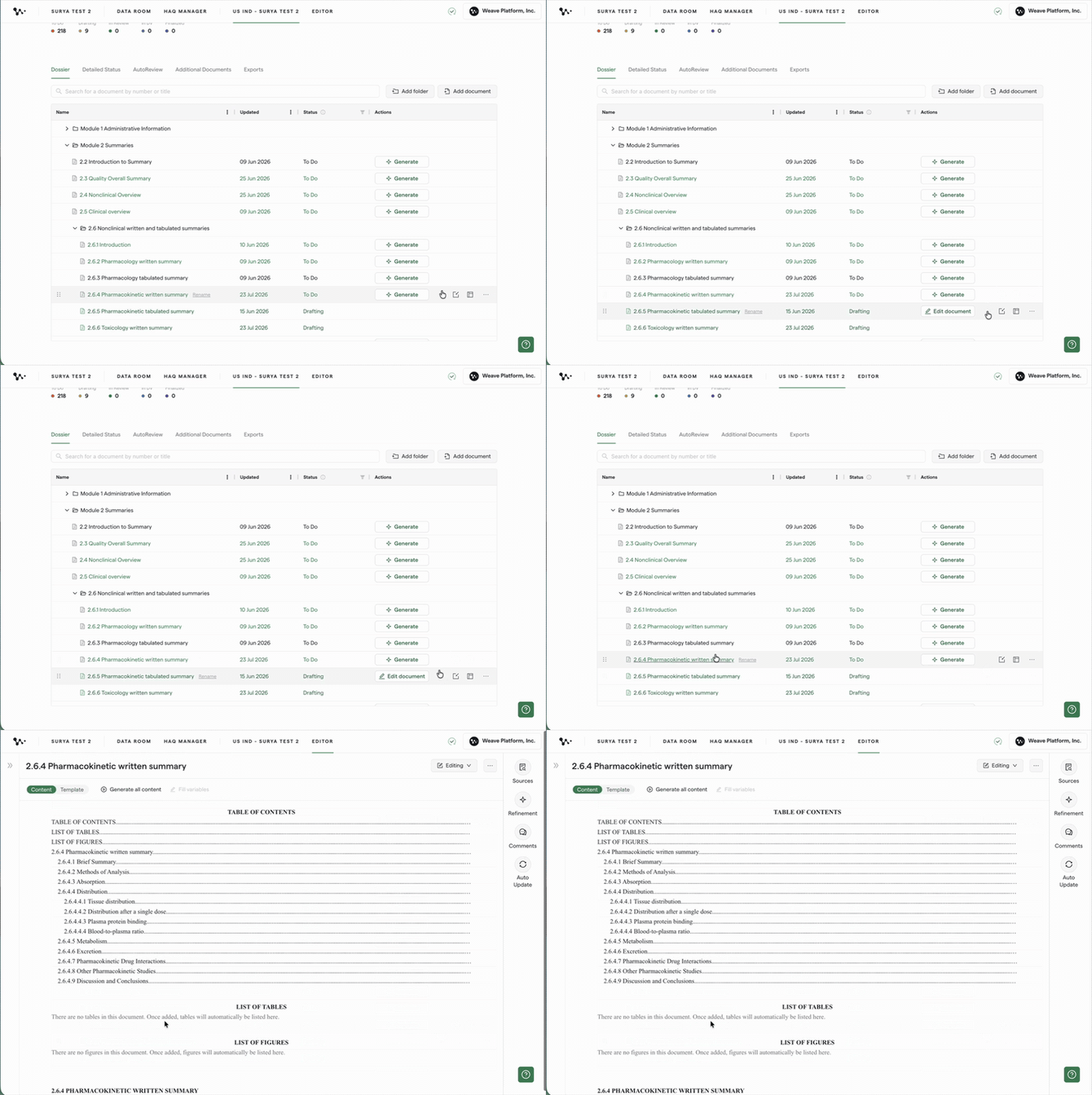
From the Dossier page, find the document you want to work on.
If matching source files are available, Generate appears beside the section.
If Generate does not appear, hover over the section to reveal Edit Document. Click it to open the document in the Document Editor.
Understanding Content View and Template View
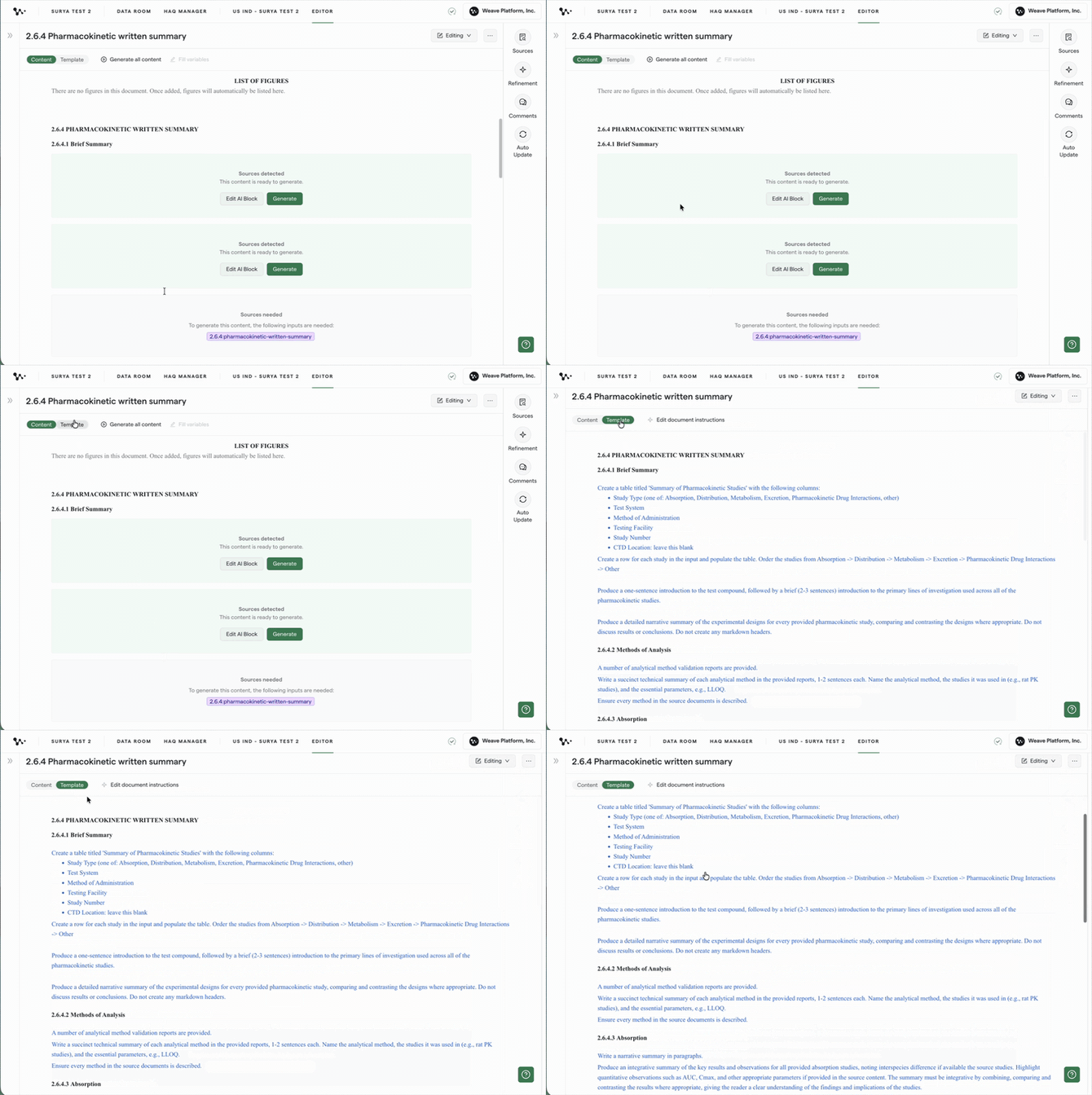
The Document Editor has two views that you can switch between at the top of the page.
Content View
Content View shows the document itself. This is where you read, review, refine, and manually edit your draft.
You can treat Content View like a familiar word editor. You can type new content, rewrite sentences, delete text, and make formatting changes directly in the document.
Template View
Template View contains the instructions Weave uses to generate the document.
Each section can include:
- An AI instruction describing what Weave should write
- Data tags that determine which source files Weave can use
Think of Template View as the instruction layer behind your document. Content View shows the result, while Template View shows how Weave was instructed to create it.
Tip: Review the instructions for a section before generating it. Clear, specific instructions generally produce more useful drafts than broad or generic instructions.
Recommended workflow: Generate one section at a time
Generating section by section gives you a simple review cycle:
- Review the section's instructions and sources.
- Generate the section.
- Review the generated content.
- Refine, manually edit, or update the instructions as needed.
- Continue to the next section.
This helps you identify problems early instead of discovering the same issue across an entire generated document.
Step 1: Choose a section
In the Document Editor, locate the first section you want to draft.
We recommend beginning with a section that has its required source material available.
If later sections depend on content from earlier parts of the document, work through the sections in order. This ensures the upstream content is available before you generate the sections that rely on it.
Step 2: Review the template instructions and sources
Switch to Template View and locate the section.
Review:
- The AI instruction
- The data tags connected to the section
- The source files available to the section
Confirm that the instruction accurately describes the content you want Weave to produce.
If necessary, edit the instruction or adjust the connected sources before generating.

Step 3: Generate the section
You can generate a section from either Template View or Content View.
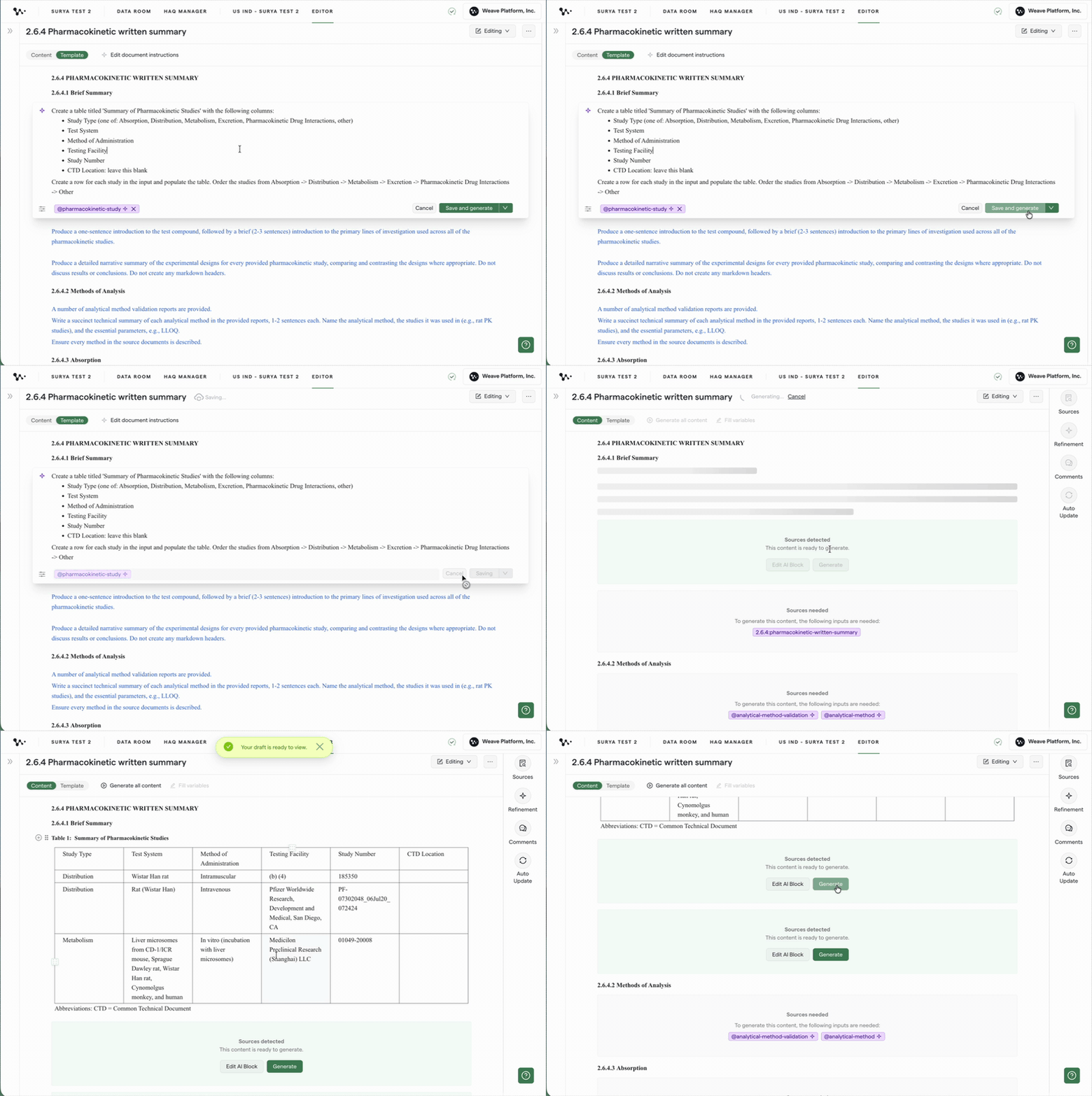
From Template View
Click into the section's AI instruction.
You can update the instruction or leave it unchanged if it already describes what you need.
Click Save and Regenerate to generate the section. This option appears after you open the AI instruction, even if you have not made any changes.
From Content View
When a section is ready to generate, two buttons appear:
- Edit AI Block opens the section's instructions in Template View.
- Generate generates the section using its current instructions and sources.
Click Generate to create the section without opening Template View.
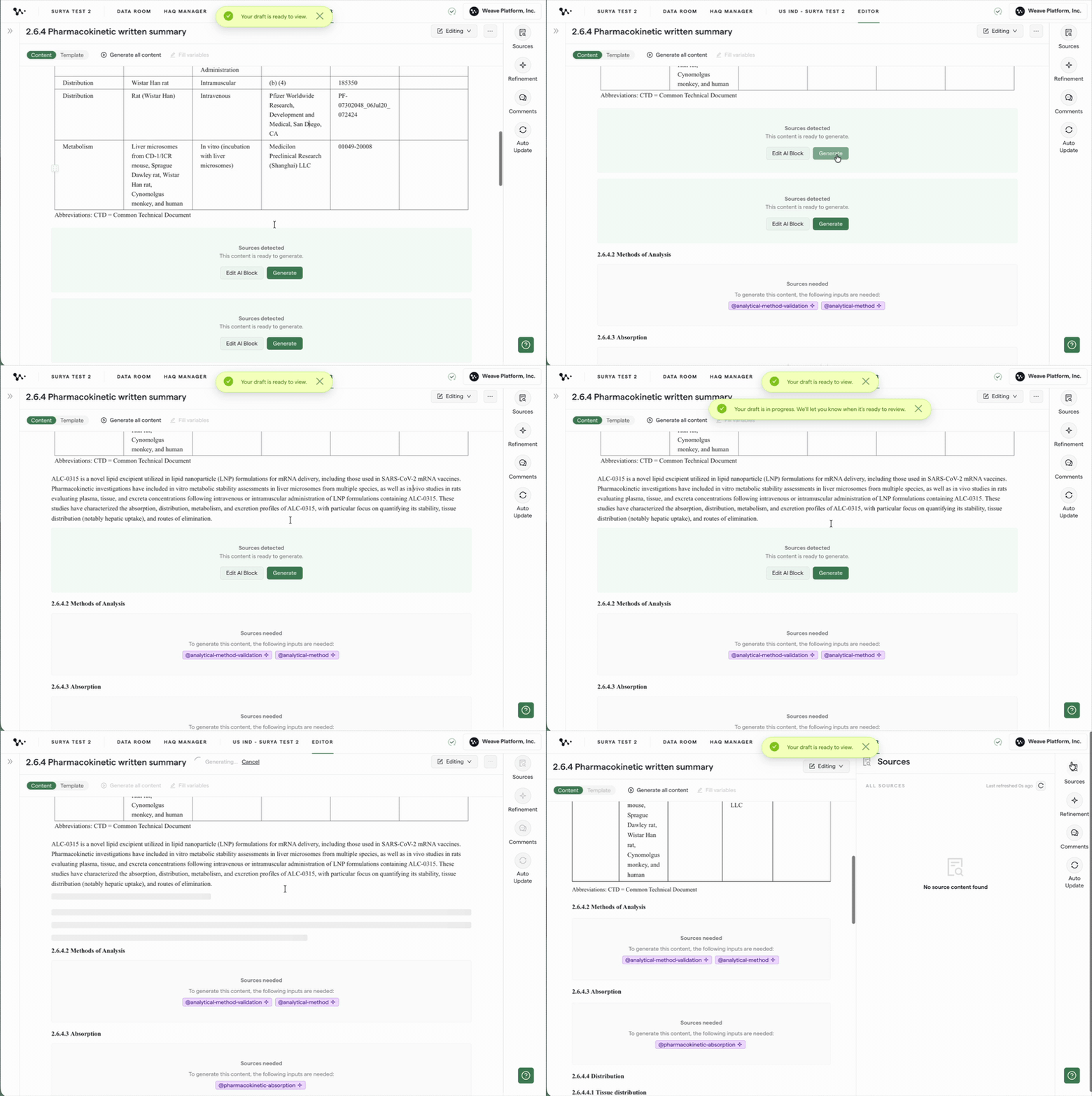
Both methods generate only the selected section without regenerating the rest of the document.
Step 4: Review the generated content
Return to Content View and read the section before moving forward.
Check whether:
- The section addresses the template instruction.
- The expected information was included.
- The content is supported by the correct sources.
- Any missing information is clearly identified.
- The structure, tone, and level of detail are appropriate.
The generated content is a starting point. It does not need to be your final wording, and you do not need to use AI for every change.
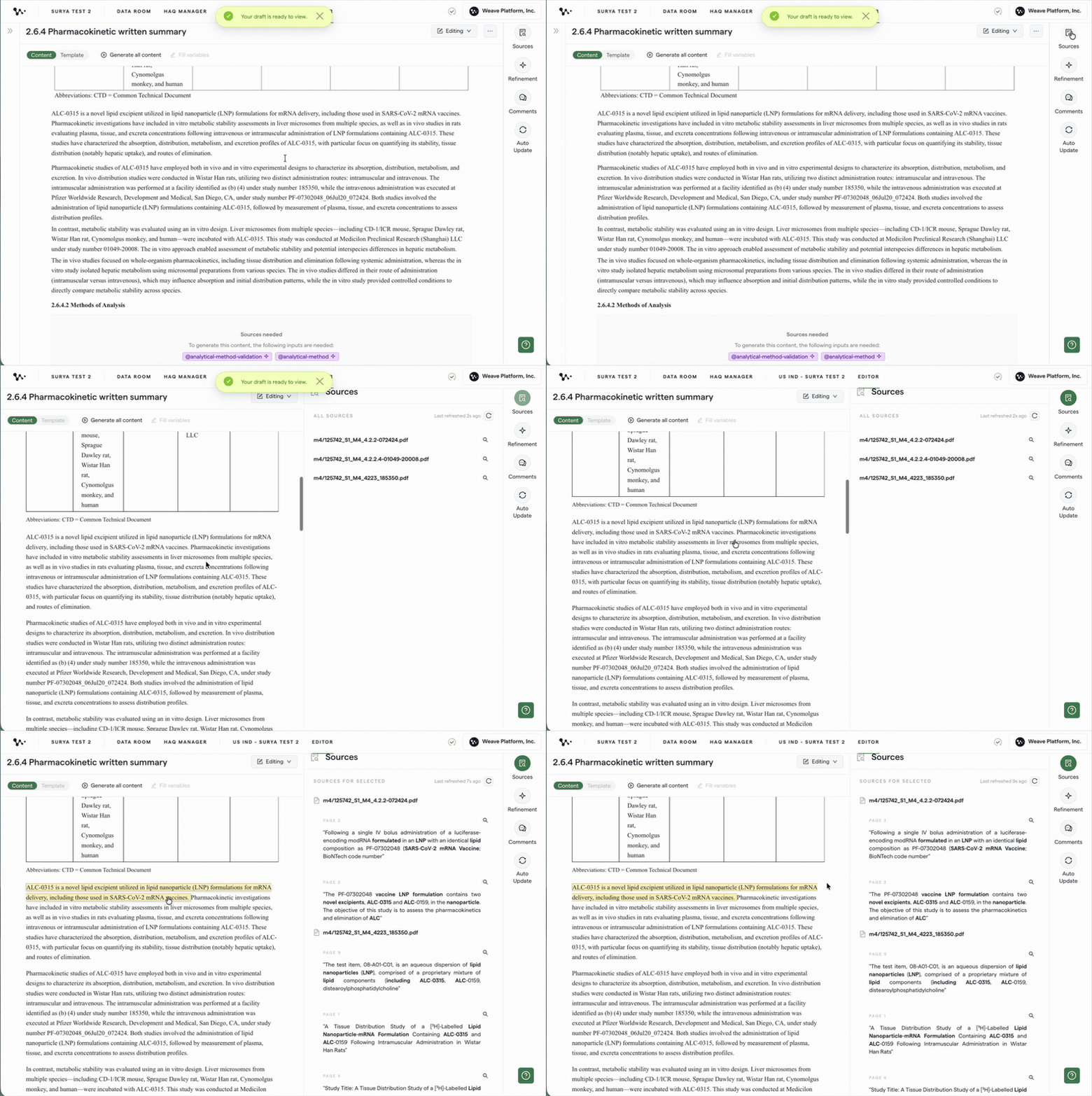
Step 5: Review the sources
Click the Sources icon in the upper-right corner of the Document Editor.
Weave will highlight content connected to source files. Hover over a sentence to see which file contributed to it.
You can also select Inspect Source to open the source document and review it in more detail.
Step 6: Choose how to revise the section
Generating content is only the beginning of the drafting process. After reviewing the section, choose the editing method that best fits the change you want to make.
You can move between template instructions, Refinement, and manual editing as you work. The author remains responsible for reviewing the content and deciding what should be generated, revised, removed, or written manually.
Update the template instruction
Update the instruction in Template View when Weave needs different guidance about what information to include or how to create the section.
After changing the instruction, click Save and Regenerate.
Template instructions are useful when the generation approach should be repeatable or reused in future drafts.
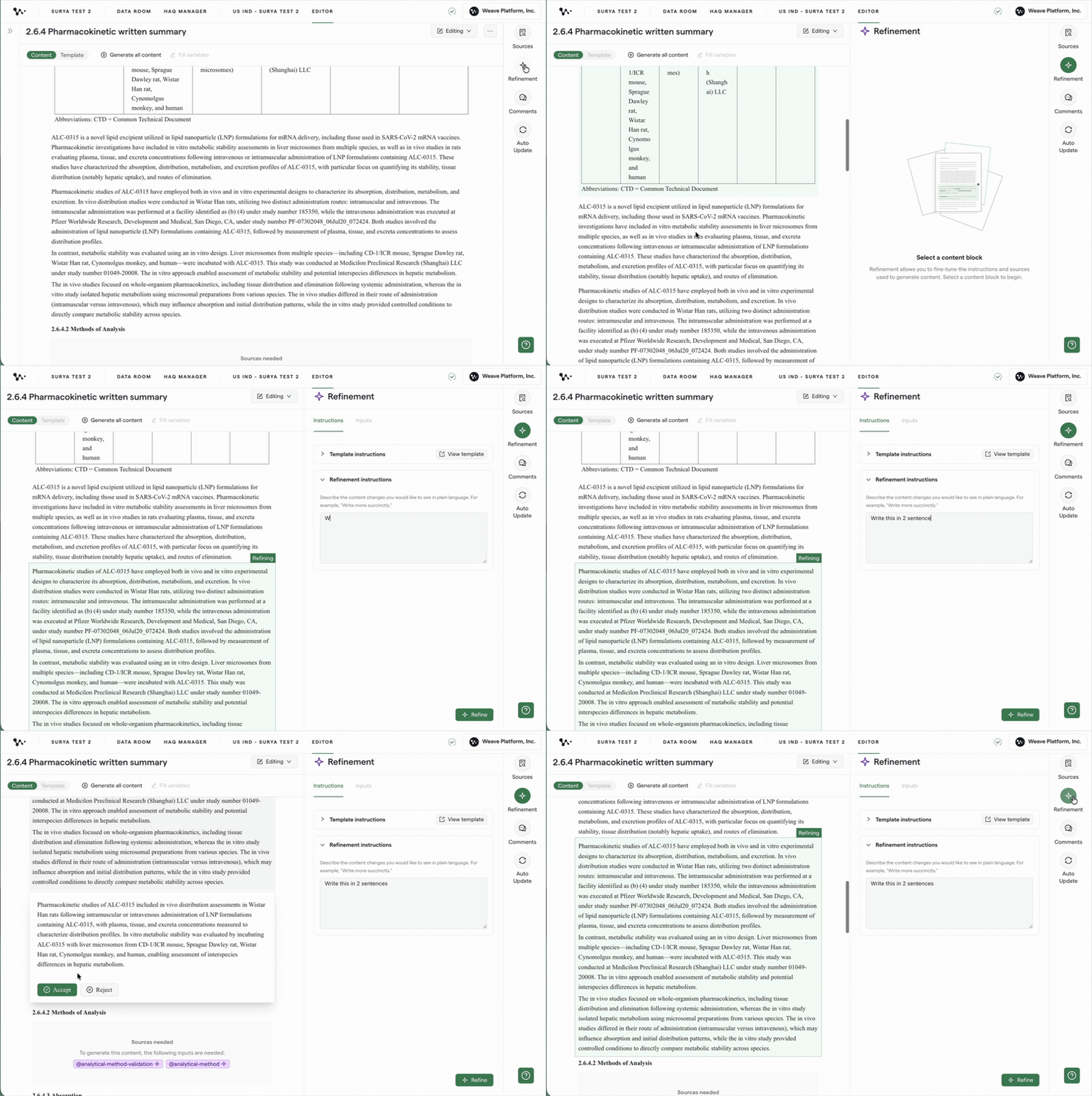
Use Refinement
Use Refinement when you are generally happy with the section's larger format and structure but want to make more targeted changes.
For example, you can ask Refinement to:
- Reorganize part of the section
- Adjust the tone
- Shorten or expand the content
- Convert paragraphs into bullet points
- Change the formatting
- Improve clarity
- Rewrite a selected passage
- Change or narrow the source files used
Refinement allows you to revise the content and be more specific about which sources Weave should use without rebuilding the entire section through its template instructions.
Edit the content manually
You can also edit the document directly in Content View, just as you would in a word processor.
You can:
- Delete a sentence
- Replace a word or phrase
- Type a new sentence
- Rewrite a paragraph
- Add your own analysis or context
- Adjust formatting
- Write an entire section yourself
Not every change needs a new AI instruction or a Refinement request. If it is faster or more appropriate to write the content yourself, simply edit it directly.
Once the section looks right, continue to the next section and repeat the workflow.
Using Generate All Content
Generate All Content generates every eligible section where Weave has detected the required sources.
This option can be useful when:
- You want a quick initial draft of the entire document.
- You have already validated the template instructions and source mapping.
- You have not made manual edits that need to be preserved.
To use it, click Generate All Content at the top of the Document Editor.
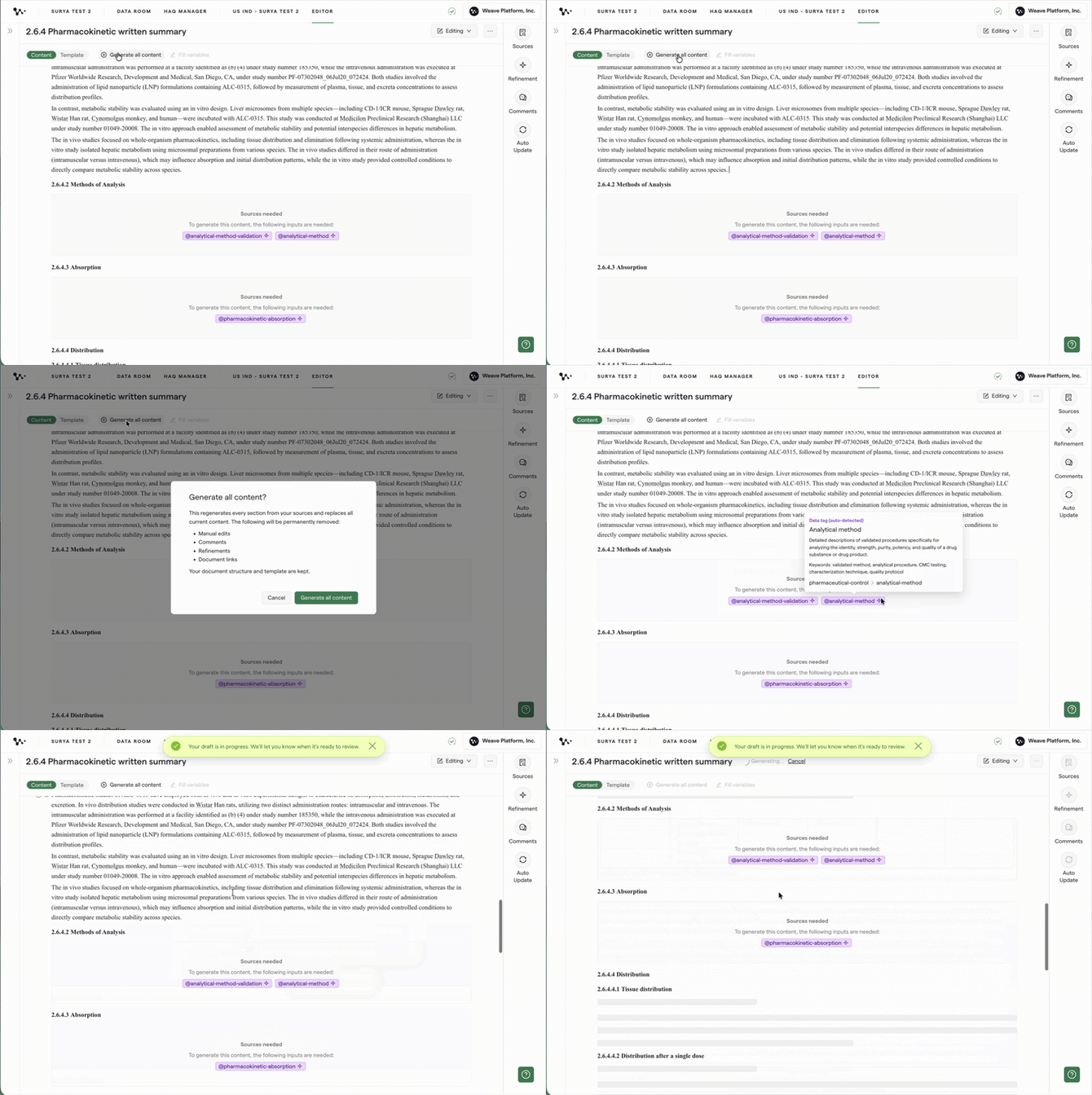
Important: Generate All Content regenerates all eligible sections. If you run it after manually editing the document, those edits may be overwritten.
For that reason, use Generate All Content only at the beginning of a document. Once you have started reviewing or editing the draft, generate individual sections instead.
What "Sources needed" means
If a section shows Sources needed in the Document Editor, Weave could not find a source file matching the section's requirements.
Check the following:
- Is the relevant source file available in the Data Room?
- Does the source file have the correct data tags?
- Does the file contain every data tag assigned to the section in Template View?
Weave uses AND logic when matching data tags. If a section requires two tags, the same source file must have both tags. A file with only one of the required tags will not be matched.
For example, if a section requires both Pharmacology and Study Report, a file tagged only Pharmacology will not qualify as a source.

If the correct file is available but is not being matched, you can select it manually:
- Open the section in Template View.
- Remove the existing data tags using the X beside each tag.
- Click Add File.
- Select the appropriate source file.
- Save the change.
This connects the selected file directly to the section instead of relying on data-tag matching.
Note: If a generated section contains "Not specified," check whether the source file contains the requested information. Weave does not create information that is not available in the connected sources.
FAQ
Q: Should I generate the entire document or one section at a time?
A: We recommend generating one section at a time. Review the section's instructions, sources, and generated content before continuing. This makes it easier to catch source or instruction issues early and gives you more control over the first draft.
Q: Do I have to return to Content View to generate a section?
A: No. In Template View, click into the section's AI instruction and select Save and Regenerate. You can use this option whether or not you changed the instruction.
Q: Do I have to use AI to make every edit?
A: No. Content View also works as a word editor. You can type, delete, rewrite, and format content directly without using an AI instruction or Refinement.
Q: When should I update the template instruction?
A: Update the template instruction when you need to change what Weave generates or create guidance that should be reused each time the section is generated.
Q: When should I use Refinement?
A: Use Refinement when you want to make targeted changes while keeping the section's larger format and structure. You can revise its organization, tone, length, formatting, wording, or source files.
Q: What does Generate All Content do?
A: It generates every eligible section where matching source material has been detected. It is available as a faster way to create an initial full-document draft, but it provides fewer opportunities to review each section as it is generated.
Q: When should I use Generate All Content?
A: Use it at the beginning of a document, before making manual edits, and preferably after confirming that the template instructions and source mappings are ready.
Q: Will generating one section change other sections?
A: No. Generating an individual section only regenerates the selected section. This makes it the safer option after you have started editing or approving content elsewhere in the document.
Q: What happens if I run Generate All Content after editing my document?
A: All eligible sections will be regenerated, which may overwrite your manual edits. Previous content may be recoverable through Version History, but generating sections individually avoids this problem.
Q: Can I generate a document if only some source files are ready?
A: Yes. Generate the sections that already have matching sources. Sections without the required sources will show Sources needed and can be generated later.
Q: Why did a section generate with "Not specified"?
A: The connected sources may not contain the requested information. Check which files were used, confirm that the correct files are connected, and verify that the information is present in those files.
Q: What should I do if the generated section does not match my expectations?
A: First, confirm that Weave used the correct source files. Then decide whether to update the template instruction, use Refinement, or edit the content manually.
Q: Does Weave save my work automatically?
A: Yes. Your work is saved automatically while you edit the document. Save and Regenerate appears when working with a template instruction because it saves the instruction and generates a new version of that section.
Quick Reference: Recommended Generation Workflow
- Open the document from the Dossier using Generate or Edit Document.
- Choose the section you want to draft.
- Open Template View and
- review its instructions and sources.
- Generate using Save and Regenerate in Template View or Generate in Content View.
- Review the generated content and its supporting sources.
- Update the template instruction when Weave needs different repeatable generation guidance.
- Use Refinement for targeted content changes or to change the source files used.
- Edit directly in Content View whenever manual writing is faster or more appropriate.
- Continue to the next section.
- Use Generate All Content only when you intentionally want to generate or regenerate all eligible sections.