
Update a source document in the Data Room
When you upload a new version of a source file — or when a nightly Viva sync brings in new material — the auto-update feature is triggered automatically.
1. Go to the Data Room and open the relevant project.
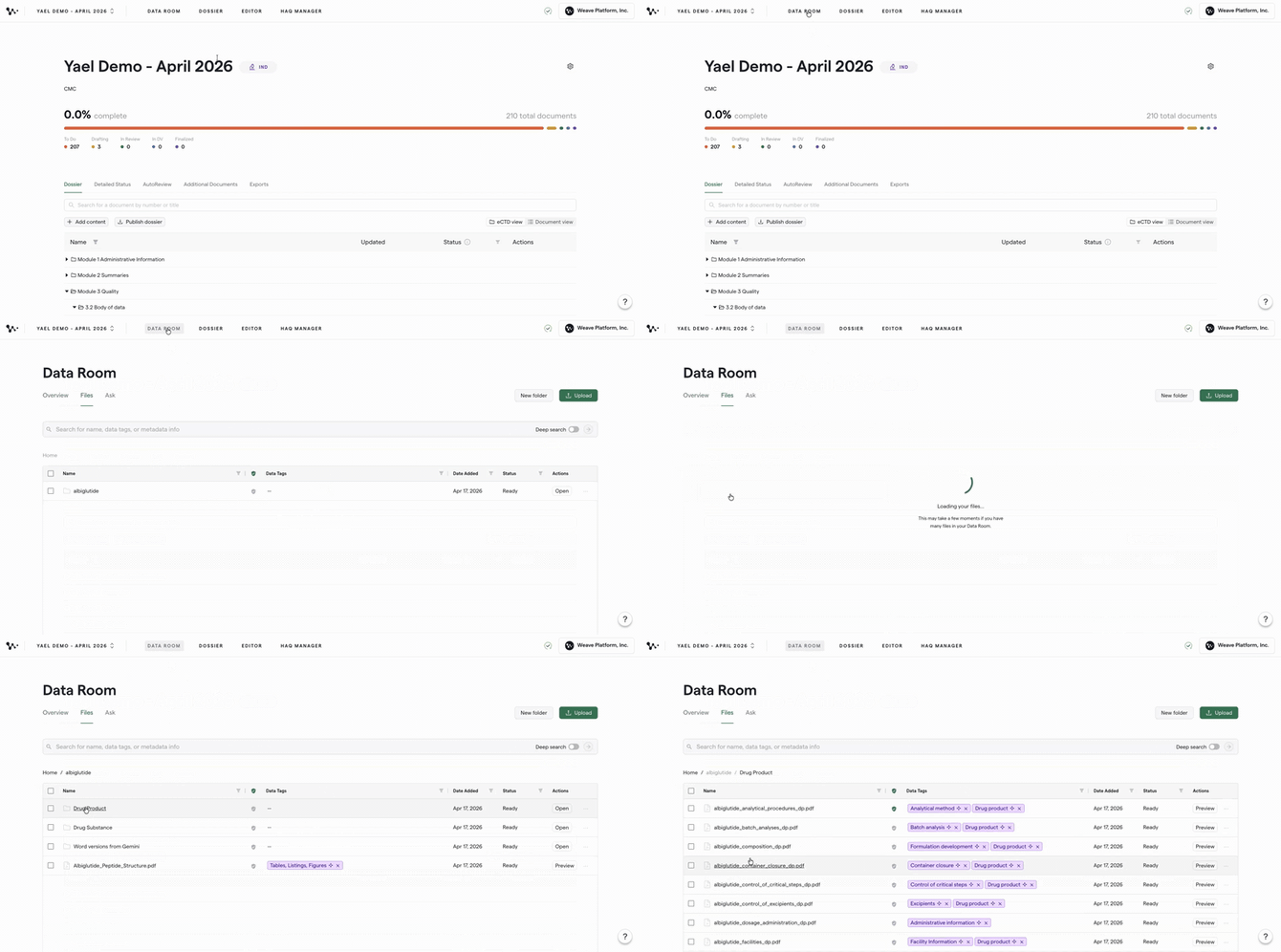
Navigating into the Data Room
2. Update a new source file by clicking Upload and selecting your file, or click the three-dot menu next to an existing document and select Update to replace it with a newer version.
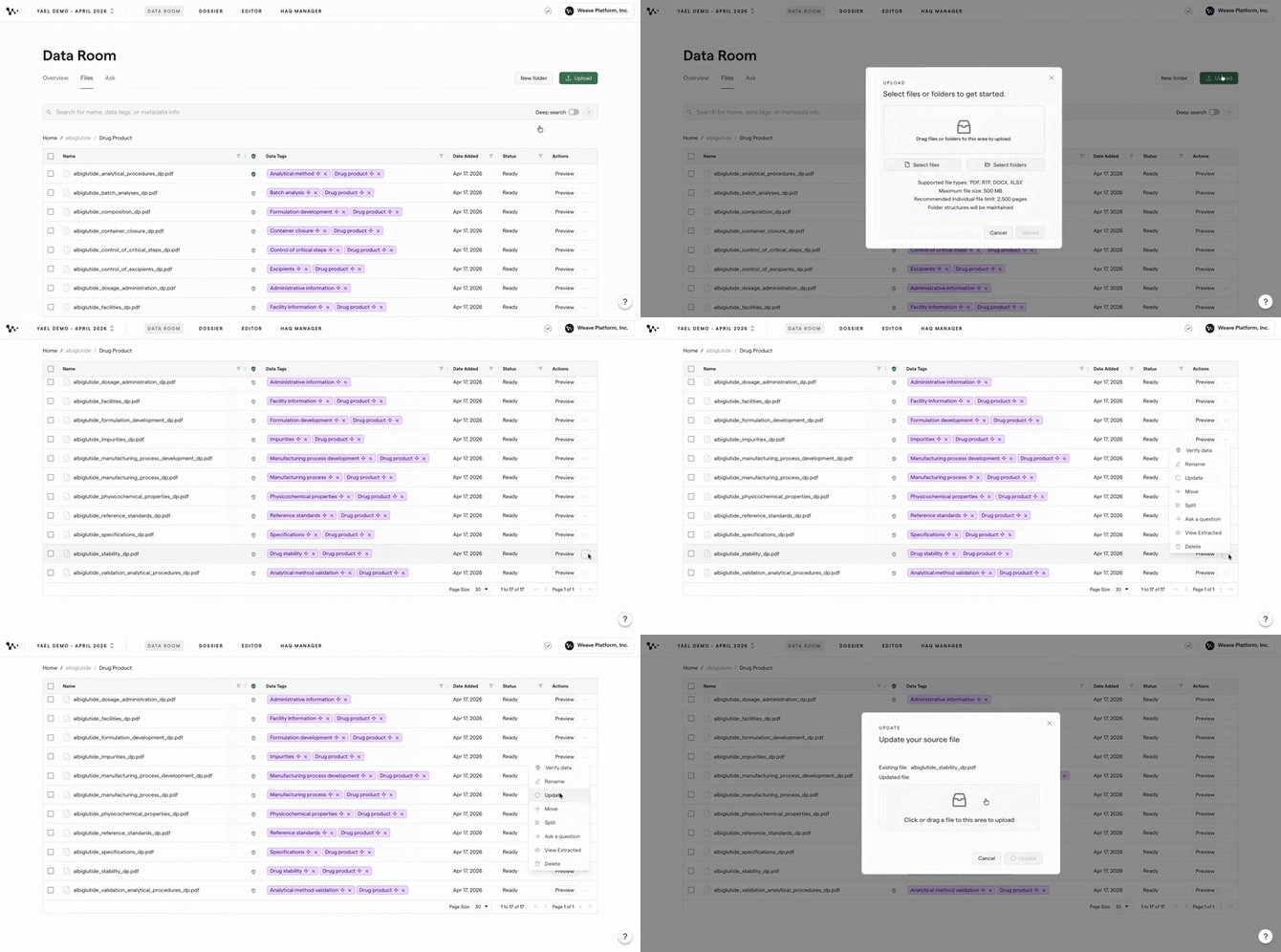
Uploading an updated source file via the three-dot menu
Note: If your organisation uses a Viva integration, source files that sync on a nightly basis will trigger auto-update automatically — no manual upload needed.
Once the file finishes processing, you'll see the indicator in the top corner change from a green checkmark to a red exclamation mark. That's your signal that updates are available.
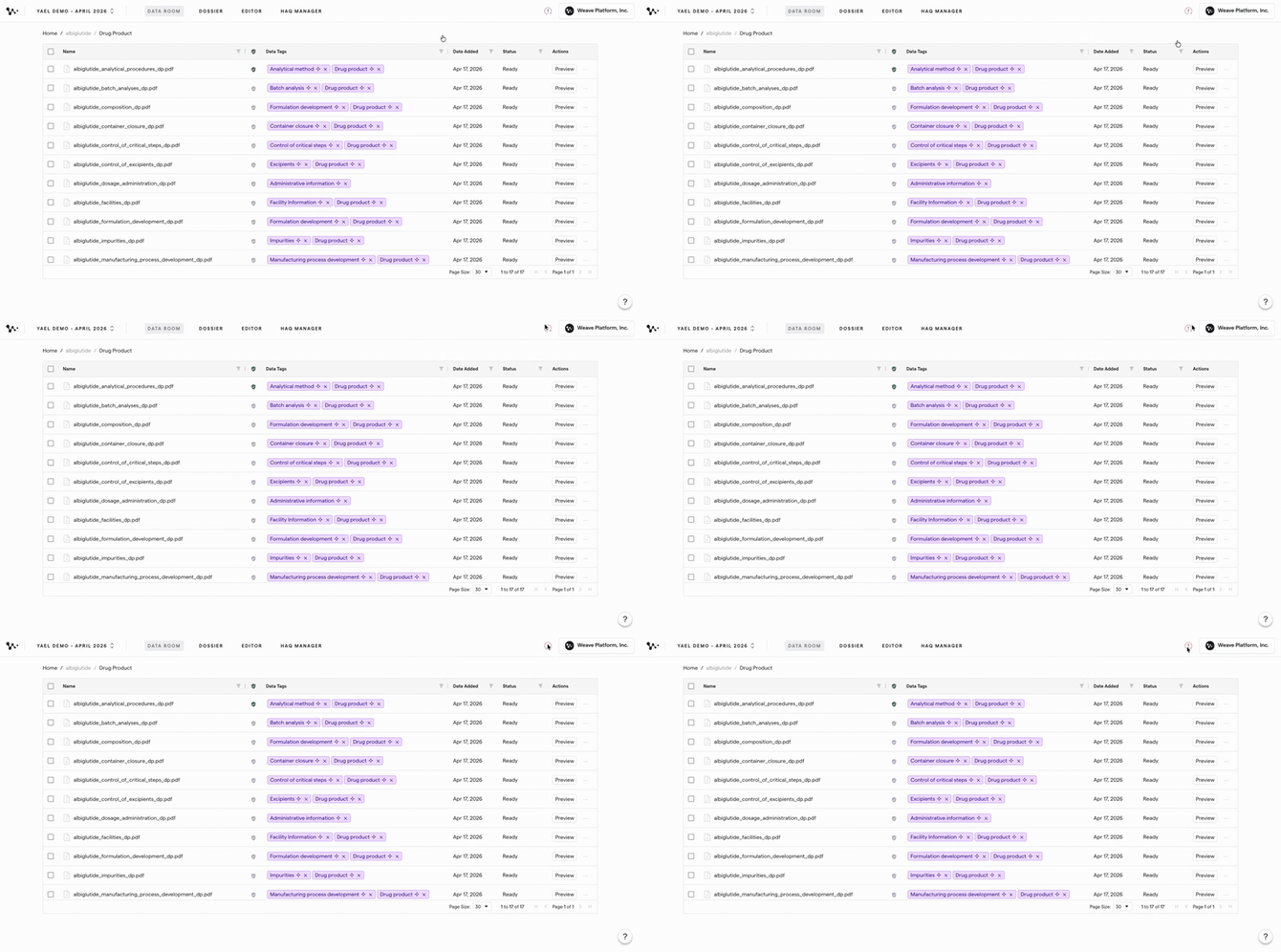
The red exclamation mark signals that new updates are ready to review
Review the available updates
3. Click the red exclamation mark in the top corner to see which sections have updates available.
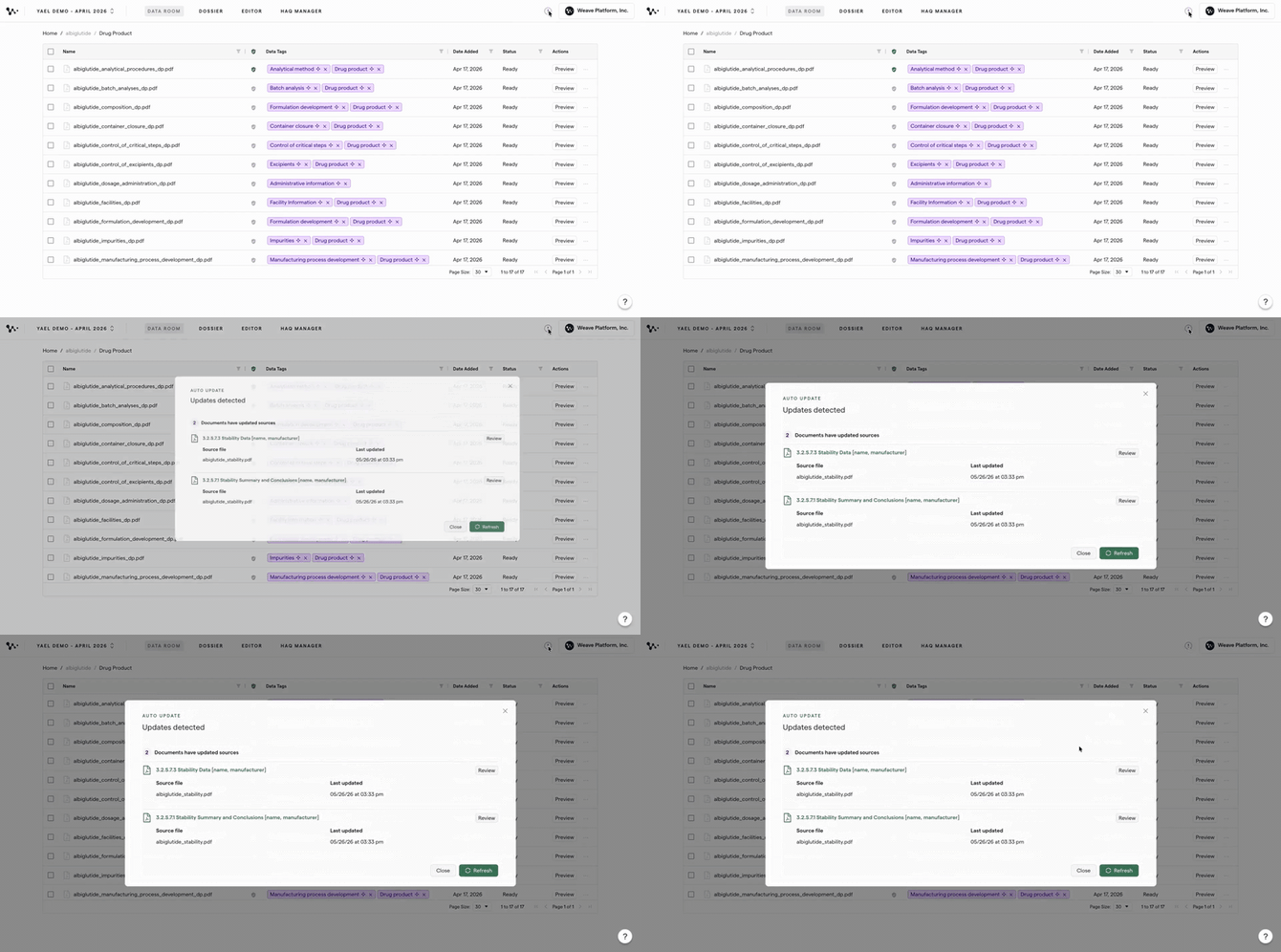
Opening the update summary to see which sections are flagged
4. Click Review next to a section to open the corresponding document directly.
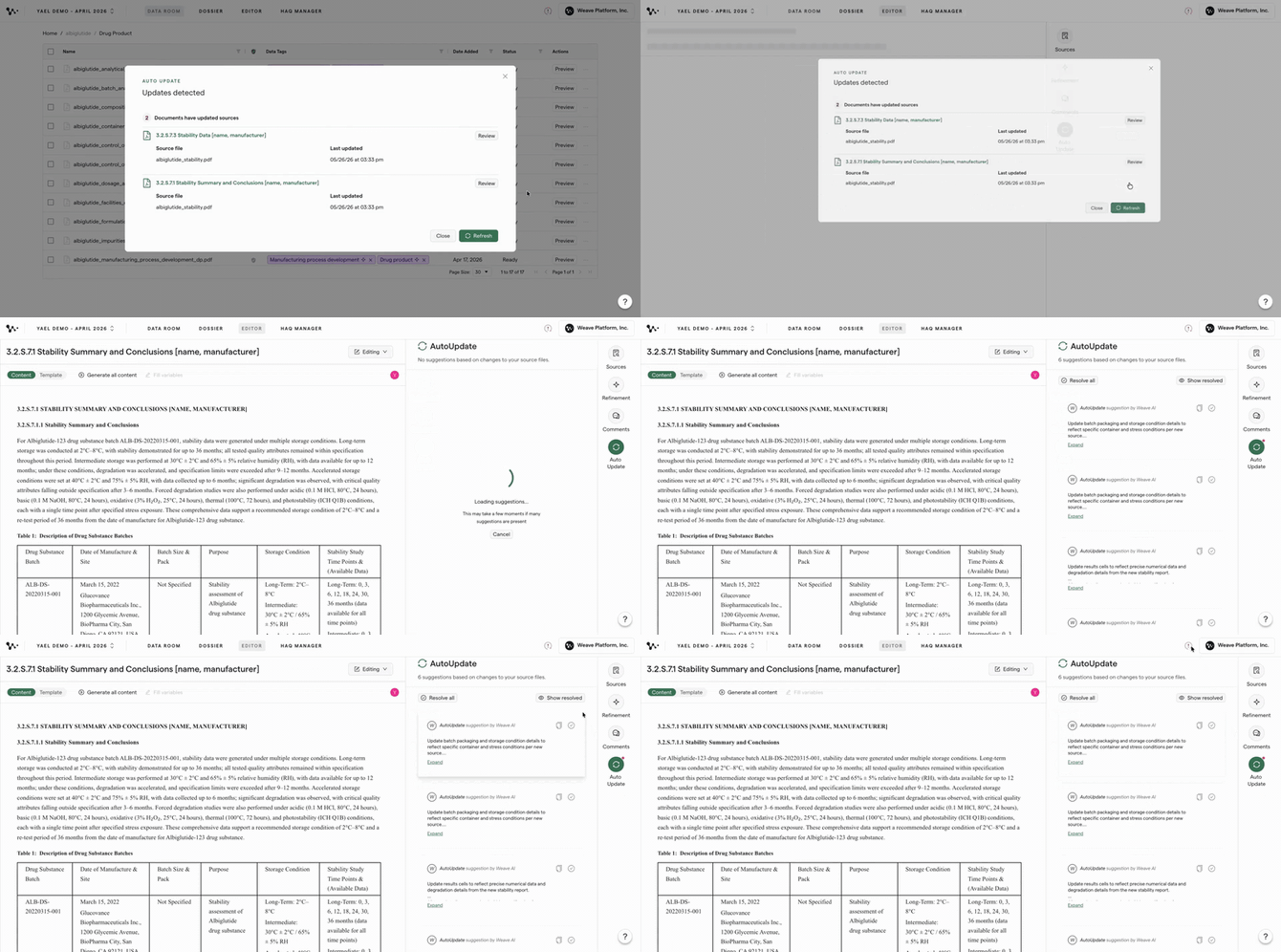
Clicking Review navigates you directly to the flagged section
Within the document, the auto-update panel shows the specific recommendations available for that section. Click into a recommendation to see exactly what the system is suggesting you change.
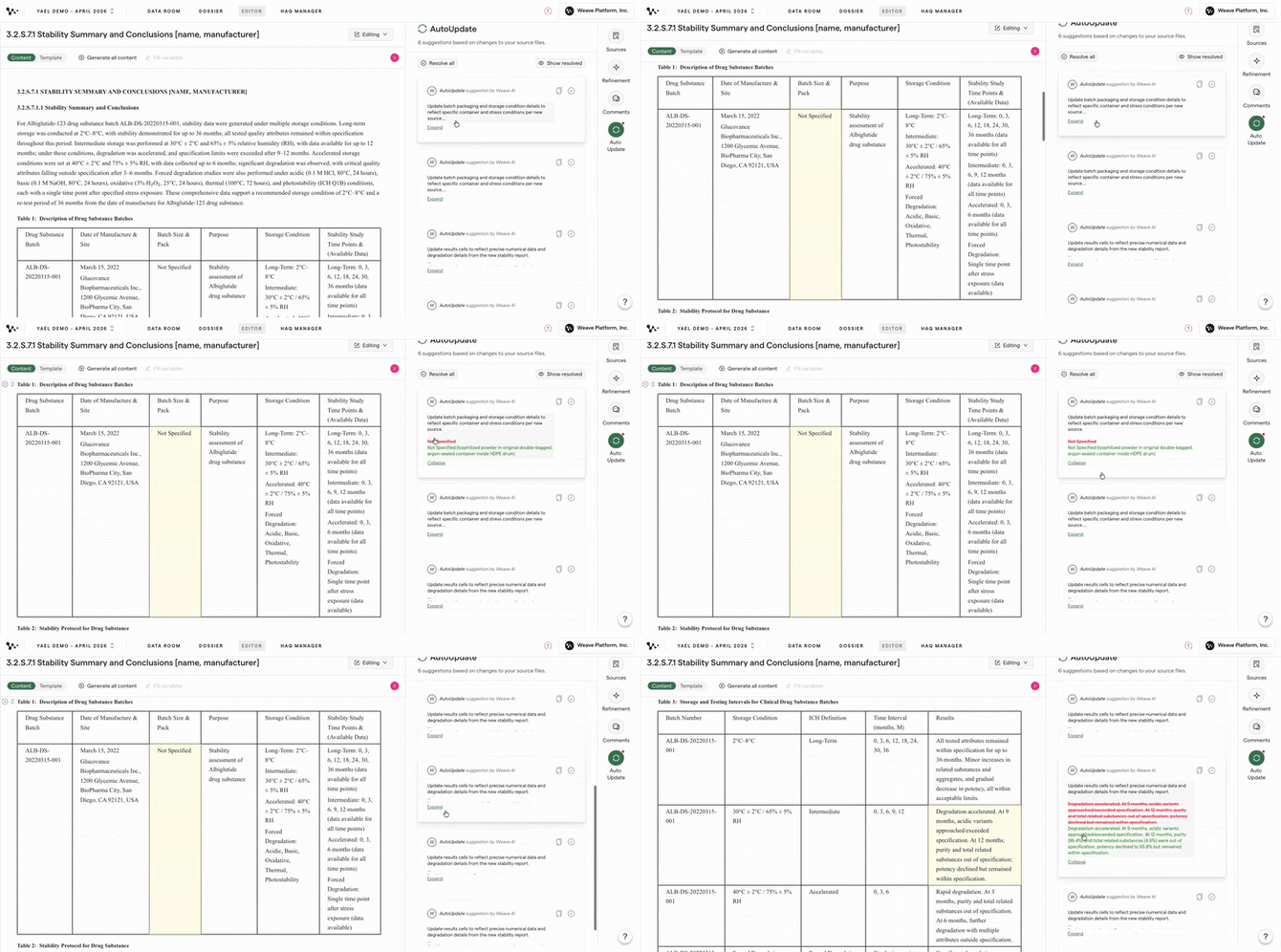
Each recommendation shows a specific suggested change
Apply an update
Auto-update is designed to be fully human-controlled — the system surfaces recommendations, but you decide what to do with each one.
5. Copy the suggestion from the auto-update panel.
6. Open the Refinement panel, select the passage in your draft that corresponds to the suggestion, paste the copied text, and click Refine.
[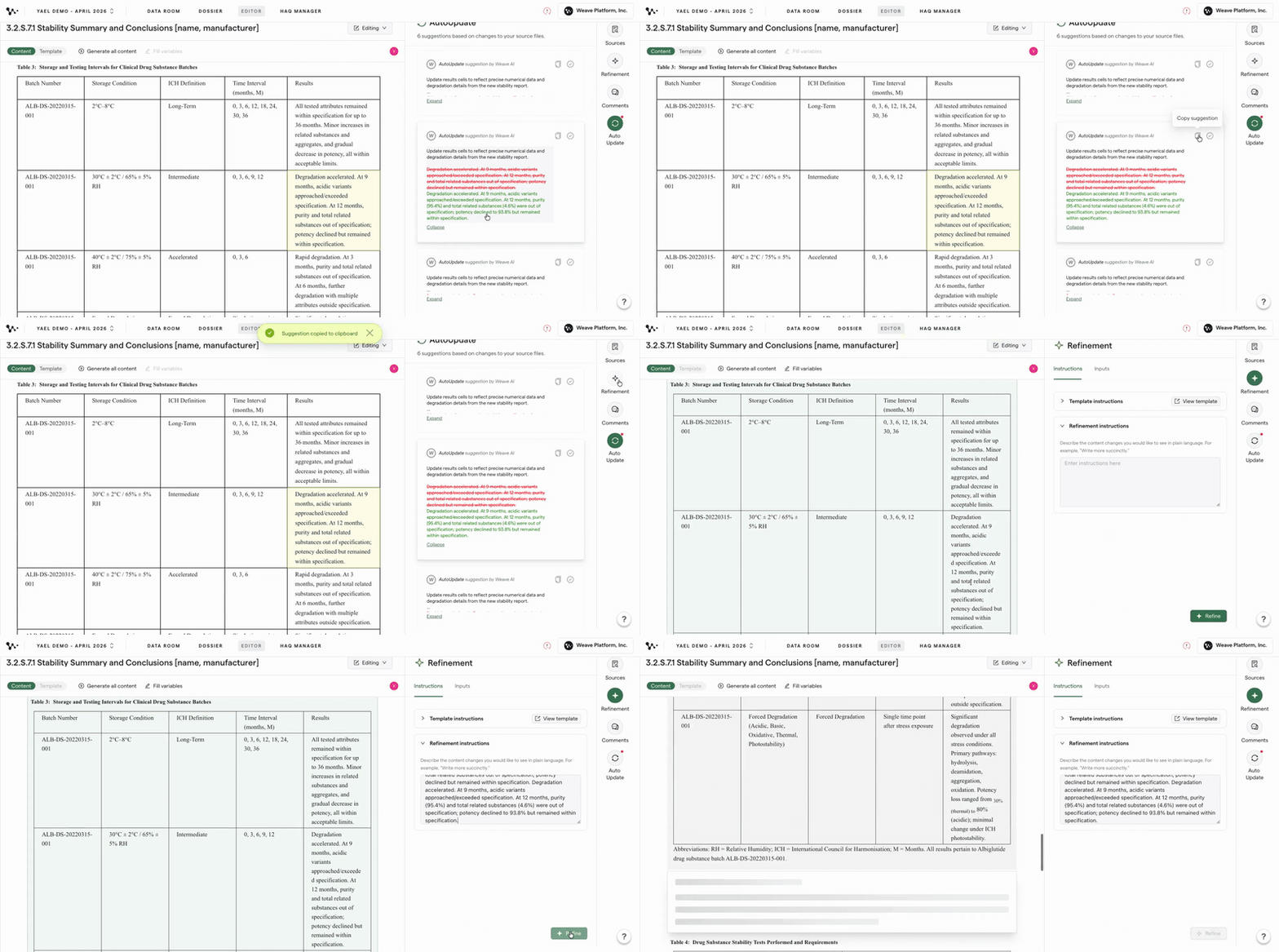
Applying an auto-update suggestion via the Refinement panel
7. Review the side-by-side comparison of the new content versus your previous draft, then click Accept or Reject.
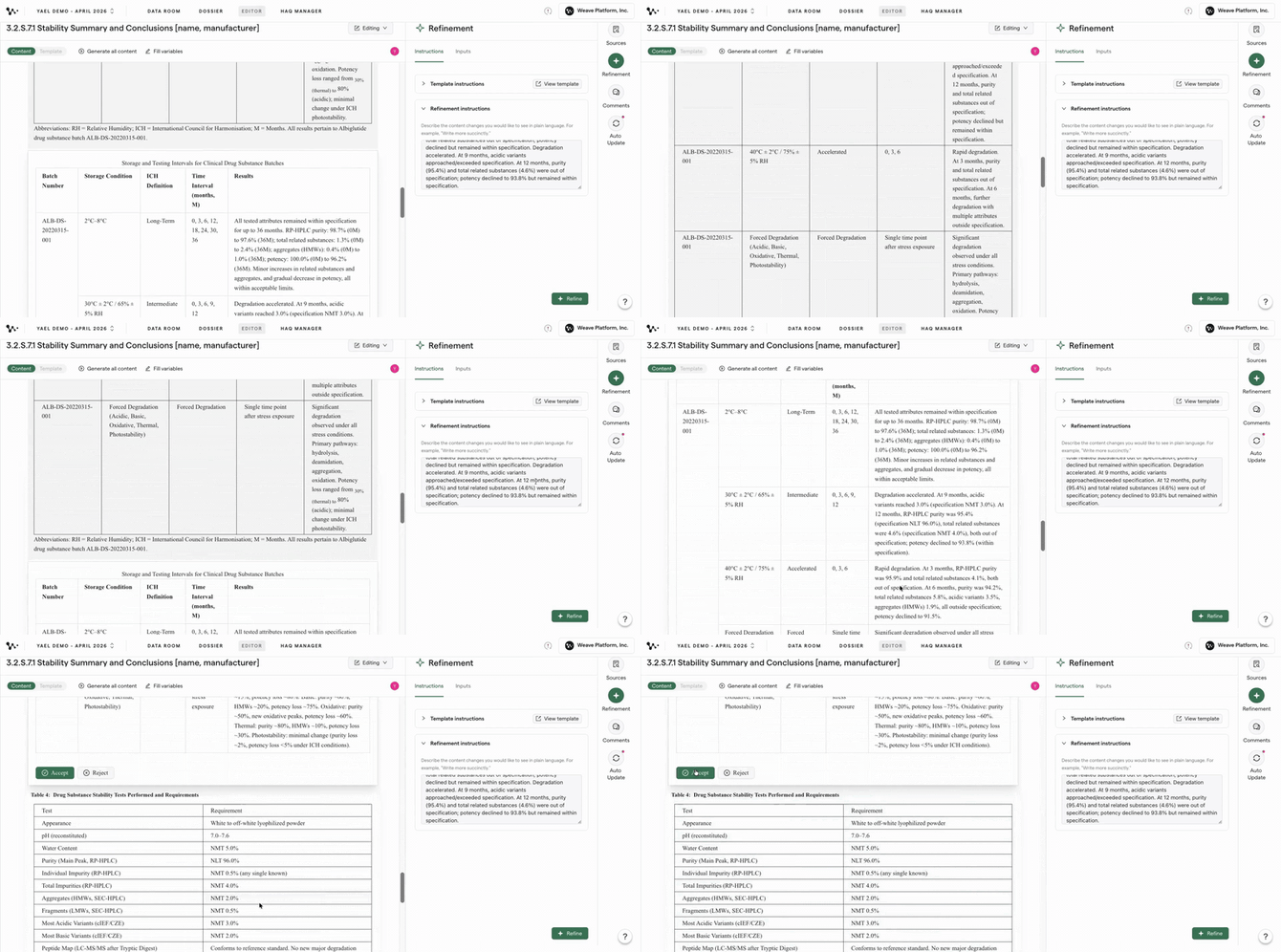
Accepting or rejecting the update after reviewing the side-by-side comparison
Tip: If you have multiple suggestions to work through, click the auto-update indicator again after accepting or rejecting one — the remaining suggestions will still be listed and you can work through them one at a time.
Once you've worked through all the recommendations, the section is up to date with your latest source material.
FAQ
Q: What triggers the auto-update notification?
A: Auto-update is triggered whenever a source file in the Data Room is uploaded or replaced — either manually via the Upload or Update options, or automatically through a nightly Viva sync. The system then checks whether any previously drafted sections reference that file and flags them for review.
Q: Do I have to apply every recommendation?
A: No. Each recommendation is a suggestion — you review it and choose to accept or reject. Nothing changes in your draft until you explicitly apply it through the Refinement panel.
Q: Will auto-update overwrite my existing content automatically?
A: No. Auto-update surfaces recommendations only. Your draft content is never changed without your review and approval.
Q: What if the red exclamation mark doesn't appear after I upload a file?
A: Give the system a moment to process — file processing can take a few seconds. If the indicator doesn't update, try refreshing the page.
Quick Reference: Applying an Auto-Update
- Upload a new source file via Upload or the three-dot menu → Update in the Data Room
- Wait for the top-corner indicator to switch from green checkmark to red exclamation mark
- Click the red exclamation mark to see flagged sections
- Click Review on a section to open the document
- Click into a recommendation in the auto-update panel to see the suggestion
- Copy the suggestion, open Refinement, select the target passage, paste, and click Refine
- Accept or reject the side-by-side comparison
- Repeat for remaining recommendations