
Note: Dossier editing requires the Program Admin role. Submission Contributors have this role by default. If you don't see the options described below, check with your program administrator.
Add a Document or Folder
1. Open your dossier and locate where you want to add content
Navigate to your program and open the Dossier tab. Find the section where you want to add a new document or folder.
Opening the dossier from the program view
2. Open the section menu and choose what to add
Hover over the folder or section where you want to add content and click the ... menu that appears. Select Add document or Add folder.
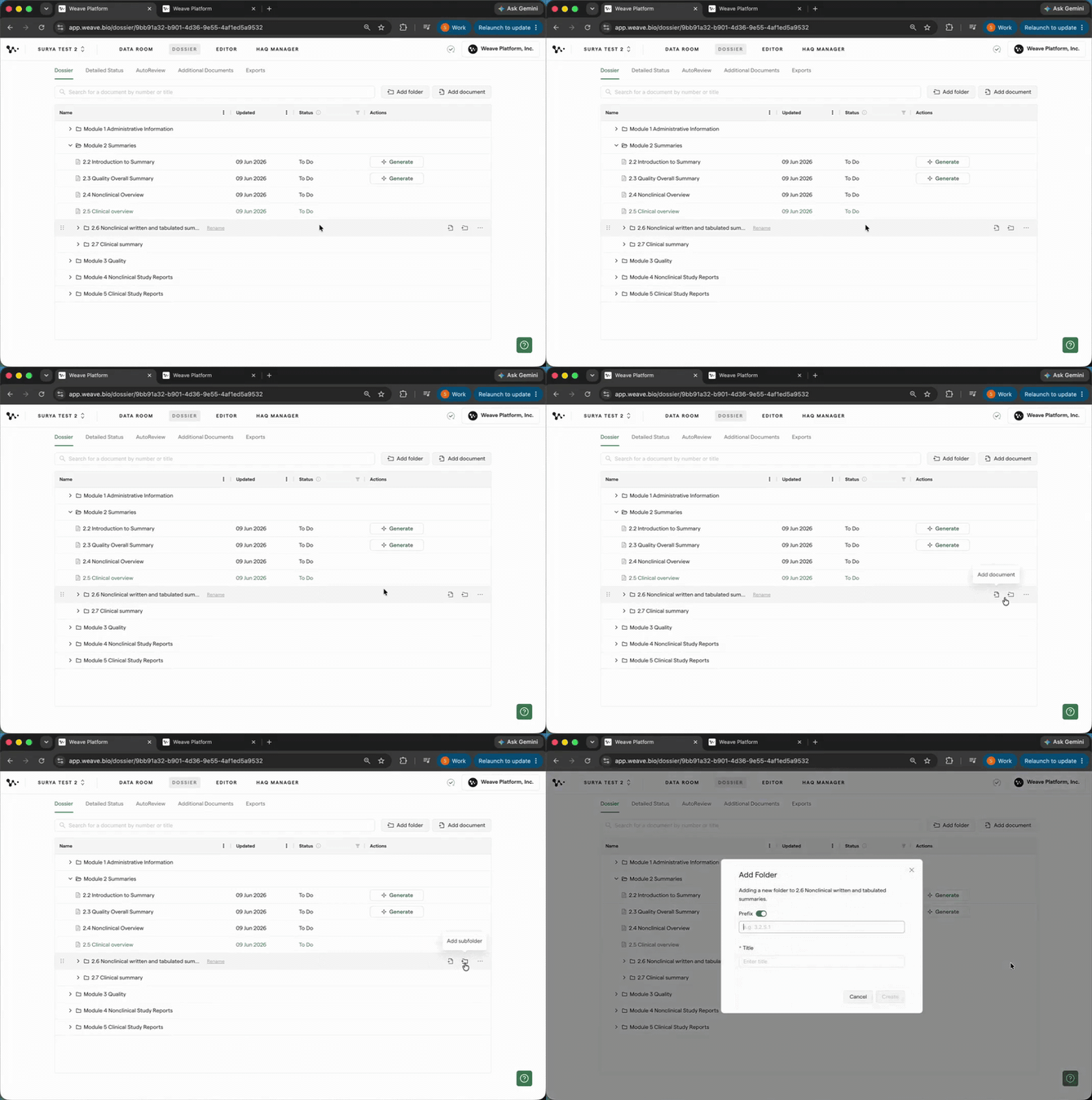
Adding a new document from the section menu
Tip: You can add a document or folder anywhere in the dossier tree — including inside Module 4, which can now be populated for the first time.
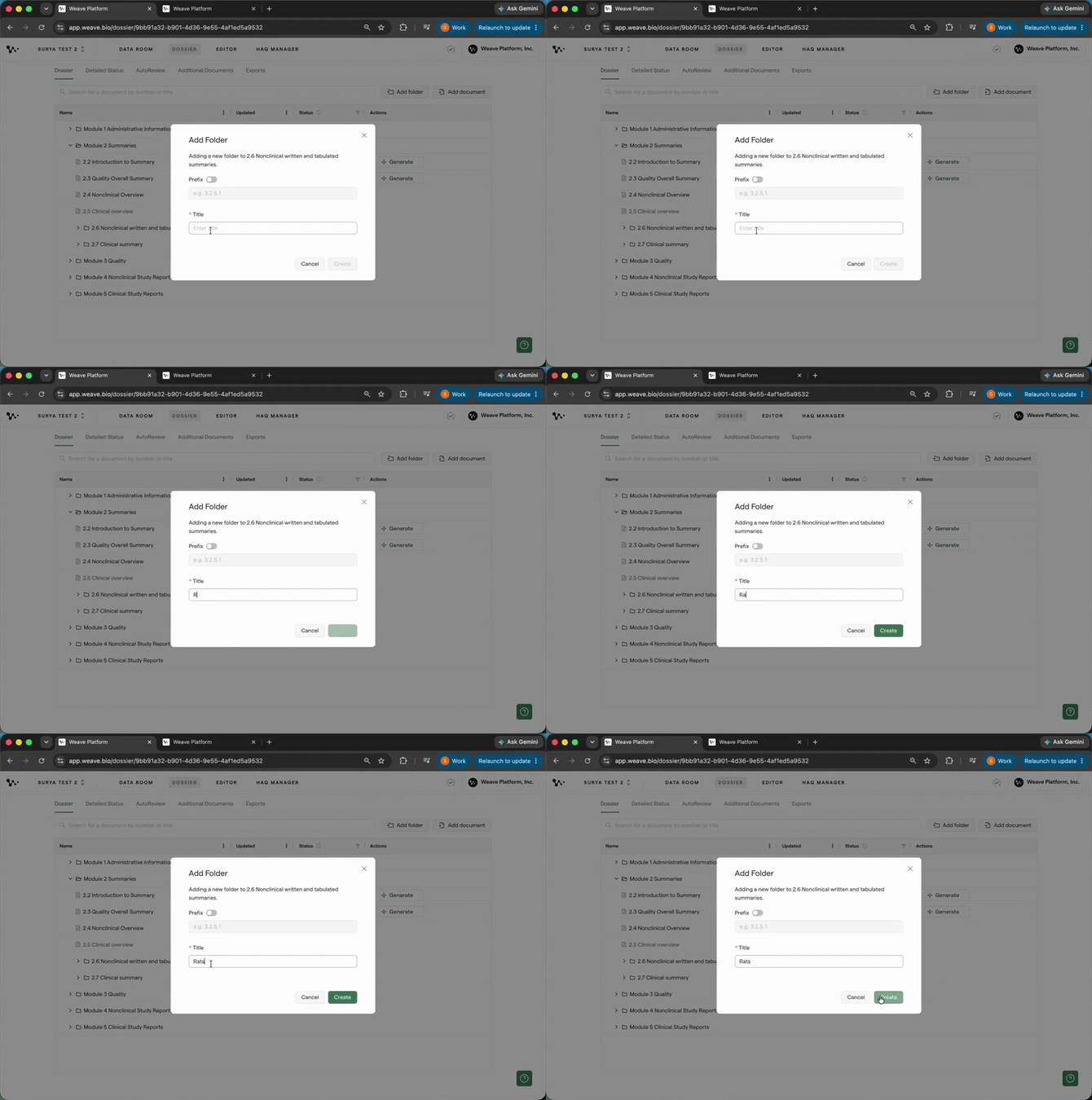
3. Name your document or folder
Enter a prefix (e.g., 3.2.S.2.2) and a title (e.g., Manufacturing Process). Both fields are independent. You can customize either or leave the prefix blank.
Setting a prefix and title for the new document
Tip: If you want your document sections to start numbering from
1instead of the full eCTD path (e.g.,3.2.S.2.2.1), move the prefix into the title field and leave the prefix blank. See the FAQ for the tradeoff.
Once the document is created, it starts blank. The next section covers how to set up its template.
Set Up a Template for a New Document
New documents don't come with a pre-loaded template. You have two options: import a template you've copied from an existing document, or build one from scratch using content blocks.
4. Open the new document and set up a template
Click the document title to open it in the editor. Then either:
- Copy the template from another document in your dossier, then use Import template to paste it in as a starting point to customize.
- Add content blocks directly to build from scratch.
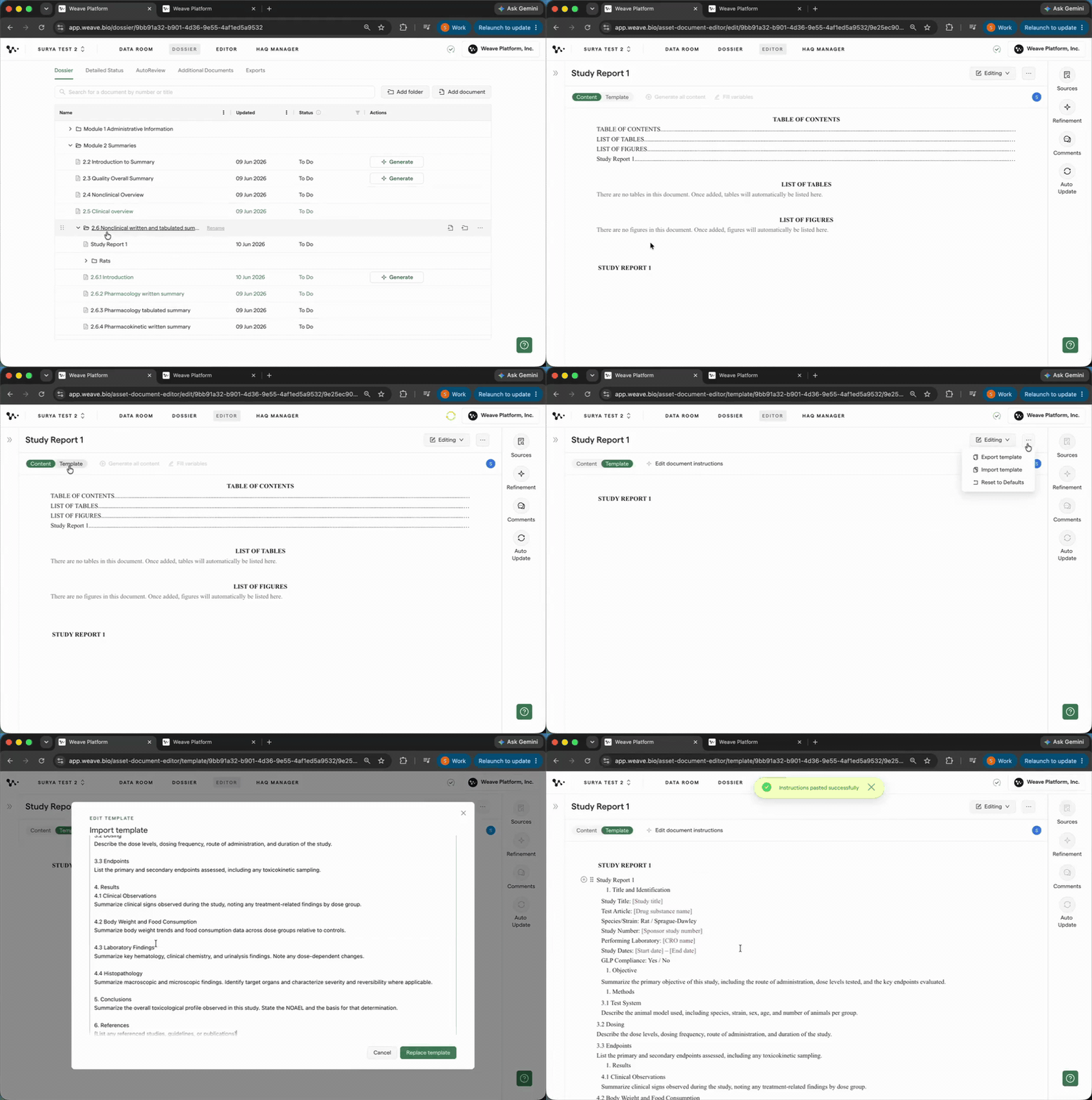
Importing a template into a new document
Note: The imported template is a starting point to customize — it's not automatically linked to the source document. Edit the prompts and sections to fit what this document needs.
Move Content
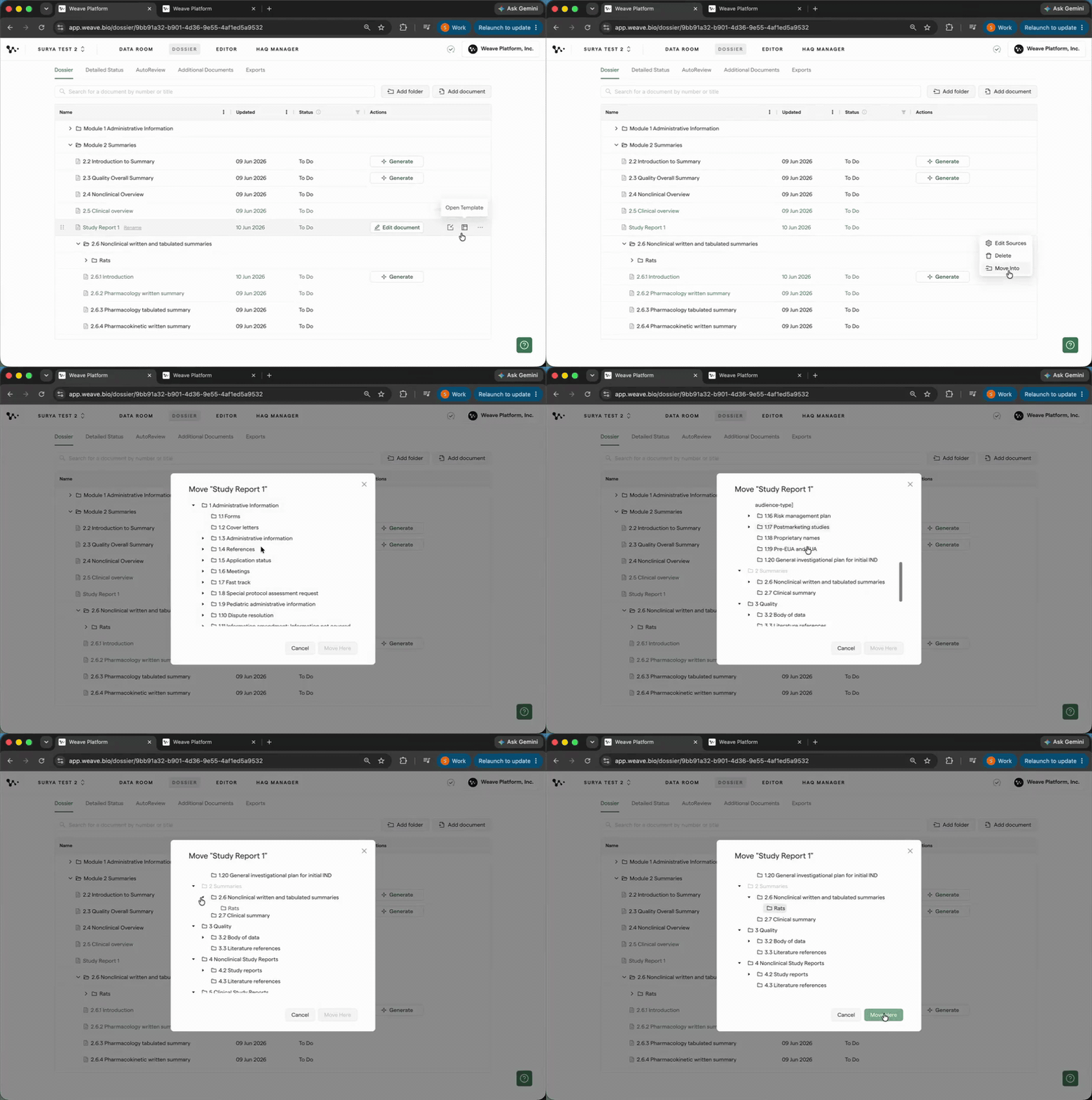
5. Move a document or folder to a new location
To move content, either:
- Drag and drop: grab the item and drop it into the destination folder
- Use the menu: click the ... menu on the item, select Move into, then choose the destination
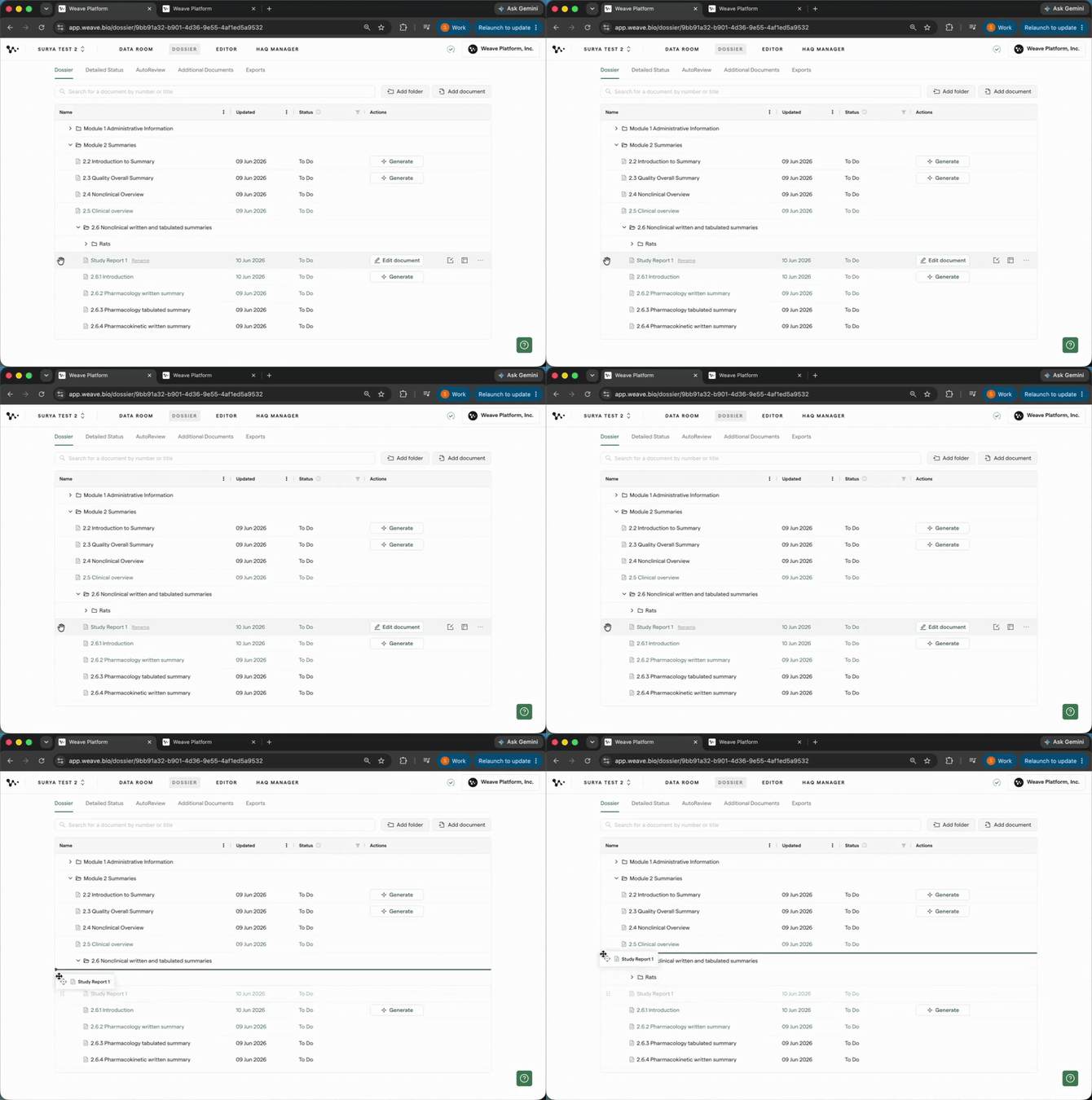
Dragging a document to a new location in the dossier
06 — Using Move Into menu to relocate document.gif
Using the Move into menu to relocate a document
Tip: Visual order persists for all users — the position you drop the item into is where it stays in the dossier view.
Rename a Document or Folder
6. Open the rename option from the item menu
Click the ... menu on the document or folder and select Rename. Update the prefix, the title, or both.
Renaming a document's prefix and title
Note: Renaming updates the document's dossier tag to reflect its new full path. Tag-based crosslinks update automatically. If you have manually written crosslinks in document text (e.g., "see Section 3.2.S.2.2"), update those manually.
Restrict a Document to a Specific Data Room Folder
If your program has content organized across multiple Data Room folders — for example, separate folders per clinical study or per drug substance — you can tell any individual document to only pull from one of them.
7. Open Edit Sources on the document
Click the ... menu on the document and select Edit Sources. Choose the Data Room folder you want this document to draw from during generation.
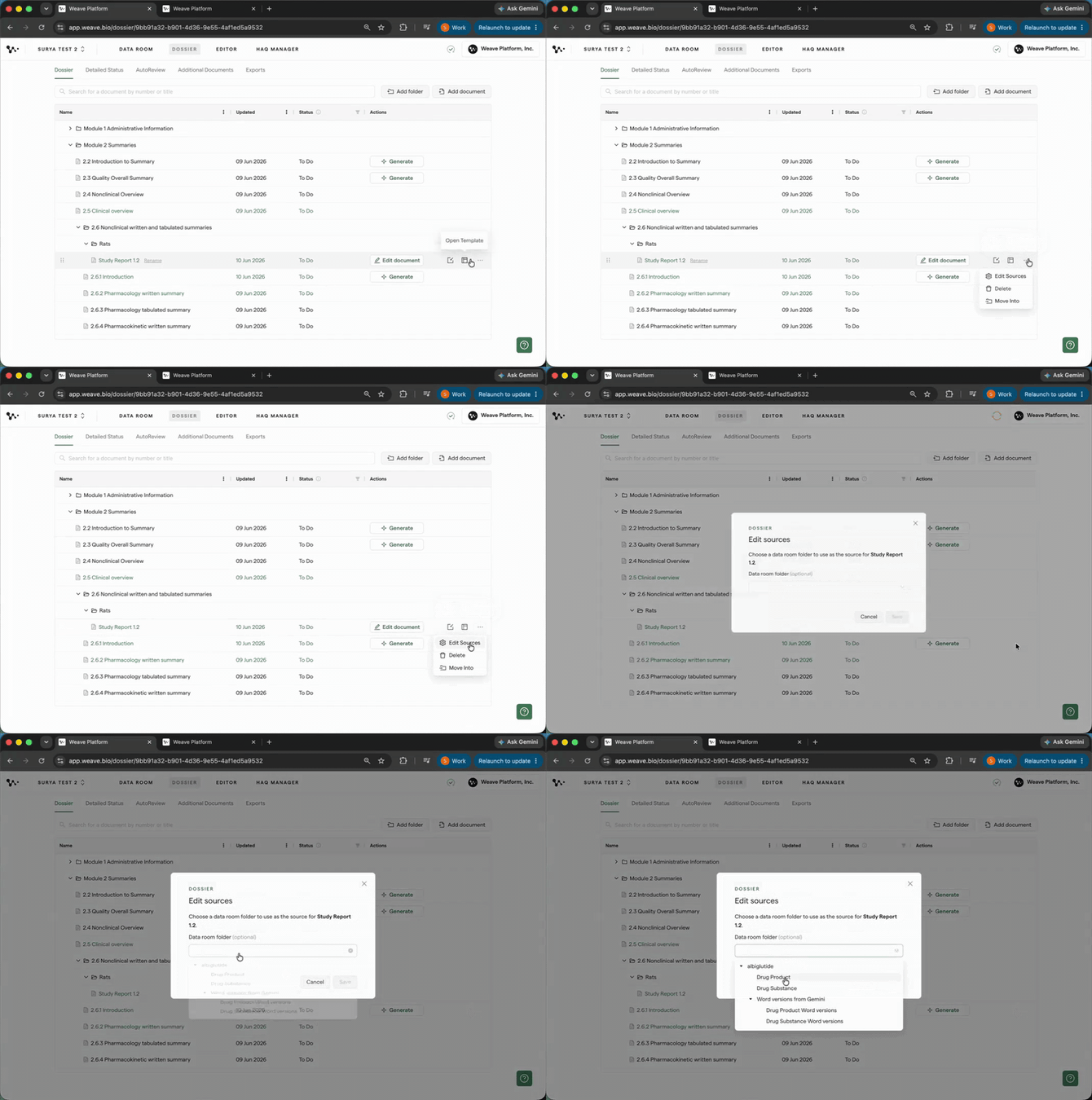
Restricting a document's generation to a specific Data Room folder
Tip: This is especially useful for CSRs, drug substance sections, and any document that should only reference one study's data — it keeps generation focused and prevents content from bleeding in from unrelated files.
Once you've set your sources, you're ready to generate. Open the document and click Generate to run the first draft.
Delete a Document or Folder
8. Open the delete option from the item menu
Click the ... menu on the document or folder and select Delete.
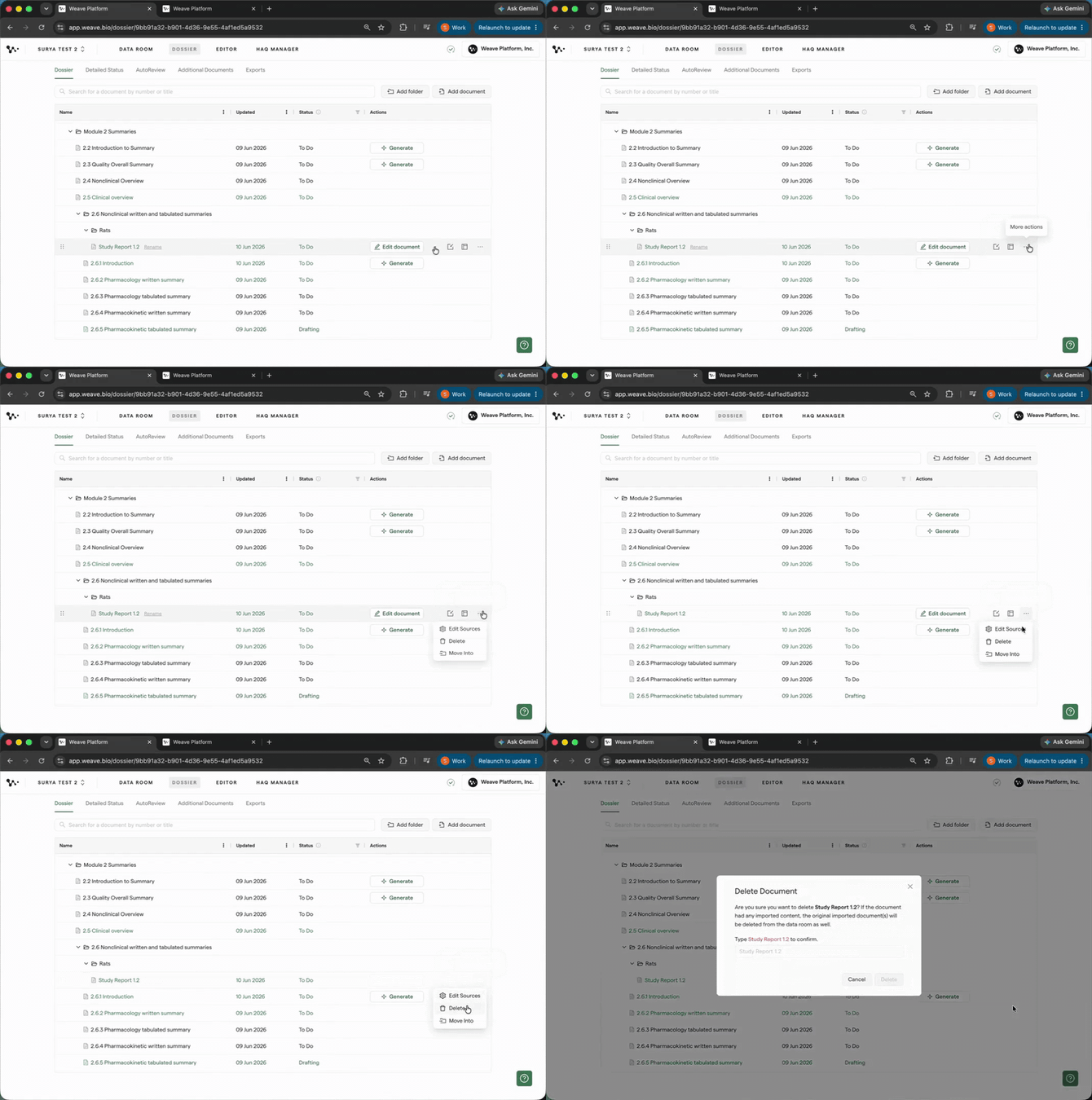
Initiating deletion from the item menu
9. Confirm by typing the item name
Weave will ask you to type the exact name of the item before deletion proceeds.
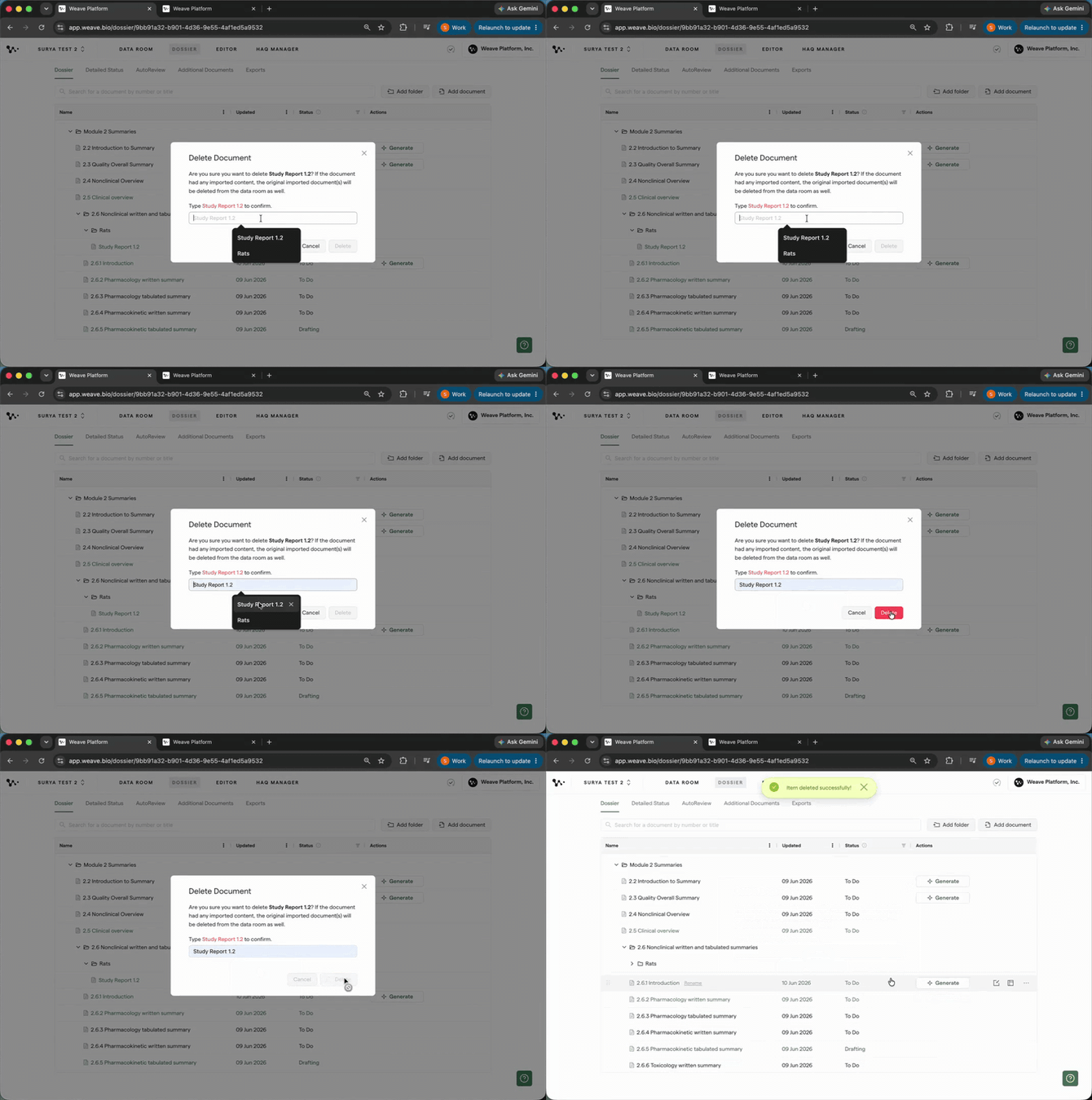
Confirming deletion by typing the document name
Important: Deletion is permanent. There is no undo. Make sure you've confirmed you no longer need the document or folder before proceeding.
FAQ
Q: Can I reuse the structure I've built across other programs?
A: Not yet. Dossier customizations are per-program. Changes you make in one program don't carry over to another. A future Global Submissions release will enable this kind of reuse.
Q: Can I duplicate a document or folder?
A: Not currently. If you need multiple versions of the same structure (for example, separate folders for multiple drug substances), you'll need to add and configure them individually. Duplication is planned for a future release.
Q: What happens to documents I've added when I publish?
A: Publishing currently supports the original default eCTD structure. Newly added documents that fall outside that structure may be silently skipped at publish time. If you've added non-standard content, confirm with your submission team before publishing.
Q: I added a document to Module 4 — does Weave have templates for it?
A: No. Weave doesn't provide starter templates for Module 4. You can build a template from scratch using content blocks, or import and adapt a template from another document.
Q: What happened to the "Add Clinical Study" and "Add Drug Substance" buttons?
A: Those guided flows have been removed. Your dossier comes pre-loaded with an example clinical study of each type in Module 5 — use that as your reference to add folders and documents and bring in its template for new studies. To add a drug substance or drug product, add a folder and document where you need them and import a template from an existing section.
Q: If I move a document, do my crosslinks break?
A: Dossier tags update automatically when a document moves, so tag-based references stay intact. However, any manually written crosslinks in document text (e.g., "see Section 3.2.S.2.2") will need to be updated manually.
Q: What's the tradeoff of putting the prefix in the title field instead?
A: Leaving the prefix blank and moving the number into the title (e.g., title = "3.2.S.2.2 Manufacturing Process") causes document sections to start at 1 instead of the full eCTD path (e.g., 3.2.S.2.2.1). The document appears identically in the dossier view, but any auto-generated crosslinks will reference the title-based path rather than a numbered section path. Use this if your team prefers shorter in-document numbering and doesn't rely on eCTD-style crosslink formats.
Quick Reference: Customizing Your Dossier
- Open your program and go to the Dossier tab
- Hover over a section and click ... → Add document or Add folder
- Set the prefix and title, then confirm
- Click the document title to open the editor; use Import template to bring in a starting point, or add content blocks to build from scratch
- To move content: drag and drop, or click ... → Move into and select a destination
- To rename: click ... → Rename and update the prefix or title
- To restrict sources: click ... → Edit Sources and select a Data Room folder
- To delete: click ... → Delete, then type the item name to confirm