
Overview
As a document author, you may want to begin drafting with partial study report data to begin create an outline of you document. The Weave platform allows you to begin drafting tables and summaries ahead of data lock or completed reports. Once updated study report or source data is available the AutoUpdate Feature allows you to add new source files to the Data Room or Update existing source files, identifies changes between an original source files and an updated version, then suggests corresponding updates to your document.
Steps
-
Once you've drafted using your the initial set of source incomplete source data- Prepare your updated source document on your desktop or Veeva RIM.
If Veeva RIM is enabled, you new Source Data Will Sync Automatically and you can skip to Step 3.
If you are uploading new source data into the Data Room manually, consider the following two types of updated source content.-
Net New Source Data (ex. new study reports, new reference material)
- Update Files (study reports w/ updated information or values)
-
-
Upload the new source document
- Navigate to the data room
- Upload new net new source files
or Update the updated version of your source file by selecting the Elipses icon next to the respective file and selecting the Update option.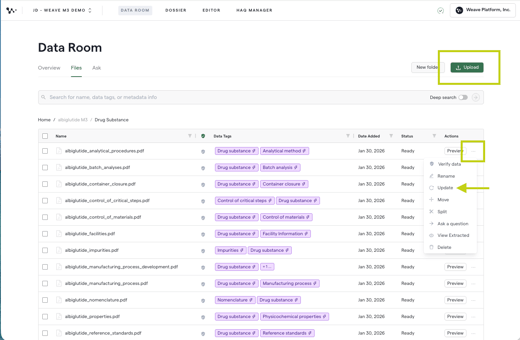
-
Access AutoUpdate
- Open your document in Weave
- Locate and select the AutoUpdate function
-
Run AutoUpdate
- The system will compare your original source document to the new version
- AutoUpdate identifies all changes between the two files
-
Review suggested changes
- AutoUpdate generates suggestions for updates needed in your document as Comments
- Review each comment carefully
-
Apply or reject suggestions
-
- You can manually apply the change in the document
- You can also use copy the Comment into the Refinement Tab and instruct the AI to make the suggested change